Getting Started with Realsmart
Overview
Your school website runs on WordPress with the Realsmart plugins added. They give you school-specific tools — alerts for closures, staff vacancies, calendars, notices, cookie consent and more — plus the SmartLogin sign-in used by staff, pupils and governors.
This guide shows where those tools live in the WordPress admin and suggests an order for setting up a site. Most Realsmart settings pages are only shown to administrators.
Getting set up
Step 1: Start from the Dashboard
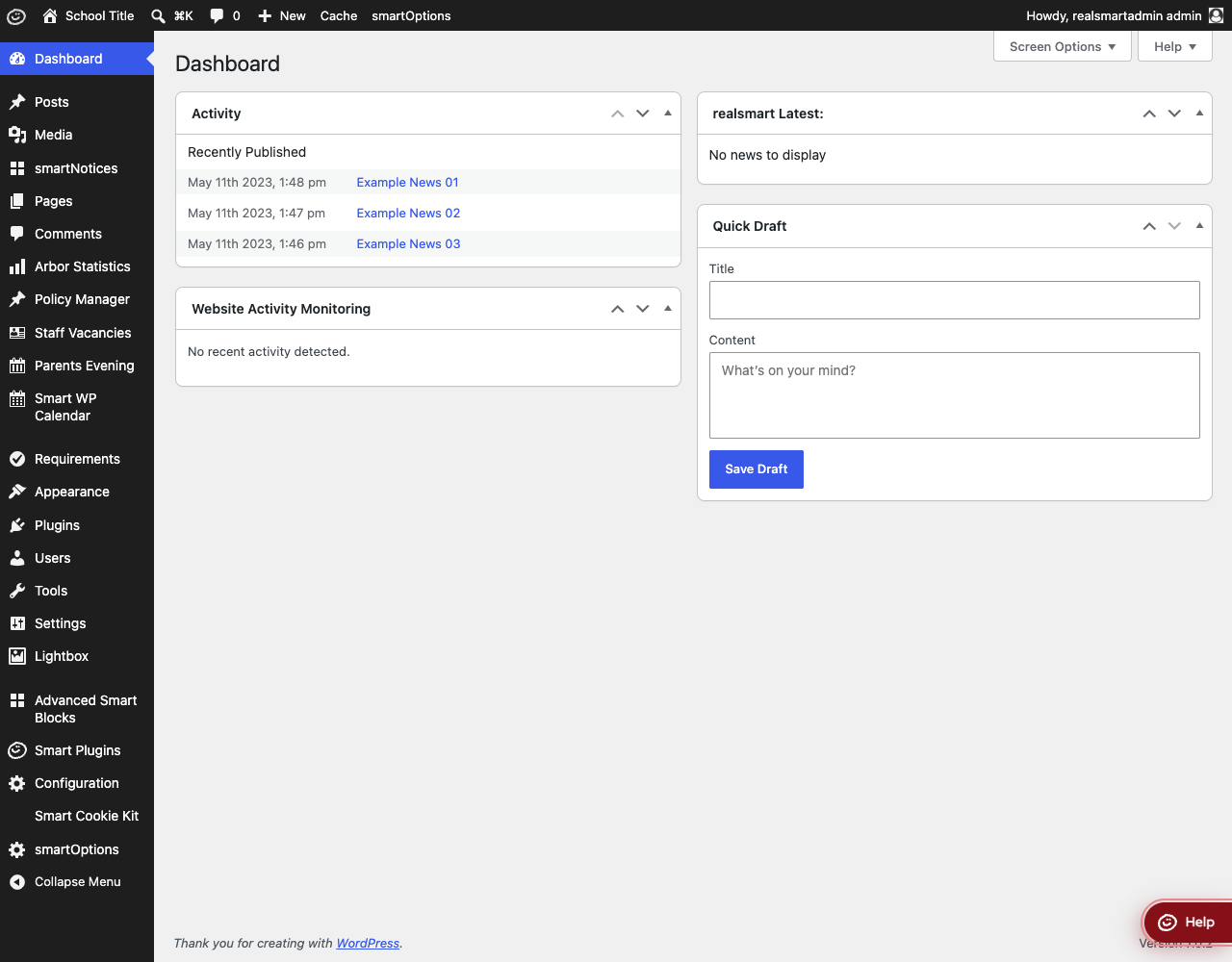
When you sign in to the WordPress admin you land on the Dashboard. The first box you see is Ofsted website alerts, headed "Who should we email if Ofsted may be reviewing your website?" — it is the only Dashboard box that asks you to do something: enter up to five email addresses and select Save alert addresses so the right people hear about a possible inspection visit. See Ofsted website alerts. Alongside WordPress's Activity and Quick Draft boxes, Realsmart also adds realsmart Latest: (news from Realsmart). The left-hand sidebar lists everything else, in groups: Content (posts, pages, media and the like), Realsmart (Compliance, Realsmart's tools, Smart Plugins and smartOptions), Site admin (Appearance, Users, Tools, Settings) and Add-ons — other plugins' set-up screens, folded into one row until you select it.
Step 2: Turn on the features you need in Smart Plugins
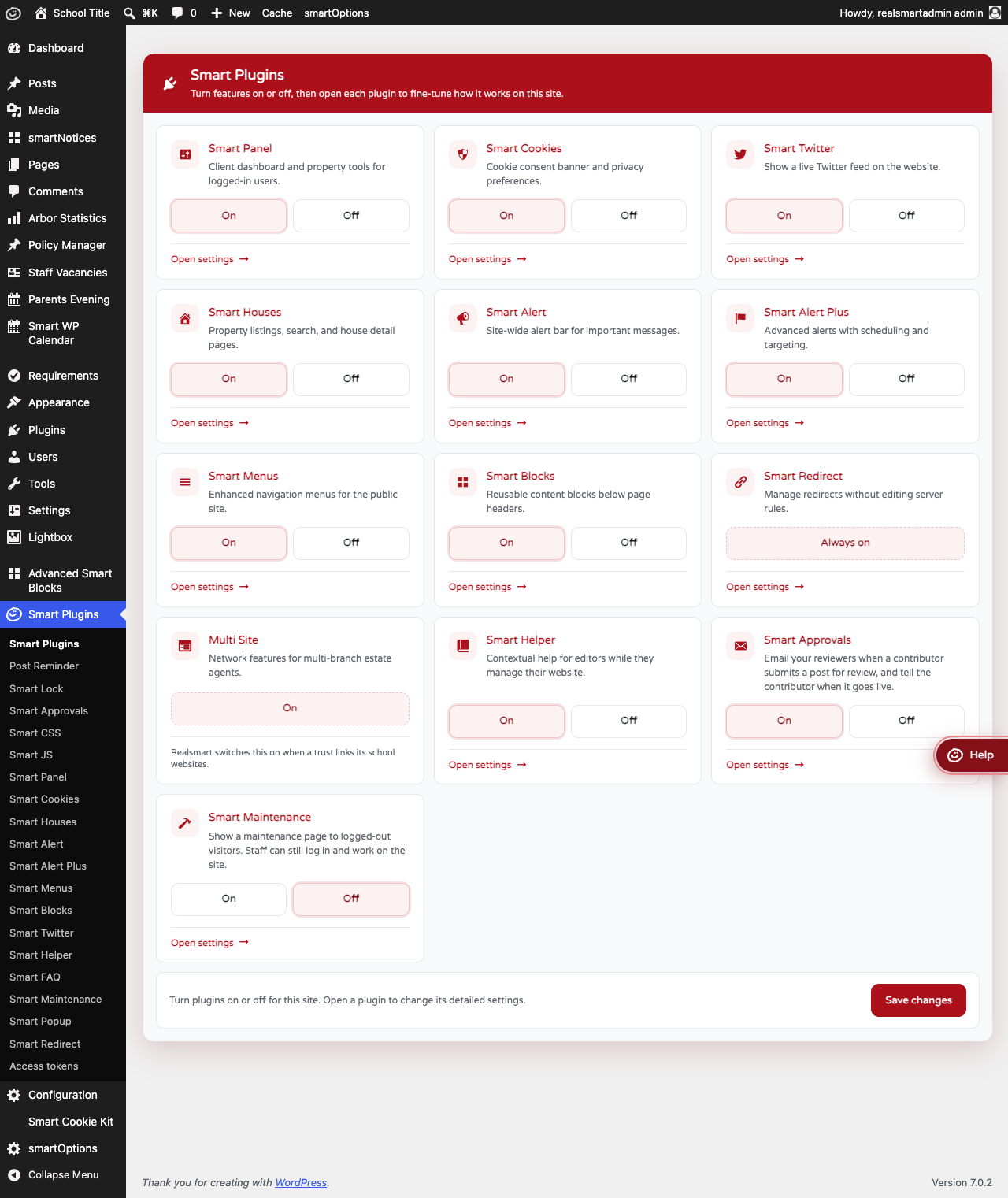
Click Smart Plugins in the sidebar. Each card is a Realsmart feature with an On / Off switch; turn on what your school uses, click Save changes, then click Open settings on a card to set it up. See Smart Plugins.
Step 3: Set your school's details and branding in smartOptions
Click smartOptions (in the REALSMART group of the sidebar, and also in the toolbar at the top). Fill in School details — name, strapline, logo and contact details — then set your colours under Brand & colours and choose what appears in the header under Header & menu. Click Save changes at the bottom of the page. See Smart Theme Options.
Step 4: Work through Website compliance
Click Compliance in the sidebar. It checks your website against what the Department for Education says your school must and should publish, finds your school on Get Information about Schools so the list matches your type of school, and shows what is in place, out of date or missing. It can create a template page for anything missing. See Website compliance.
Step 5: Check the login bar
Visit your website while signed out. The bar at the top with the Login button is Smart Panel, which is how staff and pupils sign in through SmartLogin. You can change how the button looks for visitors under Smart Plugins → Smart Panel. See Smart Panel.
Features
Where Realsmart features live
Which items you see depends on which Realsmart plugins your school uses and on your account's role, so your menu may have fewer entries than this.
| What you want to do | Where to find it | Guide |
|---|---|---|
| Turn Realsmart features on or off | Smart Plugins | Smart Plugins |
| School name, logo, colours, header, slideshow, SmartLogin roles | smartOptions | Smart Theme Options |
| Put an urgent message on every page | Smart Plugins → Smart Alert | Smart Alert |
| Show a popup announcement | Smart Plugins → Smart Popup | Smart Popup |
| Cookie consent banner | Smart Plugins → Smart Cookies | Smart Cookies |
| Send people to the right page when they log in | Smart Plugins → Smart Redirect | Smart Redirect |
| Change how the login button looks for visitors | Smart Plugins → Smart Panel | Smart Panel |
| Stop the homepage being edited by accident | Smart Plugins → Smart Lock | Smart Lock |
| Get an email reminder to review a post or page | Smart Plugins → Post Reminder | Post Reminder |
| Post-it style notices | Smart Notices | Smart Notices |
| Job vacancies | Staff Vacancies | Staff Vacancies |
| Events calendar | Smart Trust Calendar | Smart WP Calendar |
| School policies | Smart Policy Manager | Smart Policies |
| Parents' evening bookings | Smart Parents' Evening | Smart Parents Evening |
| Arbor data on your website (needs an Arbor connection) | Smart Plugins → Smart Arbor Statistics | Smart Arbor Statistics |
| Reusable collections of content blocks | Smart Plugins → Advanced Smart Blocks | Advanced Smart Blocks |
| Check your website against what the DfE says schools must publish | Compliance | Website compliance |
| Record of media uploads and deletions | Smart Plugins → Smart Media Logs | Smart Media Logs |
| Browser tab icon | Smart Plugins → Favicon Settings | Favicon Settings |
| An email when an inspector may be reading your website | Dashboard → Ofsted website alerts | Ofsted website alerts |
| Clear the website's page cache | Cache in the toolbar, or Tools → Cache | Page Cache |
| Share posts between a trust's school websites (trusts only) | Smart Plugins → Multi Site | MAT Multisite |
The Configuration, Smart CSS, Smart JS and Access tokens pages under Smart Plugins are only shown to Realsmart staff accounts. See Configuration.
Getting help while you work
The red Help button in the bottom-right corner of the admin is Smart Helper. It shows help articles relevant to the screen you are on. Administrators can turn it on or off under Smart Plugins → Smart Helper. See Smart Helper.
For anything else, contact Realsmart support at [email protected]. Say which page or feature you were using and what you were trying to do.
Who sees what: SmartLogin roles
Staff, pupils and others sign in through SmartLogin, and several Realsmart features behave differently depending on who is signed in. The account types are:
- Visitors who are not signed in, such as parents
- Learners — pupils
- Mentors — staff
- Admins — school administrators
- Governors
- Ofsted — inspection accounts
- Observers
Smart Menus, Smart Redirect, Smart Alert and Smart Visibility use these to show the right content to the right people. The WordPress roles that staff and admins are given when they sign in are set under smartOptions → Advanced → SmartLogin.
Troubleshooting
A menu item in this guide is missing
Why it happens: The feature is switched off on the Smart Plugins page, your school does not use that plugin, or your account is not an administrator.
How to fix it:
- Check the feature is On under Smart Plugins and click Save changes.
- If it is still missing, ask an administrator at your school, or contact Realsmart support.
I cannot see Smart Plugins or smartOptions
Why it happens: Both are only shown to administrators.
How to fix it: Ask an administrator at your school to make the change, or to give your account the administrator role.
Did this work for you?
If a step looked different on your site, tell us and we'll update the screenshots.
Thanks for your feedback.