All guides / School-management
Smart WP Calendar
Overview
Smart WP Calendar lets you keep your school's events — term dates, parents' evenings, sports fixtures, open days — inside WordPress and show them on any page with a shortcode. You can split events into several named calendars (for example "Whole School", "Term Dates" and "Sports Fixtures"), show one calendar or several together, and choose how they appear: a table, a carousel, or a calendar that visitors can page through by week, month and year.
In the WordPress sidebar it is called Smart Trust Calendar, the name on its Smart Plugins card.
Administrators and editors can both use it: it has its own permission, which every administrator and editor account is given automatically. Authors, contributors and subscribers do not see it.
If your events are kept in Microsoft 365 / Outlook or published as an .ics link, use
Smart Calendar (Microsoft 365 and .ics) instead, so the website updates itself from that
calendar. For a Google Calendar, see Showing a Google Calendar below.
Getting set up
Step 1: Name your calendars
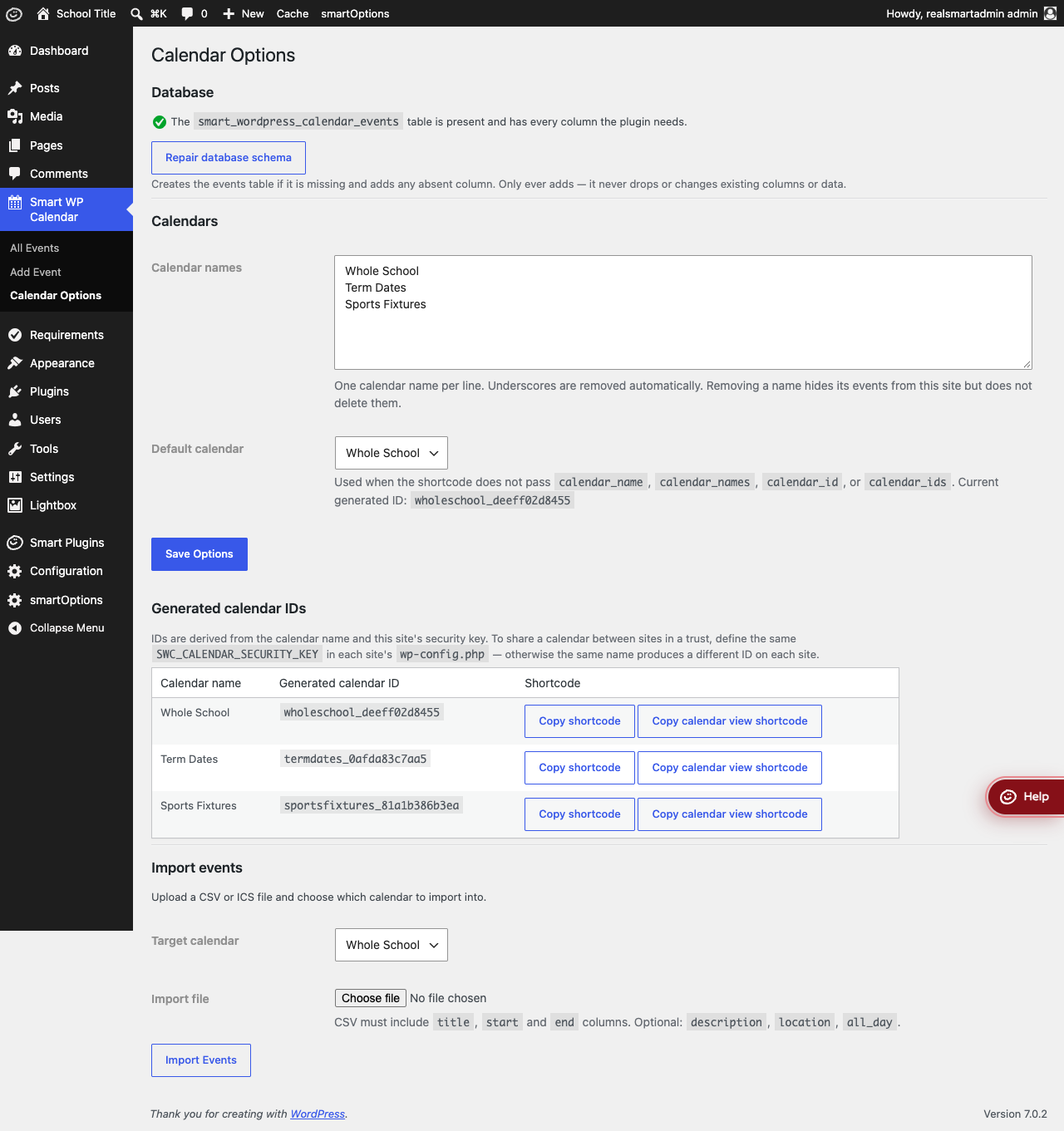
Go to Smart Trust Calendar → Calendar Options. Under Calendars, type one calendar name
per line in Calendar names — for example Whole School, Term Dates, Sports Fixtures —
and select Save Options. The first name becomes the Default calendar; to use a different
one, choose it from the Default calendar drop-down (it appears once names are saved) and save
again.
The Generated calendar IDs table then lists each calendar with two buttons: Copy shortcode copies a ready-made shortcode that shows it as a table, and Copy calendar view shortcode copies one that shows it as a week, month and year calendar.
Step 2: Add an event
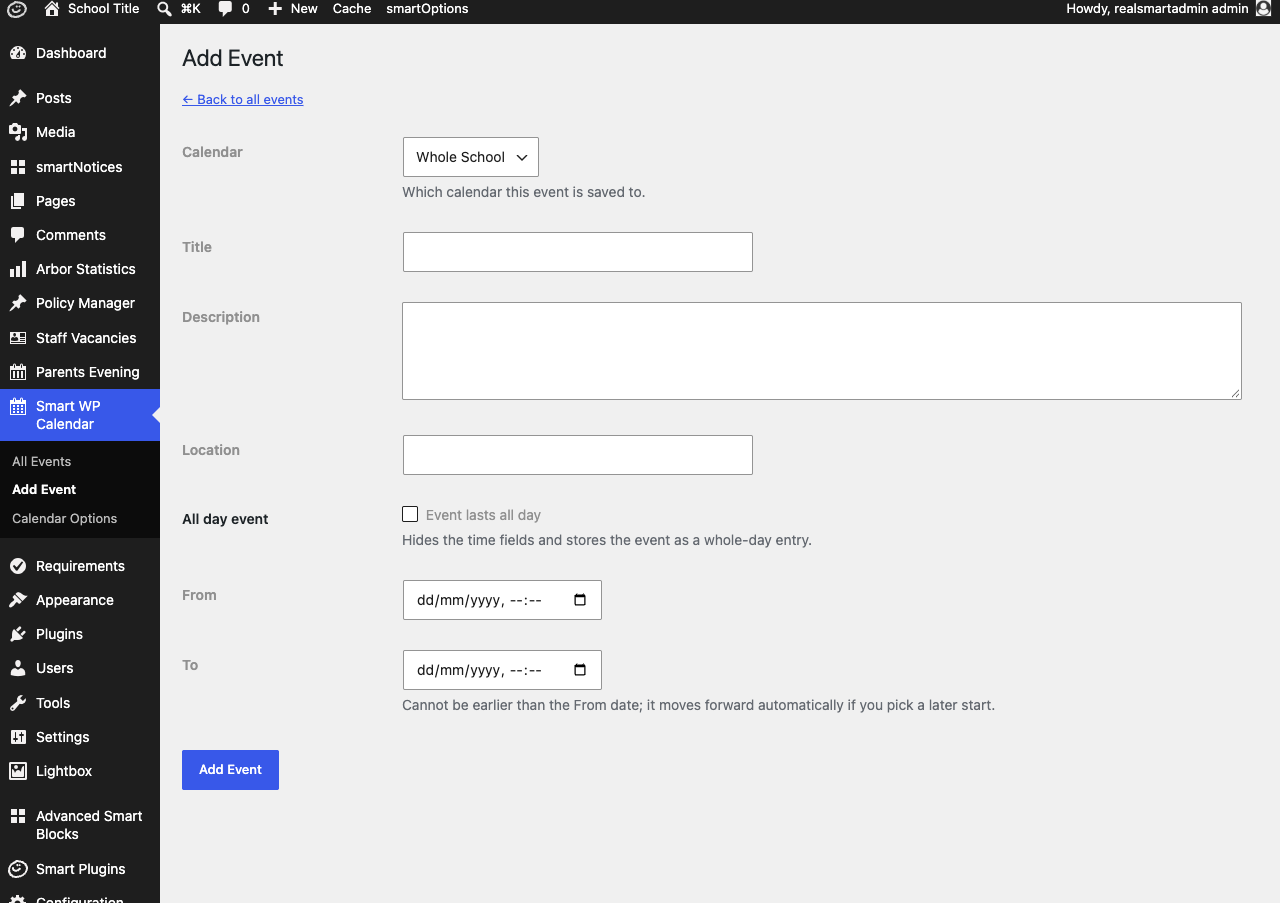
Go to Smart Trust Calendar → Add Event and fill in:
- Calendar — which calendar the event belongs to. It starts on your default calendar.
- Title — required.
- Description and Location — optional.
- All day event — tick Event lasts all day for things like INSET days and holidays. The time fields are hidden and only the dates are kept.
- From and To — required. To cannot be earlier than From; it moves forward on its own if you pick a later start.
Select Add Event. You are taken back to the events list with the message "Event created."
Step 3: Check the events list
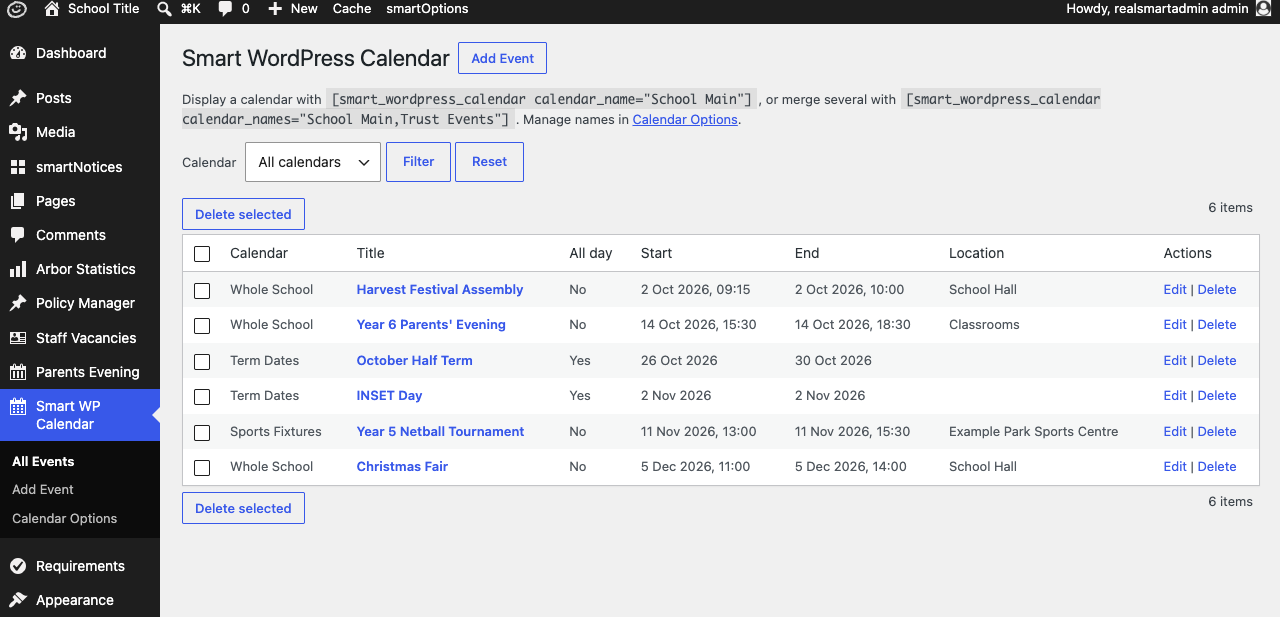
Smart Trust Calendar → All Events lists every event on your calendars in date order, 50 to a page. Use the Calendar drop-down and Filter to show one calendar, and Reset to show them all again. Select an event's title or Edit to change it, or Delete to remove it. To remove several at once, tick them and select Delete selected. Deleting cannot be undone.
Step 4: Show the calendar on a page
Edit the page and type the shortcode into the content where the calendar should appear, for example:
[smart_wordpress_calendar calendar_name="Term Dates"]
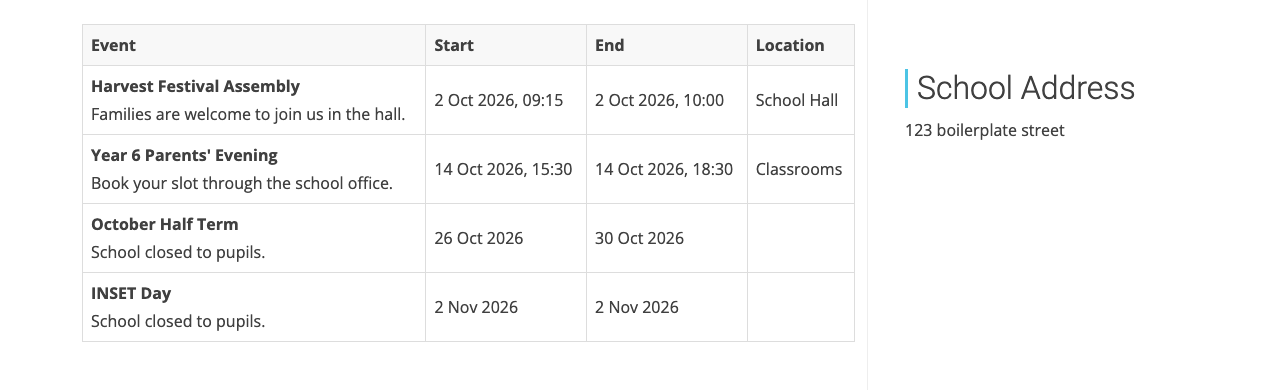
Update the page and view it. Upcoming events appear in a table with Event, Start,
End and Location columns; the description shows under each title, and all-day events show
dates only. The example below was made with
[smart_wordpress_calendar calendar_names="Whole School,Term Dates" limit="4"], which merges two
calendars and shows the next four events.
To show a calendar that visitors can page through instead, add display="calendar":
[smart_wordpress_calendar calendar_name="Term Dates" display="calendar"]. See
Calendar view below.
Features
Shortcode options
Shortcode: [smart_wordpress_calendar]
| Option | What it does | Default |
|---|---|---|
calendar_name |
Show one calendar, by name | The default calendar |
calendar_names |
Show several calendars merged together, names separated by commas, e.g. calendar_names="Whole School,Term Dates" |
— |
calendar_id / calendar_ids |
Show calendars by the ID in the Generated calendar IDs table. Only this website's own calendars are accepted | — |
limit |
Most events to show (1 to 500). Table and carousel only | 50 |
show_past |
yes also shows events that have already finished. Table and carousel only |
no |
display |
table; carousel for a sliding carousel; calendar for a week, month and year calendar. week, month or year also gives the calendar, opening on that view |
table |
slides_to_show |
In a carousel, how many events are stacked on each slide | 3 |
The calendar has more options of its own — see Calendar view options below.
If you give both, calendar_names wins over calendar_name. With no calendar option at all, the
Default calendar is shown.
Examples:
[smart_wordpress_calendar calendar_names="Whole School,Term Dates" limit="10"][smart_wordpress_calendar calendar_name="Sports Fixtures" display="carousel" slides_to_show="2"][smart_wordpress_calendar calendar_names="Whole School,Term Dates,Sports Fixtures" display="calendar"]
Carousel display
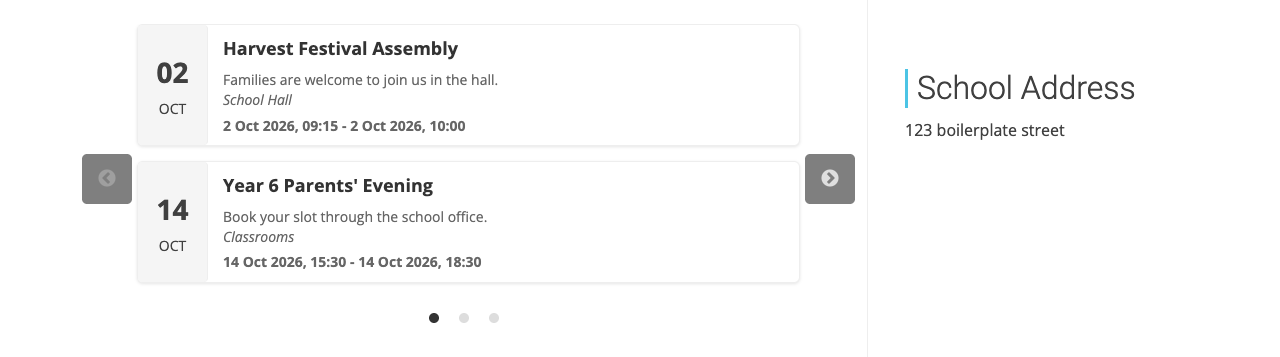
display="carousel" shows each event as a card with the date, title, description, location and
times, a few to a slide, with previous and next arrows and dots underneath. It suits a home page
or a narrow column; the table suits a dedicated dates page.
Calendar view
display="calendar" shows your events on a calendar that visitors can move around in. Out of the
box it opens on this month, with:
- ‹ and › to go back and forward a week, month or year at a time;
- Today to jump back to the period that contains today;
- Week, Month and Year to switch between the three views.
Today's date is highlighted in your school's Primary colour (set in smartOptions → Brand & colours). When the shortcode shows one calendar, its events use that colour too. When it merges several, each calendar gets its own colour and a key above the calendar says which is which. A calendar keeps the same colour on every page — the colours follow the order of Calendar names in Calendar Options, not the order in the shortcode.
In the month view, timed events show their start time and title, and all-day events — INSET days, holidays, trips — show as a coloured bar on each day they cover. A day with more than three events shows the first three and a link such as +2 more. Select an event to see its date, times, location and description, or select a date to list everything on that day.
On a phone, or in a narrow column, the month view shows a coloured dot under each date that has events; tap the date to see them.
The example below was made with
[smart_wordpress_calendar calendar_names="Whole School,Term Dates,Sports Fixtures" display="calendar" date="2026-10"].
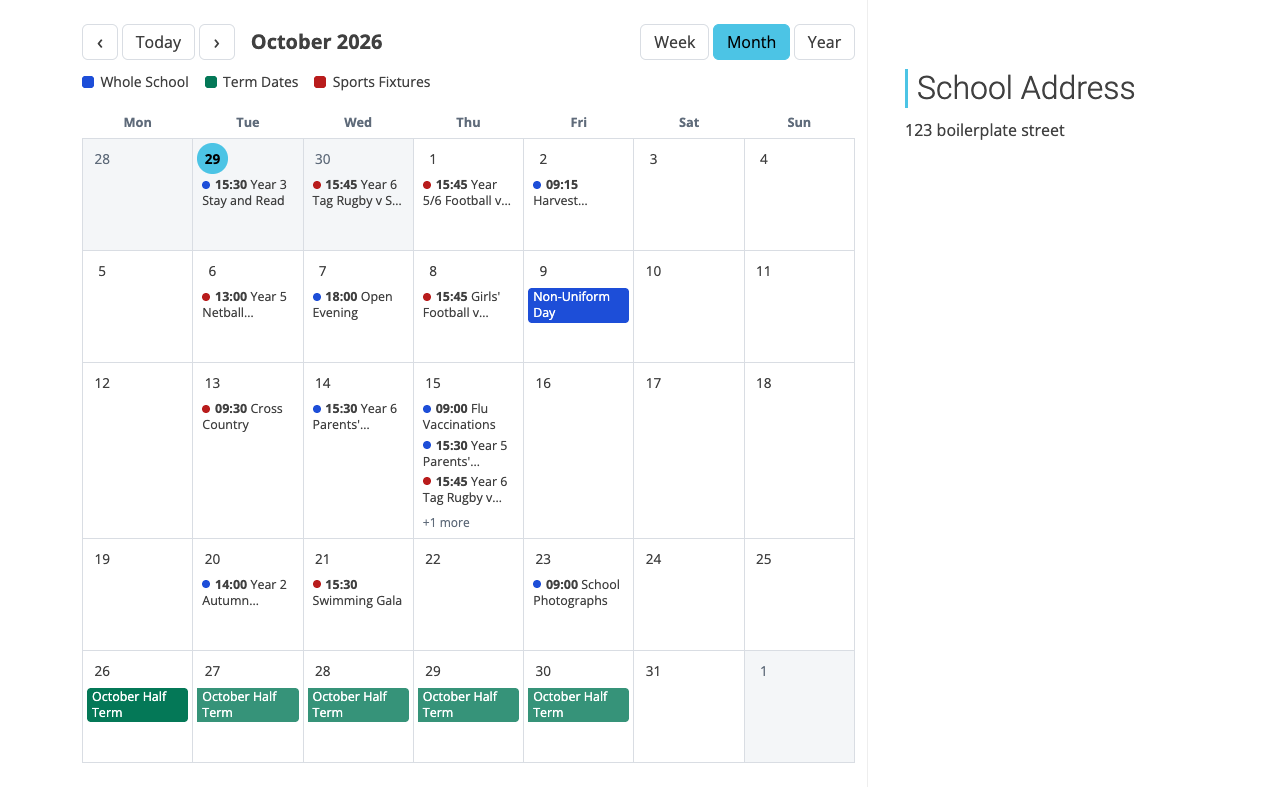
The calendar looks up events as visitors move around it, so events you add appear straight away,
and visitors can go as far forward or back as they like. Unlike the table, it ignores limit and
show_past: every event in the week, month or year on screen is shown, including ones that have
finished.
Calendar view options
These work with display="calendar" (or week, month or year) as well as the calendar
options in Shortcode options above.
| Option | What it does | Default |
|---|---|---|
view |
The view the calendar opens on: week, month or year |
month |
views |
Which view buttons to offer, separated by commas, in the order they appear, e.g. views="month,year". Give just one to hide the buttons |
week,month,year |
navigation |
yes shows ‹, Today and ›. forward shows them but stops visitors going back before the period the calendar opens on. no hides them, fixing the calendar on one period |
yes |
date |
The date the calendar opens on, as year-month-day (2026-10-26), year-month (2026-10) or a year (2027) |
Today |
week_start |
monday or sunday — the first day of each week |
monday |
year_start |
The month the year view starts on. september shows a school year, September to August |
january |
Examples:
[smart_wordpress_calendar calendar_name="Whole School" display="calendar" view="week"]— this week, with all three views on offer.[smart_wordpress_calendar calendar_name="Term Dates" display="year" year_start="september" navigation="forward"]— this school year's term dates, which visitors can move forward from but not back.[smart_wordpress_calendar calendar_names="Whole School,Sports Fixtures" display="calendar" views="month" navigation="no" date="2026-12"]— December 2026 only, with no buttons.
Week view
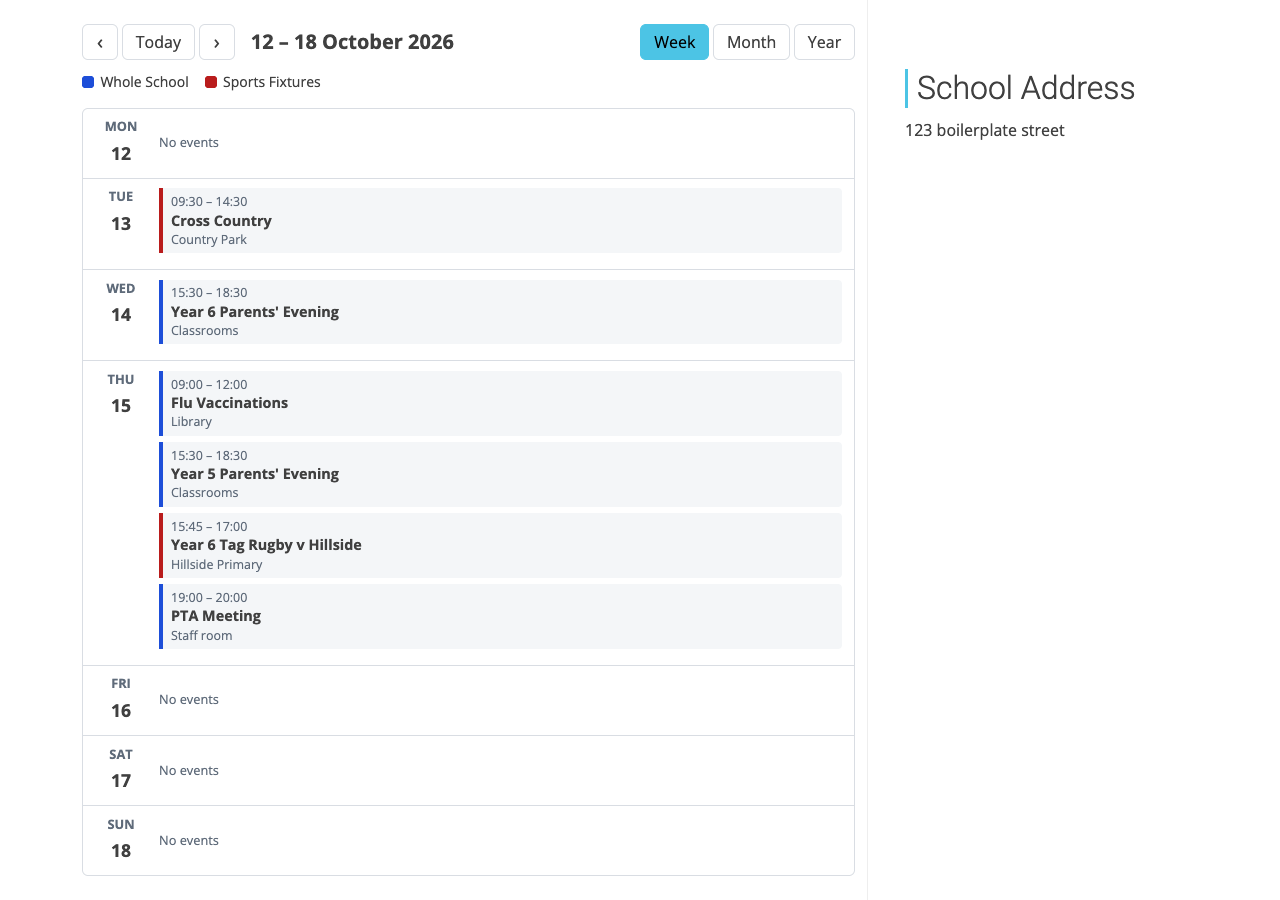
The week view lists each day of the week with its events underneath: the times (or All day), the title and the location. Select a title for the description. In a wide page the days sit side by side in seven columns; in a page with a sidebar, or on a phone, each day is a row. An event that runs over several days shows on each of them, with From and Until times on its first and last day.
Year view and the school year
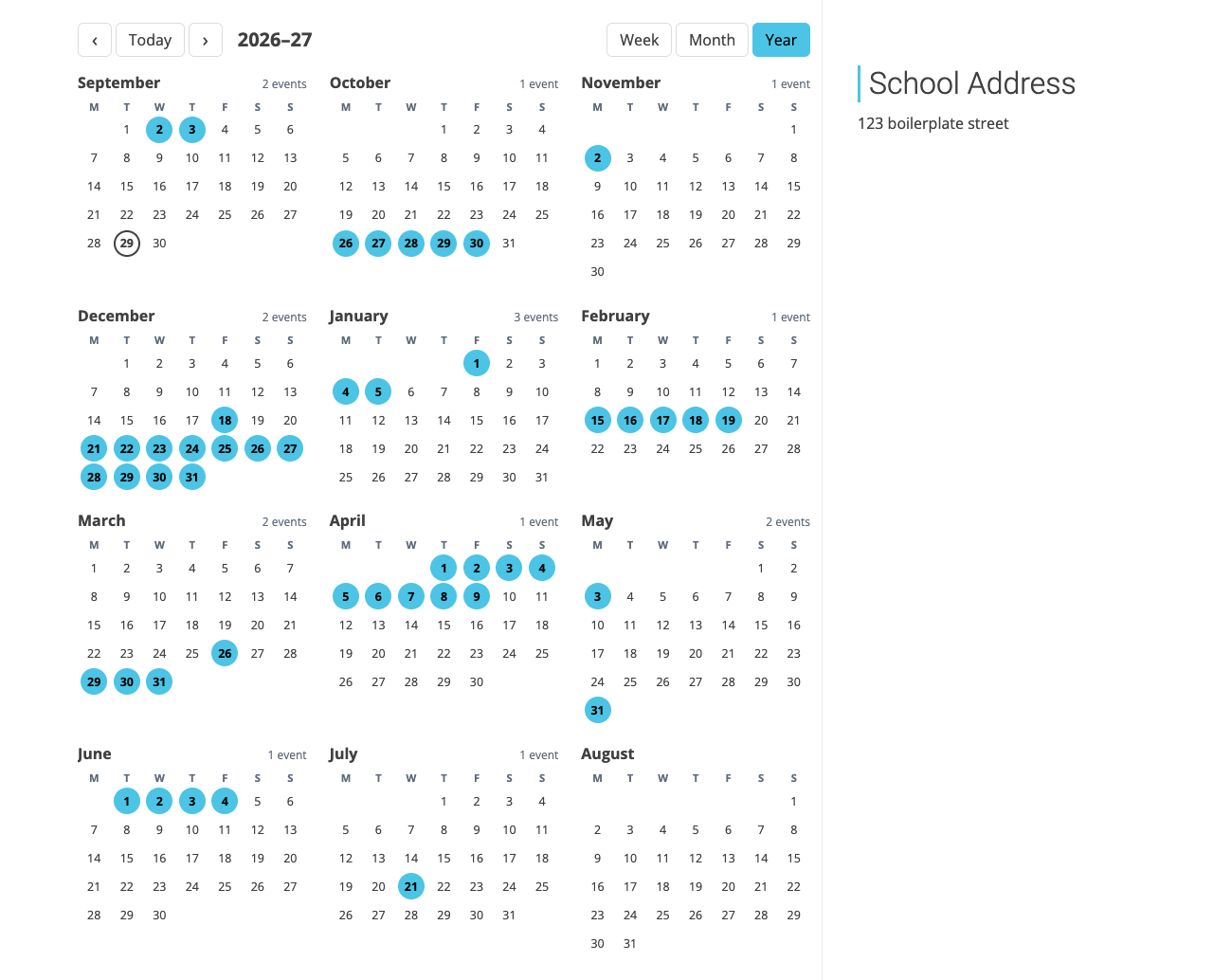
The year view shows twelve small months. Every date with an event is filled in colour, and each month says how many events it has. Select a date to list its events, or a month's name to open it in the month view.
By default the year runs January to December. Add year_start="september" to show a school year
instead — September to August, headed for example 2026–27. ‹ and › then move a whole
school year at a time.
Calendar Options
Where to find it: Smart Trust Calendar → Calendar Options
| Setting | What it does | Default |
|---|---|---|
| Calendar names | One calendar name per line. Underscores are removed. Removing a name hides its events from this website but does not delete them | Empty |
| Default calendar | Used by the shortcode when it names no calendar, and pre-selected on Add Event and Import events | The first calendar name |
| Repair database schema | Creates the events store, or adds anything missing from it. It only ever adds — it never removes or changes existing events | — |
Importing events from a file
Where to find it: Smart Trust Calendar → Calendar Options → Import events
Choose the Target calendar, choose a CSV or ICS file under Import file, then select Import Events. The message "Import completed. N events imported." tells you how many were added.
- CSV — the first row must be column headings, including
title,startandend.description,locationandall_dayare optional; forall_day,1,true,yesorymeans an all-day event. Write dates as year-month-day, e.g.2026-10-26or2026-10-02 09:15. - ICS — an
.icscalendar file exported from Outlook, Google Calendar or similar. Each event's title, description, location, start and end are imported.
Rows without a title, start and end, or whose end is before the start, are skipped. Importing the same file twice adds every event twice — there is no duplicate check.
Sharing a calendar across a trust
Each website's calendars are private to that website, even if two schools use the same calendar name. For schools in a trust to see the same calendar, Realsmart has to give their websites a shared calendar key; contact Realsmart support to arrange it. Once that is done, a calendar with the same name shows the same events on each of those websites, and the IDs in Generated calendar IDs match.
Showing a Google Calendar
A separate shortcode, [smartCalendar], shows upcoming events straight from a Google Calendar.
It does not use the Smart WP Calendar screens — events are managed in Google Calendar.
| Option | What it does | Default |
|---|---|---|
id |
The Google Calendar ID (from the calendar's settings in Google Calendar) | — |
number |
How many upcoming events to fetch | 3 |
per_page |
How many events to show at a time | 3 |
scrollable |
true adds previous and next arrows to page through the events |
false |
Example: [smartCalendar id="[email protected]" number="6" scrollable="true"]
Each event links to the event in Google Calendar, opening in a new tab. The calendar is read without signing in to Google, so it must be shared publicly in Google Calendar.
Troubleshooting
The calendar says "Events could not be loaded."
The calendar could not fetch its events. Select Try again. If it keeps happening, open Calendar Options and check the Database section, as for "Calendar is unavailable." below. Visitors who cannot run scripts in their browser see the upcoming events as a table instead.
Visitors cannot go back to earlier months
The shortcode has navigation="forward", which stops the calendar going back before the period it
opens on. Change it to navigation="yes", or remove it.
The calendar is missing the Week, Month or Year button
The shortcode has a views option that leaves it out. Add the view to the list, e.g.
views="week,month,year", or remove views to offer all three.
An event is missing from a day in the month view
A day shows at most three events; the rest are behind a link such as +2 more. Select it, or the date, to see them all.
The page says "No upcoming events."
- Past events are hidden. Add
show_past="yes"to check whether the events exist but have already finished. - Check the calendar name in the shortcode matches a name in Calendar Options exactly.
- Check the events are on the calendar you think: filter All Events by that calendar.
The page says "Calendar ID is not configured."
No calendar names have been saved. Add them in Calendar Options and select Save Options.
The page says "Calendar is unavailable." or All Events shows a database message
The events store is missing, incomplete or cannot be reached. Open Calendar Options: the Database section says what is wrong. Select Repair database schema. If the repair fails, the page shows the error — send it to Realsmart support.
"The events table is missing or incomplete…" when saving an event
The website tried to repair the events store on its own and could not. Open Calendar Options and select Repair database schema, then save the event again.
Events disappeared after I changed a calendar name
A calendar's events are tied to its name. Renaming a calendar, or removing it from the list, hides its events from this website — they are not deleted. Put the original name back in Calendar names and save to see them again.
Imported events are on the wrong dates
Dates such as 02/10/2026 can be read the American way (month first). Use year-month-day, e.g.
2026-10-02, in your CSV and import again. Delete the wrong events first, because importing again
adds new copies.
I cannot see Smart Trust Calendar in the menu
It is available to administrators and editors only. Authors, contributors and subscribers do not see it.
The Google Calendar shortcode shows "Configuration Error! Google API key is not configured."
The website has not been given a Google connection. Contact Realsmart support. If it says "Nothing Found! There are no upcoming events in this calendar.", check the calendar ID and that the calendar is public.
Did this work for you?
If a step looked different on your site, tell us and we'll update the screenshots.
Thanks for your feedback.