Favicon Settings
Overview
Favicon Settings is where you upload the small icon that browsers show in a tab, in bookmarks, and — for .png uploads — on a phone's home screen when someone adds your site to it. It is its own settings screen, separate from your school logo in smartOptions.
You can upload up to four files here, each serving a different browser or device. None of them is required, and you can upload them one at a time. Until you upload at least one, the site does not tell browsers about any icon, so they show their own generic one.
Getting set up
Step 1: Open Favicon Settings
Go to Smart Plugins → Favicon Settings.
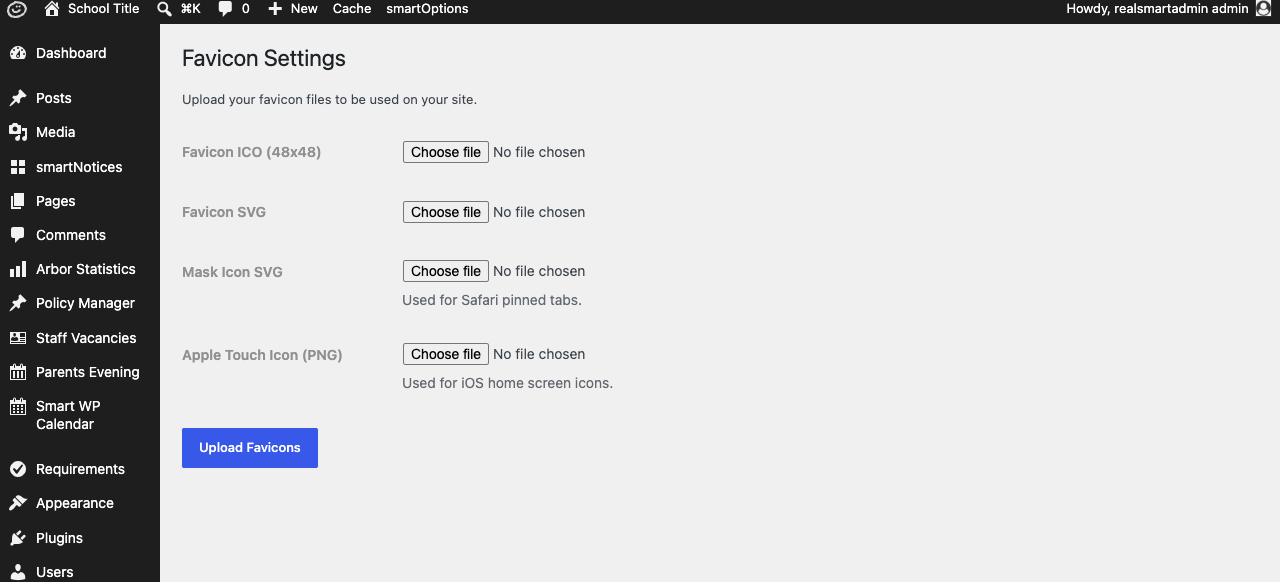
Step 2: Choose your files
Prepare your icon files ahead of time — you can upload some or all of them:
- Favicon ICO (48x48) — a
.icofile, the classic browser tab icon most browsers still use. - Favicon SVG — a
.svgfile for browsers that support scalable icons. - Mask Icon SVG — a
.svgfile used for Safari's pinned-tab icon. This should be a simple, single-colour silhouette — Safari recolours it itself. - Apple Touch Icon (PNG) — a
.pngfile used when someone adds your site to an iOS home screen.
Each field only accepts its listed file type. If a file has the wrong extension, WordPress stops the upload with a full "WordPress › Error" page rather than a message on the settings page itself — for example, choosing the wrong file for Favicon ICO shows "Invalid file type. Please upload a .ico file." There is no link back from that page: use your browser's Back button to return to Favicon Settings, choose the right file and upload again.
Step 3: Upload and check
- Choose your file(s) using Choose file next to each icon type.
- Click Upload Favicons.
- Once a file has been uploaded, the page shows a Current favicon (or Current mask icon / Current apple touch icon) link next to that field so you can check what is live.
- Open your website in a new tab or private window to see the new icon — browsers cache favicons aggressively, so your own browser may still show the old one for a while.
Settings
Where to find it: Smart Plugins → Favicon Settings
| Setting | What it does | Default |
|---|---|---|
| Favicon ICO (48x48) | The main browser tab icon | Empty |
| Favicon SVG | Scalable tab icon for browsers that support it | Empty |
| Mask Icon SVG | Safari pinned-tab silhouette icon | Empty |
| Apple Touch Icon (PNG) | Icon used when the site is added to an iOS home screen | Empty |
Only administrators (Settings access) can see or use this page.
Troubleshooting
Nothing shows in the browser tab
Why it happens: No files have been uploaded yet on this screen — until you upload something here, no favicon link tags are added to the site at all.
How to fix it: Upload at least the Favicon ICO file on Favicon Settings, then click Upload Favicons.
The upload fails with "Failed to upload favicon to S3."
Why it happens: Favicon files are stored on Realsmart's file storage (Amazon S3), and the upload could not reach it. Like the wrong-file-type failure above, this arrives as a full "WordPress › Error" page rather than a message on the settings page — use your browser's Back button to get back to Favicon Settings.
How to fix it: Try again in a few minutes. If it keeps failing, contact Realsmart support.
The old icon is still showing after uploading a new one
Why it happens: Browsers cache favicons more aggressively than ordinary images, and the website's servers also keep their own copy of each icon once it has been requested. Or a Site icon is set in smartOptions → School details: when it is, it is used instead of the icons on this screen.
How to fix it: Check smartOptions → School details → Site icon first. Change the icon there, or click Remove under it and then Save changes to use the icons from this screen. Then check the site in a private/incognito window, or on a different device, before assuming the upload did not work. If a replacement icon still is not showing there after a day, contact Realsmart support so the stored copy can be refreshed.
Safari's pinned-tab icon looks wrong (solid square, wrong colour)
Why it happens: The Mask Icon SVG needs to be a simple silhouette — Safari applies its own colour to it and ignores colours in the file.
How to fix it: Upload a single-colour SVG silhouette as the Mask Icon SVG, rather than a full-colour logo.
Did this work for you?
If a step looked different on your site, tell us and we'll update the screenshots.
Thanks for your feedback.