All guides / School-management
Staff Vacancies
Overview
Staff Vacancies lets you advertise jobs without building a page for each one. You fill in one form per vacancy — the position, description, closing date, how to apply — and the vacancy appears on any page showing your vacancies list. Each vacancy also gets its own page on your website, in the Vacancies news category, with an Apply button that emails your chosen application address.
Vacancies only show on your website between their opening date and their deadline, and are removed automatically once the deadline has passed.
Anyone who can write posts can manage vacancies, including editors. Staff who can write posts but not publish them can still add vacancies, but their vacancy pages are saved as drafts for an editor or administrator to publish.
Getting set up
Step 1: Open Staff Vacancies
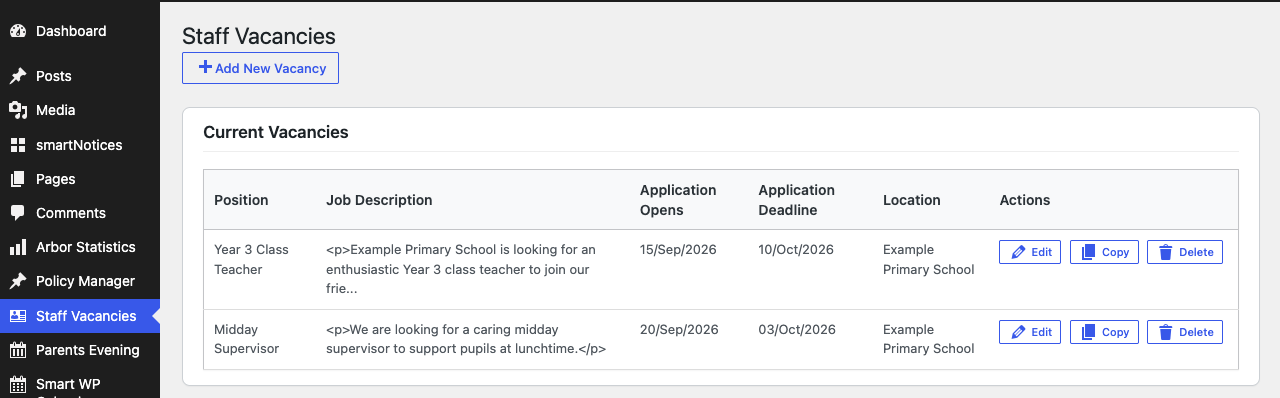
Select Staff Vacancies in the left-hand menu. The Current Vacancies list shows every vacancy you have added, with its opening date, deadline and location.
Step 2: Add the vacancy
Select Add New Vacancy and fill in the form. Position, Description, Application Deadline, Application Opens Date and Application Email must be filled in; the rest are optional and only show on your website when they have a value.
To attach a job description, person specification or application form, select Select Files under Attachments and choose one or more files from the Media Library. Clear Files removes them all; the × next to a file removes just that one.
Step 3: Save it
Select Save Vacancy. You see "Vacancy added successfully!" and return to the list. The vacancy's own page is created at the same time, titled with the position and filed in the Vacancies category.
Step 4: Show your vacancies on a page
On the page where you want your vacancies listed, add a Shortcode block containing
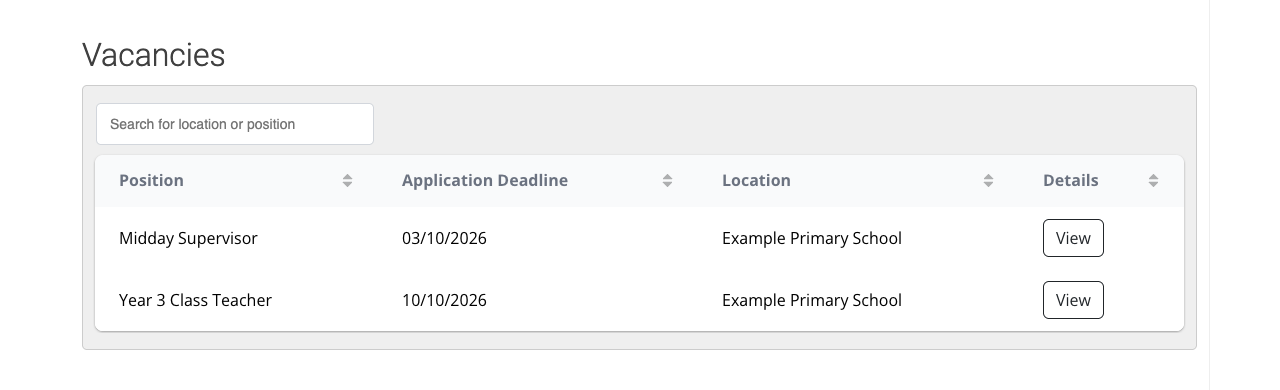
[staff_vacancies] and publish or update the page. Vacancies are listed with the soonest deadline
first. See Shortcode options below to show a table instead of cards.
Features
The vacancy form
Where to find it: Staff Vacancies → Add New Vacancy, or Edit on a vacancy
| Field | What it does | Default |
|---|---|---|
| Position | The job title, used as the vacancy page's title | Empty (required) |
| Description | The job description, with formatting and media | Empty (required) |
| Application Deadline | Closing date; the vacancy is hidden and then removed after this date | Empty (required) |
| Application Opens Date | The vacancy is hidden from your vacancies list until this date | Empty (required) |
| Location | Where the job is based | Empty |
| Pay Scale | e.g. "MPS/UPS" or "Grade 2" | Empty |
| Hours | e.g. "Full-time" or "20 hours/week" | Empty |
| Start Date | When the post starts | Empty |
| Type | Temporary or Permanent, shown as "Contract Type" on the website | Temporary |
| Employment Type | Full time, Part time and/or Temporary / fixed term, for Google Jobs | None ticked |
| Salary From / Salary To / Salary Per | The actual salary in pounds, per year or per hour; shown as "Salary" on the vacancy page and sent to Google Jobs. Leave Salary To empty for a single figure | Empty, per year |
| Application Email | Where applications go; the Apply button emails this address | Empty (required) |
| Application Instructions | How to apply, shown on the vacancy | Empty |
| Attachments | Files such as job descriptions or application forms | None |
Reset Form clears everything you have typed on the Add New Vacancy form.
Editing, copying and deleting
Each row in Current Vacancies has three buttons:
- Edit — change any detail, then select Update Vacancy. The vacancy page updates too, including its title if you change the position.
- Copy — opens Add New Vacancy filled in with the same details, ready to adjust and save as a new vacancy. Handy for re-advertising a similar role.
- Delete — after you confirm, removes the vacancy and permanently deletes its vacancy page. It does not go to the bin, so it cannot be restored. If your account is not allowed to delete that vacancy page (for example, it was created by someone else), you see "Error deleting vacancy" and nothing is removed.
The vacancy page
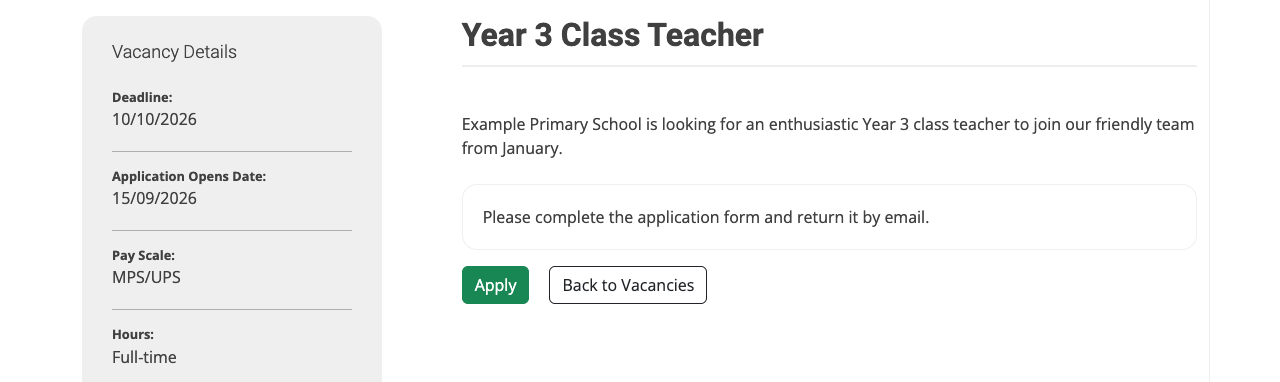
Every vacancy has its own page showing a Vacancy Details panel (deadline, opening date, pay scale, hours, start date, contract type, location and attachments), the position, description and application instructions, an Apply button that opens an email to the Application Email, and a Back to Vacancies button that returns the visitor to the page they came from.
The page's content is a [staff_vacancy] shortcode that pulls in the vacancy's current details,
so always change a vacancy through Staff Vacancies → Edit rather than editing the page's
text in Posts.
Google Jobs
While a vacancy is open, its vacancy page tells Google it is a job advert, so the role can appear in Google's job search. There is nothing to switch on. Google decides when, and whether, to show it, which can take a few days after the vacancy opens.
Google uses:
- Position, Description and Application Instructions
- Application Opens Date as the date the job was posted, and Application Deadline as its closing date
- your site title as the employer, and the Logo under smartOptions → School details
- the Address under smartOptions → School details as the job's location. Check it is filled in, including the postcode
- Employment Type and Salary, when you fill them in. Both are optional, but jobs with a salary show it in Google's results and can be filtered by it
When the deadline passes, the vacancy page is deleted as usual and Google drops the job.
Automatic removal of expired vacancies
Once a vacancy's Application Deadline has passed, it stops showing in your vacancies list. A daily check then deletes the vacancy and its vacancy page permanently. If you might want to re-advertise, use Copy before the deadline passes.
Shortcode options
[staff_vacancies] lists every vacancy that is currently open.
| Option | What it does | Default |
|---|---|---|
display |
cards shows each vacancy in full with a View Full Details button; table shows a compact, searchable and sortable table |
cards |
count |
The most vacancies to show, e.g. count="3". It takes the first ones in the order they were added, then sorts those by deadline — not the ones closing soonest |
all |
position |
Only show vacancies whose Position exactly matches, e.g. position="Midday Supervisor" |
Empty |
id |
Only show particular vacancies, by their vacancy code (the id= value at the end of the vacancy's Edit page address); separate several with commas |
Empty |
values |
Table only: the columns to show, from position, description, deadline, application_opens_date, location, pay_scale, hours, start_date, tempperm, application_inbox and post_url (a View button) |
position, deadline, location and a View button |
Example: [staff_vacancies display="table" values="position,hours,deadline,post_url"].
[staff_vacancy id="…"] shows a single vacancy in full. It is added to each vacancy page for
you, so you rarely need to type it.
Troubleshooting
A vacancy disappeared from the website
Its Application Deadline has passed. Vacancies stop showing the day after the deadline and are then deleted automatically, along with their vacancy page. To re-advertise, add the vacancy again (or, next time, use Copy before the deadline).
A new vacancy is not showing on the vacancies page
- Check the Application Opens Date — vacancies are hidden until that date.
- If your vacancies page shows only the heading "Vacancies" and nothing else, none of your vacancies are currently open. If it says "Sorry, no vacancies found.", there are no vacancies in Staff Vacancies at all — none have been added, or they have all expired and been removed.
The vacancy is listed but its page does not open for visitors
If you cannot publish posts, the vacancy's own page was saved as a draft — the notice at the top of Staff Vacancies says so. The vacancy still appears in your vacancies list, but its title and View Full Details links do not work for visitors until an editor or administrator publishes the page from Posts.
"Please fill out all required fields" when saving
Position, Description, Application Deadline and Application Email must all have a value. The Application Opens Date is also required before the form will save.
I cannot see Staff Vacancies in the menu
Your account needs to be able to write posts. Ask your website administrator to check your role.
Did this work for you?
If a step looked different on your site, tell us and we'll update the screenshots.
Thanks for your feedback.