All guides / Security-compliance
Smart Redirect
Overview
When someone signs in to your school website through single sign-on, Smart Redirect can send them straight to a specific page based on their account type — staff to an intranet page, pupils to a learning dashboard, governors to a governance page, and so on. You can also set a page everyone is sent to when they sign out, and choose to apply the same redirects when a signed-in visitor lands on the public homepage.
Smart Redirect is always on for every school — there is no switch for it on the Smart Plugins hub.
The redirect on sign-in only applies to people signing in through single sign-on. It has no effect on a native WordPress username-and-password login.
Getting set up
Step 1: Open Smart Redirect
Go to Smart Plugins → Smart Redirect. Only administrators can open this page.
Step 2: Enter a redirect URL for each account type that needs one
Fill in a full URL (for example https://yourschool.co.uk/staff/) for any account type you want
to send somewhere specific after they sign in. Leave a field empty for any account type that
should stay on the page it was trying to reach.
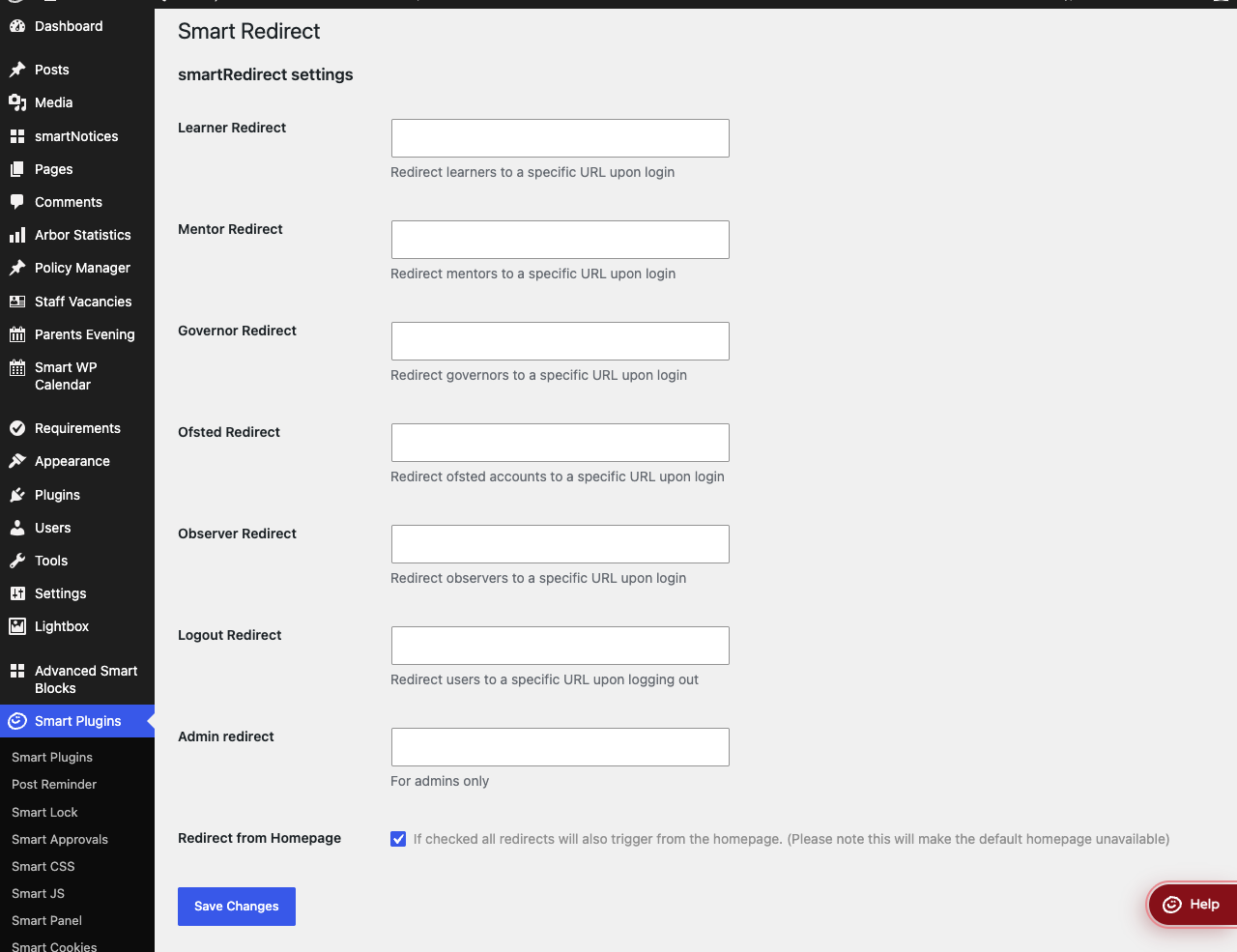
Step 3: Save
Select Save Changes, then sign in with a test account of each type you configured to confirm it lands where you expect.
Settings
Where to find it: Smart Plugins → Smart Redirect
| Setting | What it does | Default |
|---|---|---|
| Learner Redirect | URL pupils are sent to after signing in through single sign-on | Empty |
| Mentor Redirect | URL staff are sent to after signing in through single sign-on | Empty |
| Governor Redirect | URL governors are sent to after signing in through single sign-on | Empty |
| Ofsted Redirect | URL Ofsted accounts are sent to after signing in through single sign-on | Empty |
| Observer Redirect | URL observer accounts are sent to after signing in through single sign-on | Empty |
| Logout Redirect | URL everyone is sent to after signing out, whichever way they signed in | Empty |
| Admin redirect | URL sent to accounts whose type is Admin, after signing in through single sign-on | Empty |
| Redirect from Homepage | Also send a signed-in visitor to their account type's redirect URL whenever they land on the homepage, not only when they sign in | Off |
Sign-in redirects only apply to single sign-on
The Learner, Mentor, Governor, Ofsted, Observer and Admin redirects only trigger when someone signs in through your school's single sign-on. They do nothing for a native WordPress username-and- password login — the Logout Redirect is the only one of these settings that applies regardless of how someone signed in.
Redirect from Homepage
With this switched on, every time a signed-in visitor with a redirect URL configured for their account type visits the homepage — not just when they sign in — they are sent straight to that URL instead. This is powerful but disruptive: turn it on only if the redirected account types should never see the public homepage.
Troubleshooting
Nobody is being redirected after signing in
- Check a redirect URL is entered for the account type in question, and that Save Changes was selected.
- Confirm they signed in through single sign-on. A native WordPress login (username and password, not through the school's sign-in provider) is never redirected by Smart Redirect.
Signed-in visitors can still see the public homepage
Redirect from Homepage is off by default. Turn it on if signed-in visitors with a redirect URL configured should be sent away from the homepage every time they land on it.
The homepage has become unreachable for a whole account type
This is what Redirect from Homepage does by design, for any account type that has a redirect URL set — they are sent to that URL every time they visit the homepage while signed in. Clear the redirect URL for that account type, or turn off Redirect from Homepage, to make the homepage reachable again.
Did this work for you?
If a step looked different on your site, tell us and we'll update the screenshots.
Thanks for your feedback.