Smart Helper
Overview
Smart Helper adds a Help button to the bottom corner of every wp-admin screen. Open it and it recommends help articles for the exact screen you're currently on, with a search box to look through every help article if nothing matches.
It's visible to anyone signed in who can edit pages, so both editors and administrators see it.
Getting set up
Step 1: Turn Smart Helper on
Make sure the Smart Helper card is switched On on the Smart Plugins dashboard. It is on by default.
Step 2: Check its settings
Go to Smart Plugins → Smart Helper. Only administrators can open this page.
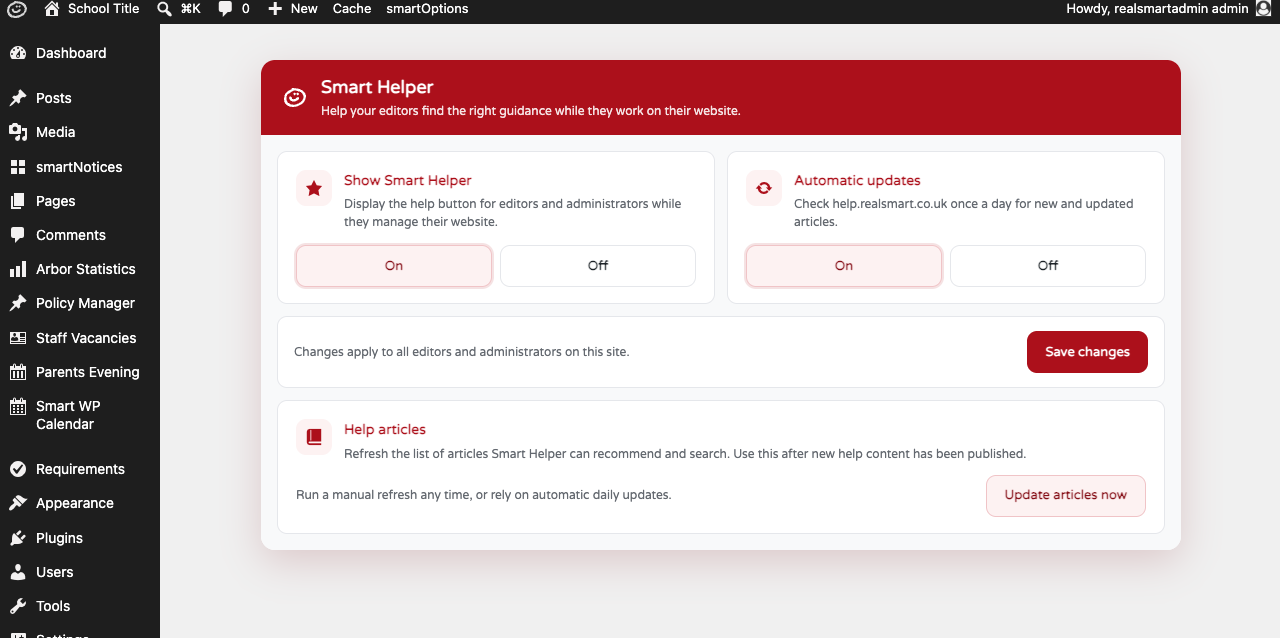
Step 3: Save
Choose On or Off for each setting and select Save changes. Changes apply to every editor and administrator on the site.
Settings
Where to find it: Smart Plugins → Smart Helper
| Setting | What it does | Default |
|---|---|---|
| Show Smart Helper | Shows or hides the Help button for editors and administrators | On |
| Automatic updates | Checks help.realsmart.co.uk once a day for new and updated articles. The daily check only runs while Show Smart Helper is also On | On |
A separate Help articles card lets any administrator refresh the article list with Update articles now, rather than waiting for the daily automatic check.
Updating the help articles
Where to find it: Smart Plugins → Smart Helper, the Help articles card
There are around 240 help articles, and Smart Helper reads each one's title and summary from the help site. That is too much to do while you wait, so Update articles now starts the refresh and hands the page straight back to you:
- Select Update articles now. The page returns immediately and says the update is running.
- The card shows progress — "Checking help articles… 60 of 241." — with a bar underneath it. Every article is already searchable at this point; the refresh is filling in their titles and summaries.
- When it finishes, the card shows the date and time it finished and how many articles it found — "Last updated: 24 September 2026 09:15. Updated 241 help articles."
You can leave the page at any point. The update carries on in the background and the next daily check picks up anything it did not reach. Coming back to Smart Plugins → Smart Helper shows the progress again.
If the refresh cannot finish, the card says so in red and gives the reason — for example that the help site could not be reached. Your existing help articles are left exactly as they were, so the Help button keeps working while the problem is sorted out.
Using the Help button
Where to find it: bottom-right corner of every wp-admin screen, for anyone who can edit pages

Select Help to open the panel. It shows up to five articles matched to the exact screen you're on — for example, the Smart Alert settings page shows different articles to the Pages list. If nothing is matched for that screen, the panel says "No specific help for this page" instead of guessing.
Use the search box in the panel to search every help article by its title and summary, regardless of which screen you're on — it shows up to eight matches — or select Browse all help articles to open the full help site. If you're still stuck, select Email support under Still stuck? to email Realsmart support.
Troubleshooting
The Help button is not visible
Why it happens: Either Smart Helper is turned off on the Smart Plugins dashboard, Show Smart Helper is set to Off in its own settings, or your account cannot edit pages.
How to fix it:
- Confirm Smart Helper is On on the Smart Plugins dashboard.
- Go to Smart Plugins → Smart Helper and confirm Show Smart Helper is On.
- Confirm your account has editor or administrator permissions.
The panel says "Help articles are temporarily unavailable"
Why it happens: Smart Helper has no article list yet — the site has never finished an update, and help.realsmart.co.uk could not be reached to start one.
How to fix it:
- Go to Smart Plugins → Smart Helper and look at the Help articles card. If an update is running, let it finish — the panel starts working as soon as the first stage completes.
- If the card shows a failure in red, it names the reason. Select Update articles now to try again.
- If it keeps failing with the same reason, send that wording to Realsmart support.
"Update articles now" does not seem to have finished
Why it happens: The refresh reads around 240 articles from the help site a batch at a time, so it takes a few minutes. It is not held up by your browser — closing the page does not stop it.
How to fix it: Leave it running and check the Help articles card again later. It shows either the progress, the line saying when it last updated, or the reason it stopped. An update that stops part-way is picked up again by the daily check.
A new or updated article hasn't appeared yet
Why it happens: Articles are only refreshed once a day when Automatic updates is On, so a very recent change can take up to 24 hours to show.
How to fix it: Go to Smart Plugins → Smart Helper and select Update articles now to start a refresh straight away. If Automatic updates (or Show Smart Helper) is Off, articles only update when you use this manual refresh.
Did this work for you?
If a step looked different on your site, tell us and we'll update the screenshots.
Thanks for your feedback.