All guides / Content-publishing
Smart Menus
Overview
Smart Menus swaps the main navigation menu depending on who is signed in. Staff, pupils, governors, Ofsted accounts and observers can each see a menu built for them, instead of the same public menu everyone else sees.
It only affects the primary navigation menu — the one in your header — and only for people who are signed in through your school's sign-in system. Anyone browsing the site without signing in always sees your normal public menu.
Getting set up
Step 1: Build the menus you need
Go to Appearance → Menus and create a menu for each audience you want to target — for example "Staff Menu" or "Governor Menu" — and add the links to it. You can reuse the same menu for more than one role if you like.
Step 2: Open Smart Menus
Go to Smart Plugins → Smart Menus. Only administrators can open this page. If it is not in the menu, switch the Smart Menus card On on the Smart Plugins dashboard first — it is off by default.
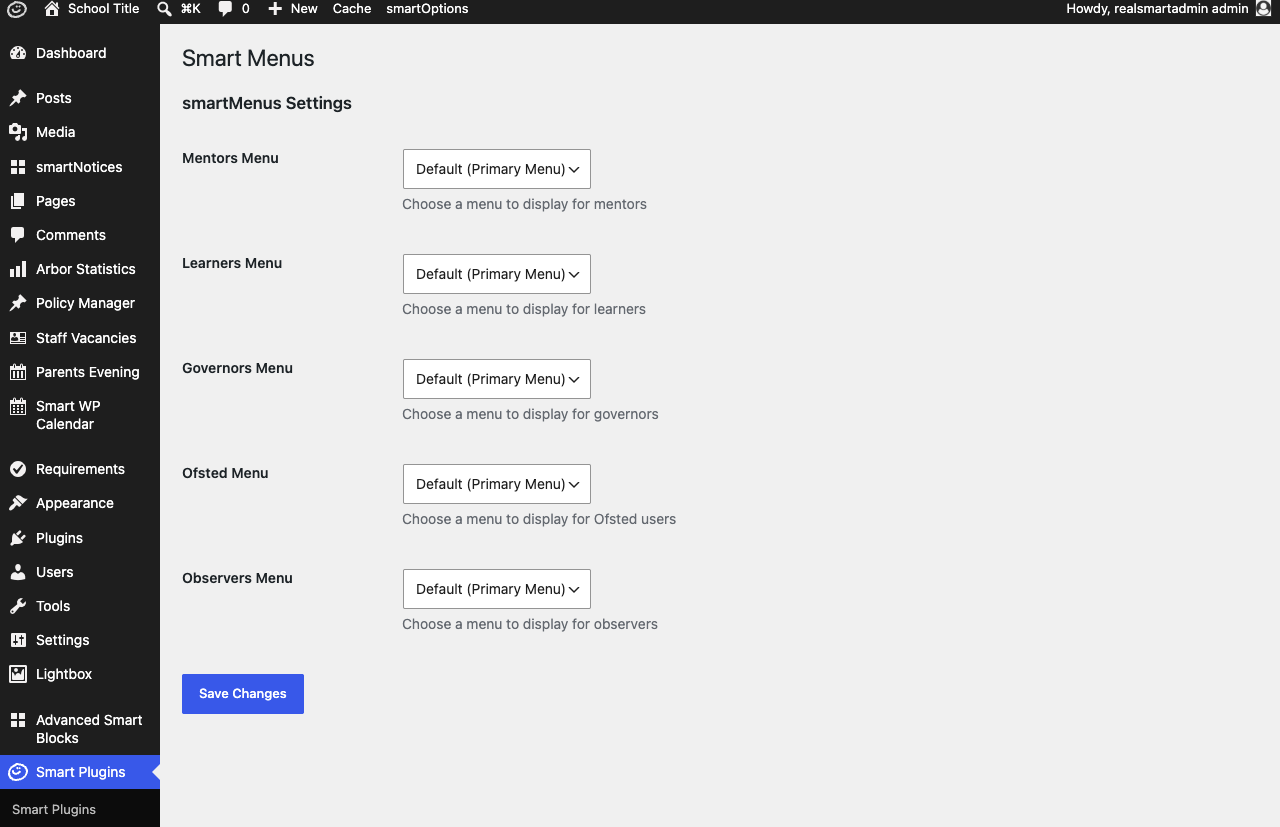
Step 3: Assign a menu to each role
For each role you want to target, open its dropdown and choose the menu you built in Step 1. Leave a role set to Default (Primary Menu) to keep showing it your normal public menu.
Step 4: Save
Click Save Changes. Sign in as a test account for that role (or ask a colleague to check) to confirm the new menu appears.
Settings
Where to find it: Smart Plugins → Smart Menus
| Setting | What it does | Default |
|---|---|---|
| Mentors Menu | Menu shown to staff accounts once signed in | Default (Primary Menu) |
| Learners Menu | Menu shown to pupil accounts once signed in | Default (Primary Menu) |
| Governors Menu | Menu shown to governor accounts once signed in | Default (Primary Menu) |
| Ofsted Menu | Menu shown to Ofsted accounts once signed in | Default (Primary Menu) |
| Observers Menu | Menu shown to observer accounts once signed in | Default (Primary Menu) |
Each dropdown lists every menu you have created under Appearance → Menus, including a menu you have just created and not yet added any links to. Default (Primary Menu) is your site's normal public navigation — the same one visitors who are not signed in always see.
Staff accounts with administrator access are shown the Mentors Menu, the same as other staff.
Troubleshooting
Nothing changes when I sign in
Why it happens: Smart Menus depends on your sign-in system telling the website which role a person has. If a signed-in account has no role recorded against it, Smart Menus has nothing to match and the normal public menu is shown.
How to fix it:
- Confirm the person is signing in through your school's normal sign-in system, not with a separate administrator account.
- Check with Realsmart if a whole group of accounts (for example, all governors) never see their menu — it usually means those accounts are not being given a role by the sign-in system.
The wrong menu is showing
Why it happens: Either the wrong menu is assigned to that role, or the person's account has a different role than you expect.
How to fix it:
- Go to Smart Plugins → Smart Menus and check which menu is assigned to that role.
- Go to Appearance → Menus and confirm the assigned menu exists and has the links you expect.
- Ask Realsmart to confirm which role the account actually has if it still looks wrong.
Smart Menus page is missing
Why it happens: The Smart Menus module is turned off on the Smart Plugins dashboard.
How to fix it: Go to Smart Plugins, find the Smart Menus card, and switch it On.
Did this work for you?
If a step looked different on your site, tell us and we'll update the screenshots.
Thanks for your feedback.