Smart Plugins
Overview
Smart Plugins is the Realsmart hub in your WordPress admin. It shows a card for each Realsmart feature, and each card has an On / Off switch. Turn on the features your school uses, save, then open each one to set it up.
The same Smart Plugins menu in the left-hand sidebar also lists the settings pages for those features, so it is the place to go back to whenever you want to change how one of them works.
Only administrators can open Smart Plugins.
Getting set up
Step 1: Open Smart Plugins
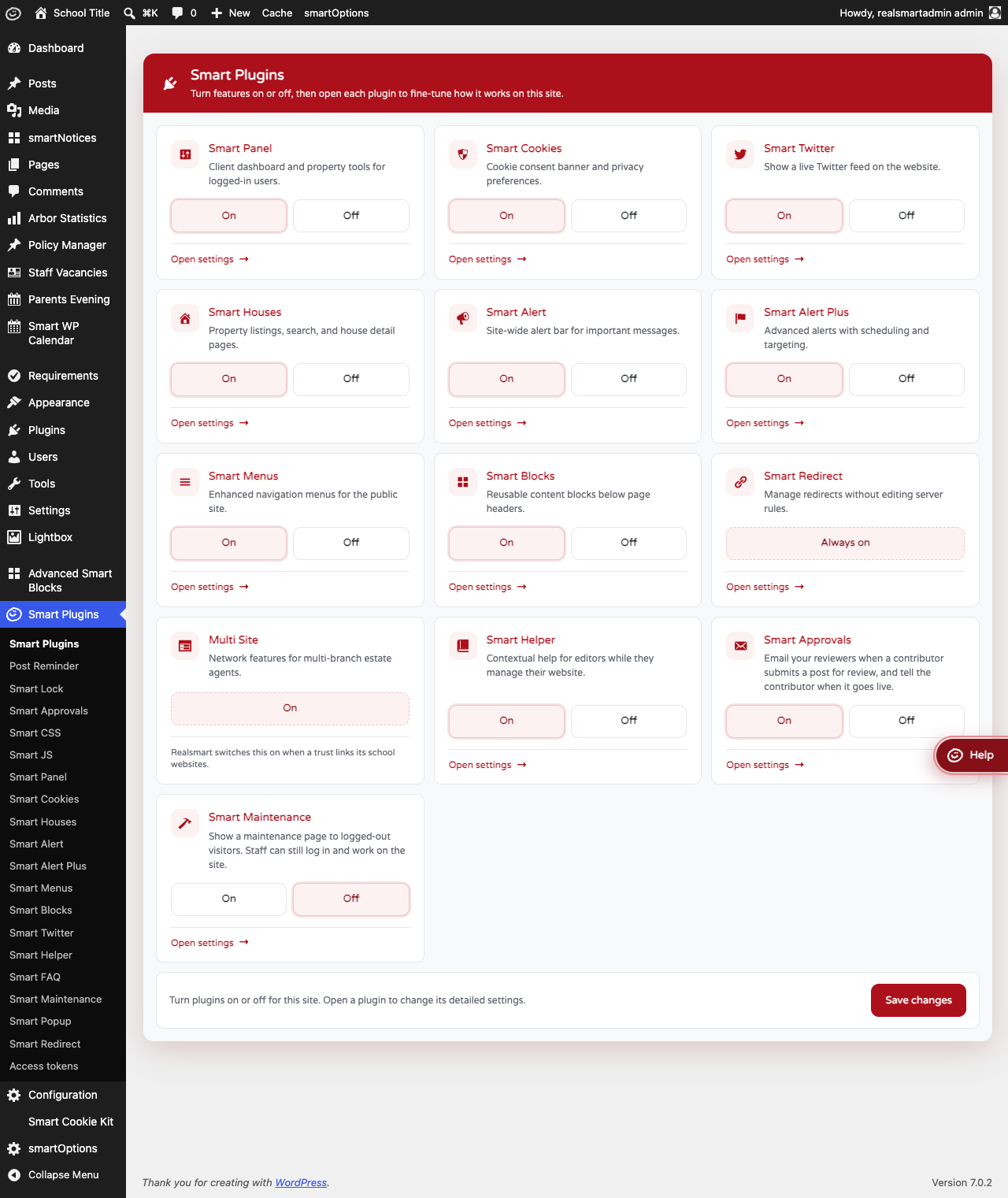
In the left-hand WordPress sidebar, click Smart Plugins. The page opens with a card for each feature. Each card shows the feature's name, a short description, its current state and, when the feature has a settings page, an Open settings link.
Step 2: Choose On or Off for each feature
Click On or Off on each card. Nothing changes on your website until you save.
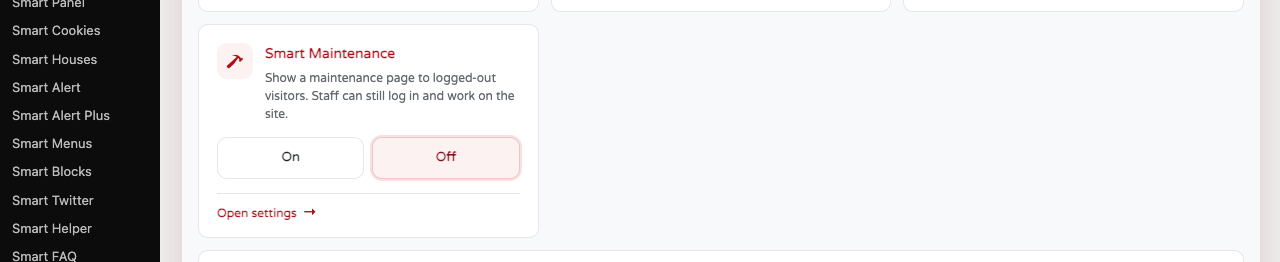
Turning Smart Maintenance on asks you to confirm first, because it hides your website from everyone who is not logged in until you turn it back off. Click Cancel in that message and the card goes back to Off.
Step 3: Save changes
Click Save changes at the bottom of the page. A Settings saved. message appears at the top.
Step 4: Open a feature's settings
Click Open settings on a card (or the feature's name) to go to its settings page. You can also reach every settings page from the Smart Plugins menu in the sidebar.
A feature that is off usually has no settings page. Its card says Turn this on and save changes to open its settings. instead of showing the link — turn it on, save, and the link appears.
Features
The feature cards
Where to find it: Smart Plugins
The cards are listed below in the order they appear, with what each feature does on a school website.
| Card | What it does | On a new site | Guide |
|---|---|---|---|
| Smart Panel | Switches on the old, legacy login bar. The current login bar is not controlled by this card (see the Smart Panel guide). Leave this Off unless Realsmart has asked you to use it | Off | Smart Panel |
| Smart Cookies | Cookie consent banner and privacy preferences | On | Smart Cookies |
| Smart Houses | Your school's houses, shown on the website with the [smart-houses] shortcode |
On | Smart Houses |
| Smart Alert | Site-wide alert bar for important messages | On | Smart Alert |
| Smart Alert Plus | An alert built from your latest posts in a chosen category | On | Smart Alert Plus |
| Smart Menus | A different main menu for signed-in staff, pupils and other roles | On | Smart Menus |
| Smart Blocks | Content blocks shown below page headers | Off | Smart Blocks |
| Smart Lock | Stops anyone at your school, administrators included, opening the homepage in the editor. Realsmart support can still open it. This card and the Enable Smart Lock box on the Smart Lock page are the same setting, so changing one changes the other | Off | Smart Lock |
| Smart Redirect | Sends people to the right page when they log in or out. There is no switch | Always on | Smart Redirect |
| Smart Helper | Contextual help for editors while they manage the website | On | Smart Helper |
| Smart FAQ | Your own written FAQs, shown on a page, plus chat help for visitors answered from those FAQs and your site's pages and policies. Write the FAQs on its Questions tab. Visitors see no chat until you also set Show Smart FAQ to On on its Settings tab | On | Smart FAQ |
| Smart Approvals | Emails your reviewers when a contributor submits a post for review, and tells the contributor when it goes live | Off | Smart Approvals |
| Smart Post Expiry | Takes a post or page off the website on a date you set in its Post Expiry box, putting it back to Draft. There is no settings page | Off | Smart Post Expiry |
| Smart Writer | An AI writing assistant in the post and page editor: drafts from bullet points, rewrites for parents, shortens, checks British English spelling and (if you turn it on) suggests alt text for images. Nothing changes until you choose to use a suggestion. Its settings page holds your school's wording and tone, and shows how much it has been used | Off | Smart Writer |
| Smart Accessibility | Adds a pop-out toolbar to every page that lets visitors make text bigger or smaller, switch to high contrast and use other reading aids. Its settings page chooses which tools are offered, and lists shortcodes for putting a tool on a page as a link | Off | Smart Accessibility |
| Smart Maintenance | Shows a maintenance page to visitors who are not logged in. Staff can still log in and work on the site | Off | Smart Maintenance |
After these come the cards for Realsmart's add-on plugins. Until October 2026 these were switched on and off on the WordPress Plugins screen; they are now switched here instead, and no longer appear on the Plugins screen. Each one is Off on a new site, and was left exactly as it was on every existing site.
| Card | What it does |
|---|---|
| Advanced Smart Blocks | Reusable collections of content blocks, shown in a grid or carousel with a shortcode |
| Custom Classes | Your own CSS classes on individual posts and pages, set in the Custom Classes box in the editor |
| Trust Menus | Menus shared between the school websites in a trust. Set by Realsmart |
| Multi Site | Shares news posts, widgets and alerts between the school websites in a trust. Set by Realsmart — see MAT Multisite |
| Smart Arbor Statistics | Statistics from Arbor, shown with shortcodes. Set by Realsmart |
| Smart Attendance, Smart Behaviour, Smart Timetable | Shows signed-in pupils and parents their own attendance, behaviour or timetable, with a shortcode |
| Smart Calendar | Events from a Microsoft calendar or an .ics link |
| Smart Content Slider, Smart Infinite Slider | Sliders of content, added with a shortcode |
| Smart Countdown Timer, Smart Stats | A countdown, or figures shown graphically, added with a shortcode |
| Smart Google Drive, Smart Google Drive Block, Smart OneDrive | Files from Google Drive or OneDrive on your pages |
| Smart Media Logs | A record of who uploaded, edited and deleted files in the media library |
| Smart Notices | Post-it style notices for visitors |
| Smart Parents' Evening | Parents book their parents' evening appointments on the website |
| Smart Policy Manager | Groups policy documents and embeds them with a shortcode |
| Smart School Directory | A map of schools with filters and search |
| Smart Trust Calendar | A calendar kept in Realsmart's shared calendar database. Set by Realsmart |
| Smart XP Snapshot | Shows signed-in pupils their XP snapshot. Set by Realsmart |
| Staff Vacancies | Job adverts, listed on the website with the [staff_vacancies] shortcode |
"On a new site" is what you see the first time you open Smart Plugins on a new school website. It is not the same thing as a plugin's own fallback default — the setting it would use if this page had genuinely never been saved — because every new school site is copied from a Realsmart boilerplate database where this page has already been saved once. That boilerplate ships with Smart Cookies, Smart Houses, Smart Alert, Smart Alert Plus and Smart Menus already switched on; every other card is left at its fallback default. Once you save this page yourself, every card keeps whatever you chose, exactly as before.
Cards without a switch
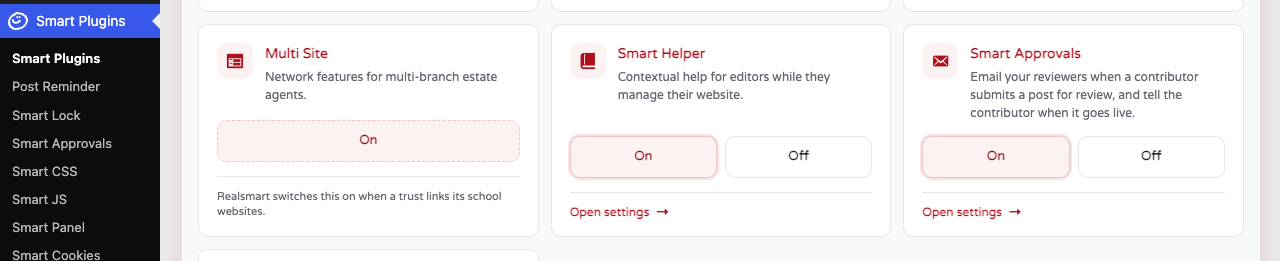
Smart Redirect and the add-ons marked "Set by Realsmart" above show their state instead of On / Off buttons. Smart Redirect always runs, so its card says Always on and still has an Open settings link. The others need something set up by Realsmart first — a trust link, an Arbor or XP account, the shared calendar — so they say On or Off with a note such as "Realsmart switches this on when a trust links its school websites." Contact Realsmart support to have one switched on.
Features that are on without a card
One feature runs on every site by default but has no card on the Smart Plugins page, so it cannot be switched off from there. Saving the page leaves it exactly as it was.
- Clean Admin Notices hides the notices that other plugins add to the top of WordPress admin pages — newsletter sign-ups, "leave us a review" requests and upgrade prompts. WordPress's own messages, such as Settings saved. and plugin activation errors, and messages from the features on the Smart Plugins page, are always kept. To see every notice on one admin page, add
?rs_notices=showto the end of that page's address (or&rs_notices=showif the address already contains a?) and reload. This works for administrators only and lasts for that one page load.
Weekly summary emails
WPForms and WP Mail SMTP no longer send their weekly summary emails on your website, so to see what people have sent through your forms, open WPForms → Entries; each form still emails its own notification to the addresses set under its Settings → Notifications.
Always-available pages in the Smart Plugins menu
These pages are in the Smart Plugins menu whatever the cards are set to:
- Post Reminder — see Post Reminder
- Smart Lock — see Smart Lock
- Smart Popup — see Smart Popup
- Smart Redirect — see Smart Redirect
- Smart Panel — the login bar settings, see Smart Panel
- Smart Maintenance — so you can write and preview the maintenance message before switching it on, see Smart Maintenance
Smart CSS, Smart JS and Access tokens also appear here, but only for Realsmart staff accounts.
Settings are kept when a feature is off
Turning a feature off stops it running and, for most features, removes its settings page, but it does not delete its settings. Turn it back on and save, and everything is as you left it.
Troubleshooting
A feature's settings page is missing
Why it happens: The feature is turned Off on the Smart Plugins page. Most features only register their settings page while they are on.
How to fix it:
- Go to Smart Plugins.
- Set the feature's card to On.
- Click Save changes.
- Click Open settings on the card, or find the page in the Smart Plugins menu.
I cannot see Smart Plugins in the sidebar
Why it happens: Smart Plugins is only shown to administrators.
How to fix it: Ask an administrator at your school to make the change, or to give your account the administrator role.
A setting has changed but nothing happens on the website
Why it happens: The feature may be switched Off here even though its own settings are filled in, or it may have its own on/off setting too (for example, Smart Alert's Status and Smart FAQ's Show Smart FAQ).
How to fix it:
- Confirm the feature's card is On on the Smart Plugins page, and that you clicked Save changes.
- Open the feature's settings and check its own on/off setting.
- Reload the website page to check again.
A plugin notice I need to see has disappeared
Why it happens: Clean Admin Notices hides notices from other plugins.
How to fix it: Add ?rs_notices=show to the admin page's address and reload to see every notice for that one page load. If you need a notice to show all the time, contact Realsmart support.
Did this work for you?
If a step looked different on your site, tell us and we'll update the screenshots.
Thanks for your feedback.