All guides / Security-compliance
Smart Alert
Overview
Smart Alert puts a single, prominent message on every page of your website. It is the right tool for something urgent and short-lived that everyone needs to see straight away: a snow day, an emergency closure, a deadline, or a change to the school day.
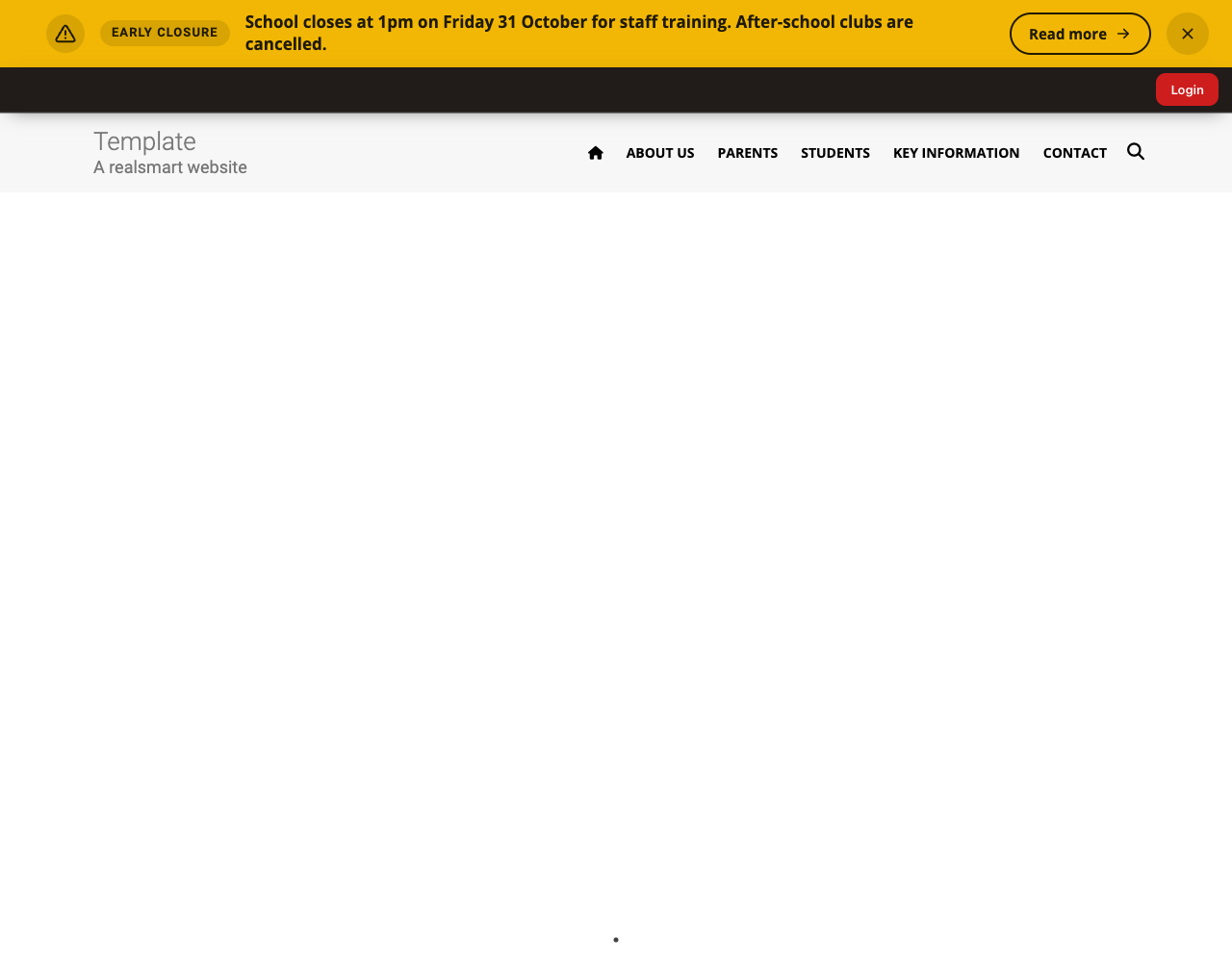
The alert is a bold bar across the top of every page, or a card in the bottom-right corner. It shows an icon, a short label, your message, a button when you add a link, and a close button. You choose its type, whether visitors can close it, who it is shown to, and when it ends.
Two types do more than show a message:
- Countdown counts down, in days, hours, minutes and seconds, to when the alert ends, then disappears by itself. Use it for a deadline, such as admissions closing.
- Emergency opens a pop-up the first time each visitor sees it, then shows a red bar that can't be closed until the alert ends. Use it only for a real emergency, such as a closure on the day.
Getting set up
Step 1: Open Smart Alert
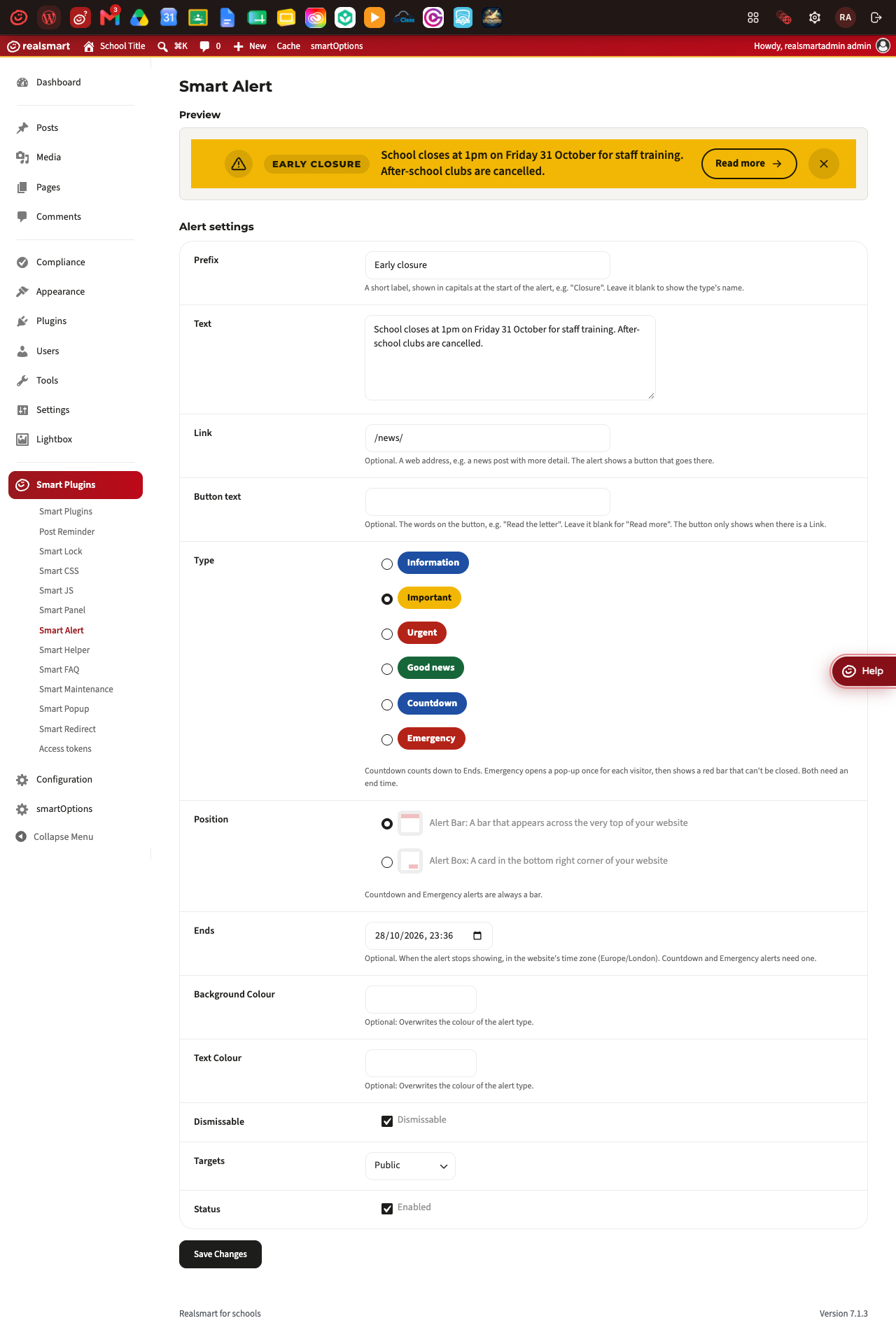
Make sure Smart Alert is switched on in Smart Plugins, then go to Smart Plugins → Smart Alert. The top of the page shows a Preview of your saved alert, as visitors see it.
Step 2: Write the message
Fill in:
- Prefix — a short label shown in capitals at the start of the alert, e.g. "Closure". Leave it blank to show the type's name instead, e.g. "Urgent".
- Text — the message itself. Bold, italics, line breaks and links work if you type them as
HTML, for example
<strong>closed</strong>or<a href="https://example.com">details</a>; any other formatting is removed when the alert is shown, and its words are kept. - Link — optional. A web address, e.g. a news post with more detail. The alert shows a button that goes there.
- Button text — optional. The words on that button, e.g. "Read the letter". Leave it blank and the button says Read more.
Step 3: Choose how it looks and who sees it
-
Type sets the colour, the icon and what the alert does:
Type Looks Use it for Information Blue, with an "i" General news, e.g. flu vaccinations next week Important Yellow, with a warning triangle Something everyone should act on, e.g. an early closure Urgent Red Something serious today, e.g. closed because of snow Good news Green, with a tick Celebrations, e.g. a new reading garden Countdown Blue, with a clock and a countdown A deadline. Needs Ends Emergency Red bar and a pop-up A real emergency. Needs Ends, and visitors can't close it -
Background Colour and Text Colour let you replace the type's colours if you need to match your own branding — leave them blank to use the type's colours. A value that is not a hex colour code, such as
#cc0000, is ignored. If your two colours are hard to read together (a contrast ratio under 4.5:1), the settings page warns you and gives the ratio. The alert is still saved, but some visitors will struggle to read it. -
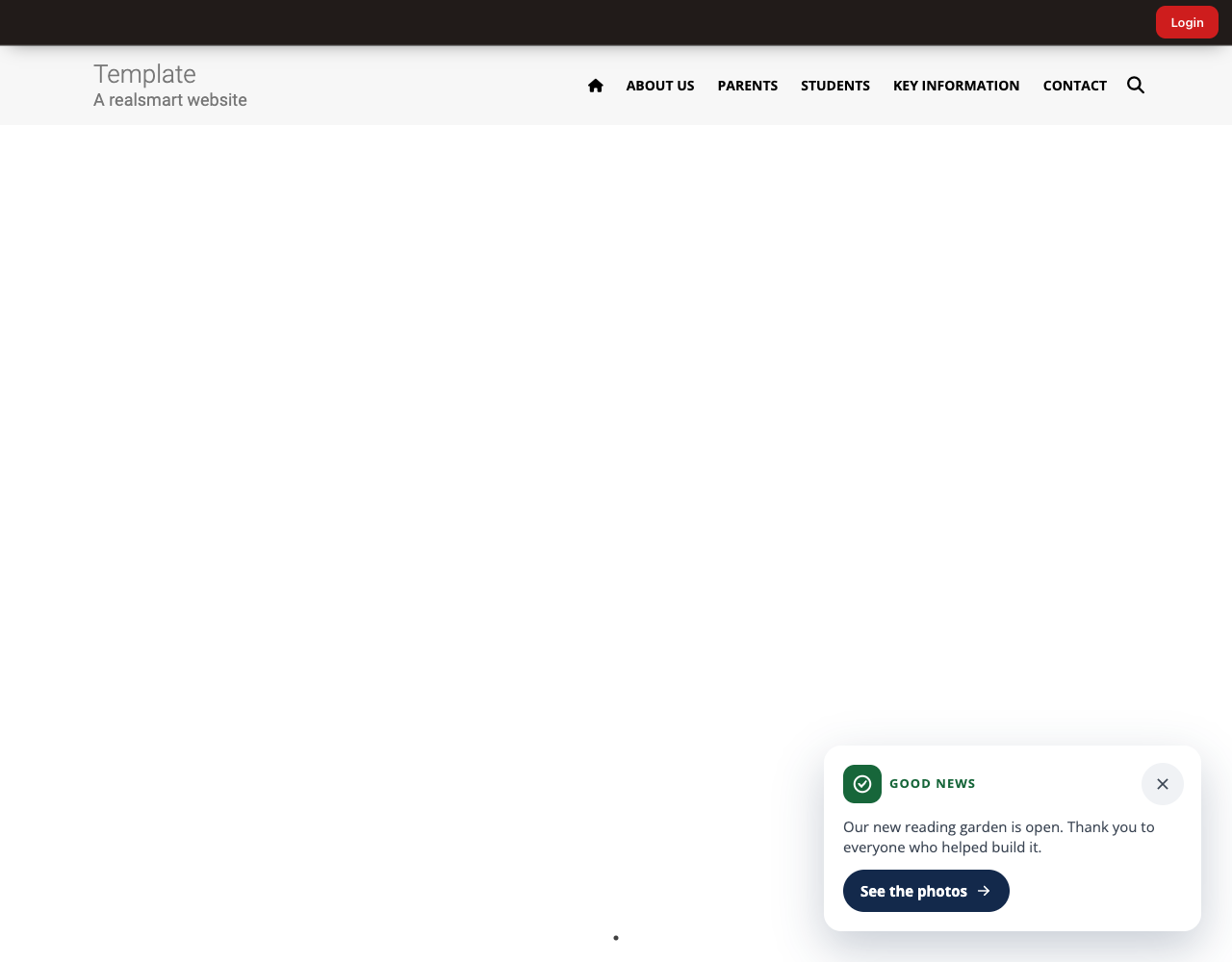
Position is either Alert Bar (a bar across the top of every page) or Alert Box (a white card in the bottom-right corner of the screen, or along the bottom on a phone). Countdown and Emergency alerts are always a bar.
-
Ends — optional for most types. The date and time the alert stops showing, in your website's own time (UK time). After it, the alert disappears by itself, even from pages visitors already have open. Countdown and Emergency alerts must have one.
-
Dismissable lets visitors close the alert. Turn it off for anything critical that must stay visible. Emergency alerts can never be closed.
-
Targets controls who sees it — see the settings table below for exactly who each option reaches.
Step 4: Turn it on
Tick Status (labelled Enabled), then select Save Changes. Check the Preview at the top of the page, then visit your website to confirm the alert appears.
Countdown alerts
A Countdown alert shows your message with boxes counting down the days, hours, minutes and seconds to the time in Ends, and your button beside them. When it reaches zero the alert disappears, on its own, for everyone.
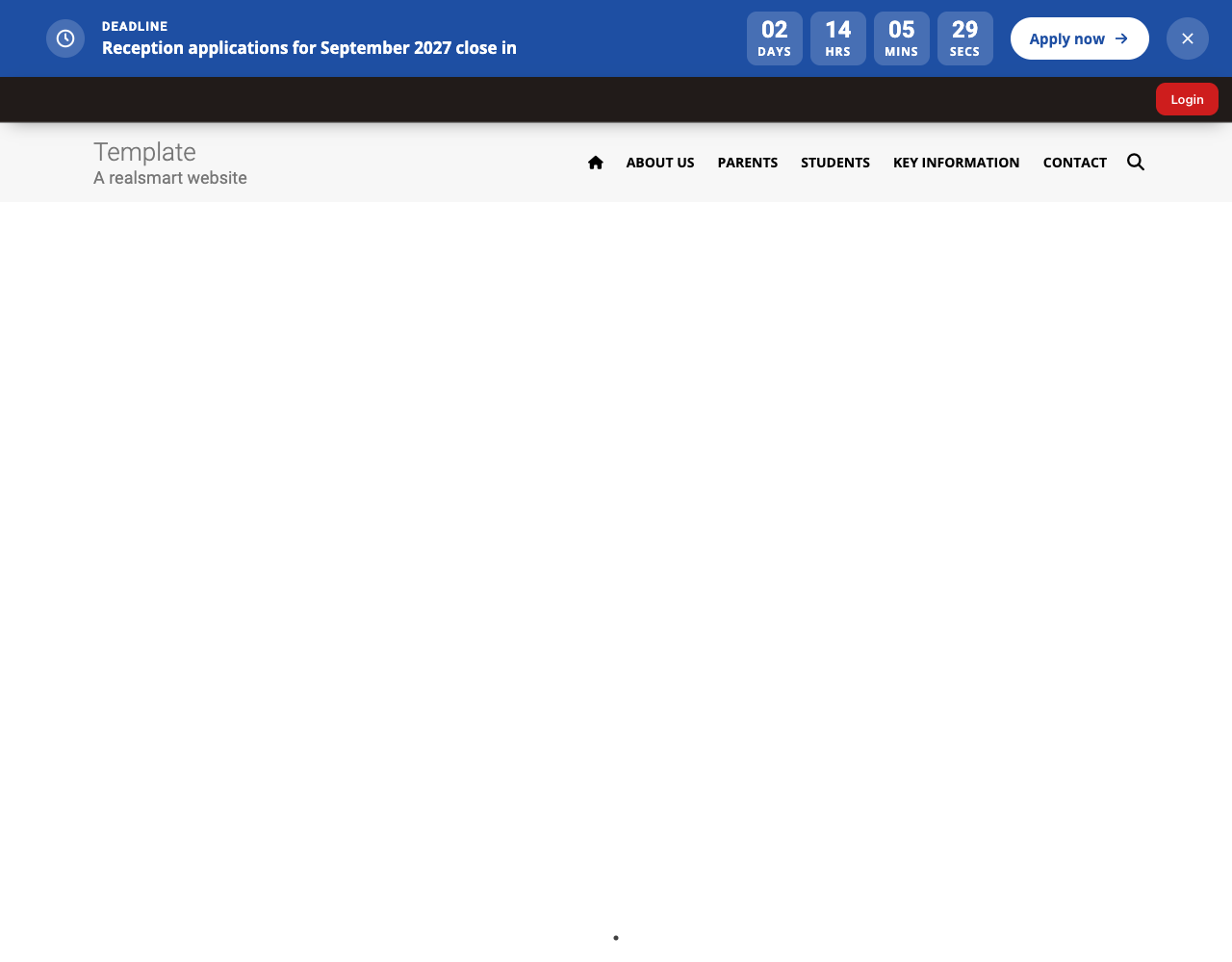
Write the message so it reads before the countdown, e.g. "Reception applications close in". Screen readers announce the closing date, such as "Closes Fri 31 Oct, 17:00", instead of the changing numbers, and so does a browser with JavaScript switched off.
Emergency alerts
An Emergency alert opens a pop-up over the page the first time each visitor sees it. The pop-up shows "URGENT", when you last changed the alert, your Prefix as its headline, your Text, your button, and Got it. After Got it (or Escape), the visitor sees a red bar across the top of every page instead, which can't be closed until the alert ends.
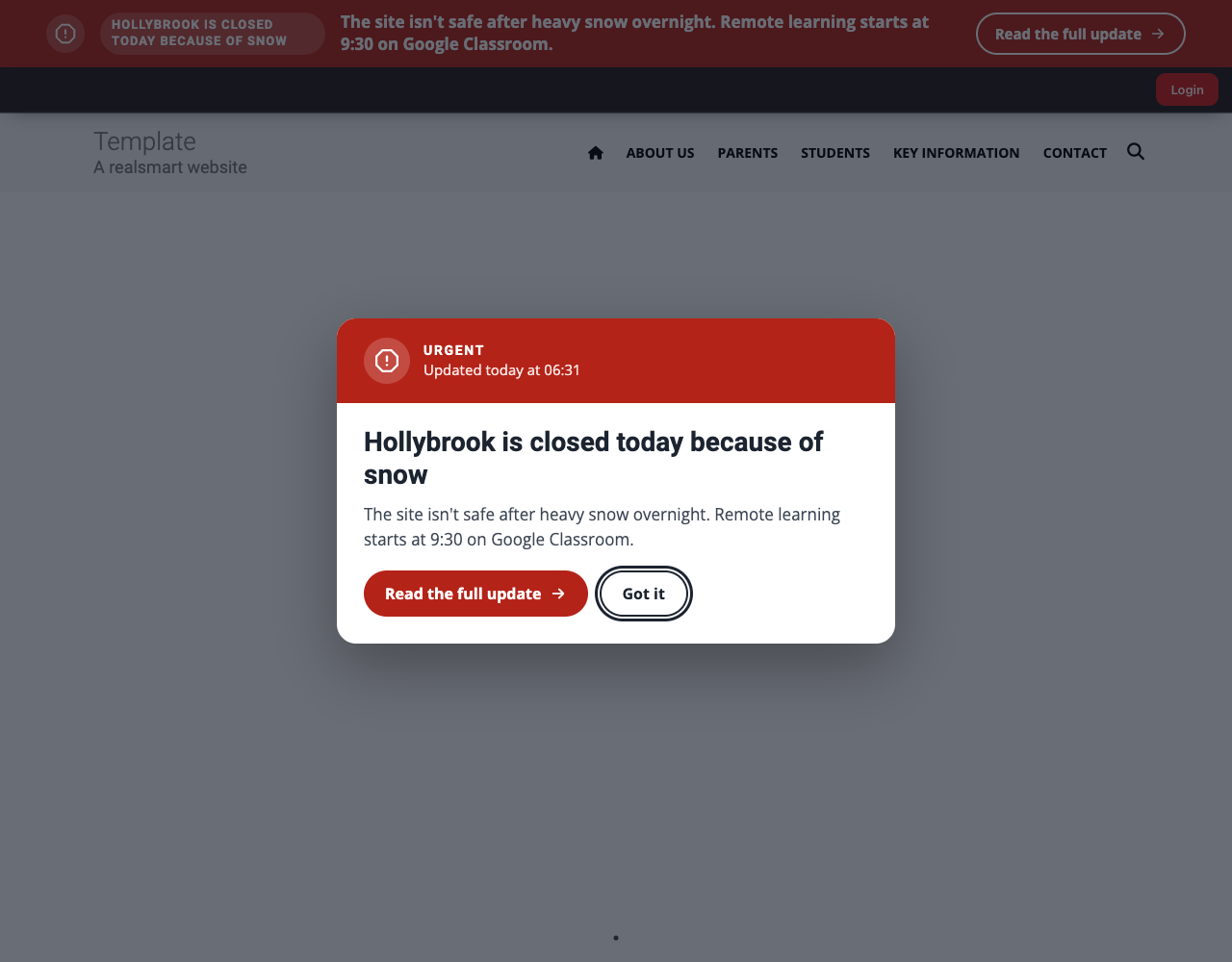
- Each visitor sees the pop-up once for each version of the alert. If you change the Prefix, Text or Link, everyone sees it again.
- Only one pop-up shows on a page. If your trust has sent an emergency alert as well, its pop-up comes first, and yours shows on the visitor's next page.
- Keep the Prefix short: it is the pop-up's headline, and the bar's label.
Settings
Where to find it: Smart Plugins → Smart Alert
| Setting | What it does | Default |
|---|---|---|
| Prefix | Short label in capitals at the start of the alert, e.g. "Closure" | Attention! |
| Text | The alert message | This is an alert. |
| Link | Optional web address; the alert shows a button that goes there | Empty |
| Button text | The words on the button | Read more |
| Type | Information, Important, Urgent, Good news, Countdown or Emergency | Important |
| Position | Alert Bar (bar across the top) or Alert Box (card, bottom right). Countdown and Emergency are always a bar | Alert Bar |
| Ends | When the alert stops showing, in UK time. Needed for Countdown and Emergency | Empty (no end) |
| Background Colour | Replaces the type's background colour | Empty (uses the type's) |
| Text Colour | Replaces the type's text colour | Empty (uses the type's) |
| Dismissable | Lets visitors close the alert (never for Emergency) | On |
| Targets | Who sees the alert — see below | Public |
| Status | Turns the alert on or off (labelled "Enabled") | Off |
Who each Targets option reaches
- Public — every visitor, including anyone not signed in.
- Logged in users — signed-in pupils, staff and administrators only. Nobody who is not signed in sees it, including parents browsing the public site.
- Mentors only — signed-in staff and administrators only.
Governor, Ofsted and observer accounts only ever see a Public alert, whichever of the other two options you choose.
The new look (October 2026)
Every alert changed look in October 2026: a solid colour, an icon, a label, the message, a button and a close button that is easy to see. Nothing needed doing — saved alerts carry over as they were:
- the old colours became types: Blue is now Information, Yellow is Important, Red is Urgent and Green is Good news;
- your own Background and Text Colours are still used;
- the Link is now a button, rather than the whole alert being clickable, so the message can hold its own links and bold text;
- the Alert Box is now a white card in the corner;
- visitors who had closed your alert still don't see it.
On a phone, the bar is one line - the icon, the start of the message, More and the close button. More opens the rest of the alert in place.
Showing an alert on every school in a trust
An alert set up on this page appears on this website only. To show an alert on every school in your trust, use Trust Hub → Publish → New alert. Trust administrators see a reminder at the top of this page. Trust alerts look the same as this one, and show above it.
Some trust websites used to show a Site IDs field here, with the hint "Select the sites you want this alert to appear on." Ticking schools there never put the alert on their websites, and the field has been removed.
Troubleshooting
The alert is not showing
- Confirm Smart Alert is switched on in Smart Plugins.
- Confirm Status (Enabled) is ticked on the Smart Alert page, and Save Changes was selected. The Preview says when Status is off.
- Check Ends. Once that time has passed the alert stops showing; the Preview says when it ended. Change Ends to a later time, or clear it, to show the alert again.
- Check Targets. Mentors only and Logged in users are only ever shown to people signed in — never to a parent or visitor browsing the public site, and never to a governor, Ofsted or observer account. Choose Public to reach everyone.
- If you dismissed the alert yourself earlier, your browser remembers that for up to a year — try a private/incognito window to check.
"Nothing was saved" when choosing Countdown or Emergency
A Countdown alert counts down to its end, and an Emergency alert can't be closed by visitors, so both need a date and time in Ends. Fill in Ends and save again. Your previous settings are kept until you do.
The settings page warns about the contrast ratio
Your Background Colour and Text Colour are too close together for some visitors to read the alert. Choose a darker text or background colour, or clear both to use the type's own colours, which are all easy to read.
A visitor who dismissed the alert sees it again
Closing the alert is remembered by that visitor's own browser, for up to a year, on every page of your website, whether they are signed in or not. It is hidden before the page is drawn, so it does not flash up first.
It comes back if you change the Prefix, Text or Link, because the browser only remembers the wording it was closed on. Changing the type, the button text or Ends does not bring it back. It also comes back for a visitor who clears their cookies, uses another browser or device, or has JavaScript switched off. If the alert must not keep reappearing, turn Status off once it is no longer needed.
The alert will not go away for visitors
Either Dismissable is off, which is the intended behaviour for a critical message that must stay visible, or the alert is an Emergency, which can never be closed. Turn Dismissable on, choose another type, set Ends, or uncheck Status to turn the alert off once it is no longer needed.
Did this work for you?
If a step looked different on your site, tell us and we'll update the screenshots.
Thanks for your feedback.