All guides / Security-compliance
Smart Policies (Policy Manager)
Overview
Policy Manager keeps your policy documents in named groups — for example "Statutory Policies" or "Curriculum Policies" — and shows each group on your website as a tidy, searchable list where visitors can view or download every document. When a policy is updated, you replace the file in the group and every page showing that group updates with it.
You choose how the list looks - a simple list, cards, a table, plain links, an accordion or a flipbook - and can set its colours. If your policies are already on a web page, Policy Manager can scan that page and import the PDFs for you.
For each document you can also set a review date and a list of people to email, and Policy Manager sends them a reminder when the policy is due for review. Every change to a group is recorded in an audit trail.
A group can also be shared with other websites — useful for a trust whose schools publish the same central policies. Only administrators can see and use Policy Manager.
Getting set up
Step 1: Create a policy group
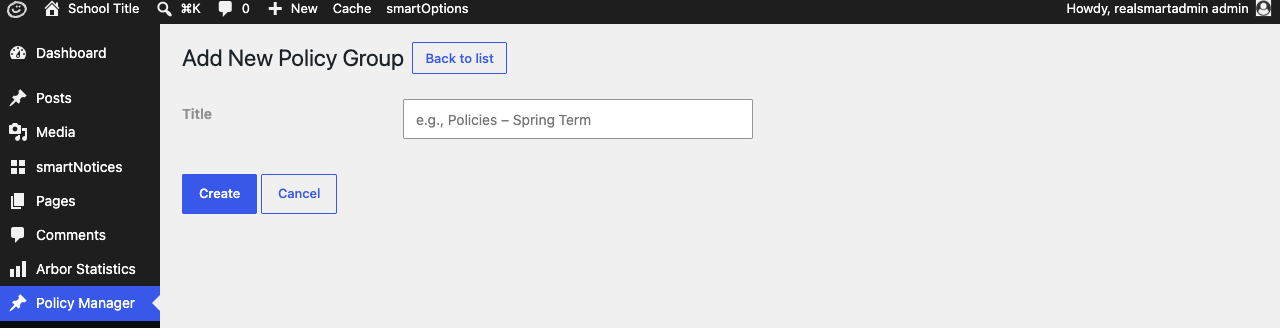
Go to Smart Policy Manager → Add New. Enter a Title for the group, e.g. "Statutory Policies", and select Create. The group opens ready for you to add documents.
Step 2: Add your policy documents
There are two ways to add documents to a group. Use whichever suits.
From the Media Library. Select Add from Media Library. The Media Library opens, showing only document files. Upload new files or pick existing ones - you can select several at once - then confirm your choice. Each document appears as a row in the table.
From a page that already lists them. Paste the address of the page into Import from page and select Scan page. Policy Manager lists the PDFs it finds in the page content, all ticked. Untick any you do not want and select Import selected; the files are downloaded into your Media Library and added to the group. With Clean up names ticked (the default), each imported name drops ".pdf" and turns hyphens and underscores into spaces, so "Anti-Bullying_Policy-2024.pdf" becomes "Anti Bullying Policy 2024". If a file cannot be fetched, the message names it and says why. Only PDFs are imported this way.
Policy Manager accepts PDF, Word, Excel, PowerPoint, plain text, RTF and OpenDocument files, up to 50MB each. Any other file is not added; if none of your chosen files can be added, a message says why.
Step 3: Give each document a clear name
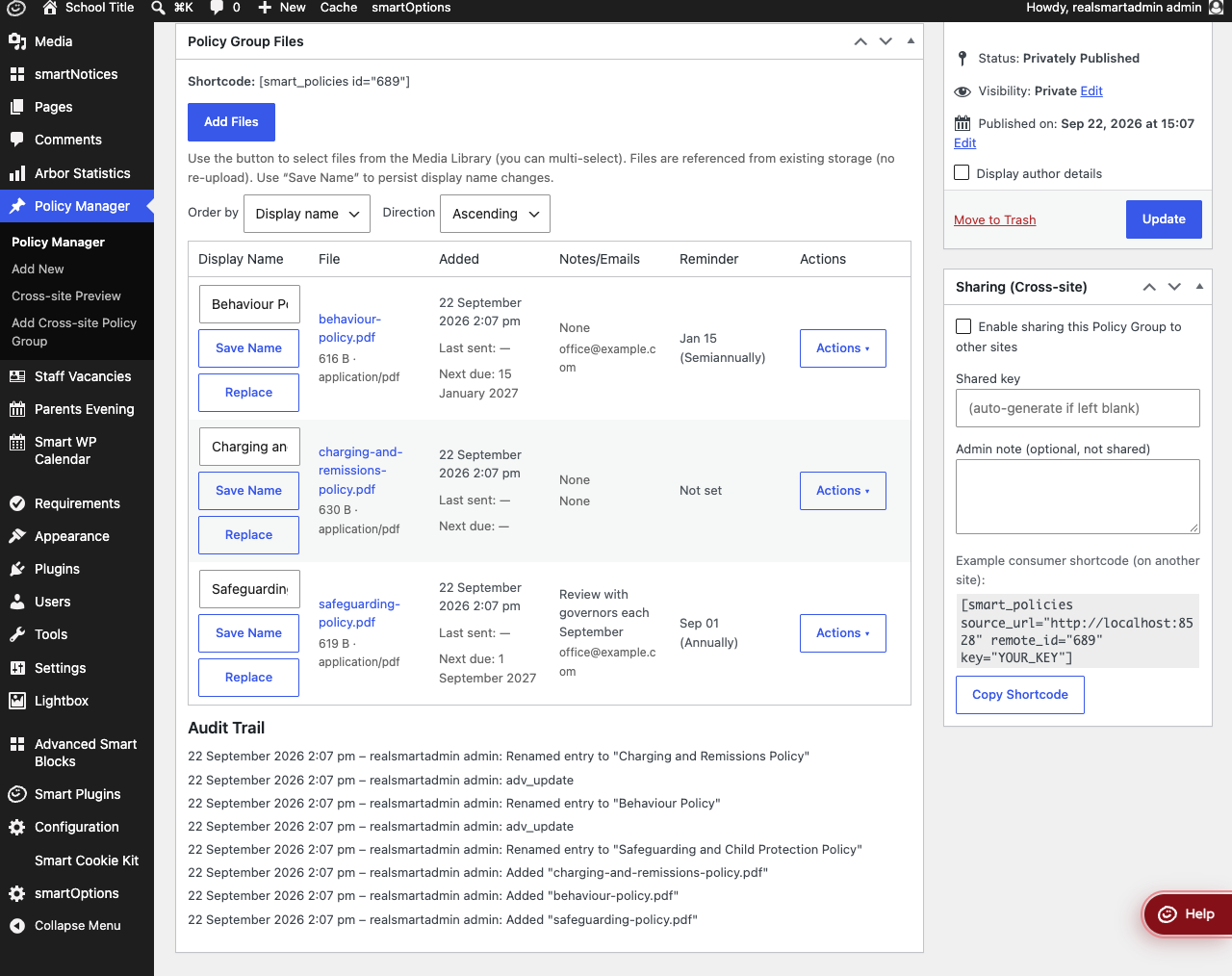
A document is listed on your website under its file name unless you give it a display name. Type a name such as "Safeguarding and Child Protection Policy" into the name box on its row. It saves as you type - there is no Save button.
If you imported names and want to tidy ones already saved, select Clean up existing names above the table. It applies the same tidy-up described in Step 2 to every document in the group.
Step 4: Show the group on a page
Copy the shortcode shown at the top of the Policy Group Files box (and in the Shortcode
column of the Smart Policy Manager list), for example [smart_policies id="689"]. Paste it into a
Shortcode block on the page where your policies should appear, and publish or update the page.
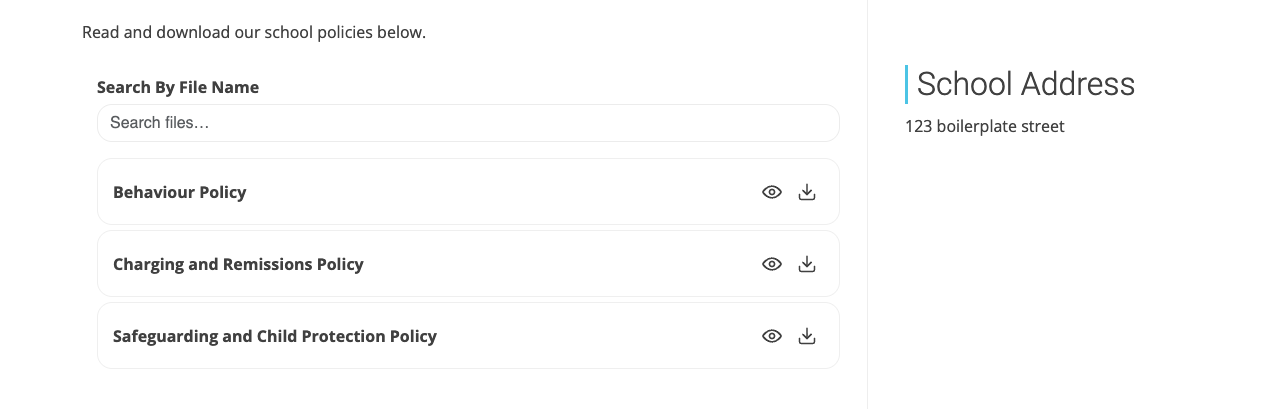
Visitors see a Search By File Name box above the list (you can hide it - see Layout and appearance). Each document has a view button, which opens it in a new tab, and a download button.
Features
The Policy Manager list
Where to find it: Smart Policy Manager
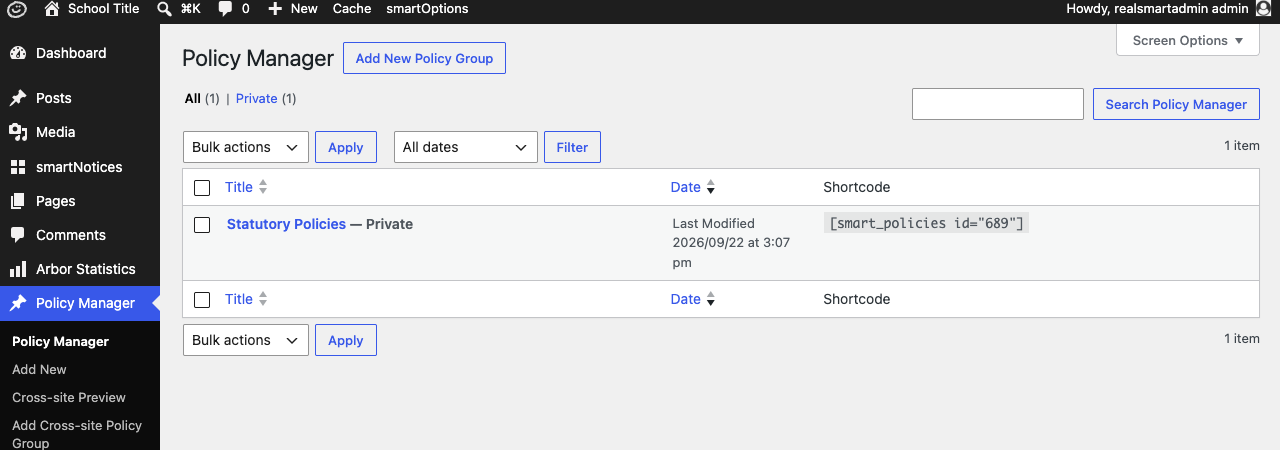
Lists every policy group with its Shortcode. New groups are saved as Private. The shortcode still displays a private group to every visitor — see the troubleshooting section if you show its title.
Managing the documents in a group
Open a group from the Smart Policy Manager list. Each document row has the display name box, then two buttons beside it:
- Advanced - opens the panel with the File, Note and Reminder sections (see below).
- Remove - takes the document out of this group after you confirm. The file stays in the Media Library.
To swap in a new version of a file, open Advanced and, in the File section, select Replace file, then pick the new version from the Media Library. The row keeps its display name, so a page showing the group simply links to the new file.
The last column shows a review status icon: No review scheduled, Review up to date, Review due soon (within 30 days of the next date) or Review overdue. Hover over it for the words.
Order by (Display name, File name, Reminder date or Date added) and Direction only change the order of the table on this screen. The order on your website is set in the shortcode.
Delete all files at the bottom of the box removes every document from the group after you confirm. As with Remove, the files stay in the Media Library.
When you add or replace a file, its title in the Media Library gains the prefix "Policies - ", so you can find policy documents quickly by searching the Media Library for "Policies".
Layout and appearance
Where to find it: the Layout drop-down beside the shortcode, and the Appearance box on a group's edit screen
Both save as soon as you change them - there is no need to select Update.
| Layout | What visitors see |
|---|---|
| List (default) | One row per document with view and download buttons |
| Grid of cards | A card per document showing its type, date and size |
| Compact table | Columns for Policy, Type, Size and Added, with view and download buttons |
| Simple links | Plain links with the file type and size in brackets |
| Accordion | Each document opens to show its details and buttons |
| Magazine (flipbook) | A book cover for each PDF; selecting one opens a page-turning reader |
In Appearance, pick a colour for Border, Background and Text (the Compact table layout has Odd rows and Even rows instead of a background). Clear a colour to go back to the theme default. Hide Header removes the group title and the search box from the page. With the Magazine layout, Hide document titles also removes the title under each book.
To use a different layout on one page only, add layout to the shortcode, for example
[smart_policies id="689" layout="grid"]. The Magazine reader works best with PDFs; other file
types open in a new tab. A group shared from another website brings its layout and colours with it.
Review reminders
Open Advanced on a document row, then use the Reminder section.
| Setting | What it does | Default |
|---|---|---|
| Note | Text included in the reminder email, e.g. "Review with governors each September" | Empty |
| Month | Month the reminder is due | — (not set) |
| Day | Day of the month the reminder is due | — (not set) |
| Frequency | None, Annually, Every 6 months, Quarterly or Monthly | Annually |
| Recipients | Who receives the reminder - one email box per person; select + to add another | Empty |
Select Save in the panel footer to keep your changes, or Close to hide the panel.
- A reminder is only sent when a Month and Day are chosen, the Frequency is not None, and there is at least one valid email address.
- The check runs once a day and sends at most one reminder per period. Every 6 months and Quarterly count on from the month you pick; Monthly sends on the chosen day every month.
- If the day does not exist in a month (for example the 31st in June), the reminder is sent on the last day of that month.
- The email's subject is "[Policy Reminder]" followed by the group and document names. It contains the group, the document, your note and a link to the file.
The Reminder column shows the date, the frequency and the Next send date (or Not set). Dates are shown as dd/mm/yy.
Send Test Email sends a sample reminder straight away to the addresses in Recipients, with "[Test]" at the start of the subject — useful for checking the addresses before you rely on the reminder.
Audit trail
The Audit Trail at the bottom of the Policy Group Files box lists the 20 most recent changes to the group — who added, removed, renamed or replaced a document and when. Saving a document's Advanced settings is listed as "adv_update" and sending a test email as "test_email".
Sharing a group with other websites
Where to find it: the Sharing (Cross‑site) box on a group's edit screen
| Setting | What it does | Default |
|---|---|---|
| Enable sharing this Policy Group to other sites | Lets another website display this group, if it has the key | Off |
| Shared key | The password another site needs. Leave it blank and a key is created for you when you save with sharing ticked | Empty |
| Admin note (optional, not shared) | A reminder for yourself, e.g. which schools use this group | Empty |
Tick Enable sharing, then select Update. If Shared key was blank, a key is created
when you save with sharing ticked. The Example consumer shortcode (on another site) in the box
then includes your key, ready to copy with Copy Shortcode (before a key exists it shows
YOUR_KEY instead). Give that shortcode only to the schools that should display the group —
anyone with the key can read the list of documents.
Unticking Enable sharing stops other websites showing the group once their saved copy expires (15 minutes by default). The key is kept, so ticking it again restores access for sites already using it.
Showing another school's shared group
Where to find it: Smart Policy Manager → Cross-site Preview and Add Cross-site Policy Group
To display a group that another school has shared with you, paste the shortcode they give you into a Shortcode block on your page. To check it first, go to Add Cross-site Policy Group and fill in:
| Setting | What it does | Default |
|---|---|---|
| Label (optional) | A name to recognise it by in your list | Empty |
| Source URL | The other school's website address | Empty |
| Remote Group ID | The group's number on the other website (remote_id in their shortcode) |
Empty |
| Key | The shared key from the other website | Empty |
| Timeout (seconds) | How long to wait for the other website to respond | 10 |
| Cache TTL (seconds) | How long a copy of the list is kept before asking again; 0 to disable caching | 900 |
Select Save. The group is added to Saved Previews on the Cross-site Preview page. Preview shows its documents, and the Actions column has a ready-made shortcode with a Copy Shortcode button. Saved previews belong to your own account — other administrators do not see them.
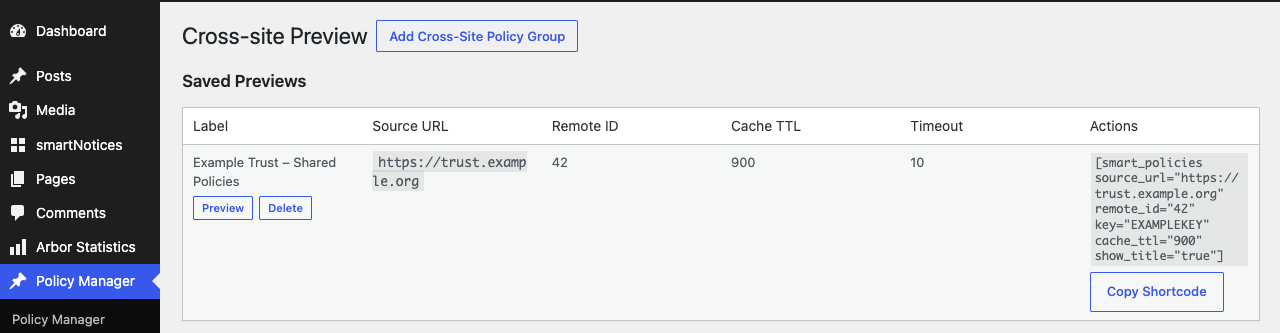
A shared group always shows the other school's current documents. Because of the cache, a change they make can take up to 15 minutes (the default Cache TTL) to appear on your website.
Shortcode options
| Option | What it does | Default |
|---|---|---|
id |
The policy group to show (from this website) | — |
orderby |
Sort by name (display name), file (file name), reminder or added |
name |
order |
asc or desc |
asc |
show_title |
true shows the group's title above the list |
false |
layout |
list, grid, table, links, accordion or magazine; overrides the group's Layout setting |
The group's Layout |
class |
An extra CSS class for the list | Empty |
source_url, remote_id, key |
Show a group shared by another website | Empty |
cache_ttl |
Seconds to keep a copy of a shared group | 900 |
timeout |
Seconds to wait for the other website | 10 |
Example: [smart_policies id="689" orderby="added" order="desc"] lists the newest documents
first.
Troubleshooting
I cannot see Policy Manager in the menu
Policy Manager is only available to administrators. Ask an administrator to add or update your documents.
A file was not added to the group
Only PDF, Word, Excel, PowerPoint, plain text, RTF and OpenDocument files up to 50MB can be added. When none of the chosen files could be added, the message names the file and the reason, e.g. "disallowed file type" or "exceeds 50MB limit". When only some could be added, the others are added without any message, so check the table for missing documents. Convert the file (for example save it as a PDF) and try again.
The group title shows "Private:" on the website
show_title="true" shows the group's title, and a group saved as Private — the default — has
"Private:" in front of its title. The shortcode copied from Cross-site Preview includes
show_title="true", so a shared group that is private on the other website shows "Private:" too. Either leave show_title out and put a heading on the page
yourself, or change the group's Visibility to Public and select Update.
A shared group shows nothing on the other website
- Check Enable sharing this Policy Group to other sites is ticked on the group and that Update was selected.
- Check the other website's shortcode uses the current Shared key — if you changed the key, every site using the old one stops working.
- On the other website, administrators see an error message in place of the list (for example "Remote site returned an error."); visitors see nothing. A shared group with no documents also shows nothing.
Reminder emails are not arriving
- Open Advanced and check a Month and Day are set, Frequency is not None, and the Recipients are valid email addresses.
- Use Send Test Email. If the test arrives, the settings are correct and the reminder will be sent on its Next due date. If it does not, check the recipient's junk folder.
- If the test arrives but reminders never do (the Next date does not move on after a due date), contact Realsmart support.
I removed a document by mistake
Remove only takes the document out of the group; the file is still in the Media Library. Use Add from Media Library to add it back, then set its display name and reminder again. The Audit Trail shows what was removed and by whom.
Import from page found no PDFs
Policy Manager only looks at the main content of the page, not the header, footer or menus, and only picks up links to ".pdf" files. Check the address opens the page that lists the files and that they are linked as PDFs.
The flipbook cover is blank or will not open
The Magazine layout previews PDFs only. Other file types show a plain cover and open in a new tab when selected.
Did this work for you?
If a step looked different on your site, tell us and we'll update the screenshots.
Thanks for your feedback.