MAT Multisite
Overview
MAT Multisite links the separate websites of the schools in a multi-academy trust. Once linked, a school (usually the trust's central site) can:
- publish a news post to other schools — ticking the schools in the MultiSite Post box on the post creates a copy on each of their websites, and later edits flow through to the copies;
- share a block of widgets that other schools show with the
[multisite-widget]shortcode; - push MAT Nav Menus link changes to them, which also uses the list of schools set up here.
Smart Alert does not send alerts to other schools: see Alerts to other schools.
It only works for trusts whose websites Realsmart has linked. The Multi Site card in Smart Plugins shows On when this plugin is running on your website; it has no switch — Realsmart turns it on when a trust links its school websites.
Getting set up
Step 1: Open Multisite Post and note this website's ID
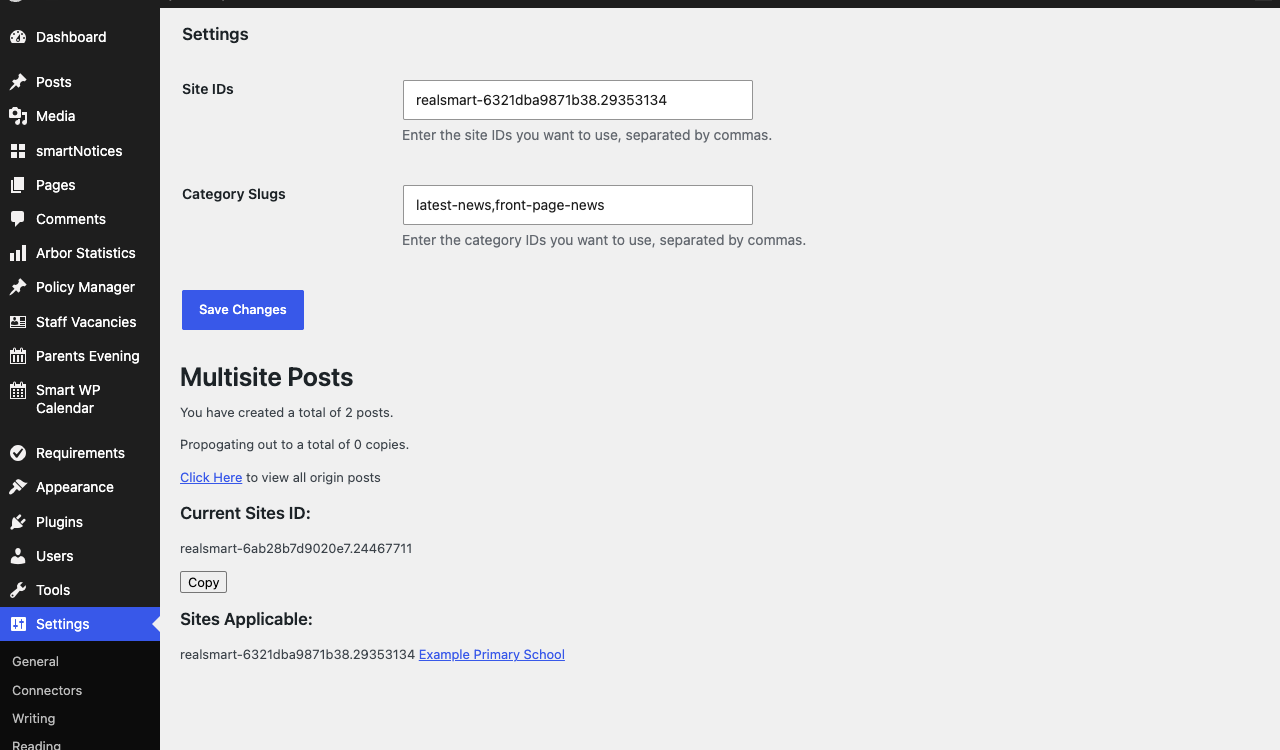
Go to Smart Plugins → Multi Site (administrators only). Under Current Sites ID you see this website's own ID, with a Copy button. Opening the page for the first time registers this website with the trust link and gives it that ID. Each school that should send to or receive from another does this on its own website and shares its ID.
Step 2: List the schools and categories
On the sending website, fill in:
- Site IDs — the IDs of the schools you want to publish to, separated by commas with no spaces.
- Category Slugs — the category slugs a copied post can be filed under on those schools,
separated by commas (for example
latest-news,front-page-news). Each receiving school must have a category with exactly that slug.
Select Save Changes. Sites Applicable then lists each ID with the school's name; an ID the trust link does not recognise shows "does not exist".
Step 3: Publish a post to other schools
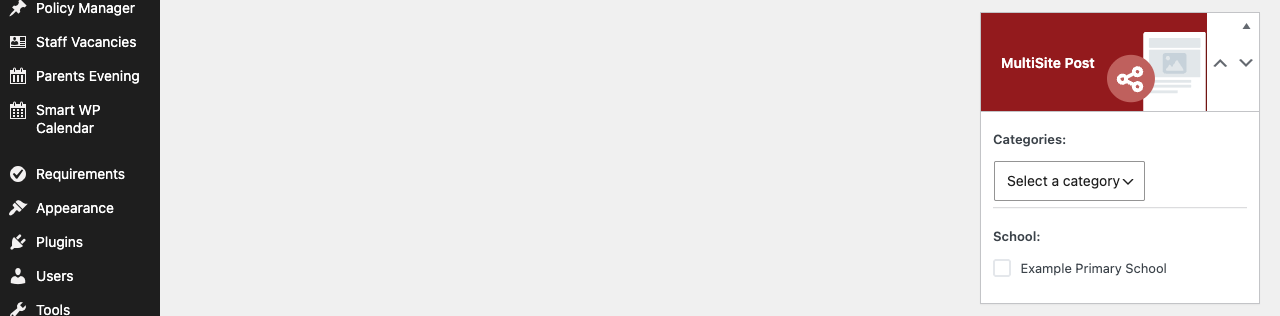
Create or edit a post. The MultiSite Post box appears beside the editor:
- Under Categories:, choose the category the copies are filed under.
- Under School:, tick each school that should receive the post.
- Select Publish.
A copy is created on each ticked school's website, in that category, with the same title, content and date. The copy shows the original author's name. The featured image is not sent with it: add one on the school's own website if you want it.
Only schools listed under Site IDs (Step 2) can be sent a copy, and only people who can publish posts can send one.
Features
Settings
Where to find it: Settings → Multisite Post
| Setting | What it does | Default |
|---|---|---|
| Site IDs | The IDs of the other schools' websites this website works with, comma-separated. Used by MultiSite Post, which sends only to the schools listed here, and by MAT Nav Menus | Empty |
| Category Slugs | Category slugs offered in the MultiSite Post box. The box shows no choices until this is filled in | Empty |
| Current Sites ID | This website's own ID, to give to the other schools. Read only, with a Copy button | Set on first visit |
What happens to copies later
- Editing the original post updates the title, content, date and status of every copy.
- Moving the original to the Bin, or unpublishing it, does the same to the copies.
- Permanently deleting the original deletes the copies.
- Ticking another school later sends the post to that school the next time you update the post. A school that already has a copy is never sent a second one.
- Unticking a school does not remove the copy it already has. Delete that copy on the school's own website.
The MultiSite Post box only appears on posts, not pages, and its choices are only shown to people who can publish posts.
Posts received from other schools
A post copied to your website is a normal post you can see under Posts. Settings → Multisite Post also counts them, and its Click Here link opens a separate list of them, showing each one's title and the start of its content with an Edit Post link (its View Post link goes to the home page rather than the post). That list has no menu entry and only administrators can open it.
Sharing widgets across the trust
Once this website has an ID (Step 1), Appearance → Widgets has a widget area called Multisite. Whatever you put there is saved centrally each time you save the widgets. Another school's website shows it by adding this shortcode to a page, using your website's ID:
[multisite-widget id="YOUR-SITE-ID"]
If the ID is wrong, the page shows "No site found with ID …".
Alerts to other schools
An alert set up on the Smart Alert page appears on that website only. Smart Alert used to show a Site IDs field here, but ticking schools in it never put the alert on their websites, and it has been removed. To show an alert on every school in a trust, use Trust Hub → Publish → New alert. See the Smart Alert guide.
Troubleshooting
The post did not appear on the other school's website
- The post must be published — saving a draft or scheduling does not send it.
- A category and at least one school must both be chosen in the MultiSite Post box.
- The receiving school must have a category with exactly the chosen slug. If it does not, no copy is made for that school and no error is shown.
- If you ticked another school after the post had already been sent, update the post: the copy goes out when the post is saved.
- Check Sites Applicable on Smart Plugins → Multi Site: an ID showing "does not exist" is not recognised by the trust link. Check for a typing mistake or a space after a comma in Site IDs; if the ID is right, contact Realsmart support.
The MultiSite Post box is empty or missing
The box shows no category or school choices until Category Slugs has been saved on Smart Plugins → Multi Site. It never appears on pages, and people who cannot publish posts see it without any choices.
I cannot switch Multi Site on in Smart Plugins
The Multi Site card has no switch. It shows On only when Realsmart has turned on MAT Multisite for your website, which is done when a trust's school websites are linked. Contact Realsmart support.
Did this work for you?
If a step looked different on your site, tell us and we'll update the screenshots.
Thanks for your feedback.