All guides / Security-compliance
Smart Visibility
Overview
Not everything on a school website should be visible to everyone. Smart Visibility lets you restrict whole posts, pages and notices to chosen account types, and it gives you a shortcode to restrict just part of a page's content, leaving the rest visible as normal.
Both work from the same six account types: Public (anyone who is not signed in), Learners,
Mentors, Governors, Ofsted, and Observers. A signed-in visitor's account type comes
from your school's single sign-on when they sign in — it is not the same thing as their WordPress
role. Someone signed in with the Admin account type always sees a whole post, page or notice
restricted with the sidebar box, whatever is ticked — but inside the shortcode they are treated as
a Mentor, so they only see shortcode-wrapped content whose roles list includes mentor.
Smart Visibility works automatically once it is active — there is no settings page.
Getting set up
Step 1: Open the page, post or notice you want to restrict
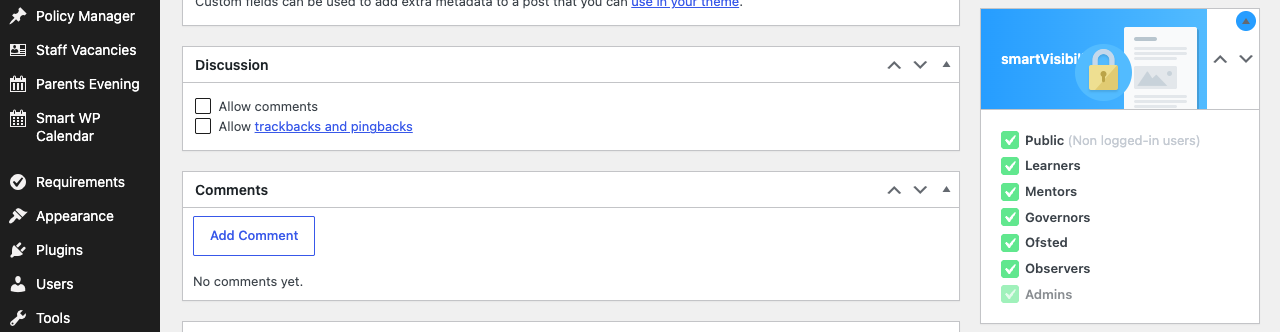
Edit any post, page, or notice. In the right-hand sidebar you will find a smartVisibility box.
Step 2: Choose who can see it
Tick the account types that should be able to see this content, and untick the rest. Admins is always ticked and cannot be changed — anyone signed in with the Admin account type can always see the content, regardless of this setting.
Step 3: Save
Update or publish the post, page or notice as normal. Visitors who are not one of the ticked account types will not see it: it is left out of the site's news listings, archives and search results, and visiting its address directly shows a page-not-found message instead.
Settings
Where to find it: the smartVisibility box in the sidebar when editing a post, page or notice — there is no separate settings page.
| Account type | Who it includes |
|---|---|
| Public (Non logged-in users) | Anyone who is not signed in |
| Learners | Signed-in pupils |
| Mentors | Signed-in staff |
| Governors | Signed-in governors |
| Ofsted | Signed-in Ofsted accounts |
| Observers | Signed-in observer accounts |
| Admins | Always ticked. Anyone signed in with the Admin account type sees the content regardless of the other ticks |
Filtering the content list by visibility
The Posts, Pages and Smart Notices list screens each get an extra smartVisibility column. It shows - when an item is visible to every account type, Logged-in users when everyone except the public can see it, and otherwise the account types that can see it, using the same names as the sidebar box — Mentors, Learners, Governors, Ofsted, Observers.
A dropdown above the list, All smartVisibility roles, filters the list to the items one account type can see. Items that have never had a visibility saved are visible to everyone, so they are always included.
The [smartVisibility] shortcode
Use the shortcode inside a page or post's content to restrict just part of it, rather than the whole thing:
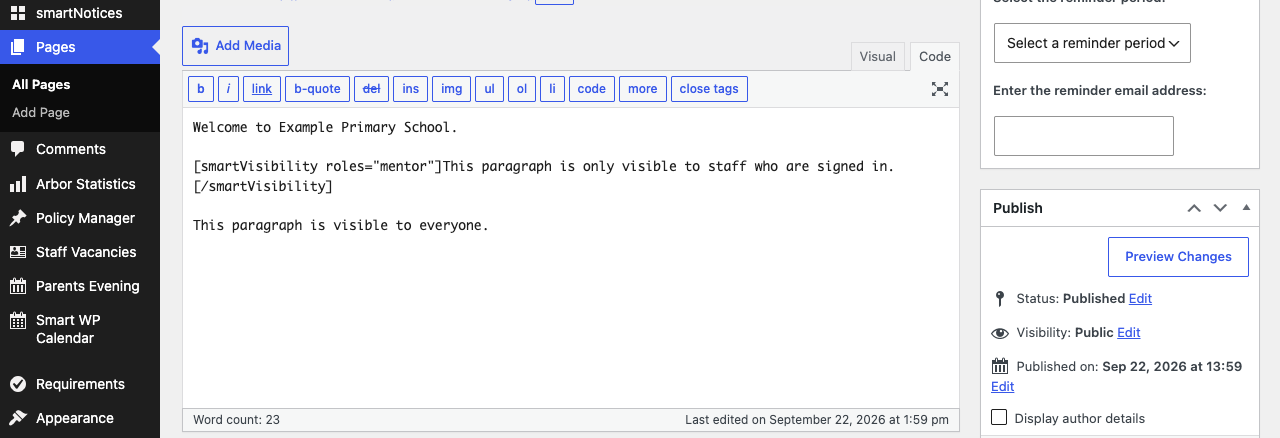
[smartVisibility roles="mentor,learner"]This part is only shown to signed-in staff and pupils.[/smartVisibility]
Type the shortcode directly into the content editor, wrapping the text (or blocks) you want to restrict.
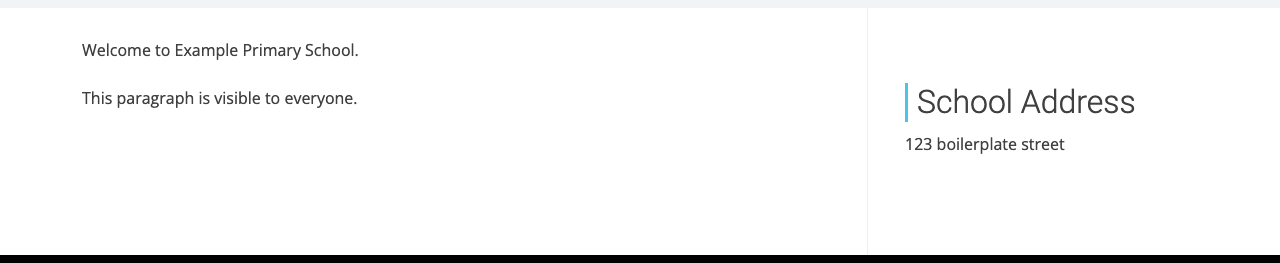
To a signed-out visitor, only the content outside the shortcode — and any shortcode that includes
public in its roles — is shown:
roles — a comma-separated list of account types: public, learner, mentor, governor,
ofsted, observer. Leave it out and the wrapped content is shown to every account type,
including the public — which is the same as not wrapping it at all. Someone signed in with the
Admin account type only sees shortcode content whose roles includes mentor.
Troubleshooting
Restricted content is still visible to everyone
- Check that Public is unticked in the smartVisibility box, and that the post, page or notice was updated after the change.
- If you unticked every account type and saved, this does not hide the content from everyone — with nothing ticked, Smart Visibility keeps whatever the content's previous visibility was (or, on a piece of content that has never had a visibility set before, defaults to visible to everyone). Tick the specific account types you want instead of leaving all of them unticked.
- Test in a private/incognito browser window, signed out, to see what the public actually sees. While you are signed in with the Admin account type, or with an account that has no account type (see below), you see restricted posts, pages and notices whatever the setting.
A signed-in visitor cannot see content they should be able to see
- Confirm their account type — the account types here come entirely from how they signed in through single sign-on, not from any WordPress role.
- Check the content's smartVisibility box (or the shortcode's
rolesattribute) includes their account type. - A WordPress account created directly in the WordPress admin, rather than by signing in through
single sign-on, has no account type at all. It sees every restricted post, page and notice, but
it never sees
[smartVisibility]shortcode content — even a shortcode with every account type listed inroles.
Part of a page is missing, and there is no error
Check the page content for a [smartVisibility] shortcode. If its roles list does not include
the current visitor's account type, the wrapped content is removed entirely — not greyed out or
replaced with a message, simply not shown.
Did this work for you?
If a step looked different on your site, tell us and we'll update the screenshots.
Thanks for your feedback.