Smart Media Logs
Overview
Smart Media Logs keeps a record of every change to your Media Library: each time a file is uploaded, has its details edited, or is deleted, it notes what happened, to which file, who did it and when. It is useful when a file has gone missing, when you need to know who uploaded something, or as part of a website safeguarding review.
It works automatically — there is nothing to switch on or configure. Only administrators can see the log.
Getting set up
Step 1: Open the log
Go to Smart Plugins → Smart Media Logs. The newest activity is at the top, 50 entries per page; use the page numbers under the table to go further back.
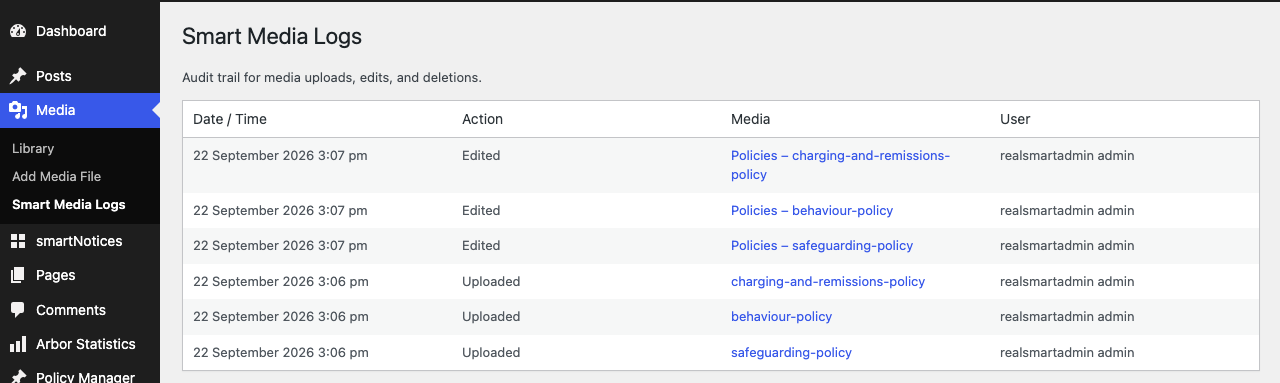
Step 2: Find the file you are looking for
Read down the Media column for the file's title. Select the title to open that file's details in the Media Library. The row recording a deletion shows the title followed by (deleted), and once a file has been deleted none of its rows are links any more.
Features
What each column shows
Where to find it: Smart Plugins → Smart Media Logs
| Column | What it shows |
|---|---|
| Date / Time | When it happened, in your website's date and time format |
| Action | Uploaded, Edited or Deleted |
| Media | The file's title at the time, linked to the file unless it was deleted |
| User | The display name of the person who did it, or System if nobody was signed in (for example an automatic task) |
What is recorded
- Uploaded — a new file added to the Media Library, however it was added.
- Edited — a file's details (such as its title, caption or description) were saved.
- Deleted — a file was deleted permanently from the Media Library.
Some tools change a file's details for you, and these appear as Edited by the person using the tool. For example, adding a document to a policy group in Smart Policy Manager renames it with "Policies – " at the front, so it shows as Edited straight after it was added.
The log has no search, filter, export or clear option, and it only includes activity since Smart Media Logs was added to your website.
Troubleshooting
I cannot see Smart Media Logs under Media
Only administrators can see the log. Ask an administrator to look up the file for you.
The page says "No media activity has been logged yet."
Nothing has been uploaded, edited or deleted since the log started recording. Upload or edit a file, then reload the page — a new row should appear at the top. If it still says nothing has been logged, contact Realsmart support.
A file's title in the log does not match the Media Library
The log keeps the title the file had at the time of each action. If the file was renamed later, older rows show the old title — the link still opens the current file.
Did this work for you?
If a step looked different on your site, tell us and we'll update the screenshots.
Thanks for your feedback.