All guides / Security-compliance
Smart Cookies
Overview
UK law (PECR, alongside UK GDPR) says a website must ask before it sets cookies that are not needed for the website itself to work, such as analytics and advertising cookies, and refusing must be as easy as accepting. Smart Cookies does this for your school website.
Visitors see a Cookies on this website banner at the bottom of the page with your message, a link to your privacy page, and three buttons: Accept all, Reject all and Manage preferences. Manage preferences lets them choose for themselves:
- Necessary — needed for the website to work, so always on.
- Analytics — help you understand how the website is used, for example Microsoft Clarity or Google Analytics.
- Marketing — help you measure your advertising, for example the Meta Pixel.
Until a visitor chooses, the tracking in smartOptions → Tracking & code does not run. Once they have chosen, a small Cookie settings button stays in the bottom-left corner of every page so they can change their mind.
Getting set up
Step 1: Switch Smart Cookies on
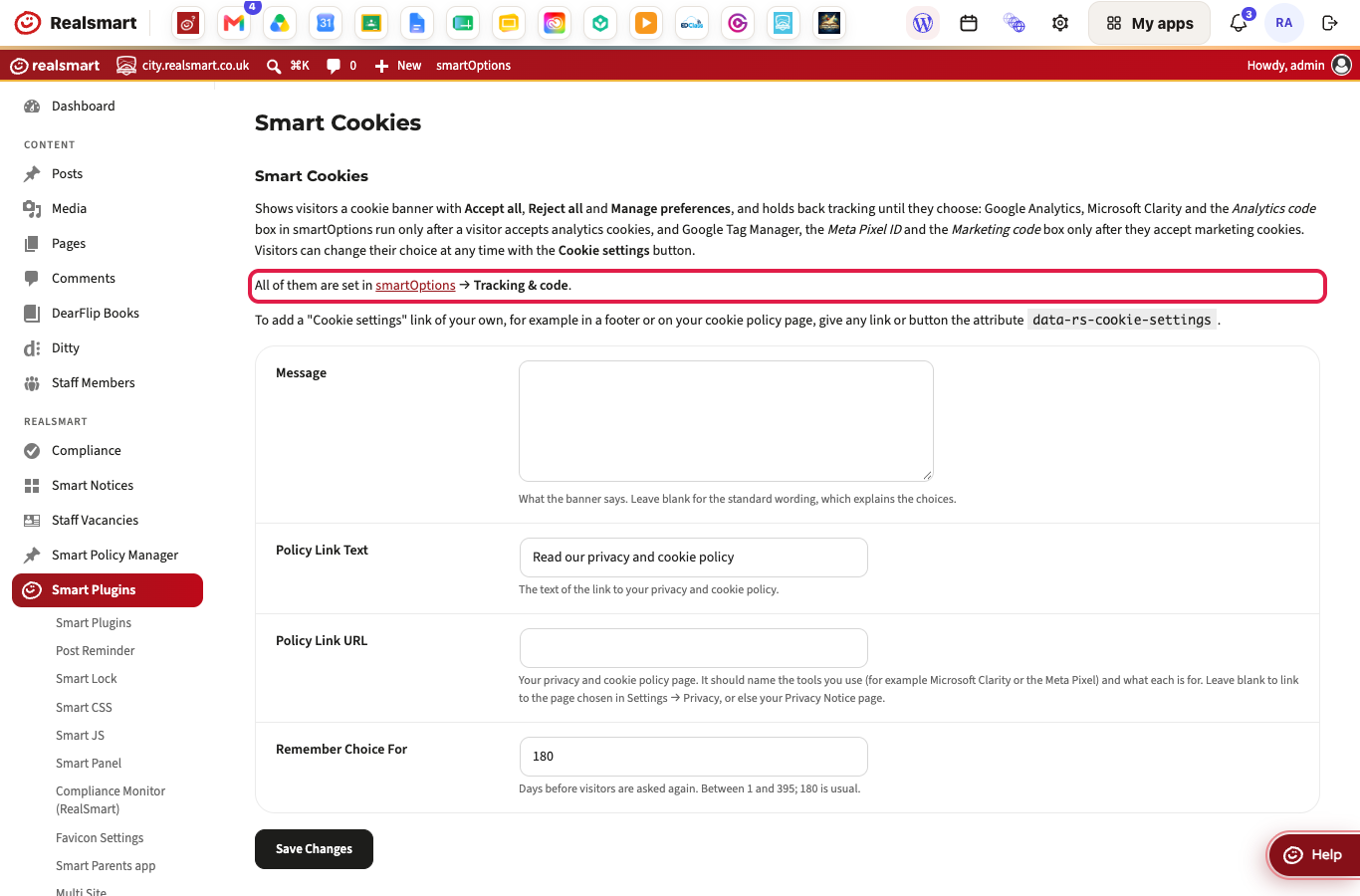
Go to Smart Plugins, make sure Smart Cookies is switched on, then go to Smart Plugins → Smart Cookies.
Step 2: Put your tracking code in the right boxes
Go to smartOptions → Tracking & code. Smart Cookies only holds back tracking that is set up there:
- Google Analytics 4 and Microsoft Clarity — paste just the ID (or the whole code the service gives you; the ID is taken from it). They run once a visitor accepts analytics cookies.
- Google Tag Manager — the container ID. It needs Smart Cookies, and runs once a visitor accepts marketing cookies, because a container can hold advertising tags.
- Meta Pixel ID — the number from Meta Events Manager, for measuring Facebook and Instagram adverts. Paste the number, or Meta's whole code: the number is taken from it. Loads once a visitor accepts marketing cookies.
- Analytics code — code for any other analytics tool. Runs once a visitor accepts analytics cookies.
- Marketing code — advertising tags, for example Google Ads or TikTok. Runs once a visitor accepts marketing cookies.
Tracking code pasted anywhere else — Smart JS, a block or widget on a page, or another plugin — is not held back. Move it into Tracking & code.
Step 3: Check your privacy page
Your privacy page should name the tools you use (for example Microsoft Clarity or the Meta Pixel) and say what each one is for.
Leave Policy Link URL blank and the banner links to your privacy page by itself — the page chosen in Settings → Privacy, or else your Privacy Notice page. Fill it in only to send visitors somewhere else.
Step 4: Save and check it
Select Save Changes, then open your website in a private/incognito browser window. The banner appears at the bottom of the page:

Select Reject all. The banner closes and a Cookie settings button appears in the bottom-left corner. Select it to open the choices again.
Settings
Where to find it: Smart Plugins → Smart Cookies
| Setting | What it does | Default |
|---|---|---|
| Message | What the banner says. Leave blank for the standard wording, which explains the choices | Blank — the standard wording |
| Policy Link Text | Text for the link to your privacy page | Read our privacy and cookie policy |
| Policy Link URL | Where that link goes | Blank — your privacy page, found for you |
| Remember Choice For | Days before a visitor is asked again, between 1 and 395 | 180 |
With Policy Link URL blank, the link goes to the page chosen in Settings → Privacy. If none is chosen, or it still holds WordPress's sample "Suggested text", it goes to your Privacy Notice page instead. If your website has neither, the banner shows no link rather than one that leads nowhere.
Where to find it: smartOptions → Tracking & code
| Setting | What it does | Without Smart Cookies |
|---|---|---|
| Google Analytics 4 | Google Analytics, from its Measurement ID. Runs after a visitor accepts analytics cookies | Runs for every visitor |
| Microsoft Clarity | Clarity, from its Project ID. Runs after a visitor accepts analytics cookies | Runs for every visitor |
| Google Tag Manager | Your Tag Manager container. Runs after a visitor accepts marketing cookies | Not used at all |
| Meta Pixel ID | The Meta Pixel, recording page views. Loads after a visitor accepts marketing cookies | Not used at all |
| Analytics code | Other analytics tracking code. Runs after a visitor accepts analytics cookies | Runs for every visitor |
| Marketing code | Advertising tags. Run after a visitor accepts marketing cookies | Not used at all |
Good to know
-
Changing their mind. A visitor who takes consent back has the tracking tools' cookies removed, and the page reloads without those tools.
-
Your own "Cookie settings" link. Give any link or button the attribute
data-rs-cookie-settingsand it opens the choices too. For example, in a Custom HTML block on your privacy page:<a href="#" data-rs-cookie-settings>Change your cookie settings</a> -
Fewer visitors in your analytics. Only visitors who accept analytics cookies are counted, so your figures will be lower than before. That is expected.
-
Google and Microsoft tools. Google tags are told each visitor's choice (Google Consent Mode), and so is Microsoft Clarity.
-
The Meta Pixel records page views only, and Meta's automatic event setup is switched off. In Meta Events Manager, leave automatic advanced matching off so details typed into forms on your website are never sent to Meta.
Troubleshooting
The banner is not appearing
- Confirm Smart Cookies is switched on in Smart Plugins.
- If you see a Cookie settings button in the bottom-left corner instead, you have already chosen in this browser. Select it to see the choices, or test in a private/incognito window.
Visitors are asked about cookies again
A choice is remembered for the number of days in Remember Choice For, in that browser only — a visitor on another device, or who clears their cookies, is asked again. Everyone was also asked once more when the banner changed to Accept all / Reject all in October 2026, because the old Got it! button recorded that a visitor had seen the notice, not that they agreed.
Tracking runs before visitors have chosen
The code is somewhere Smart Cookies does not control. Move it from Smart JS, page blocks, widgets or other plugins into smartOptions → Tracking & code (see Step 2), and make sure Smart Cookies is switched on.
The Meta Pixel is not recording anything
Check that Smart Cookies is switched on — without it the Pixel does not load at all — and that Meta Pixel ID holds the number from Events Manager. The Pixel only records visitors who accept marketing cookies.
The privacy policy link goes to the wrong place
Go to Settings → Privacy, choose your privacy page under Change your Privacy Policy page, and select Use This Page. The banner follows it. If Policy Link URL in Smart Plugins → Smart Cookies is filled in, it wins — clear it, or set it to the right page, then Save Changes.
Did this work for you?
If a step looked different on your site, tell us and we'll update the screenshots.
Thanks for your feedback.