All guides / Security-compliance
Smart Lock
Overview
Your homepage is usually the most visited — and most easily broken — page on the site. Smart Lock protects it by redirecting anyone who tries to open it in the WordPress editor, back to the dashboard, before they can make a change.
It also closes the other ways in. While Smart Lock is on, the homepage cannot be changed with Quick Edit or Bulk Edit on the Pages list, and it cannot be moved to the Bin or deleted. Those links simply do not appear for it. If the homepage is ticked along with other pages, Bulk Edit leaves it out, and Move to Bin stops with a "not allowed" message — untick the homepage and try again.
It applies to whichever page is set as your site's front page under Settings → Reading, and it applies to every user at your school who tries to open it, including administrators. The only exception is Realsmart support, who can still open the homepage to fix it for you. If someone at your school genuinely needs to edit the homepage directly, Smart Lock has to be turned off first.
The Smart Lock page explains this at the top, above the Enable Smart Lock box.
Smart Lock is off until an administrator turns it on. You can do that from its card on the Smart Plugins page or from its own Smart Lock page. Both control the same setting, so changing one changes the other.
Getting set up
Step 1: Turn Smart Lock on
Go to Smart Plugins, select On on the Smart Lock card, then select Save changes.
Or go to Smart Plugins → Smart Lock, tick Enable Smart Lock, then select Save Changes. Both do the same thing.
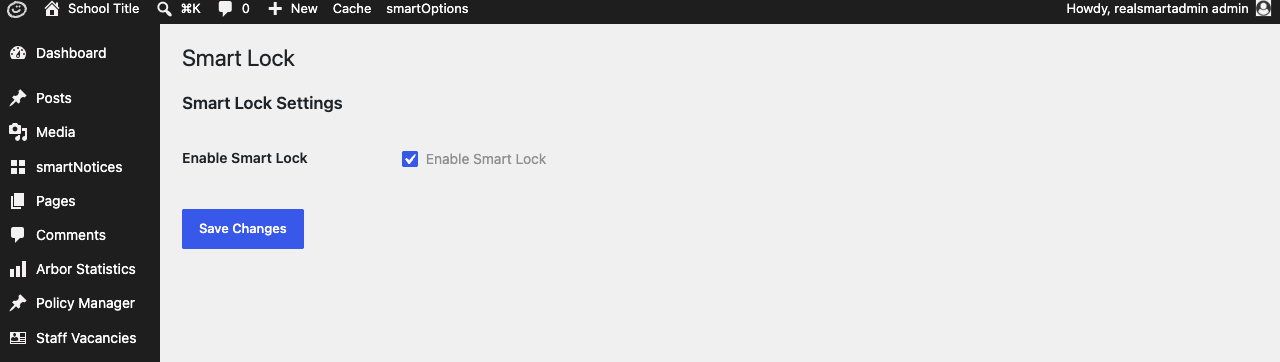
Step 2: Turn it off only when you need to edit the homepage directly
If you genuinely need to open the homepage in the editor — to fix something in the page content itself, rather than through Smart Blocks or a theme setting — turn Smart Lock Off on its card (or untick Enable Smart Lock) and save. Make your edit, then turn it back on.
Settings
Where to find it: Smart Plugins → Smart Lock, or the Smart Lock card on the Smart Plugins page
| Setting | What it does | Default |
|---|---|---|
| Enable Smart Lock | Redirects anyone who tries to open the homepage in the WordPress editor back to the dashboard, and stops it being changed through Quick Edit or Bulk Edit, binned or deleted | Off |
What counts as "the homepage"
Smart Lock protects exactly one page: whichever page is currently set as Settings → Reading → Your homepage displays → A static page → Homepage. If you change that setting to a different page, Smart Lock follows it — the old homepage becomes editable again and the new one is protected. If your homepage is set to show your latest posts instead of a static page, there is no homepage page for Smart Lock to protect.
What editors should do instead
Because the homepage itself cannot be opened for editing day-to-day, change the things the homepage shows instead — for example Smart Blocks, or the news items and other pages whose content appears on it — rather than the homepage's own content.
Troubleshooting
Someone says they cannot edit the homepage
This is Smart Lock working as intended, not a fault. It happens to every user who tries, including administrators. Only Realsmart support can open the homepage while Smart Lock is on.
- Confirm the page they are trying to edit is the one set as the front page under Settings → Reading.
- Point them to Smart Blocks, a theme setting, or the relevant sub-page instead, if the content they need to change lives there.
- If a direct edit to the homepage is genuinely needed, an administrator can turn Smart Lock off, make the change, and turn it back on afterwards.
There is no Bin, Quick Edit or Edit link under the homepage
This is Smart Lock too. The homepage cannot be binned, deleted or quick-edited while it is on. If you are replacing the homepage with a different page, choose the new page under Settings → Reading first; the old one is then unlocked and can be binned as normal.
I turned Smart Lock off, but the homepage still redirects me to the dashboard
Confirm you saved after turning it off — the setting only takes effect once it has been saved.
Smart Lock is on, but the homepage can still be edited
Check Settings → Reading: Smart Lock only protects a static page chosen as the Homepage. If the page you are editing is not that page, it is not locked.
I cannot see Smart Lock in the menu
The Smart Lock page is only available to administrators.
Did this work for you?
If a step looked different on your site, tell us and we'll update the screenshots.
Thanks for your feedback.