All guides / Content-publishing
Smart Popup
Overview
Smart Popup shows a modal window over your school website with a title, a message, and an optional button linking to more information. It is a good fit for a one-off announcement that needs more space, or more attention, than a Smart Alert bar — an open evening invitation, a welcome message for new parents, or a reminder about a deadline.
A visitor who closes the popup is not shown it again for a day, unless you choose to always show it.
Getting set up
Step 1: Open Smart Popup
Go to Smart Plugins → Smart Popup. Smart Popup is always available — there is no switch for it on the Smart Plugins page, and nothing shows on your website until you tick Enabled.
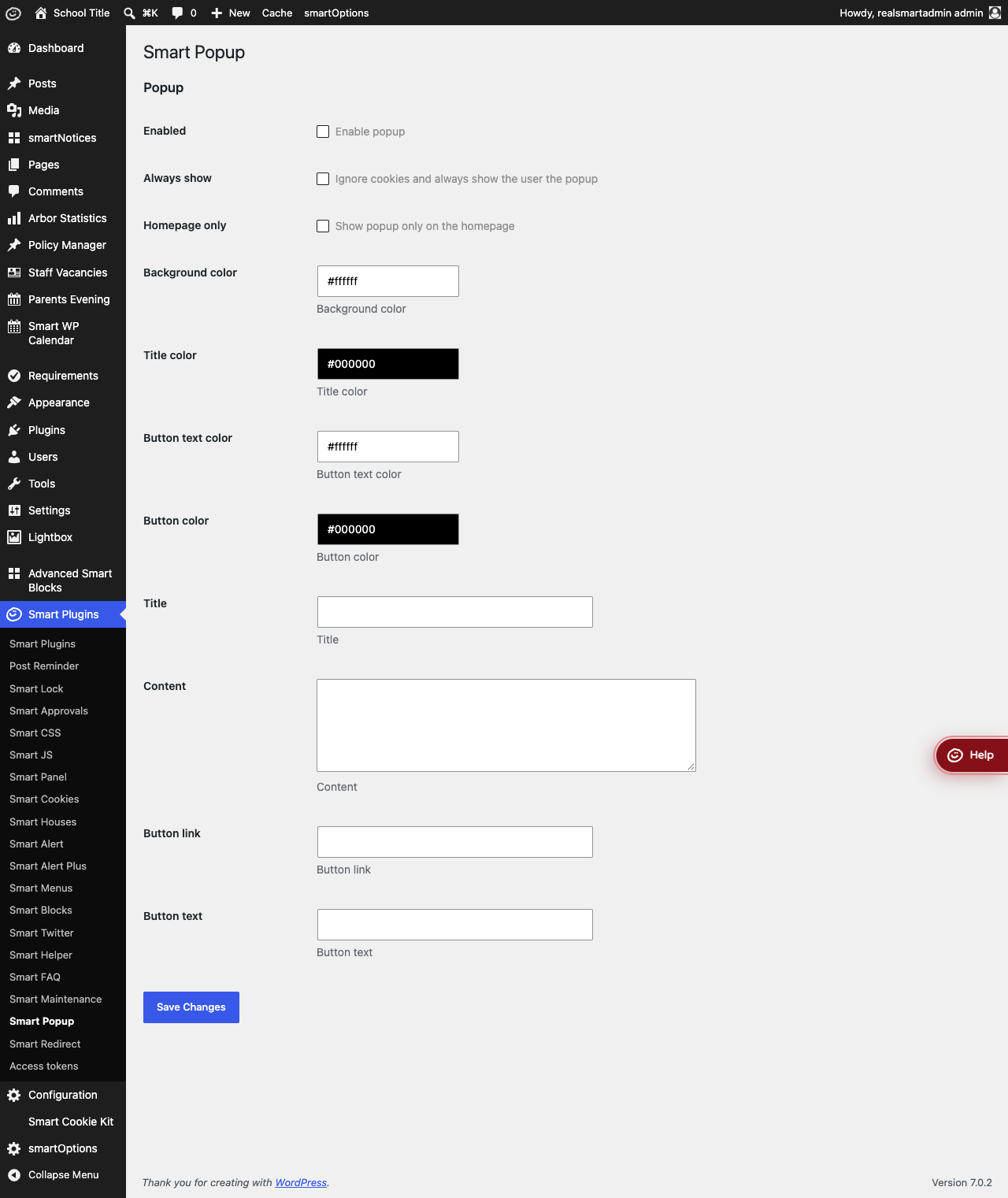
Step 2: Write the popup
Fill in Title and Content. Add a Button link and Button text if you want a call-to-action button — for example, a link through to a booking page.
Step 3: Style it and choose where it appears
Set Background color, Title color, Button color and Button text color to match your school's branding. Turn on Homepage only if the message only makes sense on the front page.
Step 4: Turn it on
Tick Enabled and select Save Changes. Visit your website to see it — the popup appears a moment after the page loads.

Settings
Where to find it: Smart Plugins → Smart Popup
| Setting | What it does | Default |
|---|---|---|
| Enabled | Turns the popup on or off | Off |
| Always show | Shows the popup on every page, even to visitors who have just closed it | Off |
| Homepage only | Only shows the popup on the homepage | Off |
| Background color | Popup background colour | #ffffff (white) |
| Title color | Title text colour | #000000 (black) |
| Button text color | Button label colour | #ffffff (white) |
| Button color | Button background colour | #000000 (black) |
| Title | Popup heading | Empty |
| Content | Main popup message | Empty |
| Button link | URL for the action button | Empty |
| Button text | Label on the button | Empty |
When a visitor closes the popup, their browser remembers it for one day, so they are not shown it again until the next day. Changing any setting on this page — the text, a colour, the button — counts as a new popup, so it appears again for everyone who had closed it. Always show turns this off, and the popup is shown on every page.
Troubleshooting
The popup is not appearing
- Confirm Enabled is ticked on the Smart Popup page, and Save Changes was selected.
- If Homepage only is ticked, the popup only shows on the front page — check you are testing there.
- If you cannot see it and have visited before, you may already have closed it. Turn on Always show temporarily to confirm, or test in a private/incognito browser window.
- The popup needs JavaScript to work out whether to hide itself for a returning visitor. With JavaScript switched off in the browser, it is shown on every page instead of being remembered — a safe fallback, but worth ruling out if a visitor reports it behaving oddly.
Visitors keep seeing the popup
- If it reappears on every page straight after being closed, Always show is on. Turn it off and select Save Changes.
- If it reappears the next day, that is expected: closing the popup is only remembered for one day.
- If it reappears for everyone at once, a setting on the Smart Popup page was changed and saved, which counts as a new popup.
Did this work for you?
If a step looked different on your site, tell us and we'll update the screenshots.
Thanks for your feedback.