All guides / Content-publishing
Advanced Smart Blocks
Overview
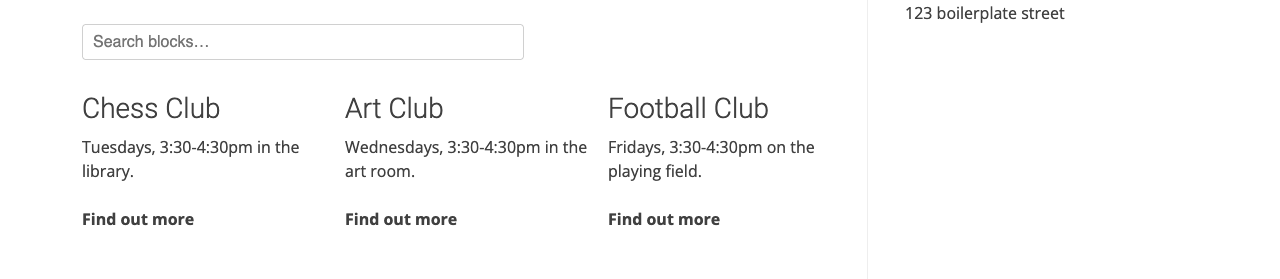
Advanced Smart Blocks (ASB) is for content that repeats with the same shape but different data — a list of after-school clubs, a staff directory, a set of facilities. You create a collection, describe its layout once, then add as many items as you like. Display the collection anywhere on the site with the [advanced_smart_blocks] or [asb] shortcode, as a searchable grid or a carousel.
It is switched on from the Smart Plugins hub, and its page is under Smart Plugins → Advanced Smart Blocks in the WordPress sidebar. Only Administrators can open it.
Getting set up
Step 1: Open Advanced Smart Blocks
Go to Smart Plugins → Advanced Smart Blocks in the WordPress sidebar.
Step 2: Create a collection
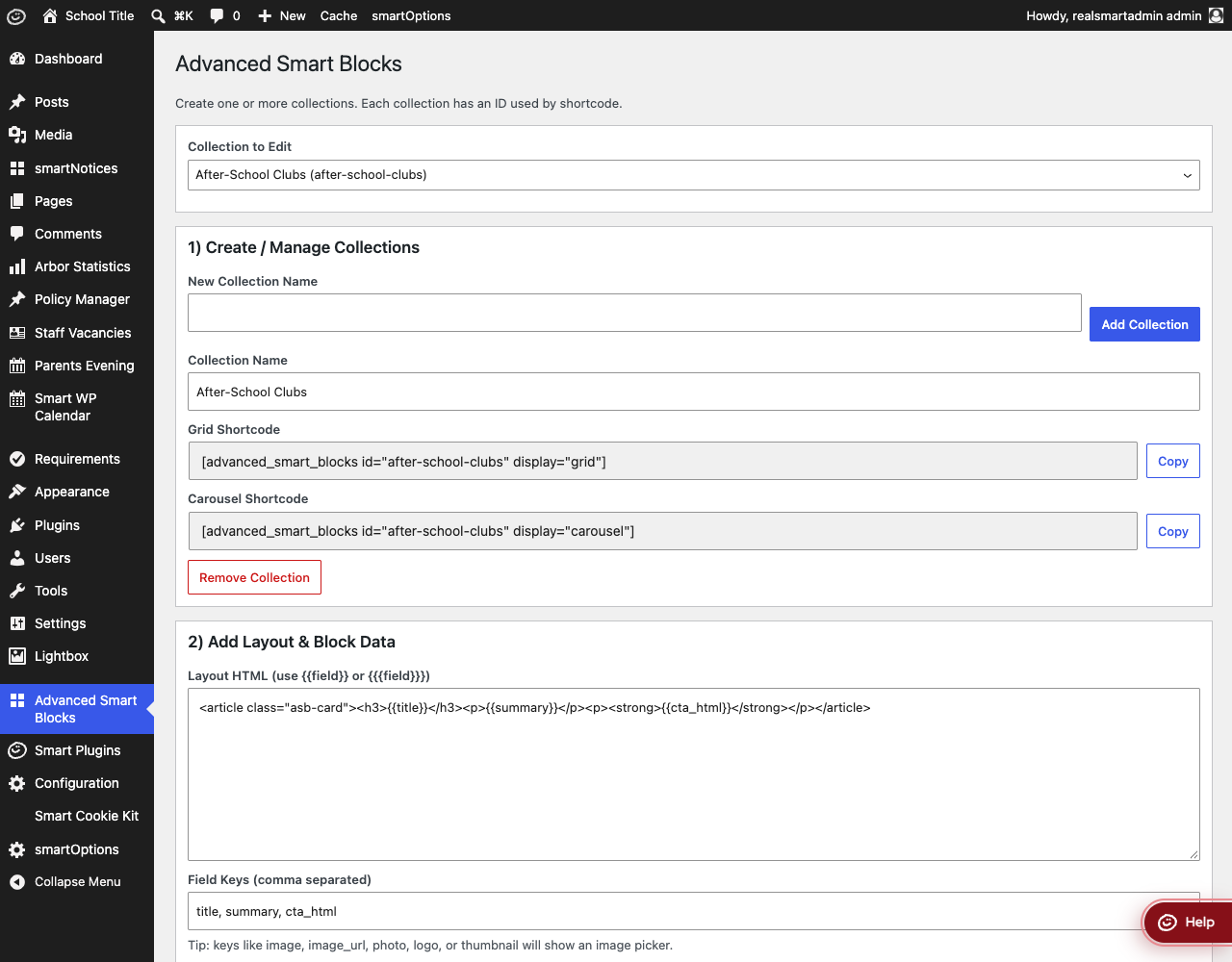
Under 1) Create / Manage Collections, type a name into New Collection Name and click Add Collection. The collection's shortcode ID is generated automatically from its name (capitals become lower case and spaces and punctuation become hyphens) and is shown in brackets in Collection to Edit. It changes if you rename the collection using Collection Name — so give it its final name before you start pasting the shortcode into pages.
Step 3: Set your fields
Under 2) Add Layout & Block Data, list the data points each item needs in Field Keys (comma separated) — for example title, summary, cta_html. A key that ends in image, img, photo, thumbnail, logo, avatar, banner or _url (for example photo or link_url) gets a web address box with Choose Image and Remove Image buttons instead of a text box. Whatever you enter in one of those fields is saved as a web address. If you leave Field Keys empty, the collection gets a single title field.
Step 4: Write the layout
Layout HTML is the template used for every item, written once. Use {{title}} for a field wherever you want its value inserted:
<article class="asb-card">
  <h3>{{title}}</h3>
  <p>{{summary}}</p>
  <p><strong>{{cta_html}}</strong></p>
</article>
{{index}} gives you the item's position in the list. A new collection starts with a ready-made layout that uses {{{cta_html}}} in triple braces — change that to double braces (see the known issue). If you empty the box completely, the ready-made layout is used. Scripts are removed from the layout when you save. See Fields and templates below for what {{field}} and {{{field}}} actually do.
Step 5: Add your items
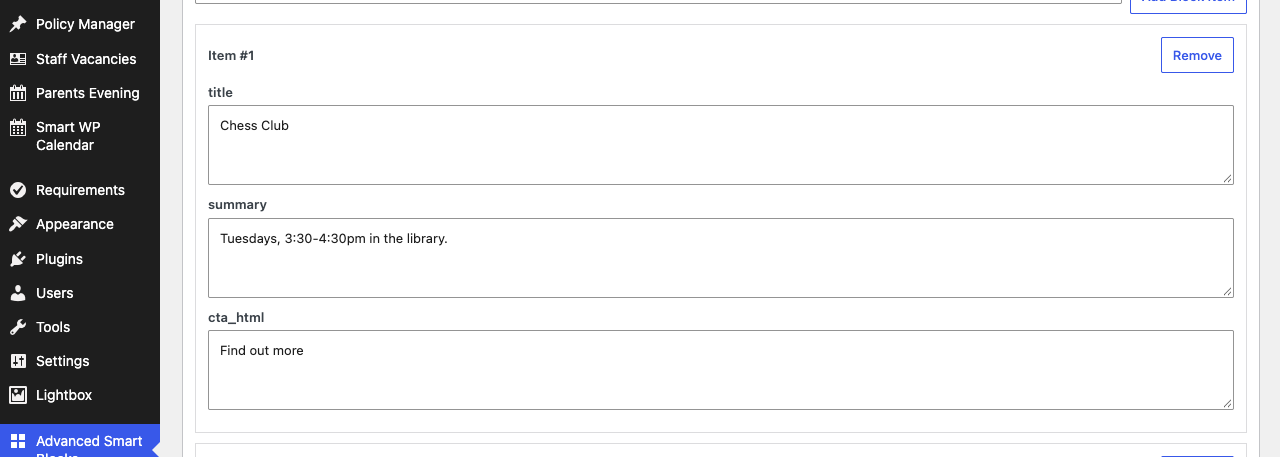
Click Add Block Item for each item and fill in its fields. Each item has a Remove button. Use Search block data to find an item quickly once you have a lot of them. An item with every field left blank is not saved.
Step 6: Save and add the shortcode
Click Save Smart Blocks. Nothing is saved until you do — a new or renamed collection's shortcode will not work on the site before then. Then click Copy beside the Grid Shortcode or Carousel Shortcode box (or type your own, see below) and paste it into a page or post.
Features
Where to find it: Advanced Smart Blocks
Fields and templates
{{field}}— the item's value, safe for plain text.{{{field}}}— intended to insert the value as raw HTML rather than escaped text. See Known issue with {{{field}}} below before relying on this.{{index}}— the item's position in the collection (1, 2, 3…).
Whatever you type into an item's fields in the admin screen is always saved as plain text — any HTML tags you paste into an item are stripped out when you save. Only the Layout HTML template itself (written once, by an administrator) can contain real markup; individual items supply text and links, not markup.
Display shortcode
| Shortcode | Example |
|---|---|
[advanced_smart_blocks] or [asb] — the two names do exactly the same thing |
[asb id="after-school-clubs" display="grid" columns="3" searchable="yes"] |
| Parameter | What it does | Default |
|---|---|---|
id |
The collection's shortcode ID — copy it from the Grid/Carousel Shortcode box | Required |
display |
grid or carousel |
grid |
columns |
Grid columns (1–6) | 3 |
gap |
Gap between items, in pixels | 16 |
searchable |
Show a search box that filters items live (no to hide it) |
yes |
search_placeholder |
Placeholder text in the search box | Search blocks… |
class |
Extra CSS class on the collection's wrapper, for your own styling | Empty |
A carousel shows the items in a row that scrolls sideways, with previous/next arrow buttons; a grid does not. When a visitor types in the search box, items that do not match are hidden and "No matching blocks found." appears if nothing matches.
Troubleshooting
The shortcode shows nothing
Why it happens: the id in the shortcode doesn't match a saved collection's ID, or the collection has no items.
How to fix it:
- Open Advanced Smart Blocks, select the collection from Collection to Edit, click Save Smart Blocks, then copy its Grid Shortcode or Carousel Shortcode box rather than typing the
idby hand. Renaming a collection changes its ID, so any page that used the old ID needs the new shortcode. - Confirm the collection has at least one item with some content in it. An item with every field left blank is not saved.
A field shows curly braces around its value
Why it happens: this is a known issue with {{{field}}} (triple braces). Because of how the template is processed, a field wrapped in triple braces shows on the page with a stray { and } around its value. The ready-made layout every new collection starts with uses {{{cta_html}}}, so you will see this unless you change it.
How to fix it: until this is fixed, use double braces ({{field}}) for your fields. Double braces work reliably; they just won't render HTML tags typed into an item — item values are stored as plain text anyway (see Fields and templates), so this is rarely a loss.
Did this work for you?
If a step looked different on your site, tell us and we'll update the screenshots.
Thanks for your feedback.