All guides / School-management
Website compliance
Overview
Compliance checks your website against what the Department for Education (DfE) says schools must and should publish online — admissions, Ofsted, results, curriculum, policies, SEND, funding, governance and more. It tells you, item by item, what is in place, what needs attention and what is missing, and it can create a ready-to-finish page for anything you do not have yet.
You do not need to tell it what kind of school you are. It looks your school up on Get Information about Schools (GIAS), the DfE's register of schools, and follows the guidance that applies to you: maintained school or academy, primary or secondary, with or without a sixth form, part of a trust or not.
Compliance reads your published website — pages, news posts, documents linked from them, Smart Policies files, your menus and your footer — every night and shortly after you change anything. It shows you exactly what it found for each item, so you can check it.
It replaces the old Requirements checklist, which asked you to choose Maintained or Academies. Those screens no longer exist; old links to them open Compliance.
Anyone who can edit pages sees the Compliance menu.
Getting set up
Step 1: Open Compliance
Click Compliance in the left-hand admin menu.
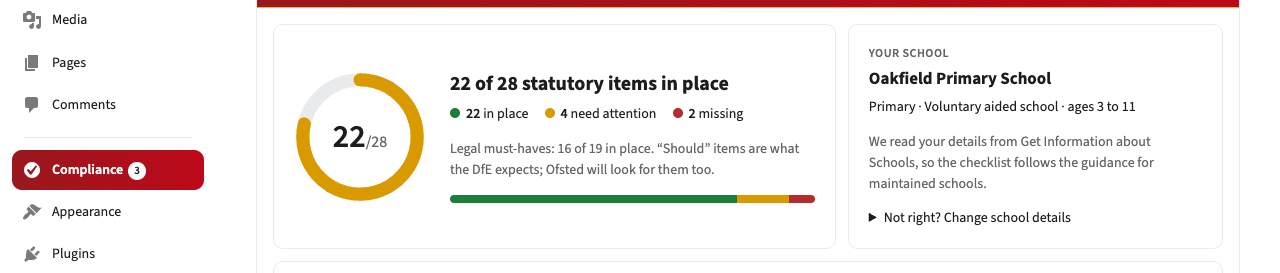
The number beside Compliance is how many legal must-haves still need attention. The Compliance screen is available to everyone who can edit pages.
At the top you will see your score — how many of the statutory items that apply to your school are in place — and, on the right, Your school: the school's name, type and age range as Get Information about Schools records them.
Step 2: Check your school details
Check the Your school card is right. If Compliance could not work out which school the website is for, it asks you instead: type your school's name, your trust's name or your URN, and choose it from the list. If the details are wrong, open Not right? Change school details and search again.
If the website is not for a school, choose This website is not for a school and the checks switch off.
Step 3: Work through Next steps
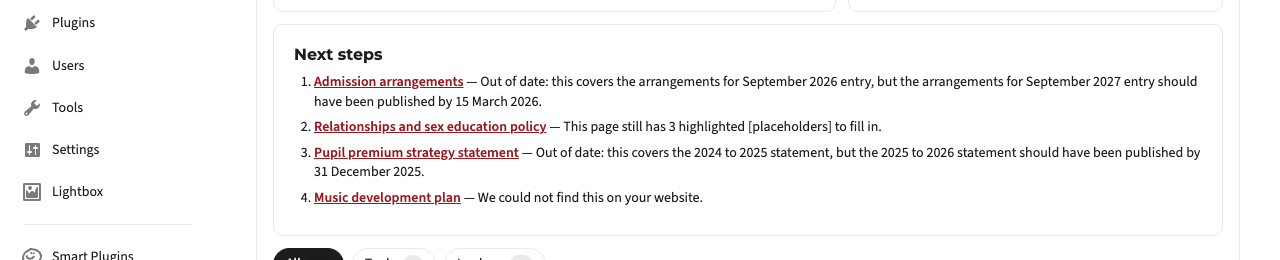
Next steps lists the most important items to sort out, legal must-haves first. Click one to jump to it.
Features
What each status means
Where to find it: Compliance, in each group
| Status | What it means |
|---|---|
| In place | We found it on your website, it is public, and it looks current |
| Needs attention | We found it, but it is out of date, only visible to signed-in users, still has template placeholders in it, or links to another school's page |
| Missing | We could not find it on your website |
| Not applicable | You told us it does not apply to your school, and why |
Each item is marked Must (the law requires it), Should (the DfE expects it, and Ofsted will look for it) or Recommended (good practice). Recommended items are shown but do not count towards your score.
Use the buttons above the list to show All, To do, In place or Not applicable.
What is checked, and what we found
Where to find it: click any item to open it
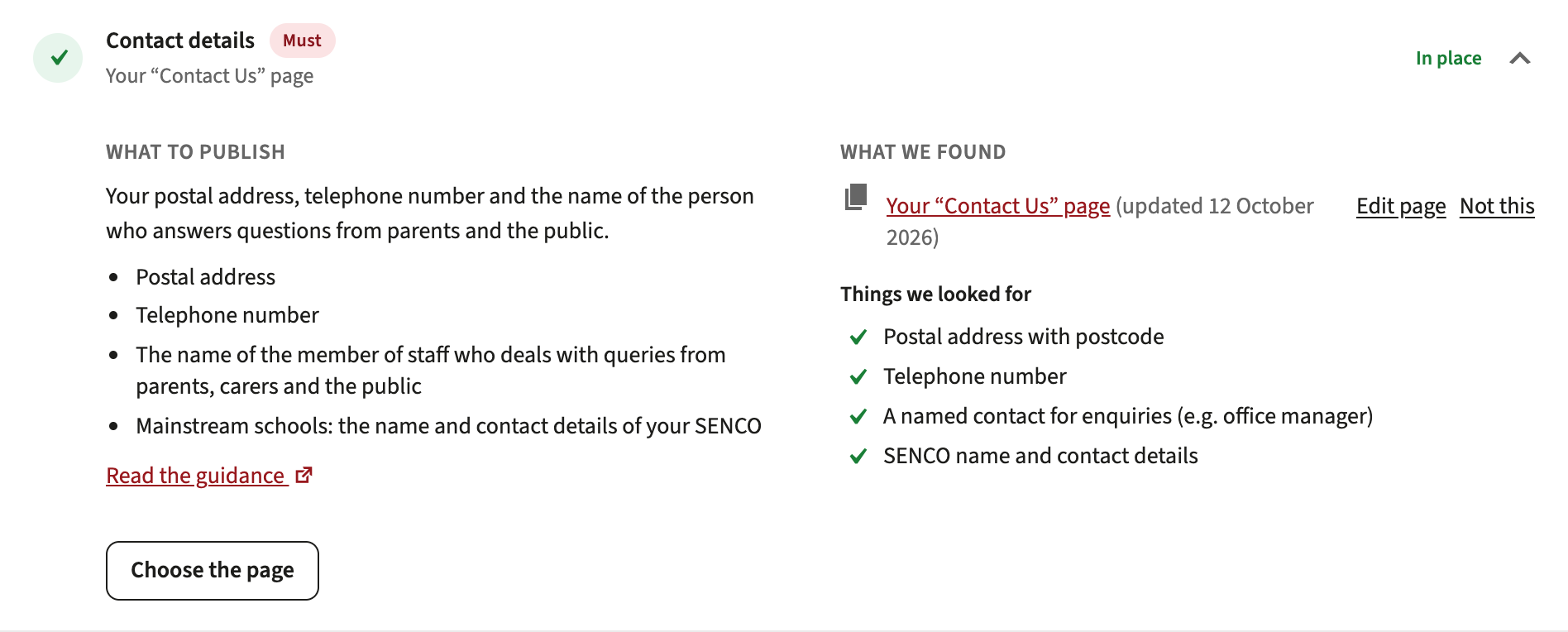
Each item shows:
- What to publish — in plain English, with a Read the guidance link to the DfE page it comes from, and any DfE template (for example the pupil premium strategy statement template).
- What we found — the page or document Compliance matched, linked, with the date it was last updated and an Edit page link.
- Things we looked for — details the page should contain, such as your SENCO's name in your contact details. Compliance can read web pages but not the inside of PDF or Word documents, so if the detail is in a document you can ignore a missing tick.
Out-of-date documents
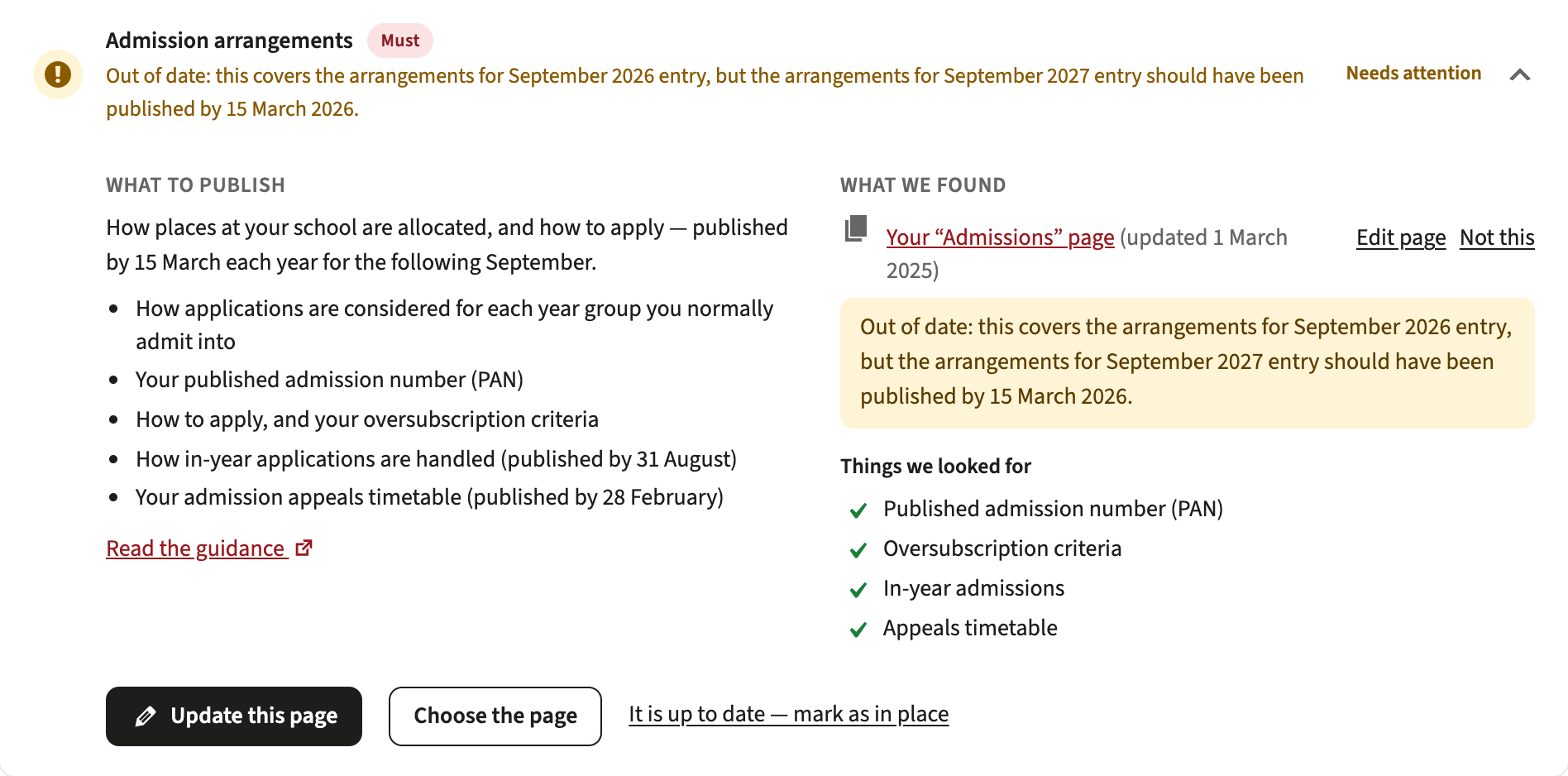
Where to find it: items marked Needs attention
Many documents have to be replaced every year by a set date — the pupil premium strategy statement by 31 December, the PE and sport premium report by 31 July, admission arrangements by 15 March for the September after next. Compliance reads the academic year in the document's title or file name (for example "Pupil Premium Strategy 2024-25.pdf") and tells you exactly what is now due and by when. Where a name has no year, it uses the date the document or page was last updated.
Tip: put the academic year in your file names, for example "Behaviour Policy 2026-27.pdf". Compliance can then always tell which version you have published.
What a trust's website is checked for
Where to find it: Compliance, on a trust's own website
When the website is a trust's, Compliance checks the trust's duties rather than a school's: the annual report and accounts (by 31 January each year), executive pay, members, trustees and governance arrangements, the articles of association and funding agreements, and the whistleblowing procedure. A multi-academy trust is also asked for a summary statement of financial arrangements.
That statement is new from October 2026 (Academy trust handbook 2026, paragraph 5.32). It is published on the trust's website alongside the audited accounts, by 31 January each year, and explains how funds are distributed across the trust's academies: whether income or reserves are pooled, how central services are funded, and what each academy receives and spends. The figures must match the notes to the accounts. DfE publishes guidance and an example. The first one is due by 31 January 2027, so until then Compliance does not call an earlier one out of date. A single-academy trust is not asked for it, and neither is an academy's own website: the trust publishes it. Create page from template makes a draft with DfE's four headings ready to fill in.
Create a page from a template
Where to find it: Create page from template, on any missing item
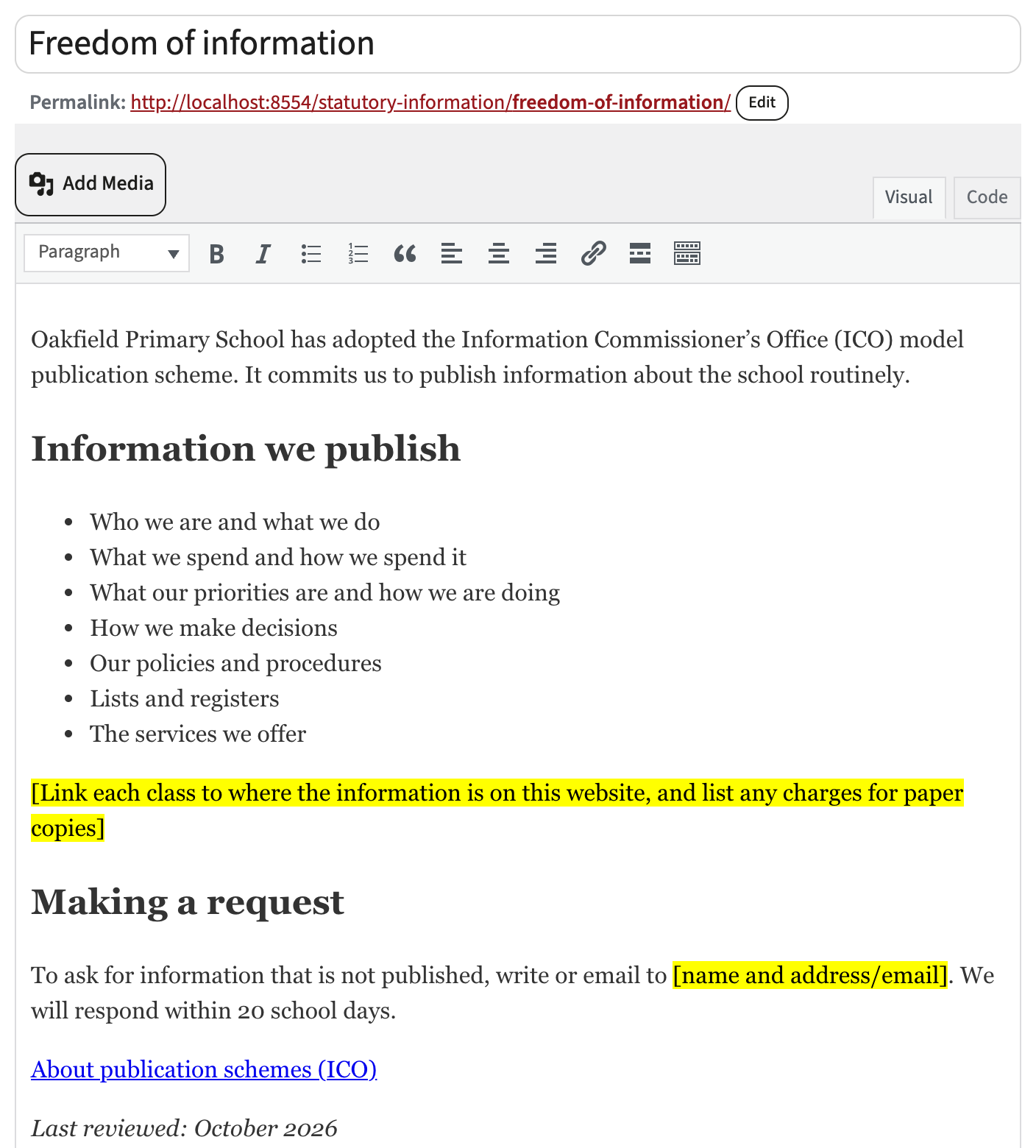
Compliance creates a draft page and opens it in the editor. Everything it already knows is filled in — your school's name, address, phone number and headteacher, and links to your own Ofsted report, performance tables and financial benchmarking page. Anything only you can write is shown as a highlighted [placeholder]. Replace each one, then publish.
If you have a statutory information page (see below), new pages are created underneath it. Until a draft is published the item shows Finish the draft page. If a page is published with placeholders still in it, the item is marked Needs attention and says how many are left.
When Compliance found the wrong thing, or nothing
Where to find it: the buttons at the bottom of each open item
| Button | What it does |
|---|---|
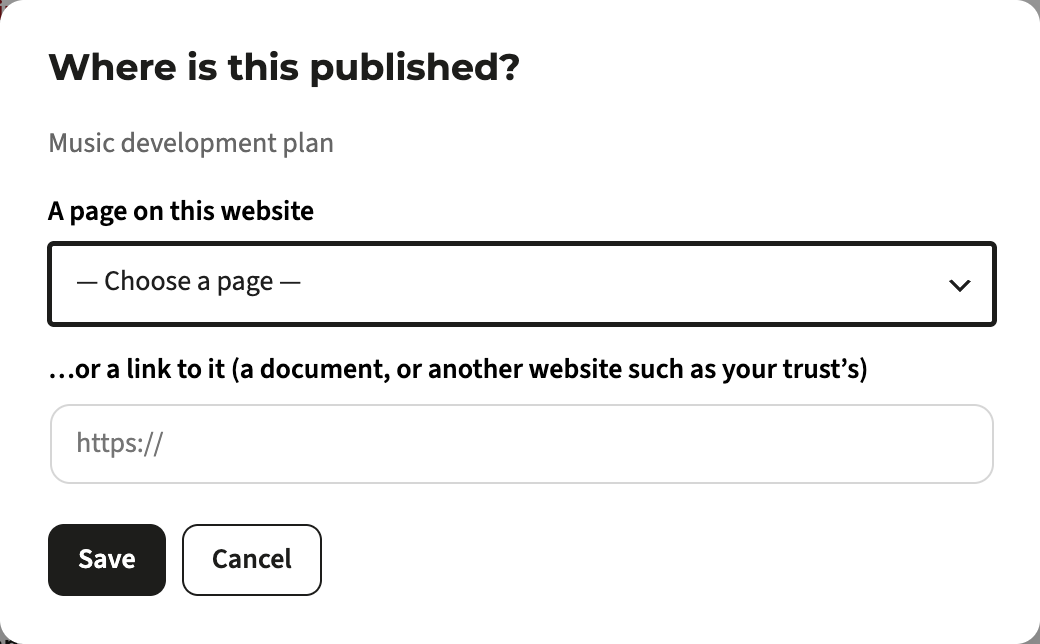
| Choose the page | Pick the right page on your website, or paste a link to a document or another website (for example your trust's) |
| Not this | Ignore a page Compliance matched wrongly; it looks for the next best match |
| Let us find it again | Go back to automatic matching after choosing a page |
| It is published — mark as in place | For things Compliance cannot see, such as a policy inside a Google Drive folder. The confirmation lapses at the item's next deadline, or after a year, so you are asked to check it again |
| Not applicable | Shown only where an item can genuinely not apply — for example "We do not receive PE and sport premium". Your answer is kept and shown on the item |
Statutory information page
Where to find it: Create the page, at the bottom of the Compliance screen
Creates a draft page called Statutory information that lists every item that is in place, grouped and linked to where it is. The list updates by itself as your website changes, so it never needs editing. Publish it and add it to your menu, and parents, governors and inspectors can find everything in one place.
You can also put the list on any page yourself with the shortcode [statutory_information].
Scores in the School Switcher
On a trust's own website, the trust's admins see each school's score in the School Switcher in the Smart Panel bar, with a link to that school's Compliance screen. The switcher also shows the trust's own score and a total across its schools. Your school's score is shared with SmartLogin after each scan that runs in the background (every night, and shortly after you change something) and when someone selects Rescan. Opening the Compliance screen on its own does not share it, so what a trust sees can be up to a day behind the number on your screen. A school that has chosen This website is not for a school shows as not applicable. Only the score is shared, not the pages or documents Compliance found.
Dashboard widget and printed report
Where to find it: your WordPress dashboard; Print report at the top of the Compliance screen
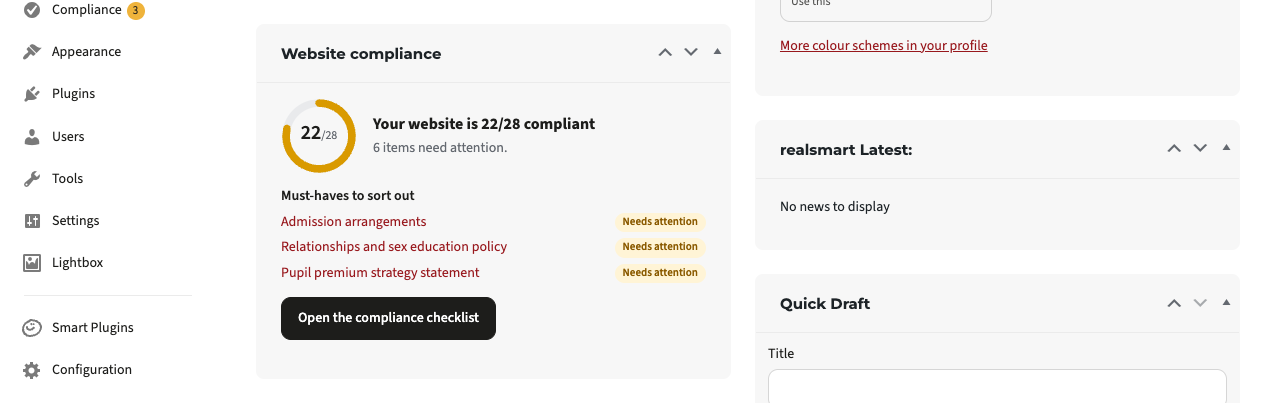
The Website compliance widget on your dashboard shows your score — for example "Your website is 22/28 compliant" — and the must-haves still to sort out, with a link to the checklist.
Print report prints a summary of every item and its status, for example to take to a governors' meeting.
Reading age
Where to find it: the Reading age section near the bottom of the Compliance screen, and the Reading age box beside the editor on every page and post
The reading age is how old a reader needs to be to follow your writing easily. Aim for 9 or under when you write for parents and carers: GOV.UK writes for a reading age of 9, so that as many people as possible can understand it the first time.
- 9 or under — easy to read
- 10 to 12 — fine for most parents
- 13 or over — hard for many parents
On the Compliance screen, the section shows the typical reading age of your pages and of the documents Compliance reads, the pages to simplify first (each links to its editor), the hardest documents, and any documents that are scanned images. A scan is a picture of a page: nobody can search it, and screen readers cannot read it aloud, so upload the original Word file or PDF instead. The reading age is not part of your compliance score.
In the editor, the Reading age box updates a couple of seconds after you stop typing. It shows the figure, how many words you have written, and your longest sentences, so you can see what to split. A page needs about 100 words before its reading age means much; shorter ones show the long-sentence tips only.
To bring a reading age down:
- Keep sentences short: 15 to 20 words on average, and none over 25.
- Use everyday words: "help" for "assistance", "about" for "regarding", "start" for "commence".
- Use bullet points for lists, and headings to break up long pages.
- Policies often need legal terms. Start each one with a short summary in plain English, and put the same summary on the page that links to it.
The figure is the Flesch-Kincaid grade plus five, the same grade Microsoft Word shows in Readability Statistics, so you can check a document before you upload it. Headings and list items count as sentences of their own, and numbers, dates, web addresses and email addresses are left out.
Troubleshooting
Compliance asks "Which school is this website for?"
Why it happens: Compliance looks for your school's URN in links on your website (to Ofsted, the performance tables or the benchmarking service), then for the school whose website address on Get Information about Schools is this website, and then searches for your site's name. None of them found a match.
How to fix it: Type your school's or trust's name, town or postcode, or your URN, and choose it from the list. Adding a link to your Ofsted report also lets Compliance find you by itself.
The search says "The schools directory has not loaded on this server yet"
Why it happens: Compliance keeps its own copy of Get Information about Schools, refreshed from the DfE every day. A server that has just started may not have downloaded it yet.
How to fix it: Try again in an hour. If the message is still there the next day, contact Realsmart support.
Our school type, phase or trust is wrong
Why it happens: Compliance shows what Get Information about Schools records for your URN. If the school has recently converted to an academy, it has a new URN, and the website may still link to the old one.
How to fix it: Open Not right? Change school details and search for the school again, choosing the entry that is not marked closed. If GIAS itself is wrong, your school or local authority can ask the DfE to correct it.
An item we have published shows as Missing
Why it happens: Compliance only reads published, public content, and matches it by its title, its menu label, its file name or the phrases inside it. A draft, a page only signed-in users can see, a page with an unusual title, or a document stored somewhere Compliance cannot read (such as a Google Drive folder) is not found.
How to fix it: Open the item and choose Choose the page to point at the right page or document. If it is somewhere Compliance cannot read, choose It is published — mark as in place.
An item says the page is only visible to signed-in users
Why it happens: The page's Smart Visibility setting hides it from the public, or it has a password. Statutory information must be public.
How to fix it: Choose Open the page to make it public, set Smart Visibility to include Public, and update the page.
An item says our Ofsted link goes to a different school
Why it happens: Your website links to an Ofsted (or performance tables) page for a different URN — usually your school before it converted to an academy, which shows the old school's report.
How to fix it: Edit the page and change the link to your current URN, which is shown on the Your school card. The Ofsted report template creates the right link for you.
Where did the Maintained and Academies checklists go?
Why it happens: The old Requirements checklist has been replaced by Compliance. Your school's type now comes from Get Information about Schools, so there is only one checklist, made for your school.
How to fix it: Nothing to do — open Compliance in the menu. Old bookmarks to the Maintained and Academies screens open it automatically.
Did this work for you?
If a step looked different on your site, tell us and we'll update the screenshots.
Thanks for your feedback.