All guides / Content-publishing
Smart Panel
Overview
Smart Panel is the bar across the top of every page of your school website that connects it to SmartLogin, your school's single sign-on:
- Visitors who are not signed in see a Login button.
- People who are signed in see the apps launcher and their user menu.
The bar is provided by Realsmart and is the same across every Realsmart school website. The apps and links it shows come from your school's Realsmart account, not from WordPress, so there is nothing to set up in WordPress to add or remove an app — contact Realsmart support for that.
What you can change in WordPress is how the Login button looks for visitors, and whether visitors see the bar at all.

Getting set up
Step 1: Open the Smart Panel settings
Go to Smart Plugins → Smart Panel in the left-hand WordPress sidebar. The page is headed smartassess control panel options. Only administrators can open it.
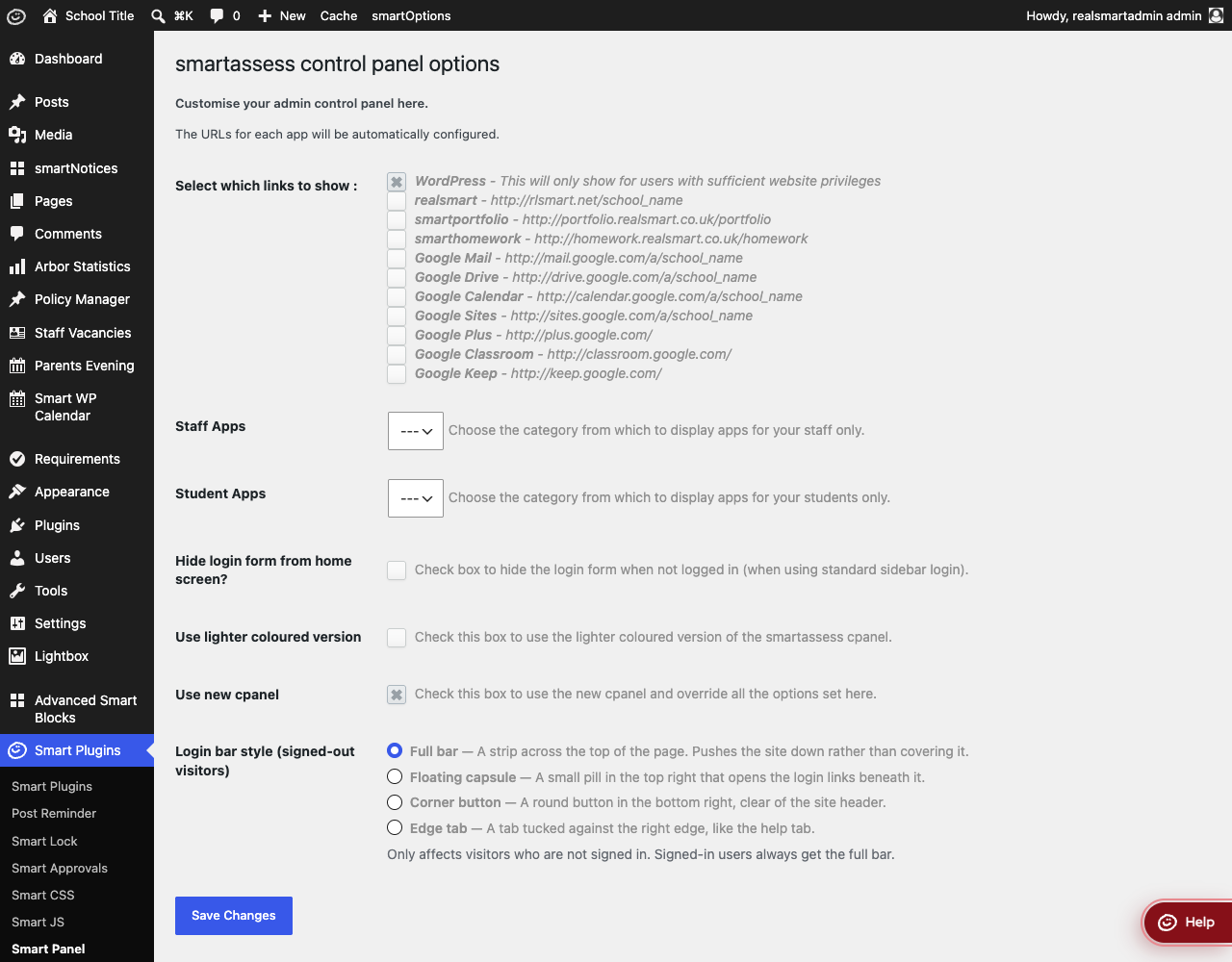
Step 2: Check that Use new cpanel is ticked
Use new cpanel must be ticked for the Smart Panel bar to appear on your website. If it is unticked, the bar is not shown at all. It is unticked on a website where this page has never been saved, so check it on a new site.
Step 3: Choose the login bar style
Under Login bar style (signed-out visitors), choose how the Login button appears to visitors:
| Style | What visitors see |
|---|---|
| Full bar | A strip across the top of the page. Pushes the site down rather than covering it. This is the default |
| Floating capsule | A small pill in the top right that opens the login links beneath it |
| Corner button | A round button in the bottom right, clear of the site header |
| Edge tab | A tab tucked against the right edge, like the help tab |
This only changes what visitors who are not signed in see. It changes nothing about how anyone signs in, and signed-in users always get the full bar.
Step 4: Save Changes
Click Save Changes, then open your website in a private browser window to see it as a visitor does.
Features
Hiding the bar from visitors
Where to find it: smartOptions → Advanced → Hide the Smart Panel
Turn Hide the Smart Panel On and click Save changes to stop visitors who are not signed in seeing the bar. People who are signed in still see it. See Smart Theme Options.
If you hide the bar, give visitors another way to sign in with the [login_link] shortcode. Put it on a page and it shows a Login link to visitors and a Logout link to people who are signed in. You can change the wording:
[login_link login_text="Staff and pupil login" logout_text="Sign out"]
The legacy control panel
Where to find it: Smart Plugins → the Smart Panel card
Before the current Smart Panel bar, Realsmart websites used an older control panel bar. The Smart Panel card on the Smart Plugins page switches that old bar on or off; it does not control the current bar. It is Off by default and should stay Off unless Realsmart has asked you to use it.
The older settings on the Smart Panel settings page only apply to that old bar:
| Setting | What it did in the old bar | Default |
|---|---|---|
| Select which links to show | Which app links (WordPress, realsmart, smartportfolio, smarthomework and Google apps) to show | WordPress ticked |
| Staff Apps | A link category whose links were shown to staff only | --- (none) |
| Student Apps | A link category whose links were shown to pupils only | --- (none) |
| Hide login form from home screen? | Hid the old bar's login form from visitors | Unticked |
| Use lighter coloured version | Used a lighter colour scheme for the old bar | Unticked |
When Use new cpanel is ticked — which it needs to be for the current bar — the old bar does not appear even if its card is On, and these settings have no effect.
Troubleshooting
There is no login bar on the website
Why it happens: Use new cpanel is unticked, or Hide the Smart Panel is On in smartOptions (which hides the bar from visitors who are not signed in).
How to fix it:
- Go to Smart Plugins → Smart Panel, tick Use new cpanel and click Save Changes.
- Go to smartOptions → Advanced and check Hide the Smart Panel is Off, then click Save changes.
- Reload the website in a private browser window.
An app is missing from the apps launcher, or should not be there
Why it happens: The apps come from your school's Realsmart account, not from WordPress. The app tick boxes and Staff Apps / Student Apps settings on the Smart Panel page only affected the old bar.
How to fix it: Contact Realsmart support with the app you want added or removed.
I changed the login bar style but I still see the full bar
Why it happens: You are signed in. Signed-in users always get the full bar.
How to fix it: Open the website in a private browser window, where you are not signed in, to see the style visitors get.
Did this work for you?
If a step looked different on your site, tell us and we'll update the screenshots.
Thanks for your feedback.