Configuration
Overview
The Configuration page (titled Site Configuration) holds a few technical details that connect a school website to Realsmart. The setting that matters most day to day is realsmart SSO ids, which lets people from other Realsmart schools — for example other schools in the same trust — sign in to this website through SmartLogin.
The page is only shown to Realsmart staff accounts. School administrators do not see it in their menu, so if you need something changed here, contact Realsmart support.
Getting set up
These steps are for Realsmart staff making a change on a school's behalf.
Step 1: Open Configuration
Signed in with a Realsmart staff account, go to Smart Plugins → Configuration in the left-hand WordPress sidebar.
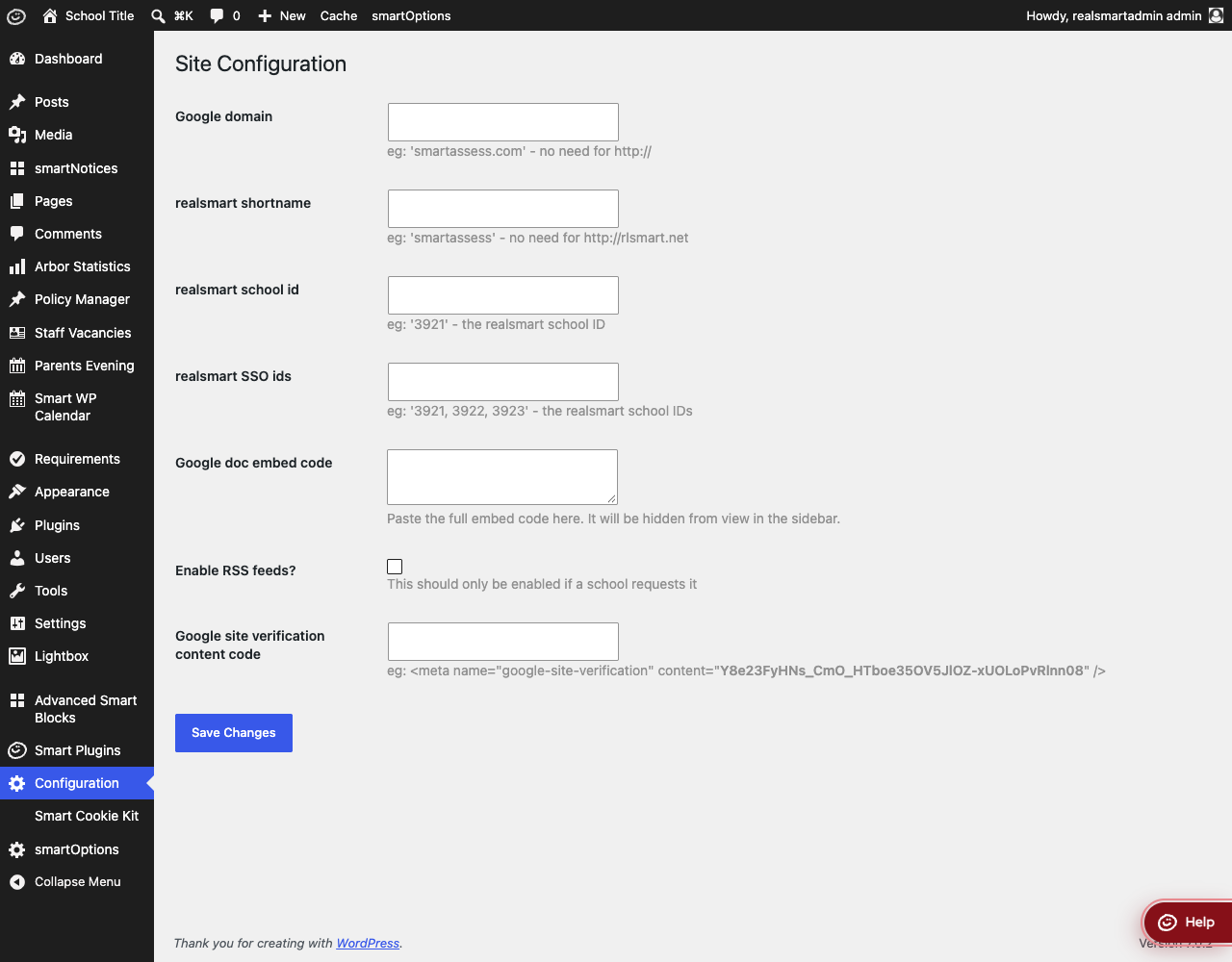
Step 2: Change the setting
To let users from other schools sign in, type their Realsmart school IDs into realsmart SSO ids, separated by commas (for example 3921, 3922). Spaces are removed when you save.
Step 3: Save Changes
Click Save Changes.
Settings
Where to find it: Smart Plugins → Configuration (Realsmart staff accounts only)
| Setting | What it does | Default |
|---|---|---|
| Google domain | The school's Google Workspace domain, without http://. Only used to build the Google app links in the legacy control panel (see Smart Panel) |
Empty |
| realsmart shortname | The school's Realsmart short name. Only used by the legacy control panel | Empty |
| realsmart school id | The school's Realsmart ID. Only used as a fallback when the website cannot otherwise work out which school it belongs to, so on most sites it has no effect | Empty |
| realsmart SSO ids | Realsmart school IDs, separated by commas. Users from any of these schools can sign in to this website through SmartLogin, as well as users from the school that owns the site | Empty |
| Google doc embed code | Saved, but not currently used anywhere on the website | Empty |
| Enable RSS feeds? | Saved, but not currently used: ticking it does not change the website's RSS feeds | Off |
| Google site verification content code | Saved, but not currently added to the website, so it cannot be used to verify the site with Google Search Console | Empty |
Who can sign in
When someone signs in through SmartLogin, they are let in if they belong to the school that owns the website, are Realsmart staff, belong to one of the schools listed in realsmart SSO ids, or have been given access to the website by Realsmart. Adding a school ID to realsmart SSO ids is the quick way to let staff and pupils from a partner school in.
Troubleshooting
I cannot see Configuration in the menu
Why it happens: The page is only shown to Realsmart staff accounts, not to school administrators.
How to fix it: Contact Realsmart support with the change you need.
Staff from another school cannot sign in
Why it happens: Their school is not listed in realsmart SSO ids and they have not otherwise been given access to this website.
How to fix it:
- Ask Realsmart support to add that school's Realsmart ID to realsmart SSO ids on this website.
- The change can take up to five minutes to apply. After that, ask them to sign in again.
The Google site verification code did not verify the site
Why it happens: The code entered on this page is saved but is not added to the website's pages, so Google cannot find it.
How to fix it: Use a different verification method in Google Search Console, or contact Realsmart support.
Did this work for you?
If a step looked different on your site, tell us and we'll update the screenshots.
Thanks for your feedback.