MAT overview dashboard
The MAT overview is your trust-level home screen. It is for admins who can reach more than one school. If your account only reaches one school, the school switcher shows just that school's name and there is no MAT overview to open.
What you'll see
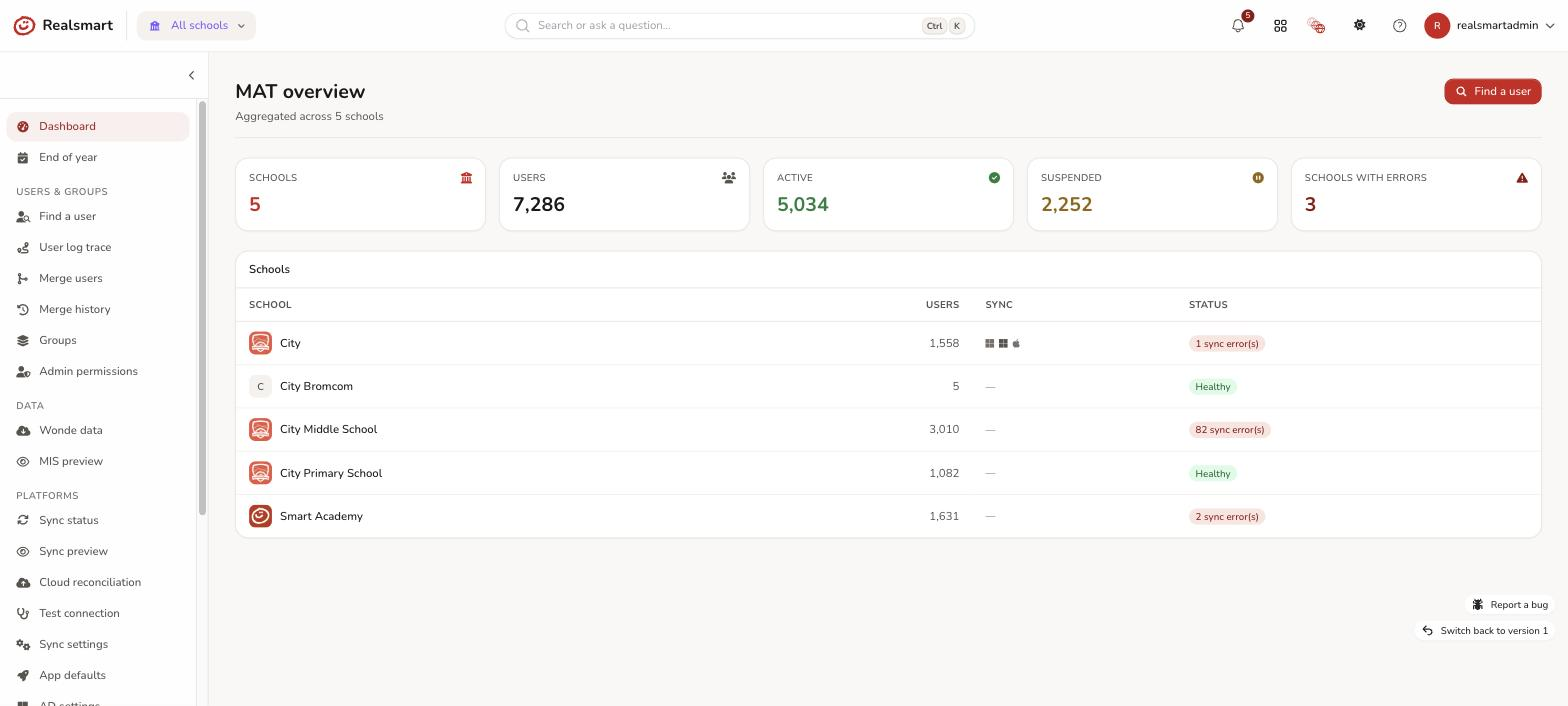
The page is titled MAT overview with the subtitle "Aggregated across N schools". The Find a user button at the top right searches every school at once (see Find a user across schools).
- Five tiles — Schools, Users, Active, Suspended and Schools with errors.
- Users counts every account in your schools, including deleted accounts that have not been cleared out yet. The Users column in the table below leaves deleted accounts out, so the table can add up to slightly less than the tile.
- Suspended includes locked accounts.
- Schools with errors is how many schools logged at least one sync error in the last 24 hours.
- Users pending suspension — the same panel as on a school's dashboard, but listing every flagged user across all your schools, with the school shown on each row. See Users pending suspension for how to review, search and suspend from it.
- Schools — a table with one row per school you can reach:
- School — the school's name. Selecting it opens a read-only view of that school in a new tab (see below).
- Users — everyone in that school who isn't deleted.
- Sync — a small icon for each of Active Directory, Entra and Apple that the school has switched on, or a dash if it has none of them.
- Status — Healthy, or "N sync error(s)" in red. The count covers errors in the provisioning log in the last 24 hours (Google, MIS import, Apple and similar). Microsoft Entra problems are listed separately under Platforms → Sync status → Entra sync issues.
Steps — viewing the MAT overview
Step 1: Switch to MAT mode
Select the school switcher at the top of the page, just to the right of the Realsmart logo, and choose MAT overview — all schools. You land on the MAT overview.
The switcher is in the top bar, not the sidebar. See Switch school context if you need help finding it.
Step 2: Browse the overview
The dashboard loads with the five tiles, the Users pending suspension panel and a row for each school you can reach. Schools are listed A to Z.
Step 3: Look at a school, or work in it
- To look at a school without leaving MAT mode, select its name in the Schools table. A summary opens in a new browser tab, marked Read-only view. Your own tab stays in MAT overview. See Look at one school from the MAT overview.
- To work in a school (edit users, change settings), choose it in the school switcher at the top of the page.
What's in the MAT sidebar
In MAT mode the sidebar shows trust-level tools, grouped under headers. The two items at the top have no header. What you see also depends on your admin permissions, shown in the Needs column in the words used on a user's Access tab. See Reduced admin access.
Top of the sidebar
| Item | What it is | Needs |
|---|---|---|
| Dashboard | This page | Any admin |
| End of year | Each school's provisioning window: Frozen, Active or Not set. View only — open a school to see its timeline and use its controls. See What happens at end of term | Manage users & groups |
Users & Groups
| Item | What it is | Needs |
|---|---|---|
| Find a user | Search for a person across all schools. See Find a user across schools | Manage users & groups |
| User log trace | One person's sync activity across every school. See Trace a user's activity across the trust | View logs & audit trail |
| Merge users | Merge duplicate accounts, including across schools. See Merge duplicate user accounts | Manage users & groups |
| Merge history | Past merges, and undo. See Merge history and undo | Manage users & groups |
| Creation history | Accounts the sync has created. See Creation history | Manage users & groups |
| Groups | Every group across your schools, with a School column and filter and the same bulk actions as a school's Groups page. See Bulk actions on groups | Manage users & groups |
| Admin permissions | Which admin can reach which school. See Admin permissions | Manage other admins' access |
Admin
| Item | What it is | Needs |
|---|---|---|
| Audit trail | Who changed what, across the trust. See Admin audit trail | View logs & audit trail |
| 2FA defaults | Set two-factor rules once for every school. Trust admins only. See Require MFA for staff and students | Change school settings |
| Launchpad notices | A banner on every school's launchpad. Only shown once Realsmart has switched the launchpad features on. See Launchpad notices | Change school settings |
Data
| Item | What it is | Needs |
|---|---|---|
| MIS preview | Incoming MIS data for every school before it syncs. See See what's coming from your MIS | View MIS (Wonde) data |
| API | API tokens. Only shown if at least one of your schools has the API turned on. See API — connect systems to your school's MIS data | Change sync, platform & API settings |
Platforms
| Item | What it is | Needs |
|---|---|---|
| Sync status (a group) | Sync status, Entra sync issues, Queue, Schedule, Test connection and Quick run. See MAT sync status | Sync status, Entra sync issues, Queue and Schedule need View sync status. Test connection needs Change sync, platform & API settings. Quick run needs Run syncs & provisioning |
| Sync preview | What the next sync will do at every school. See Seeing every school at once | View sync status |
| Match cloud accounts | Compare Realsmart's records with what is already in Google, one school at a time. In MAT mode the page says "Choose a school to reconcile": pick the school in the school switcher first. See Onboard a school that already has a Google setup | Change sync, platform & API settings |
| Sync settings | Switch sync services on or off for many schools at once. See Apply sync settings across the trust | Change sync, platform & API settings |
| Subjects | Provision subjects as groups. A school picker on the page covers every school you can reach. See Provision subjects as groups | Change sync, platform & API settings |
| App defaults | Default Launchpad apps for every school. Trust admins only. See App defaults | Trust admins |
| AD settings, Entra settings, Apple settings, Google settings, Calendar settings | Trust-wide integration settings. See Apply sync settings across the trust | Change sync, platform & API settings |
| Recent activity | A plain-English feed of what has been happening. See Recent activity | View logs & audit trail |
| Launchpad widgets | Which launchpad widgets are on at each school, and for trust admins the Trust defaults for which widgets people can hide or add. Only shown once Realsmart has switched the launchpad features on. See Every school in a trust and Trust defaults | Change sync, platform & API settings |
Bottom of the sidebar: Help.
These tools only exist in MAT mode. Switching to a school hides them and shows that school's own sidebar. Creating or editing a single user or group, and anything else scoped to one school, always needs a school selected. See Understanding MAT mode and school context.
An admin on the Reduced access level sees only End of year, Find a user, Merge users, Merge history, Creation history, Groups and the view-only Platforms pages (Sync status, Entra sync issues, Queue, Schedule and Sync preview). Anything missing from your sidebar that you expected is a permission, not a fault — ask a full admin to change your access.
Troubleshooting
- "There is no MAT overview in my school switcher" — your account reaches only one school. Admins whose account belongs to the trust itself reach every school in it, unless someone has reduced their access — Admin permissions shows whether an admin has been limited to fewer schools. An admin whose account belongs to a single school can't open the MAT overview.
- "No MAT overview available." (403) — the page opened for someone who can't reach more than one school. Use the school switcher to go back to your school.
- "I opened a MAT page and landed on my school's dashboard" — you had a single school selected, and MAT pages only work in MAT mode. Choose MAT overview — all schools in the school switcher first.
- "The Users tile doesn't match the table" — see the note under What you'll see: the tile includes deleted accounts that haven't been cleared out yet.
Related
Did this work for you?
If a step looked different on your site, tell us and we'll update the screenshots.
Thanks for your feedback.