What happens at end of term
The End of year page explains, in plain terms, exactly what will happen for your school — using your real dates and settings. This is a summary of the whole process.
You'll find End of year near the top of the sidebar, just under Dashboard. You need the Manage users & groups permission to open it. Changing the resume date, resuming early and releasing early accounts also need Run syncs & provisioning; an admin without it can read the page but those buttons are refused. See Reduced admin access.
If you are in MAT mode, End of year shows a list of your schools with Frozen, Active or Not set against each, and nothing else. Provisioning windows are set per school: choose a school in the switcher to see its timeline and use its controls.
The window
Your school has a provisioning window with two dates: when it opens (the start of your year) and when it closes (the end of term). While the window is open, changes in your MIS flow out to your users in Google Workspace, Microsoft Entra and any other platforms you sync to.
The freeze
When the window closes (your final date), sync freezes. In plain terms: changes in your MIS stop reaching your users in Realsmart, Google and Entra. This is deliberate — over the summer, school-office changes (leavers, timetable rebuilds, roll-overs) shouldn't disturb live accounts. While frozen, nothing MIS-driven is pushed to your connected platforms.
There is one thing you can still choose to do. New staff you recruit over the summer, and pupils who are about to join, are held by the freeze along with everything else — which is unhelpful when you want their logins ready for day one. Release early accounts lets you create accounts for exactly those people, and nobody else, while the rest of the freeze stays in place. While you're frozen, the card appears on Data → Incoming learners and mentors (on both Learners and Mentors); the End of year page has a card that points you there. You preview who would be created first, and nothing happens until you confirm. See Release early accounts during the freeze.
Your Classrooms
At the same moment, your Google Classrooms are handled according to your End of term Classroom option — archived, left as they are, or archived at the start of next term. You set a school-wide default and can override it per group. A classroom you leave active isn't archived, but it is disconnected from its group when sync resumes so the group starts the new year with a fresh classroom; the End of year page tells you how many classrooms that affects. See End of term Classroom options.
If you make Microsoft class Teams, the End of term — Microsoft Teams card does the same for them, with the same choices. See Microsoft Teams at year end.
Resuming for the new year
Sync turns back on automatically — on your chosen resume date, or by default on 1 September. The window rolls forward by a year and everything reconciles to your latest MIS data. You don't have to do anything for this to happen. If you want sync back sooner than that, a frozen school's End of year page has a Resume for the new year button. See Resuming sync for the new year.
That reconciliation includes your leavers: anyone no longer in your MIS is marked for suspension at the first MIS import after the resume date, and suspended about a day later. See What happens to a leaver's account?. If leavers need their accounts for longer, see Keep Year 11 and Year 13 leavers' accounts active.
Preview what will actually happen
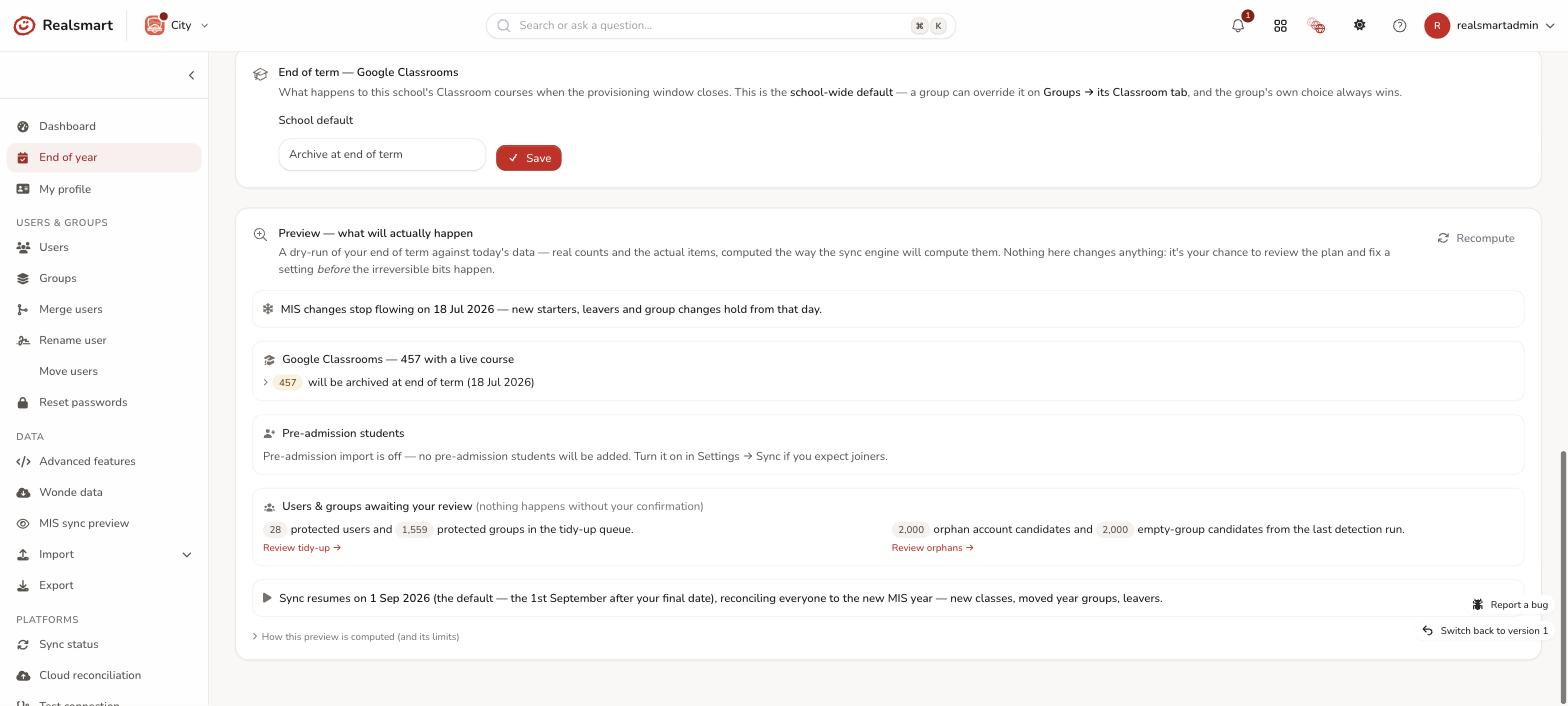
Before the end of term, use Preview — what will actually happen on the End of year page: select Compute the preview (it takes a few seconds). It runs a dry-run of your end of term against today's data — computed the way the sync engine will compute it, changing nothing — and shows real numbers and the actual items:
- when the freeze lands (your final provision date);
- exactly which Classrooms will be archived at end of term, archived at the new term, or stay active — expandable to the list (the first 200 in each group are named, with a count of the rest), each with its reason (school policy or a group's own override);
- which pre-admission applicants your MIS has accepted and who's held back, by status. Treat this as a look at your applicants rather than a list of who will be created: pupils are only brought in once you've chosen them on Incoming learners (see Import pre-admission students);
- what's waiting on you — protected users/groups in the tidy-up queue and orphan candidates from the last detection run (nothing there happens without your confirmation);
- if you sync to Microsoft Entra, which class Teams are archived and when, and what happens to groups and leavers' accounts in Microsoft 365 (see Microsoft Teams at year end);
- when sync resumes and what the reconciliation does.
This is the moment to catch a misconfiguration — if the preview says it will archive every Classroom and that's not what you meant, change the policy and select Recompute. The fine print under the preview (How this preview is computed (and its limits)) explains how each number is worked out. The preview is kept for a few minutes, so use Recompute after changing a setting.
What you need to do
The freeze and the resume both happen automatically — you don't have to trigger either one. But end of term is a once-a-year, high-stakes moment, so we recommend working through this sequence before your window closes rather than leaving everything to chance:
- Confirm your window dates and Classroom policy. Check the first and final provision dates on the timeline are right for this year, and set (or confirm) your school-wide End of term Classroom option. The dates of an existing window can't be edited on the page: if one is wrong, contact Realsmart support. See The provisioning window and the freeze and End of term Classroom options.
- Run the Preview dry-run. Use Preview — what will actually happen (above) to see the real numbers against today's data — nothing changes yet, but it's the moment to catch a misconfiguration before it's live.
- Work through tidy-up and orphan review before the freeze date. Review the protected users/groups queue and any detected stale orphans while you still have full visibility — both are entirely manual, nothing is removed without your say-so. Do any deleting before the freeze: while you're frozen, removals aren't sent to Google or Microsoft, and a deleted user's cloud account can be left behind. See End-of-term tidy-up and Stale orphan review.
- Review users with Smartsync off. On Users, select Filters → Smartsync → Off. These accounts are never suspended automatically, so suspend any that no longer need access. Admins aren't suspended automatically either, so suspend any admins who are leaving yourself.
- Plan for your leavers. When sync resumes, everyone who has left your MIS is suspended. If Year 11 or Year 13 leavers need their accounts for results day, UCAS or clearing, turn Smartsync off for them first. See Keep Year 11 and Year 13 leavers' accounts active and What happens to a leaver's account?.
- Check your MIS import is up to date. On the Dashboard, the Sync centre's Last MIS import should be today on a weekday. Once the freeze lands, no more imports run until you resume, so if it's out of date, contact Realsmart support before your final provision date.
- Set or confirm a resume date — or accept the 1 September default if that's right for your school. See Resuming sync for the new year.
- Let freeze and resume happen automatically. Once the above is done, there's nothing further to run — the freeze lands on your final provision date and sync resumes on your resume date (or 1 September).
- Over the summer, release early accounts if you need logins ready for day one. Once you're frozen, use Release early accounts to create accounts for new staff and the pupils who are joining without waiting for resume. This one is optional and entirely on your timetable — build a preview whenever you want to see who is waiting. If you have September starters, check the Pending mentors setting is on first, or they won't appear. See Release early accounts during the freeze.
If anything changes before the window closes (a revised term date, a Classroom policy change), come back and repeat step 1 — the preview always reflects your current settings.
Was this guide helpful?
We read every response — it decides what we rewrite next.
Thanks for your feedback.