Merge history and undo
Merge history is the record of every user merge you've run, and the place to undo one if it turns out to be a mistake. The page itself is titled Merge audit log ("Review and undo past user merges") — one page, two names. It works in two contexts, showing the merges you can access in each:
- MAT overview — Users & Groups → Merge history in the MAT sidebar.
- Inside one school — there is no sidebar link. Open it from the Merge audit log button on the Result step of Merge users, or go to the address ending
/v2/admin/users/merge-audit.
Before you start
- You must be an admin whose access includes Manage users & groups. Mentors and other staff cannot view or undo merges. See Reduced admin access.
- In a single school you see merges whose kept (primary) account is in that school; in MAT mode you see them across every school you can reach. In both, you also see any merge you started yourself.
- Undoing a merge is best-effort, not guaranteed. It reverses the database changes and can attempt to recreate cloud accounts, but if the original merge deleted or suspended a Google or Entra account, that cloud action may not be fully reversible. Read the result screen carefully after an undo.
Steps
Step 1: Open Merge history
In MAT mode, open Users & Groups → Merge history in the sidebar. Inside a school, use the Merge audit log button on the Result step of Merge users, or the page's address (see above). Top right, MAT search (MAT mode) or Users (inside a school) takes you back to the search page.
Step 2: Browse the list
Each row shows:
- When the merge was run
- Primary — the account that was kept (shown as #ID)
- Secondaries — how many accounts were removed into it ("N user(s)")
- DB status — whether the database change completed or was rolled back
- Undo — whether an undo has been not started, is partial, or completed
Select View on any row to see its full detail, or Undo if the merge is eligible (see Step 4). The list is newest first, 20 to a page. With nothing to show it says "No merges yet".
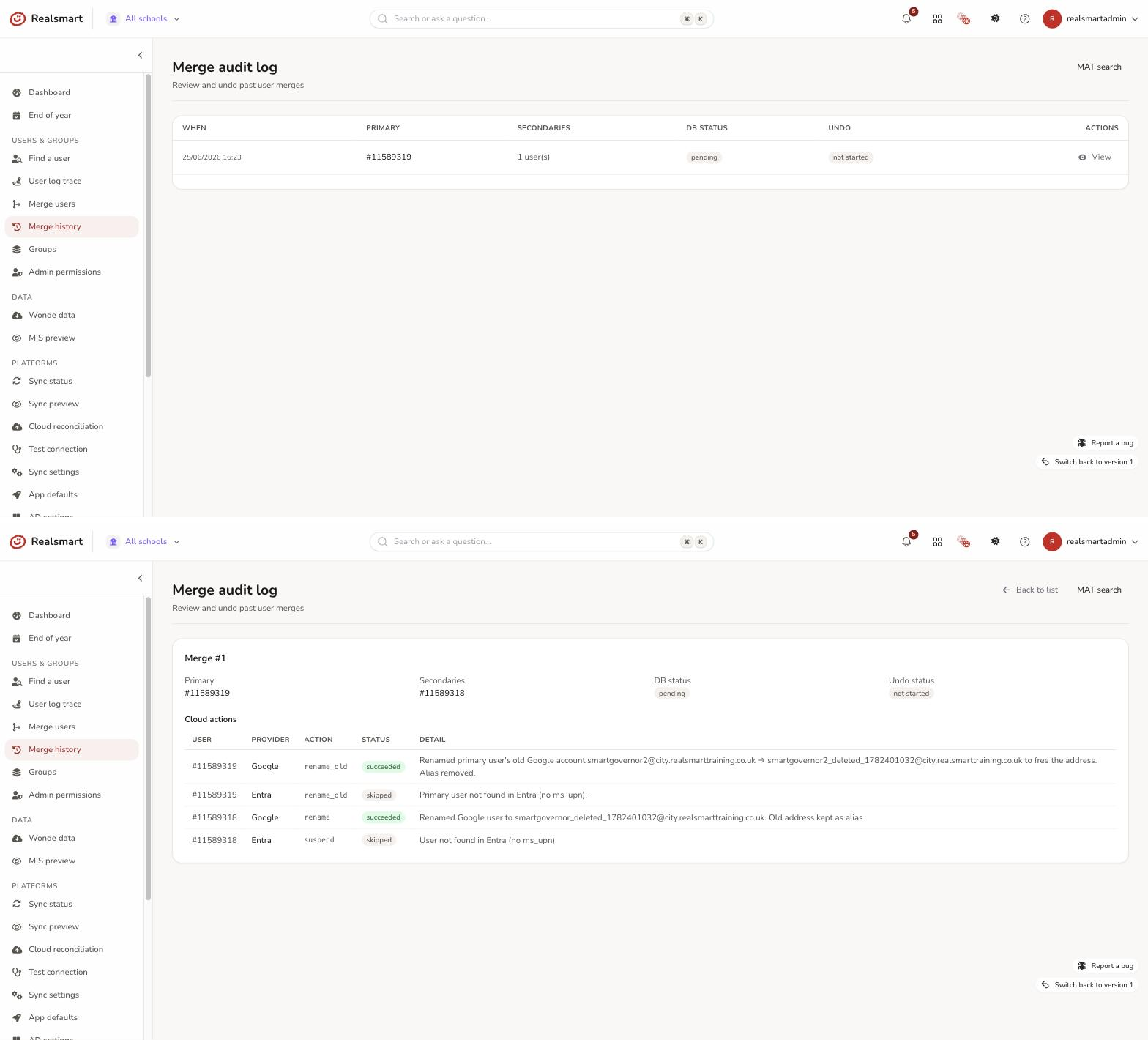
Step 3: View a merge's detail
The detail screen, headed Merge #N, shows the primary and secondary account IDs, the DB status and Undo status, and a Cloud actions table — every cloud-platform action the merge triggered, with:
- User — which account (by ID) the action applied to
- Provider — Google or Entra
- Action — what was done (e.g. rename, suspend)
- Status — succeeded or failed
- Detail — an error message if it failed
Step 4: Start the undo wizard
If the merge's DB status is completed and its undo status is not started, an Undo this merge button appears (on the list row or the detail screen). Selecting it opens the undo wizard.
If the merge can't be undone automatically, the wizard says "This merge cannot be undone automatically (the primary user no longer exists, or the merge did not complete)." and stops there.
Step 5: Choose which cloud actions to reverse
The Choose cloud reversals screen lists every reversible cloud action from the original merge. For each one, choose:
- Reverse — attempt to undo that specific cloud action (e.g. rename the account back). This is already chosen for rename actions.
- Leave — leave the cloud account as the merge left it, and only undo the database change. This is already chosen for other actions such as suspends.
If undoing would give back a username that's now in use by someone else in that school, a Username conflicts warning lists the clash ("Username "x" is already active in that school.") so you can resolve it first. If the original merge made no reversible cloud changes, the screen says "No reversible cloud actions — only database changes will be undone."
Choose Run undo (and confirm "Run the selected cloud reversals and restore the database records?") to reverse your selected cloud actions and then restore the database records, or Skip cloud, undo DB only to leave every cloud account untouched and just restore the database.
Step 6: Review the result
The wizard shows a brief "Reversing merge…" spinner, then the result:
- Undo completed (completed) — the reversal finished cleanly.
- Undo completed (partial) — it worked, but you chose Leave for one or more cloud actions, so the cloud accounts still show the merge's changes. The Undo column on the list says partial.
- Undo completed with issues: — something went wrong; each issue is listed so you know exactly what still needs manual attention.
If a cloud reversal fails, you stay on the Choose cloud reversals screen with the failure shown, so you can try again or choose Skip cloud, undo DB only.
Select Back to audit log to return to the list.
Troubleshooting
- "I can't find Merge history inside my school" — there's no sidebar link there. Use the Merge audit log button after a merge, or switch to MAT overview — all schools where Users & Groups → Merge history is in the sidebar.
- "I can't see a merge that was done" — you only see merges whose kept account is in a school you're viewing, plus ones you started yourself. Check you are in the right context.
- "The Undo button isn't showing" — it only appears when DB status is completed and the Undo column says not started. A merge that's already been undone, or that never fully completed, won't offer it.
- "This merge cannot be undone automatically" — the primary account no longer exists, or the merge didn't complete. There's no automatic path back; you'll need to recreate the affected records manually.
- "The cloud reversal failed" — the database is not restored while a cloud reversal has failed; you are returned to the Choose cloud reversals screen. Run the undo again, change that action to Leave, or choose Skip cloud, undo DB only to restore the database and leave the cloud account as it is. Fix the cloud account by hand if needed.
- "A username conflict is listed" — someone has taken the username since the merge ran, so the undo can't give it back while they hold it. Rename or move that account out of the way before you run the undo.
Related
Did this work for you?
If a step looked different on your site, tell us and we'll update the screenshots.
Thanks for your feedback.