App defaults — set Launchpad apps for the whole trust
Which apps appear in a person's smartpanel is set per school. When you run 65+ schools, configuring them one at a time is a lot of repeated work. This page lets you set the apps once at trust level and apply them to every school in your trust in one confirmed action. It's in the MAT overview, under Platforms → App defaults.
Only a trust admin sees this page (if anyone else opens it they get "Only a trust admin can manage app defaults."). A school admin inside a trust configures apps on their own school's Apps page instead. The page's title is App defaults, with an Apply to all schools button at the top right.
What "trust default" means
Setting an app here creates a default for every member school — it does not silently overwrite a school that has deliberately set things differently. For each app and each school, the page tracks whether the school is:
- Following trust default — the school matches what you last applied.
- Overridden locally — someone changed that app for that school after the last apply.
- Not applied — the school has no setting for this app yet.
This is why re-applying later can keep local overrides (see step 3): the page remembers what was applied last time, so it can tell a genuine local change apart from a school that simply follows you.
Set the default visibility for shared apps
The Shared apps list shows the Realsmart apps every school can use. Use the Search box (title or link) and the Type filter (App or Link) above the cards to find one, and select the App or Type column heading to sort. For each app, set who should see it by default across the trust using the toggles:
- A — Admins
- M — Staff
- L — Learners
- G — Governors
- Ob — Observers
- Of — Ofsted
- ★ — Starred (appears in the starred/favourites row)
Governors, observers and Ofsted saw the staff apps before they had toggles of their own. A shared app your trust set up before then shows G, Ob and Of matching M — switch them on their own to change that.
These toggles are a draft — nothing changes in your schools until you press Apply to all schools. The Across the trust column shows, at a glance, how many schools are currently following, overridden, or not yet applied.
The list holds the Realsmart apps that are currently published. When Realsmart retires a product, it stops appearing here and in your schools' panels, so you're never setting a default for a tile that can no longer open. Schools that had it keep their settings, so nothing is lost if it ever comes back.
Apply to all schools
Press Apply to all schools. You'll get a plain-language summary before anything happens, for example: "This will set 12 apps as the default for all 66 schools in the trust. 3 schools have local overrides."
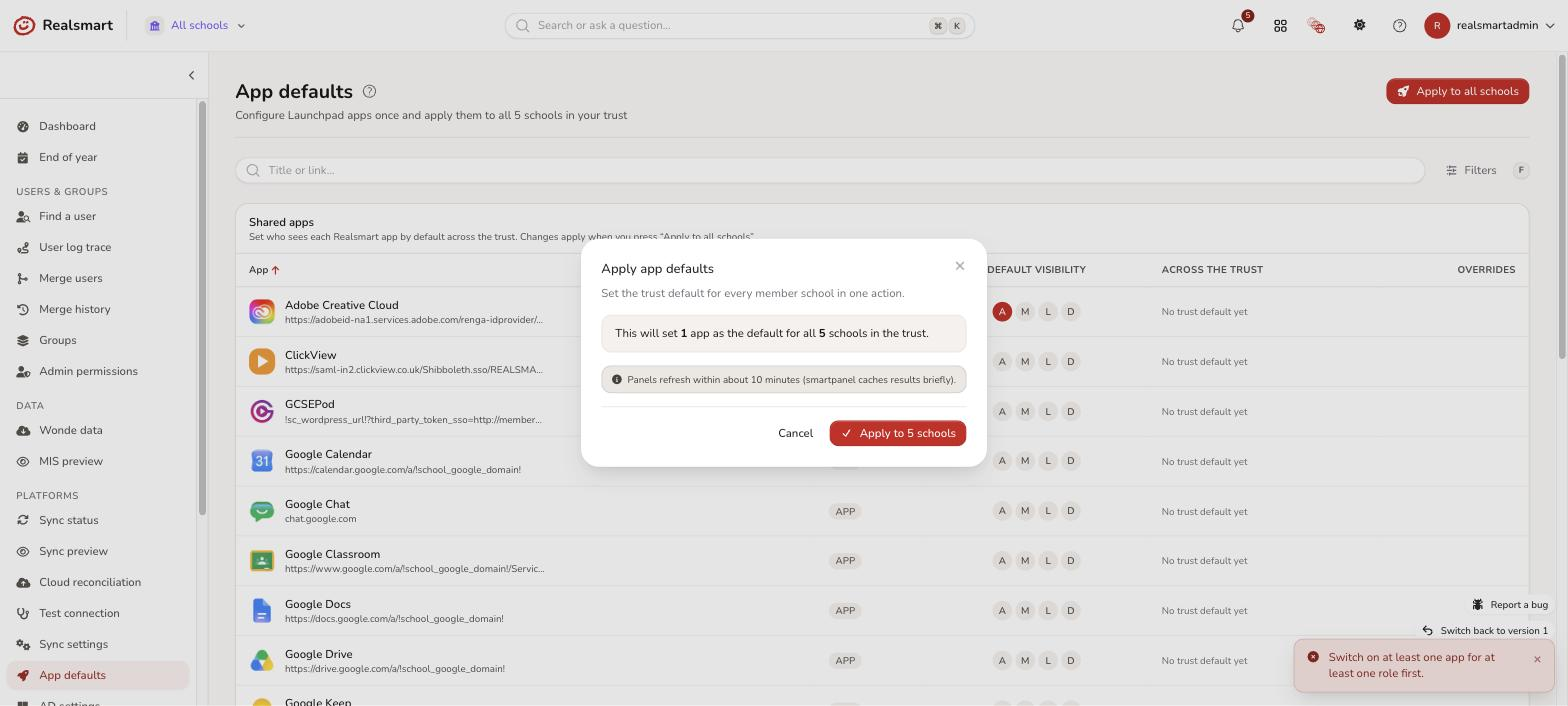
If any schools have local overrides, you choose what happens to them:
- Keep their local overrides — only update the schools that are following the trust default; leave the schools that changed things themselves untouched.
- Replace their local overrides — overwrite every school with the trust default, including the ones that had changed it.
The apply runs in the background so it never times out, even for a large trust. Panels refresh within about 10 minutes — the smartpanel caches results briefly, so a change isn't always instant.
Set one tile order for the trust
The Ordering card lists your trust's apps — the published Realsmart apps and your custom apps — in the order they will appear on every school's panel. Drag a tile by its handle, or use the up and down arrows, to rearrange them. Each school's own apps follow yours, in that school's existing order. Starred apps still show in their own row at the top of the panel, in this order.
Nothing changes until you select Apply order. The summary tells you how many schools it covers and how many have arranged their own order. For those schools you choose:
- Keep their order — only update schools that follow the trust order or still use the default.
- Replace their order — put every school in the trust order.
Panels update within about 10 minutes. Schools can still reorder their own panel from Apps → Ordering — see Order the apps on your school's panel.
Open Beacon to all staff across the trust
Beacon is your support helpdesk, and it has its own card at the top of this page rather than a row in the Shared apps list. That's because Beacon isn't an ordinary tile you point at a link: it's granted per trust, and its tile is created in each of your schools automatically wherever it's switched on.
The card tells you where it stands:
- On in n schools — Beacon is switched on and the tile is in those schools' panels.
- Not switched on — Beacon isn't enabled for your trust yet. Ask Realsmart to turn it on.
When it's on, the one setting that's yours to make is who sees it:
- Leave All staff can raise requests off and Beacon stays with your support team only.
- Select Turn on for all staff and every member of staff across the trust gets the Beacon tile and can raise a request. This is the setting to use when you want Beacon available trust-wide.
Two things aren't settable, by design: admins always see Beacon wherever it's on, and learners never do. Tiles can take a few minutes to appear or disappear after you change this.
If you turn it on and no mailbox in Beacon is open to staff yet, you'll be told so — the switch is on, but requests have nowhere to go until someone opens a mailbox in Beacon under Settings → Mailboxes.
If your trust runs Beacon per school rather than trust-wide, the card may say the setting differs between schools. Turning it on then applies it to every school where Beacon is enabled.
Turn an app suite on or off across the trust
The App suites card turns every Google Workspace app or every Microsoft 365 app on or off on Launchpad and the panel. Each suite shows where it stands, for example On at 12 and Off at 2.
- Turn on at all schools shows every app in the suite to admins, staff and learners at every school in your trust. Turn off at all schools hides them from everyone. Either way it becomes your trust's default for those apps, so Apply to all schools keeps it, and a school that changes it later shows as Overridden.
- Choose schools lists every school with its own switch, and the platform each one syncs its accounts to. Use it when your trust is mixed, for example Google in the primaries and Microsoft 365 in the secondary. Switching one school is that school's own setting, as if it had used the switch on its own Apps page, and it doesn't change your trust's default.
- If your trust has more than 10 schools, you're asked to type APPLY to confirm an all-schools switch.
- Schools' own tiles are never affected. Panels update within about 10 minutes.
See also Turn Google Workspace or Microsoft 365 apps on or off.
Author a custom app for the whole trust
Under Custom apps, select Add custom app to create a tile (a link or app) that your trust owns. Give it a Title, choose its Type (App or Link), enter the Link (URL), and optionally add an Icon URL and Short info. Choose who sees it by default, and leave Published (visible in panels) ticked if it should show straight away. When you select Create across trust, it is created as a tile in every school in your trust at once.
A custom app is a managed set: it lives as one tile per school, but you manage it here as a single thing. Edit changes it everywhere (Save across trust); Delete removes it from every school. When you edit, you can again choose Keep their local edits for schools that changed the app, or Overwrite with these details everywhere.
See and revert per-school overrides
Select Review schools on any app to see every school's status against the trust default. For a school marked Overridden locally, select Revert to put it back to the trust default in one click — or Revert all overridden to reset every diverged school for that app at once.
Who can change this, and what's recorded
Only a trust admin can manage app defaults, and only for their own trust's schools — never beyond their access. Every apply (including a tile order), custom-app change, and revert is recorded in the audit trail (who applied what, to how many schools, and when).
What a school admin sees on their own Apps page
Trust-level control is never hidden from the school it applies to. On a member school's own Apps page:
- A trust-authored custom app carries a Trust badge in the Source column (not "School") — it's materialised as a tile in that school, but it's still owned centrally. Editing it there creates a local override for that school only, which your trust can choose to keep or overwrite next time it re-applies (see step 4). It can't be deleted from the school's Apps page — only from here, in MAT overview.
- A Realsmart shared app that has a trust default set shows "Trust default" under its visibility toggles when the school matches it, or an Overridden badge when the school has changed it locally — the same following/overridden language used on this page, seen from the school's side.
Was this guide helpful?
We read every response — it decides what we rewrite next.
Thanks for your feedback.