Switch school context
Use the school switcher to change which school you are working in, or to return to the MAT overview.
Steps
Step 1: Find the school switcher
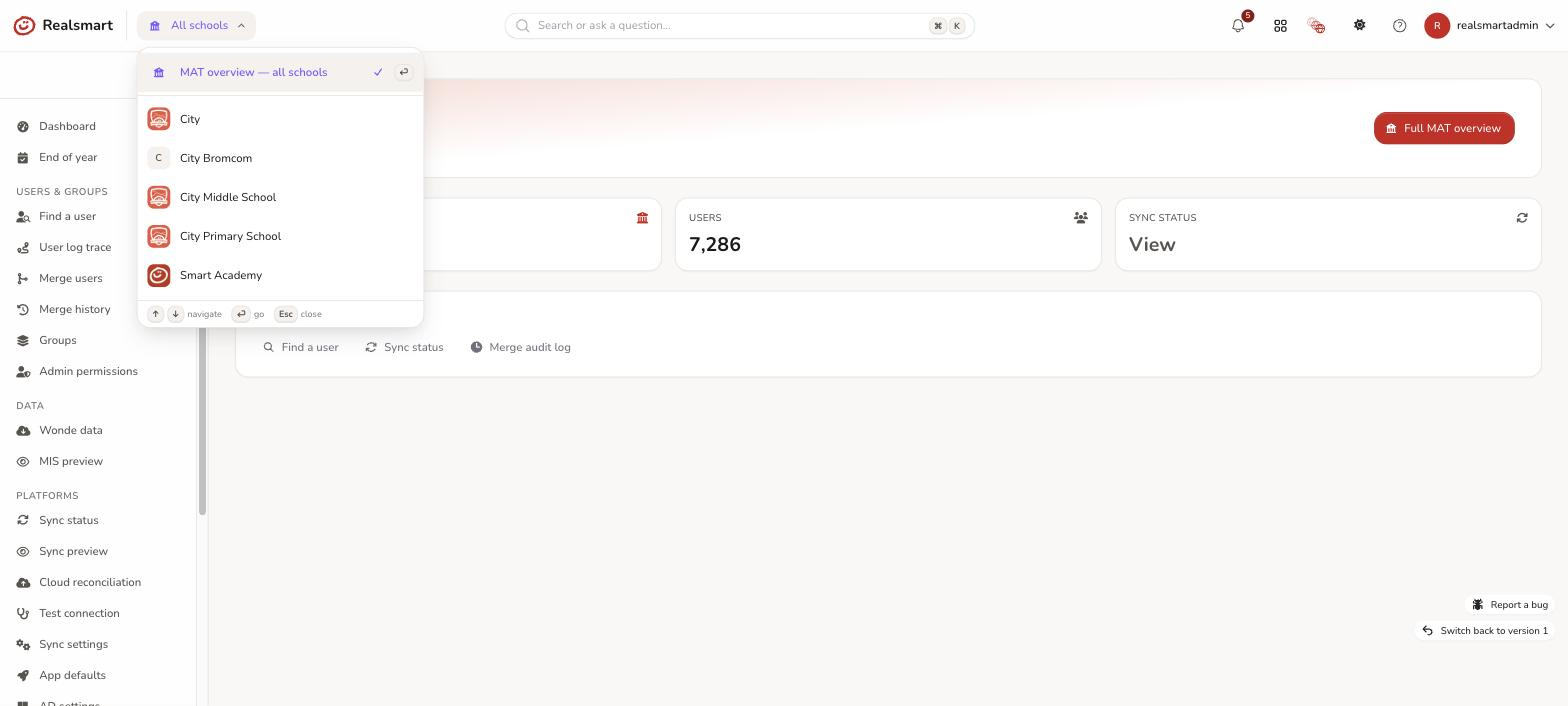
The school switcher is in the top bar, just to the right of the Realsmart logo and a thin divider line. It shows your current context: the name of the active school, or All schools when you're in MAT mode. On a phone it is in the top bar too, beside the Realsmart mark, and its list opens across the screen underneath the bar.
If the switcher shows only a school name with no arrow, your account reaches just that one school and there is nothing to switch.
Step 2: Open the switcher
Select the switcher. A list opens showing the schools you can reach, with MAT overview — all schools always first. If you can reach six or more schools a Search schools… box appears at the top of the list as well. You can also use the keyboard: arrow keys to move, Enter to choose, Esc to close.
If you can reach more than 100 schools, the list shows the first 100 alphabetically and says "Showing the first 100 of N schools. Type to narrow the list." Type part of a school's name to find any of them.
A small red dot on the switcher's school icon means the school you're in has unresolved sync errors (hover it: "This school has unresolved sync errors"). It never shows in MAT mode.
Step 3: Select a school
Do one of the following:
- Select a school name to work inside that school (its Users, Groups, Apps and settings).
- Select "MAT overview — all schools" to return to the trust-level view (cross-school search, merge, sync status).
Step 4: Wait for the page to reload
The page reloads for the new context and the sidebar changes to match: a school's own sidebar, or the MAT sidebar.
Where you land depends on where you were:
- Choosing MAT overview always takes you to the MAT overview dashboard.
- Choosing a school keeps you on the page you were on if that page also exists inside a school, for example Groups or Audit trail.
- If the page you were on only makes sense in the old context, you land on the new school's Dashboard instead. That happens for any MAT page, any page for one specific user or group, and any create or merge page.
Result
All your actions now apply to the school you chose, or to every school you can reach if you chose MAT overview — all schools. The switcher shows the new context.
Looking at a school without switching
You don't have to switch to see how another school is doing. From the MAT overview, select the school's name in the Schools table to open a read-only summary in a new tab. Your own tab stays where it is. See Look at one school from the MAT overview.
Troubleshooting
- "A school I expect is not in the list" — if the list says it is showing the first 100 schools, type part of the school's name to search them all. Otherwise your account may not reach that school; a trust can limit an admin to some of its schools. Ask whoever manages your trust to check Admin permissions.
- "Switching school took me to the Dashboard, not the page I was on" — expected for MAT pages and for pages about one specific user or group, because that page doesn't exist for the new school.
- "There's no switcher dropdown, just a name" — your account reaches a single school.
Related
Did this work for you?
If a step looked different on your site, tell us and we'll update the screenshots.
Thanks for your feedback.