Find a user across schools
The Find a user page lets you search for any person across all the schools you can reach, from one screen. It is a trust-level admin page. Learners and mentors never see it, and neither do admins whose account reaches only one school.
Before you start
- You must be in MAT mode (the school switcher at the top of the page shows All schools). See Switch school context.
- Your admin access must include Manage users & groups. See Reduced admin access.
Steps
Step 1: Open Find a user
In MAT mode, open the sidebar group Users & Groups and select Find a user. You can also use the Find a user button at the top of the MAT overview.
Step 2: Enter a search term
Type at least two characters into the search box, which says "Search by name, username or MIS ID…". It matches:
- the person's first name and surname together,
- their username, or a full email address (the part before the @ is used),
- their School ID, which is the UPN for learners or the staff code for staff.
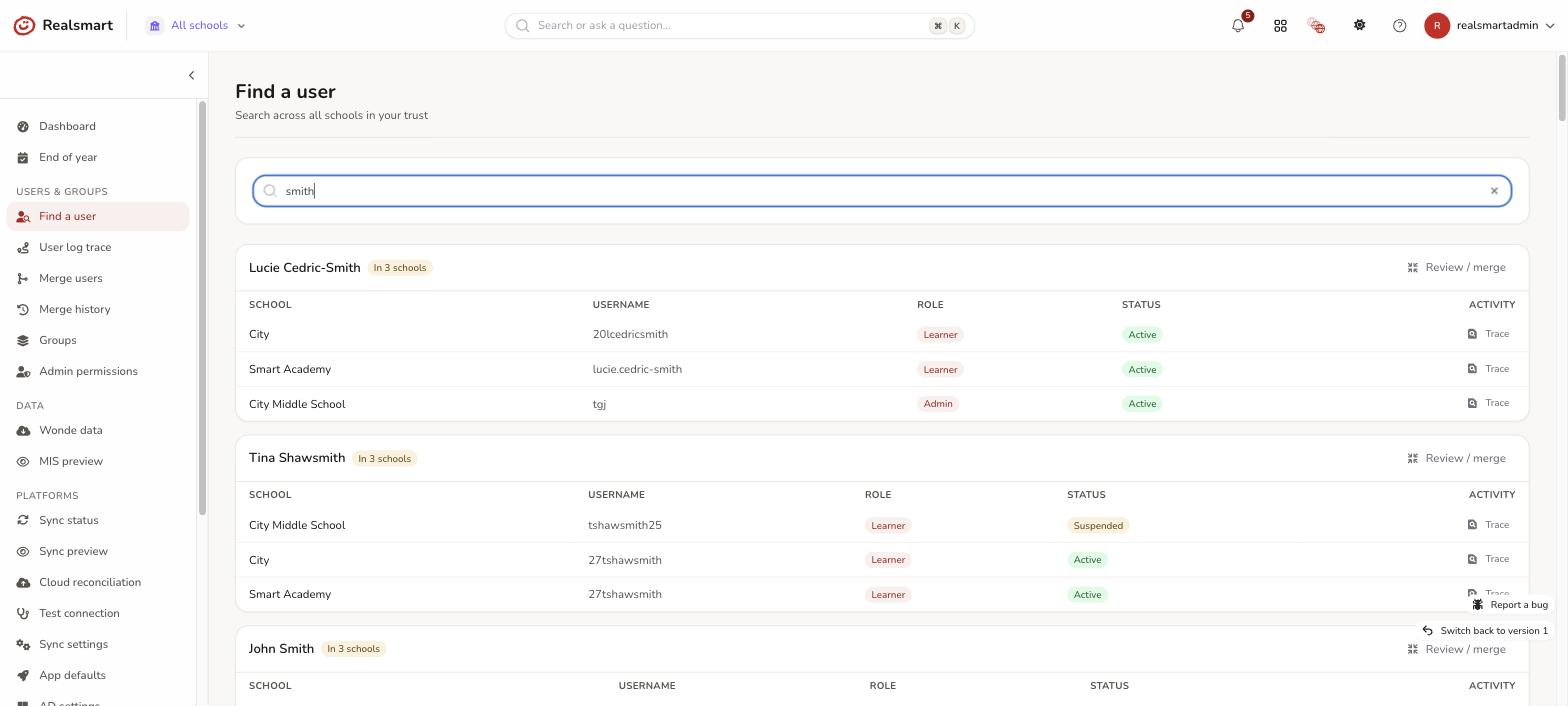
Results appear as you type, grouped by person rather than by school. The grouping is by first name plus surname, so if the same person has an account in more than one school, all of their accounts appear together. People who share a name but are different people also appear together; check the School and Username columns.
The page shows up to 100 matching accounts. If your search is broad, type more to narrow it.
Step 3: Review the results
Each group is headed by the person's name. If they have accounts in more than one school, a gold "In N schools" badge appears next to the name.
Underneath, a table lists every matching account with one row per school:
- School the account belongs to
- Username
- Role (learner, admin, mentor and so on)
- Status (Active, Suspended, Locked or Deleted). Suspended and deleted accounts are included in the results.
- Activity — a Trace button that opens User log trace for that username, so you can see its recent activity across the trust.
There is no click-through to a full profile from this list; selecting a row does nothing on its own. Use Trace to investigate activity, or Review / merge (next step) to act on duplicate accounts. To change someone's details, switch to their school and open them from Users.
Step 4: Review or merge duplicate accounts
When a person has accounts in more than one school (the In N schools badge is showing), a Review / merge button appears next to their name. Select it to open Merge users with those accounts already chosen: the first account in the list is preselected as the primary (the one that is kept) and the others as secondaries. Change the primary there if the first isn't the one you want to keep.
Think before merging someone who genuinely works at two schools. See Merging someone who works at more than one school.
Troubleshooting
- "I can't see Find a user in the sidebar" — you need to be in MAT mode (the switcher shows All schools), and your admin access needs Manage users & groups. The page is not available inside a single school; use Users there.
- Opening the page lands me on my school's dashboard — you have a single school selected, and MAT pages only work in MAT mode. Choose MAT overview — all schools in the school switcher first.
- "Type at least two characters to find users across every school in your trust." — the search box needs two or more characters before it looks.
- "No matches" ("No users matched your search in the schools you can access.") — try a shorter term, such as a first name or the first letters of a surname, and check the spelling. The search only covers schools you can reach.
- "I found the wrong person with the same name" — check the School and Username columns, then use Trace to look at their activity before acting.
Related
Did this work for you?
If a step looked different on your site, tell us and we'll update the screenshots.
Thanks for your feedback.