Reduced admin access — control what an admin can do
Not every admin needs to run syncs, change platform settings or export data. The Access tab on an admin user lets you set exactly what they can do — from full access down to a reduced day-to-day set — and everything in between. These limits are enforced on the server: a reduced admin who types a URL or bookmarks a page is refused (403), not merely shown a shorter menu.
Before you start
- You must be an admin who holds Manage other admins' access (full admins do by default).
- The person you're editing must be an admin. The Access tab only appears for admins.
- You cannot change your own access — ask another full admin.
Open the Access tab
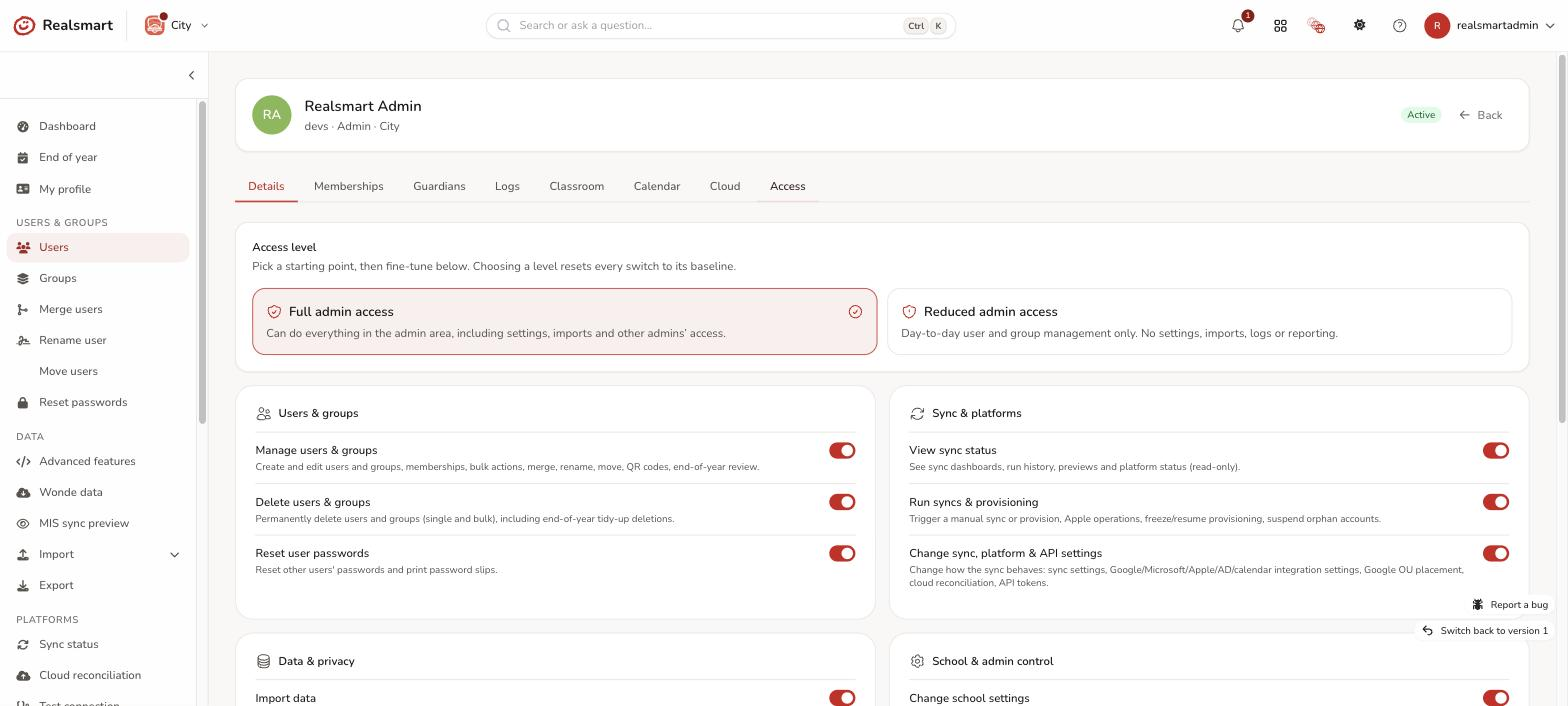
In the left sidebar, open Users (under Users & Groups) and select Users. Select the admin's name, then choose the Access tab. You'll see an Access level card with the two presets, the capability switches grouped by area, and a live plain-English summary of what this person can and cannot do. If you can't see the Access tab, the person isn't an admin or you don't hold Manage other admins' access.
Pick a level
Two starting points, shown as cards under Access level:
- Full admin access — everything in the admin area, including settings, imports, logs and other admins' access.
- Reduced admin access — day-to-day user and group management only: manage users & groups, delete users & groups, reset passwords, and view sync status. No settings, sync changes, imports, exports, logs, reporting, MIS data, cover access, Smart Parents or admin-access editing.
Choosing a level resets every switch to that baseline.
Fine-tune the switches
Under the preset, each capability is one switch, grouped into Users & groups, Sync & platforms, Data & privacy and School & admin control. Turn individual capabilities on or off — for example, start from Reduced and additionally allow View logs & audit trail. A row that differs from the preset is marked Changed from preset, with a Reset button to put it back.
The switches are:
- Users & groups — Manage users & groups, Delete users & groups, Reset user passwords.
- Sync & platforms — View sync status, Run syncs & provisioning, Change sync, platform & API settings.
- Data & privacy — Import data, Export data, View logs & audit trail, View MIS (Wonde) data, View classroom reporting, Give cover access to classes, Manage Smart Parents.
- School & admin control — Change school settings, Manage other admins' access.
The last switch in School & admin control may show as platform.manage-smartlogin. That is an internal Realsmart switch. It only has an effect for admins working in Realsmart's own platform school, so leave it as it is.
You can only change capabilities you hold yourself — switches for anything you don't have are disabled. This stops anyone granting more than they have.
Read the summary and save
The summary card always shows the plain-English result — "Jane can: manage users & groups · delete users & groups · reset passwords · view sync status. Jane cannot: change school settings · …". When it reads right, choose Save access. A message says "Admin access updated." The change is recorded in the audit trail with who changed what.
Safeguards
- No self-edit — you can't change your own access.
- Last full admin protected — a school can never be left with zero full admins; give another admin full access first.
- No escalation — you can only grant capabilities you hold.
- Enforced, not hidden — every restricted page and action refuses a reduced admin server-side.
Messages you might see
- "You cannot change your own access." — ask another full admin. Your own Access tab only shows what you can and cannot do.
- "This is the last full admin for the school. Give another admin full access first." — shown under Couldn't save access. Make another admin a full admin first. While this applies, the preset cards are locked and a banner says the person is the last full admin.
- "You can only change access you hold yourself." — shown under a switch you can't change.
- "That admin is not within your reach." or "That admin could not be found." — the person belongs to a school or trust you can't reach, or isn't an admin.
- "You do not have permission to manage admin access." — you don't hold Manage other admins' access.
To change which schools an admin can reach in a trust, use Admin permissions in MAT overview — see Admin permissions.
The older on/off toggle
The legacy edit screen still has a Reduced Admin Access dropdown (Off or On). Turning it On applies the Reduced preset; Off restores full access. Any individual changes you made on the Access tab are kept. It now enforces the same limits (it used to only hide menus), and it follows the same safeguards. For fine-grained control, use the Access tab above.
Related
Was this guide helpful?
We read every response — it decides what we rewrite next.
Thanks for your feedback.