Merge duplicate user accounts
Use Merge users to combine two accounts that belong to the same person. This works in two contexts, using exactly the same tool:
- Within a single school — two duplicate records for the same pupil or staff member in the school you're working in.
- Across schools in a trust — the same person with accounts at two different schools (multi-academy trusts, in MAT mode).
The merge keeps one account (the primary) and removes the other(s) (the secondary or secondaries) — their data is combined onto the primary and their old username is freed up so it doesn't sit blocking a future new starter. The secondary's cloud platform accounts (Google Workspace, Microsoft Entra) are handled as part of the process.
This action cannot be relied on to permanently keep someone out of the removed school. The merge itself is immediate and its database change is deliberately hard to reverse (see Undoing a merge below). But if the person you merged away is still genuinely enrolled or employed at that other school, the next scheduled data import from the school's MIS (SIMS, Wonde, etc.) will create a fresh, active account for them there again — see If this person is still at the other school below. Only merge someone out of a school they have actually left.
Before you start
- You must be an admin whose access includes Manage users & groups. Mentors and other staff cannot merge users. See Reduced admin access.
- The tool is scoped to your context: in a single school you can only merge accounts within that school; in MAT mode you can merge across the schools you're authorised for.
- Confirm the two accounts you want to merge before you start.
Steps
Step 1: Open Merge users
- Inside one school: in the left sidebar, open Users & Groups → Users and select Merge users. (Users is a drop-down group that also holds Rename user, Move users, Holiday pauses and Creation history.)
- Across schools (MAT mode): under Users & Groups, select Merge users. It sits alongside Find a user and Merge history. From Find a user you can also select Review / merge on a person who is in more than one school to arrive with their accounts already chosen.
The page is titled Merge users. A row of step labels runs across the top (1. Select, 2. Compare, 3. Email change, 4. Sync options, 5. Preview, 6. Cloud review, 7. Result). Cancel (top right) leaves the tool, and Back to selection appears on later steps so you can start again.
Step 2: Search for the users
Type a name, username, email address or School ID into the box ("Search by name, username or school ID…") — at least two characters. In a single school the results are that school's users; in MAT mode results appear from all the schools you can reach. Deleted accounts don't appear, and the list shows up to 30 matches, so type more to narrow it.
For each result you can see: name, username, school and status (Active in green, anything else such as Suspended in grey). If nothing matches the page says No users found matching "…".
Step 3: Select primary and secondary
For each user in the results:
- Primary (radio button) — the account to keep. Choose the most complete or most recently active account.
- Secondary (checkbox) — the account(s) to remove. You can select more than one secondary.
A single user cannot be both primary and secondary.
Select Next: compare fields when you have made your selections. The button stays greyed out until you have one primary and at least one secondary.
Step 4: Choose which field values to keep
The Compare step shows a side-by-side table of both accounts' field values:
| Field | Description |
|---|---|
| First name | The user's first name |
| Surname | The user's surname |
| Username | Their login username |
| School | Which school the merged account will belong to |
| School ID | The person's UPN (learners) or staff code (staff), as it appears in your MIS — often blank |
| Google ID | Google Workspace account reference |
| MIS ID | ID from the MIS system |
| Wonde ID | The Wonde reference the MIS import matches this person on |
| Status | Active or suspended |
| Year | Year group |
| Reg group | Registration group |
| Type | Learner / admin / mentor |
| Password | Which account's password the merged user signs in with |
For each field, select the radio button next to the value you want the merged user to have. The primary's values are selected by default.
Passwords are a choice too, but the values are never shown. Each account's Password cell says School default, Custom password, … · same as primary or Not set. The primary's password is selected by default; choose a secondary's when the duplicate is the account the person actually signs in with, or they'll be locked out until you reset it. What each label means, and when the new password reaches Google, Entra and Active Directory, is in Which password a merged user keeps.
Choose the Wonde ID carefully. The Wonde ID is how the nightly MIS import finds this person. Whichever record still exists in your MIS is the Wonde ID to keep — if the merged user keeps the wrong one (or none at all), the import stops updating them, or creates them again as a brand-new account. Duplicate accounts are very often exactly this: the same person under two Wonde IDs, only one of which the MIS still sends.
If the records hold different Wonde IDs, or the choice would leave the merged user without one, a warning appears on the next step and again on the preview, and you must acknowledge it before merging. Once the merge runs, only the kept account holds that Wonde ID — it is removed from the record being deleted, so the import can never match the deleted twin and bring it back.
Select Next: review sync impact when done.
Step 5: Handle the email change (if shown)
This step only appears when your field choices will change the primary user's sign-in address (for example you chose the username from the secondary account, or the kept school has a different Google domain). Otherwise you go straight to the next step.
You'll see a warning:
"This merge will change the primary user's email address."
It shows the current address and the new one. For each connected platform choose:
- Google Workspace — Rename the old account now (tick Keep old address as a Google alias to keep mail deliverable) or Leave it — let the next sync handle it.
- Microsoft Entra — Rename the UPN now or Leave it — let the next sync handle it.
Renaming now updates the cloud account immediately. Leaving it means the change is applied at the next scheduled sync.
Select Next: secondary sync options when ready.
Step 6: Choose what to do with secondary cloud accounts
The Sync options step lets you decide what to do with each secondary user's cloud accounts. It only appears when a secondary's school has Google or Microsoft Entra sync switched on; if neither is on you go straight to the preview. Each secondary has its own card with a section per platform:
| Option | What it does |
|---|---|
| Suspend | Marks the cloud account as suspended straight away (the default) |
| Rename & suspend (Google) / Rename & disable (Entra) | Renames the username before suspending or disabling — tick Keep old address as a Google alias to leave the old email address reachable, on that same suspended account (see the note below — this does not restore access) |
| Do nothing | Leaves the cloud account unchanged for now. This is the default for a secondary whose Google ID the kept user is taking over, because that account becomes the kept user's account and must stay live |
"Do nothing" is not permanent. Whichever option you pick, once the merge completes the secondary is marked removed, and the next regular sync for that school will suspend its cloud account anyway if nothing has already suspended it. Choosing Suspend or Rename & suspend here just does it immediately instead of waiting for the next sync.
A merged-away account is never marked "protected". If either the primary or a secondary account was protected before the merge, the kept (primary) account stays protected — protection is never lost — but it is never applied to the accounts being removed. There's no option to protect a secondary; see If this person is still at the other school for why that wouldn't help anyway.
If any data issues are detected, a panel headed Data issues detected — review before proceeding appears. Tick I have reviewed these issues and understand the risks of proceeding to carry on; Continue to preview stays greyed out until you do. The messages are listed under Troubleshooting. If the primary and a secondary are at different schools that don't share a Google sign-in domain, the panel also warns that the removed school's groups, Classroom and calendar access will be lost — see Merging someone who works at more than one school if that's not what you want.
A note at the bottom says "Cloud actions run first. If any fail you can retry or proceed anyway before the database changes."
Select Continue to preview.
Step 7: Review the full preview and confirm
Before anything irreversible happens, the Preview step, headed What this merge will do, shows everything the merge will do:
- Identity / email — whether the kept account's sign-in address changes and exactly what it becomes. If it changes, a brand-new cloud account is created at the new address on the next sync — existing Drive files, Classroom content and email stay on the old account (handled per your email-change choice). If the schools share a sign-in domain, the preview says so and no account rename happens.
- Password — whether the kept account keeps its own password or takes the one you chose from a removed account, and who that password came from.
- MIS link (Wonde ID) — which Wonde ID the merged user keeps, which record it came from, and any Wonde IDs being dropped. If the merged user would keep none, the preview says so in plain terms.
- Groups & Classroom memberships — how many memberships move to the kept account (duplicates are skipped automatically).
- Classroom ownership — any classes the removed account owns transfer to the kept account, so no classroom is left without a working owner.
- Guardians — parent contacts move to the kept account (duplicates skipped).
- History — the removed account's activity log is re-attributed to the kept account, so the full history survives.
- Protection and role — if either account was protected, the merged account stays protected; if the accounts had different roles, the preview flags what the merged role will be and what that affects.
- Discarded — a plain statement that the secondary records are marked deleted (kept for audit, with their username and School ID suffixed) and their cloud accounts are handled per your sync choices.
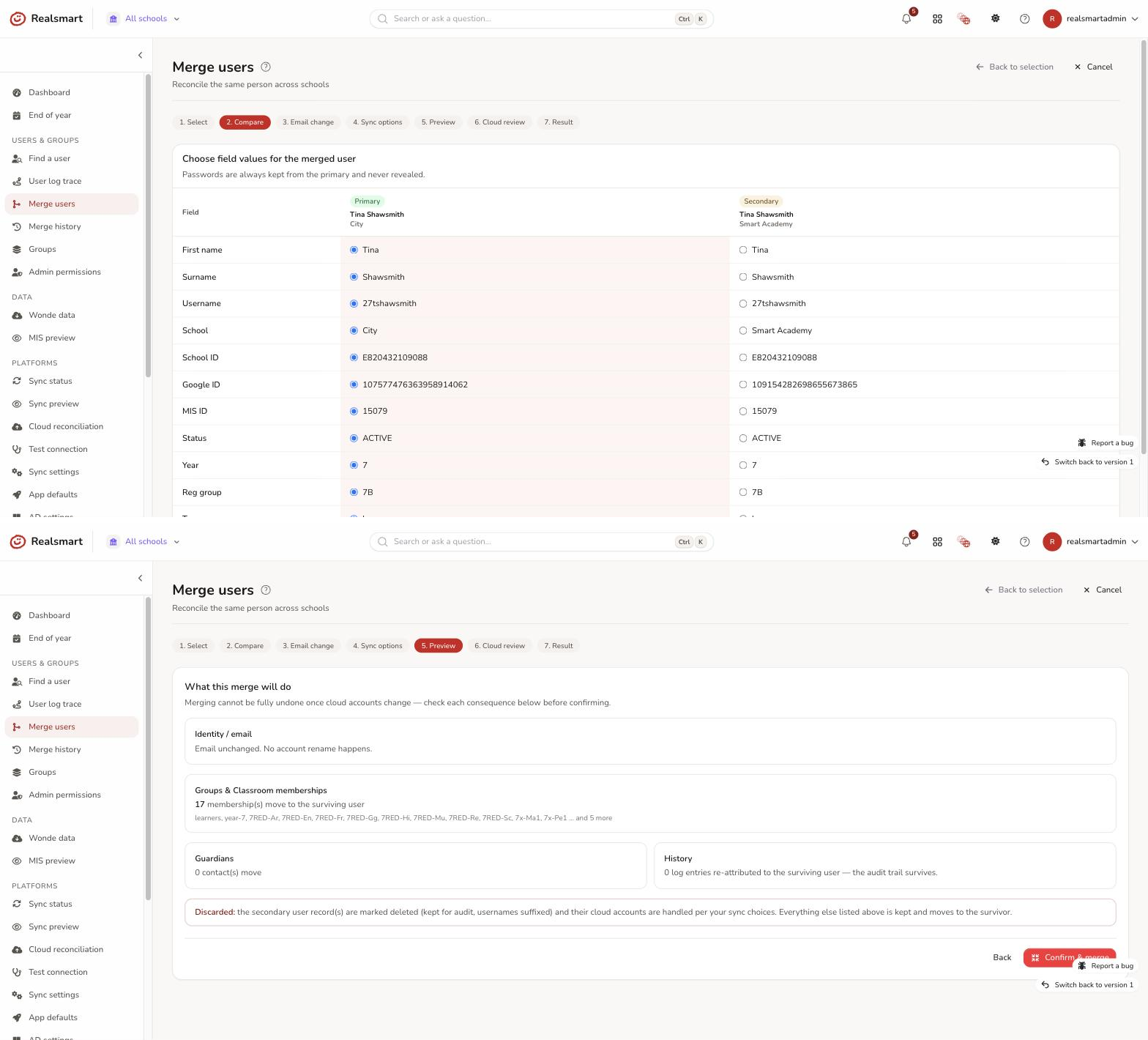
Select Confirm & merge and confirm the dialog ("Merge these users now? This cannot be fully undone once cloud accounts change."). Back returns to the compare step. If the data-issues warnings appeared earlier, they appear again here and must be acknowledged first.
Step 8: Review cloud action results
Realsmart runs the cloud actions first, before touching the database ("Running cloud actions, please wait…"). If they all succeed it carries straight on and you never see a separate review screen.
If any action failed, the Cloud action results screen appears with a banner ("N cloud action(s) failed. The database has not been modified yet.") and a table with the columns User, Role, Provider, Action, Status (succeeded or failed) and Detail (the error). You can:
- Retry failed actions (N) — try the failed ones again. If they now all succeed, the merge carries on.
- Proceed anyway… — select it, then Confirm — apply DB changes now, to skip the failed cloud steps and apply the database changes. You can Cancel instead.
The database is not modified until the cloud step completes or you choose to proceed anyway.
Step 9: Confirm the result
The Result step says Merge completed successfully. with a View in merge audit log link, or Merge completed with errors: followed by the problems. If it succeeded, the secondary users are marked deleted and the primary account holds the merged data.
Select Back to search (MAT mode) or Back to users (inside a school) to carry on, or Merge audit log to review what was changed.
If this person is still at the other school
Merging frees up the secondary's username for good, but it's only durable for someone who has actually left the other school. If the person is still genuinely enrolled or employed there, that school's next MIS import creates a fresh, active account for them again — nothing on the merge screen can prevent it. Check with the school before merging. See If this person is still at the other school.
Merging someone who works at more than one school
Merging is for two records that are the same account by mistake. Someone with a genuine, ongoing role at two schools shouldn't be merged: the tool keeps only one live account, so their groups, Google Classroom and calendar access at the other school go, and an email alias doesn't bring them back. Keep a separate, active account for them at each school instead. See Merging someone who works at more than one school.
Undoing a merge
Merges can be reviewed and undone from Merge history. In MAT mode that's Users & Groups → Merge history in the sidebar. Inside one school there is no sidebar link; use the Merge audit log button on the Result step, or open the page's address, which ends /v2/admin/users/merge-audit. It is the same page as "Merge audit log" above — one page, two names depending on where you land on it.
The undo wizard reverses the database changes and can attempt to recreate cloud accounts — but cloud undos are best-effort. If the cloud actions involved deleting or suspending Google or Entra accounts, those actions may not be fully reversible.
See Merge history and undo for the full step-by-step undo flow, including how to choose which cloud actions to reverse and what to do if a reversal fails.
Troubleshooting
- "I can't find Merge users in the sidebar" — inside a school it's under Users & Groups → Users → Merge users; in MAT mode it's under Users & Groups → Merge users. You must be an admin with Manage users & groups; mentors and other staff don't see it.
- "I picked the wrong primary" — select Back to selection in the top-right to start again. No changes are made until you confirm on the preview step.
- "Select a primary user and at least one secondary user." — the compare step needs one account marked Primary and one or more marked Secondary. A user can't be both.
- "Cloud action failed with an API error" — try Retry failed actions. If it keeps failing, use Proceed anyway to apply the database changes and fix the cloud account manually.
- "The secondary user had an important email address I need to keep" — tick "keep old address as a Google alias" for that secondary in the sync options step. This keeps the address reachable on that secondary's own account, which stays suspended — it does not move the address onto the kept (primary) account, and it will not restore that person's groups or Classroom access at the removed school. If you need the primary account itself to receive mail at the old address, add that as an alias manually in the Google Admin console afterwards.
- "One of these accounts has no School ID" — that's fine, and it does not stop the merge. Plenty of accounts legitimately have none: anyone created by hand, and staff without a staff code. The only thing worth checking is the School ID row on the compare step — if the account you're keeping ends up blank and your school's MIS import matches people on that field, the import stops updating this person until you add one on their user page.
- The Data issues warnings — these appear when something about the accounts needs a second look. They are warnings, not blocks, and you must tick the acknowledgement to go on:
- "User #id (name) is already marked as DELETED. Confirm whether this user should still be included in the merge." — check you picked the right account.
- "…has a null username and may already be in a deleted or inconsistent state." — check that user's record first.
- "…is at {school}, a different school to the one being kept. Merging will take away this person's groups, Google Classroom and calendar access at {school}…" — see Merging someone who works at more than one school. Only appears when the two schools don't share a Google sign-in domain.
- "These users have different roles (…). The merged user will be a …" — this affects Classroom role (teacher or student), organisational unit and licensing. Check the Type row on the compare step.
- "The merged user would keep a blank Wonde ID even though one of these records has one…" and "These users have different Wonde IDs (…)" — choose the Wonde ID of the record your MIS still sends. See the note on Wonde IDs in step 4.
- "The merged user would keep a blank username / school / School ID…" — go back and choose a value that isn't blank on the compare step. A blank School ID can be added later on the user's page.
- "The user can't sign in after the merge" — check which password the merge kept; see Which password a merged user keeps. If the merge has already run, just reset their password as normal.
- "The merged-away user reappeared after a few days" — this happens when the person is still genuinely in that school's MIS data, and it's expected, not a bug. See If this person is still at the other school.
- "This person genuinely works at more than one school — should I merge them?" — no, see Merging someone who works at more than one school.
Related
Did this work for you?
If a step looked different on your site, tell us and we'll update the screenshots.
Thanks for your feedback.