All guides / Content-publishing
Smart FAQ
Overview
Smart FAQ is a chat widget for the public website. A visitor types a question, and it searches your own published pages, posts, policy PDFs and contact details for the best match, then answers with a short passage from that content and a link to it. It does not generate new text or answer from anything outside your website — if nothing matches well enough, it says it could not find an answer and offers a link to search the site instead.
It's aimed at parents and visitors asking everyday questions — term dates, how to report an absence, where a policy is — without having to search the site themselves.
The widget is off for visitors by default, even once the feature is available on a site. Nothing shows on the public website until you switch Show Smart FAQ on in its settings.
You can also write your own questions and answers. They show on an FAQ page, and the chat answers with them first.
New websites have it on
A new school website starts with the chat already shown to visitors, so you can try it straight away. A website that existed before keeps its own setting. If yours is off, go to the Dashboard and click Switch on Smart FAQ in New on your website. It then takes a few minutes to read your pages before it can answer. Nothing is switched on without someone clicking it.
Getting set up
Step 1 — Find Smart FAQ on the Smart Plugins page
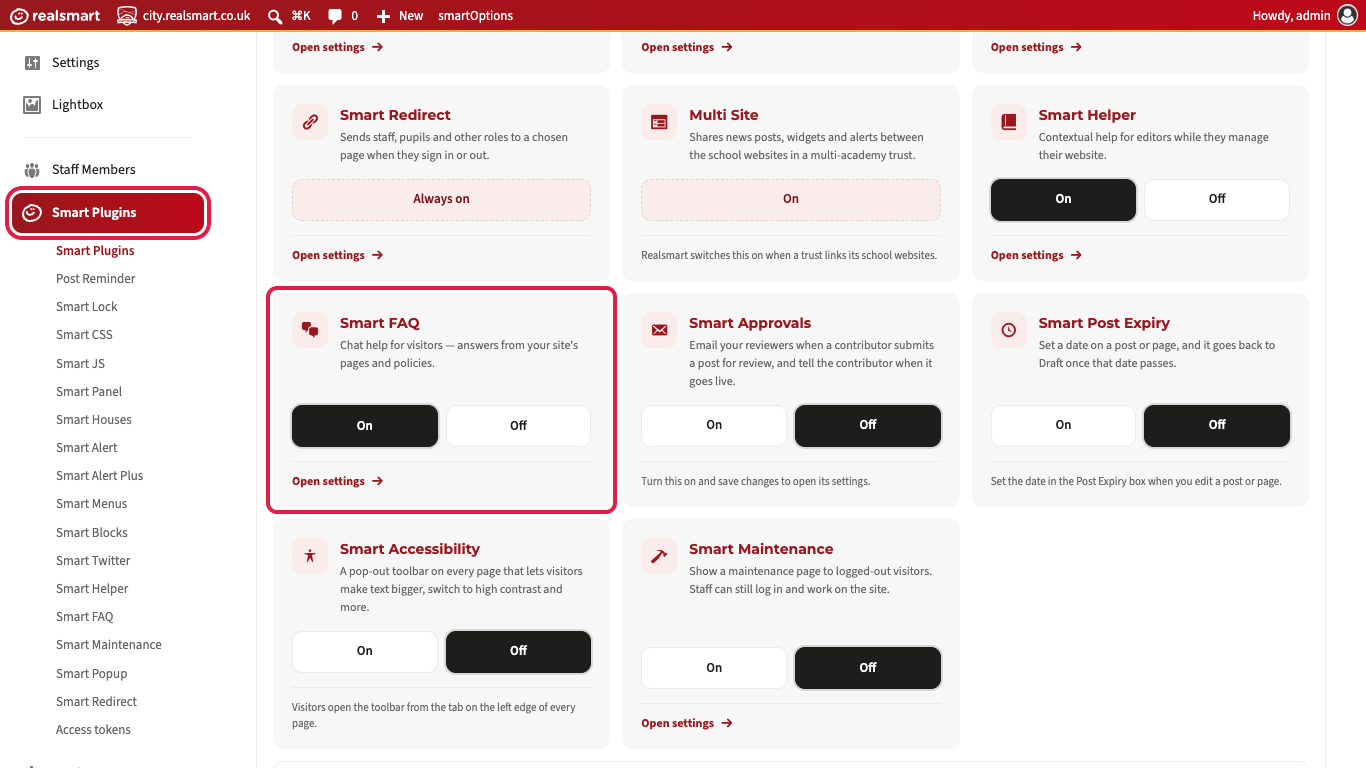
In the menu on the left, click Smart Plugins. Scroll down to the Smart FAQ card. It is On on most sites already, which means its settings page is available. It does not mean visitors can see the chat yet.
If the card is set to Off, click On, then Save changes at the bottom of the page.
Step 2 — Open its settings
On the Smart FAQ card, click Open settings. You can also click Smart FAQ in the Smart Plugins menu on the left. Only administrators can open this page.
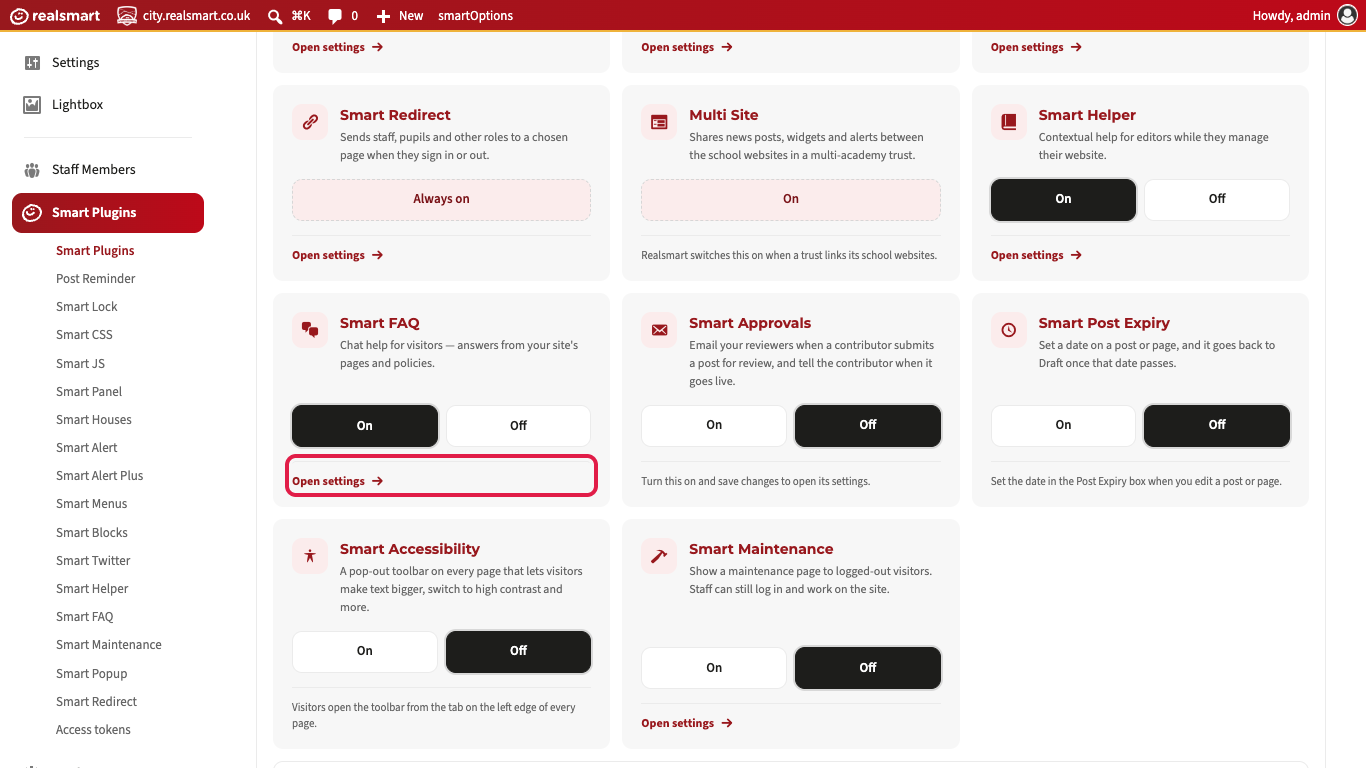
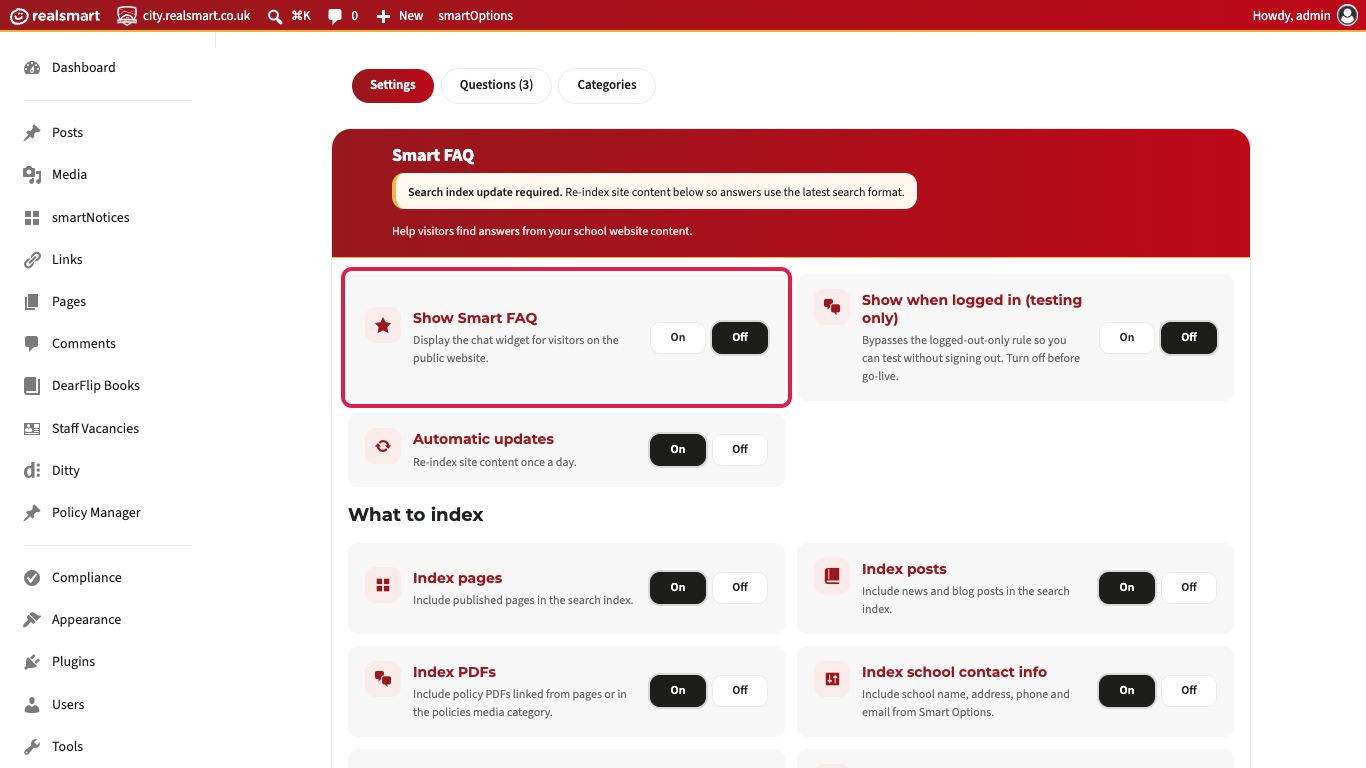
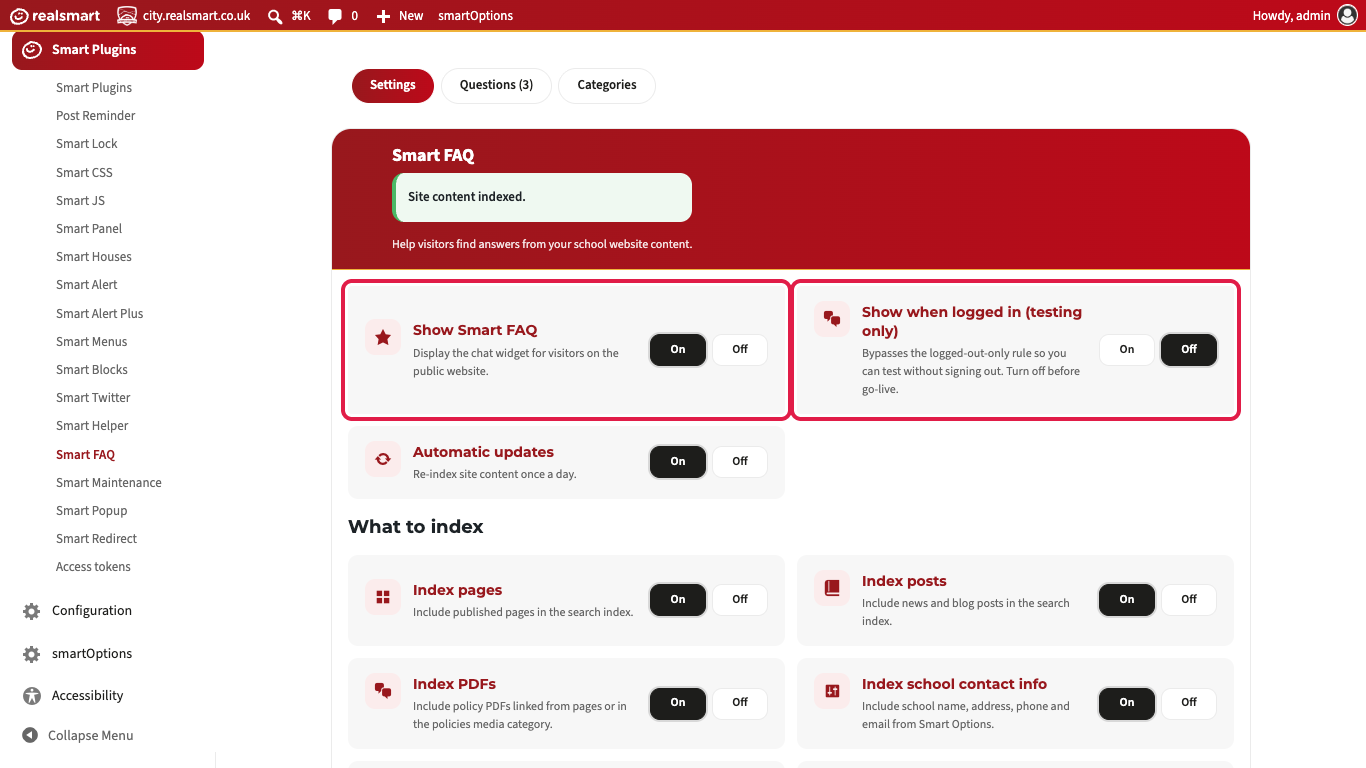
The settings page opens on the Settings tab, with Show Smart FAQ set to Off, so visitors cannot see the chat yet. The Questions and Categories tabs beside it are for writing your own FAQs. On a site that has never been set up, the red header also says Search index update required. Step 4 deals with that.
Step 3 — Check what it can answer from
Scroll down to What to index. These cards choose which kinds of content Smart FAQ can search: Index pages, Index posts, Index PDFs, Index school contact info, Index external sources and Index written FAQs. They are all On to begin with, and most schools leave them that way.
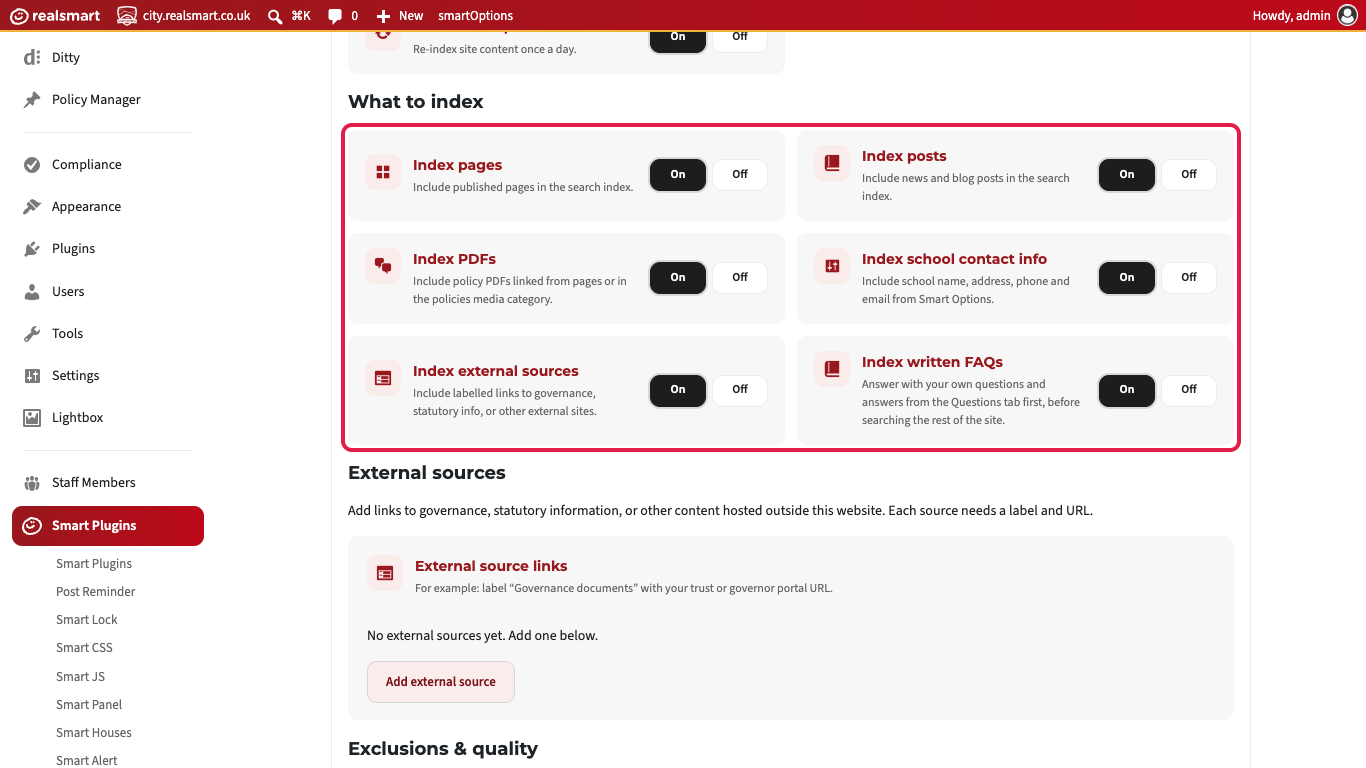
If you change any of these, click Save changes before going on to the next step.
Step 4 — Index your site content
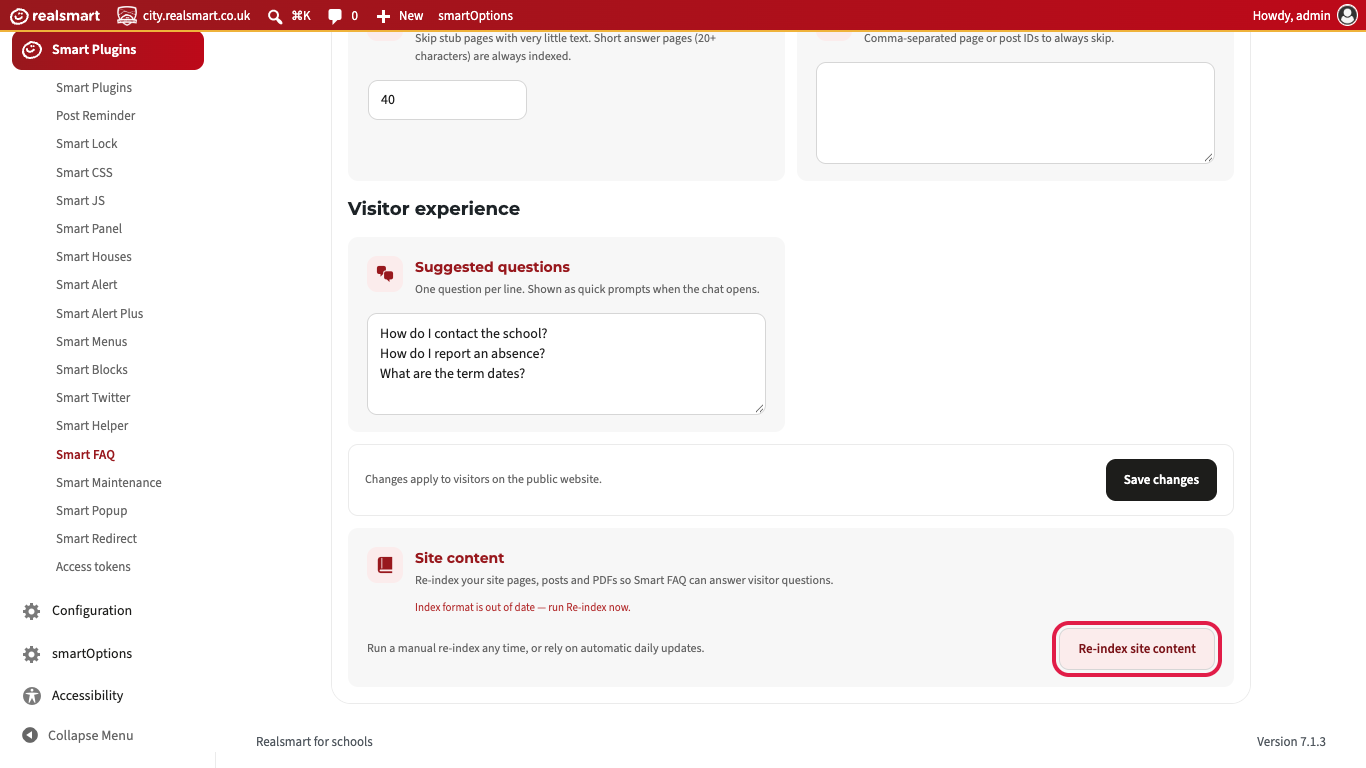
Scroll to the bottom of the page. In the Site content card, click Re-index site content. This reads your website and builds the search index that Smart FAQ answers from. It can take a minute on a large site.
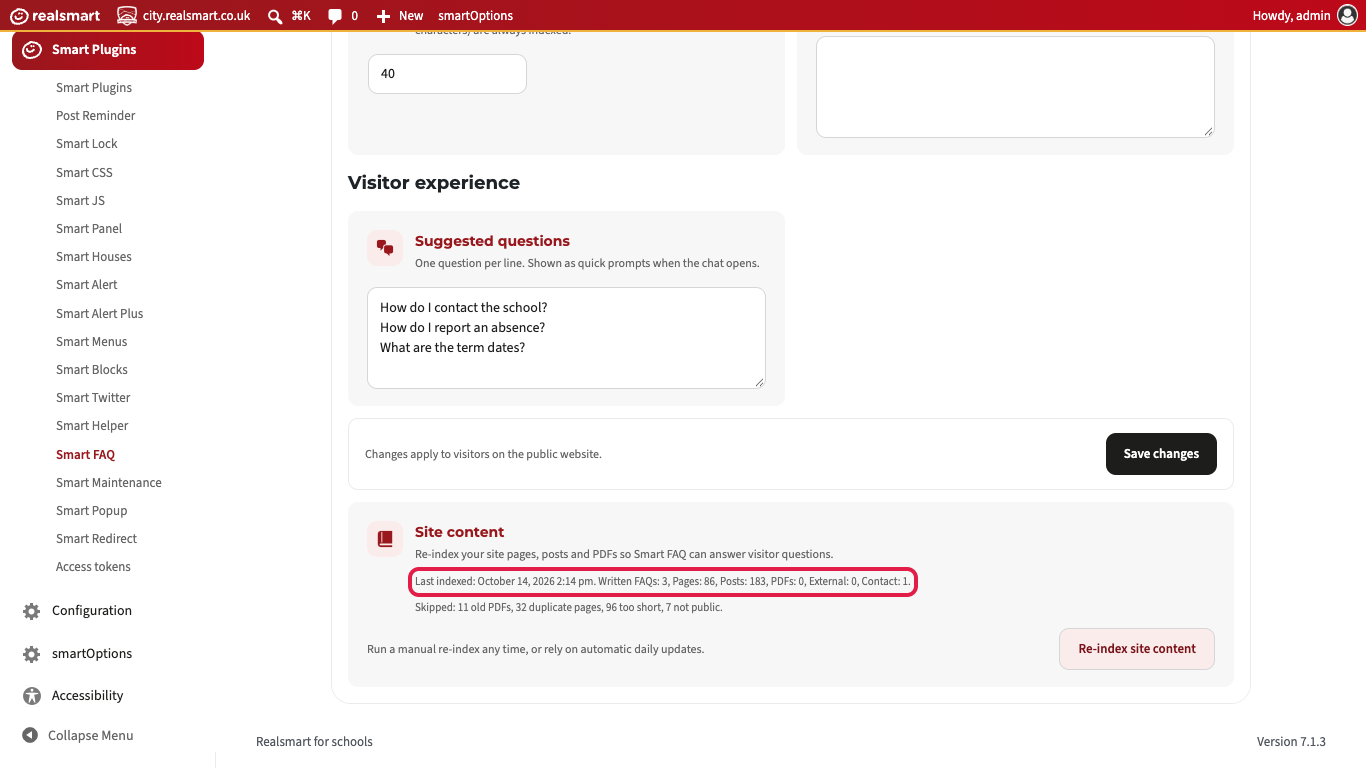
When it finishes, the page reloads with Site content indexed. at the top. The Site content card now has a Last indexed line with the date and time, and how many written FAQs, pages, posts, PDFs, external sources and contact records it found.
Step 5 — Turn on testing mode
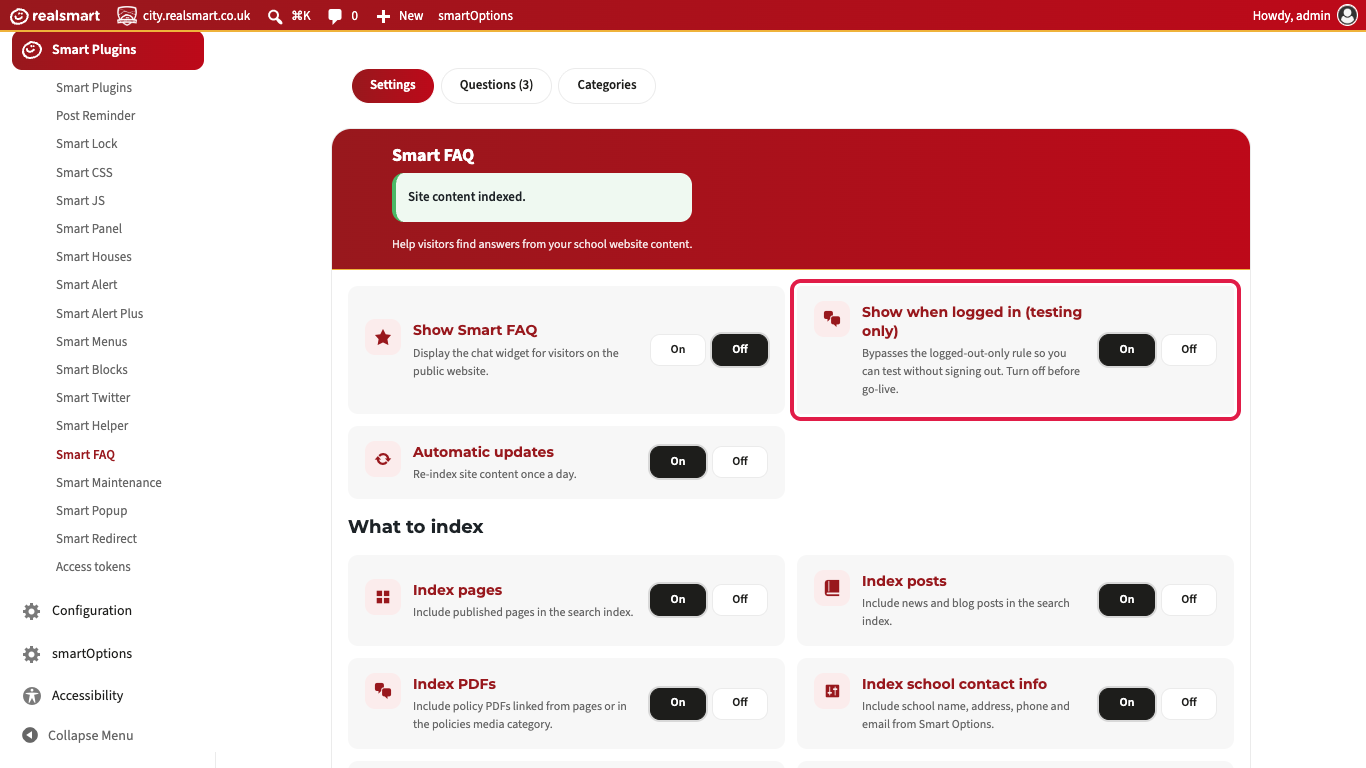
Before visitors see it, try it yourself. Scroll back to the top. On the Show when logged in (testing only) card, click On.
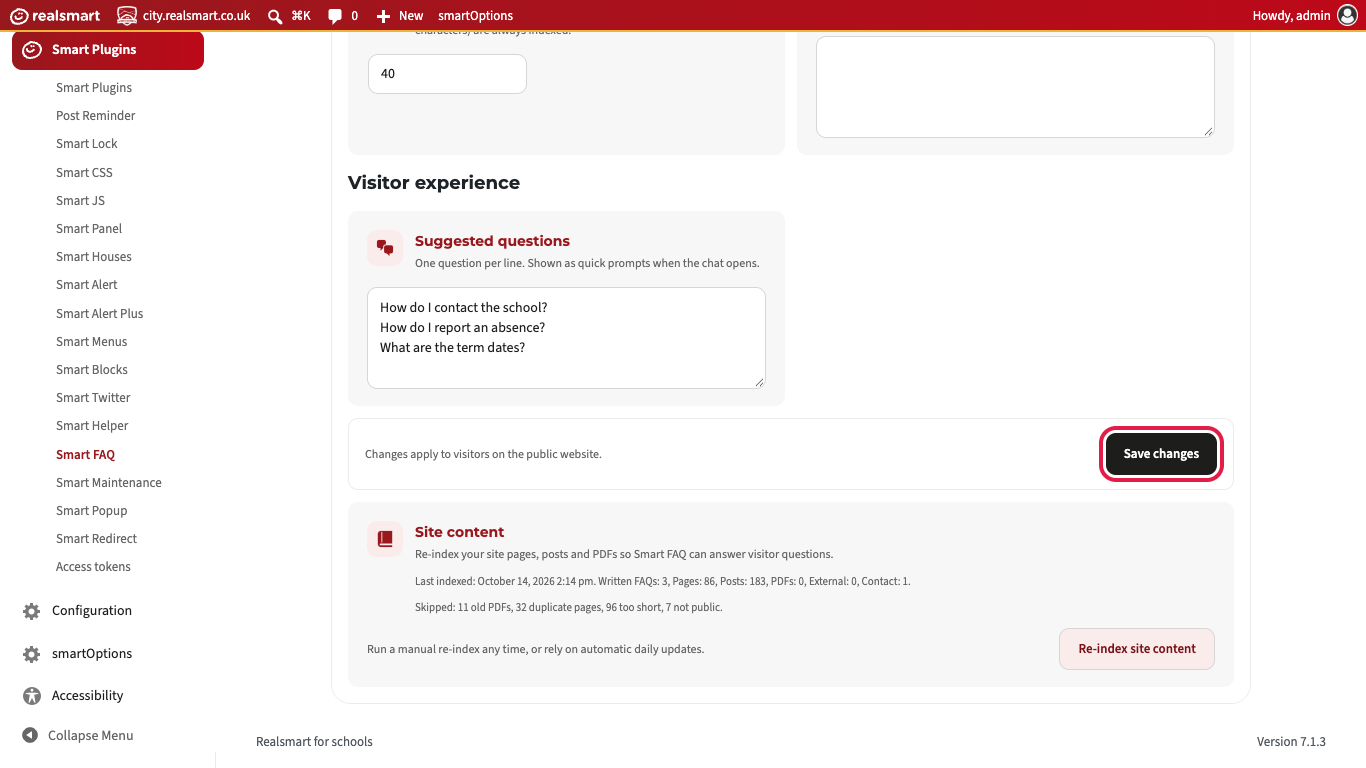
Then click the black Save changes button. It is above the Site content card, near the bottom of the page.
Step 6 — Ask it some questions
Open your school website in another tab, staying signed in. A Questions tab is now in the bottom-right corner of every page. What visitors see below shows what it looks like.
Try several questions a parent might really ask. Use the three suggested questions, and also ask about things you know are on your website. Each answer should be a short passage from one of your pages, ending in a link to that page.
If every question comes back with "I could not find an answer to that", even ones you know a page covers, do not go on to Step 7. Leave Show Smart FAQ off and contact Realsmart support.
Step 7 — Turn it on for visitors
Back on the Smart FAQ settings page, set Show Smart FAQ to On. Set Show when logged in (testing only) back to Off, then click Save changes.
The Questions tab now appears on every page for visitors who are not signed in. Because testing mode is off again, you will not see it yourself while you are signed in. Open the website in a private window if you want to check it.
Write your own FAQs
You can write your own questions and answers. They do two jobs:
- They appear on your FAQ page as a list of questions. A visitor clicks a question and the answer opens underneath.
- The chat answers with them first. When a visitor asks a question that matches one of yours, the chat gives your answer, word for word, with a link to your FAQ page. It only searches the rest of your website when none of your questions match.
Step 1 — Open the Questions tab
Go to Smart Plugins → Smart FAQ and click the Questions tab at the top. The number beside it is how many questions you have written.
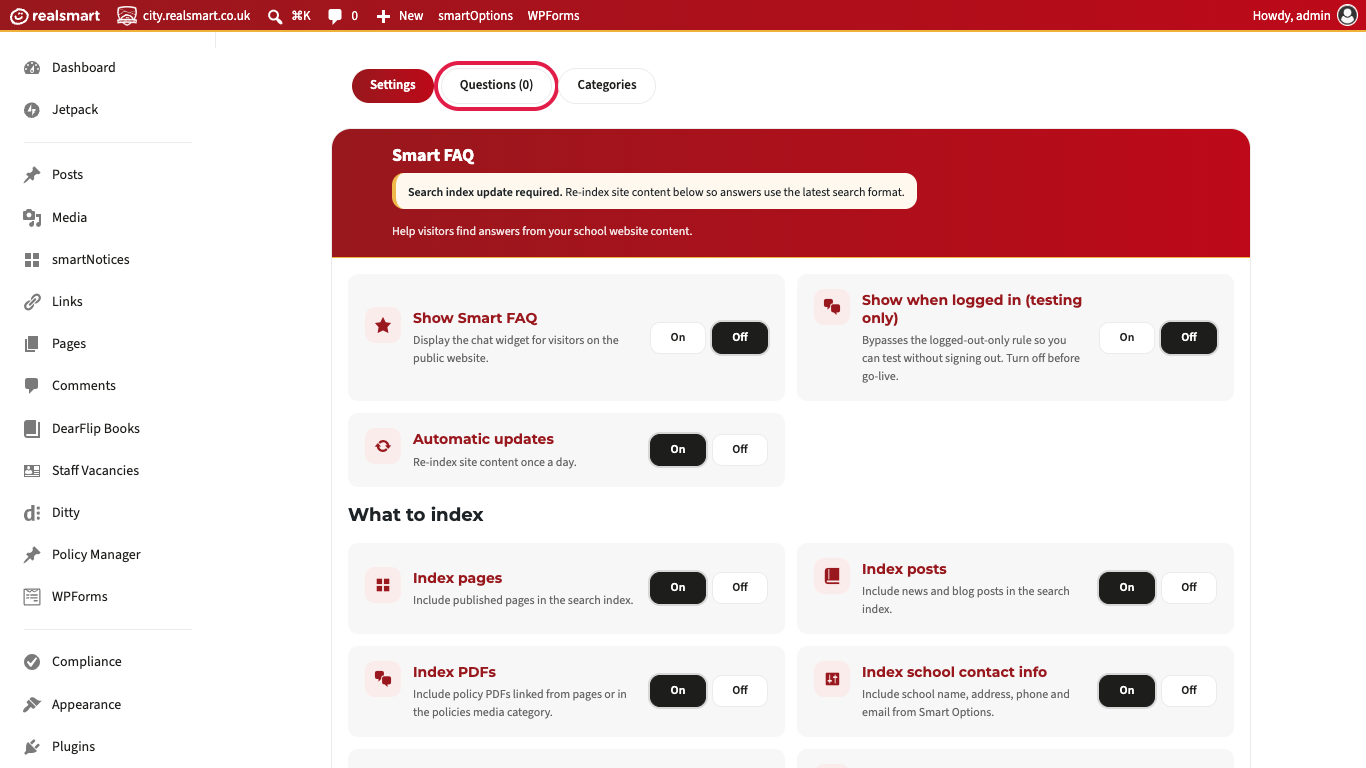
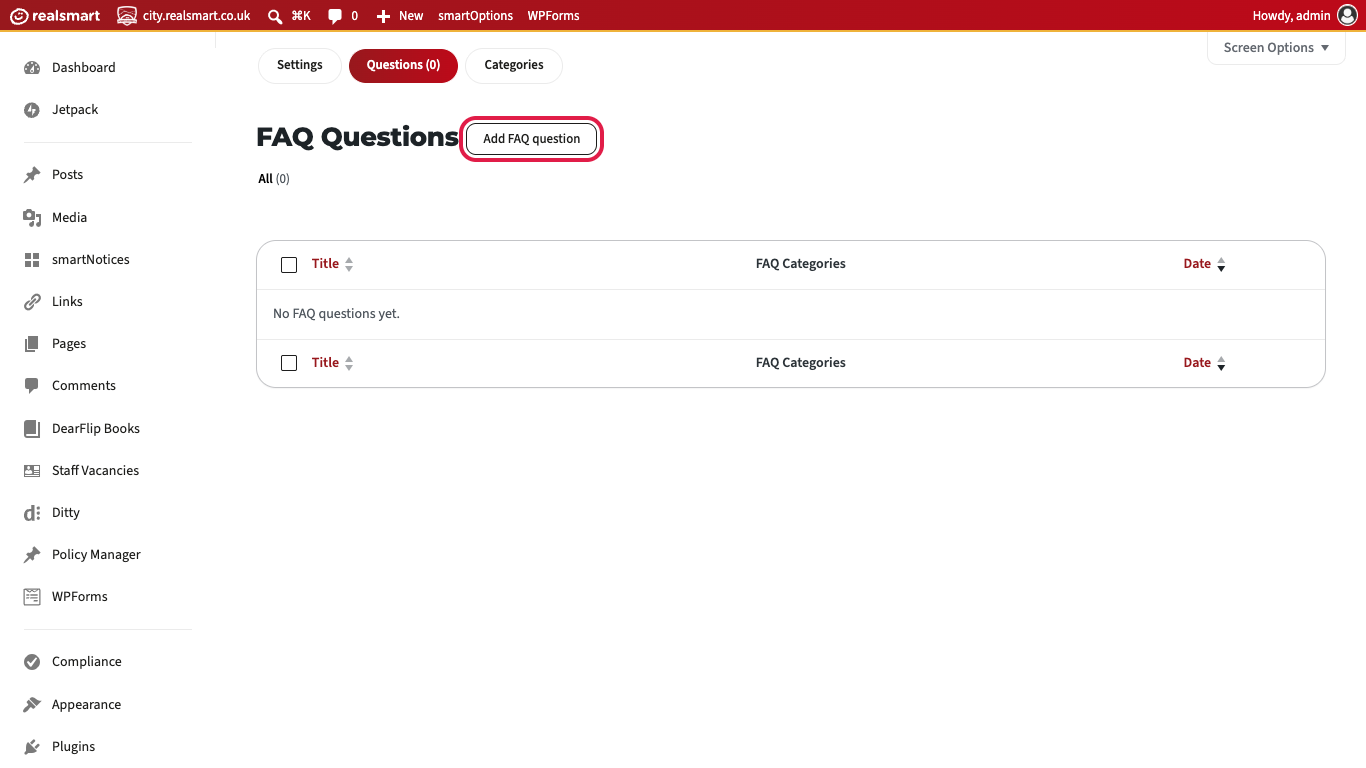
Step 2 — Add a question
Click Add FAQ question. To change a question you have already written, click it in the list instead.
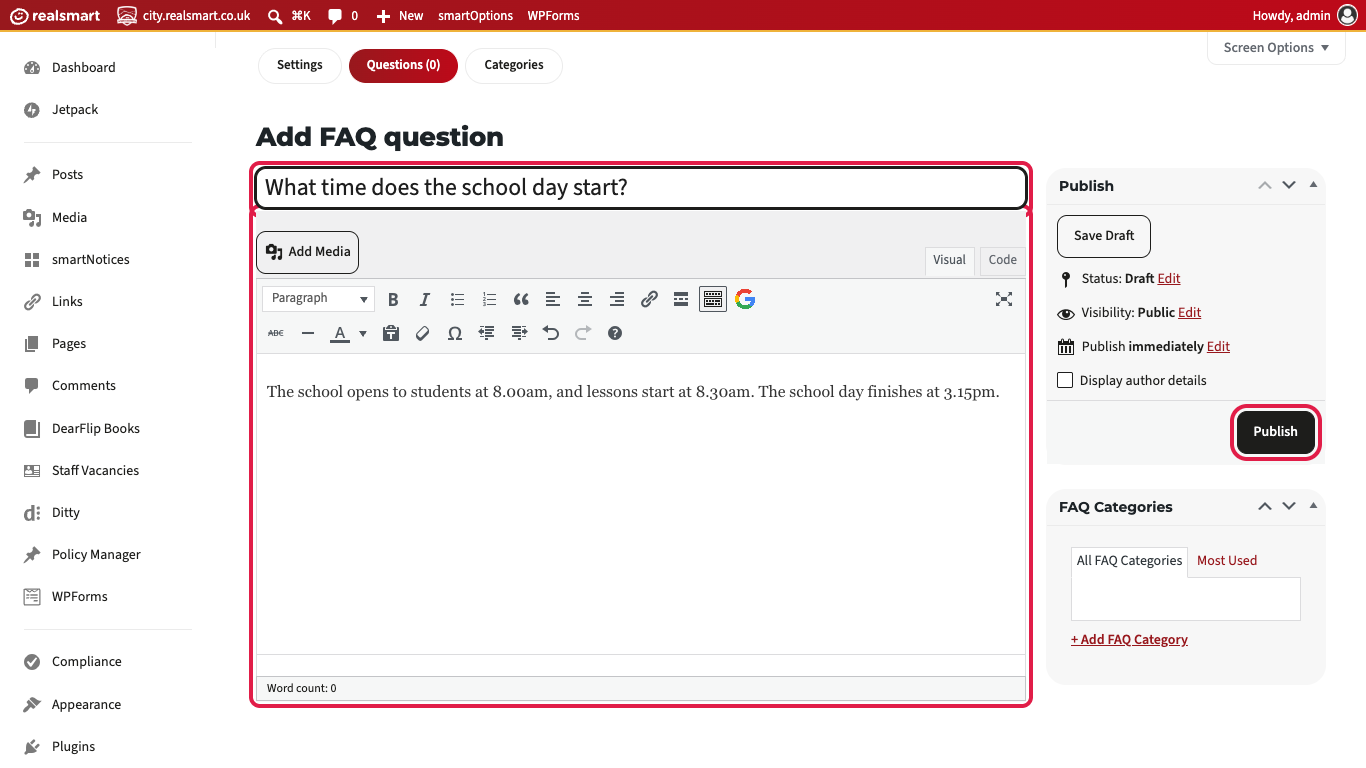
Step 3 — Type the question and the answer
Type the question in the box at the top, where it says Type the question. Type the answer in the large box underneath. If you group your FAQs, tick a category in the FAQ Categories box on the right. You can add and rename categories on the Categories tab.
Click Publish (or Update if you are changing a question). A Question published. message appears.
Your questions are listed on the Questions tab, with the number on the tab going up as you add them.
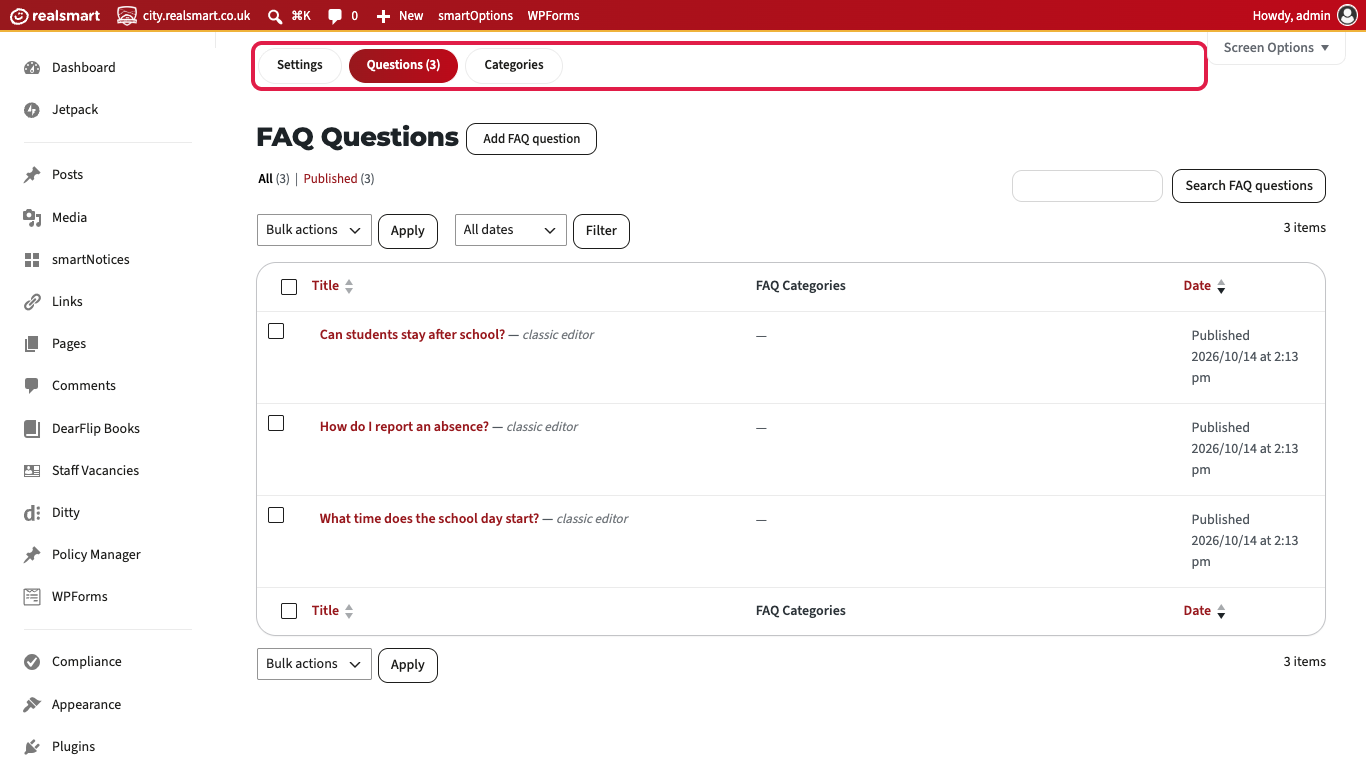
The change shows on your FAQ page straight away. The chat picks it up within a few minutes.
Step 4 — Put your FAQs on a page
Edit the page where the FAQs should go, and type this on a line of its own:
[smart-faq]
Click Update (or Publish). To show only one category, name it, for example [smart-faq include_category="chromebooks"].
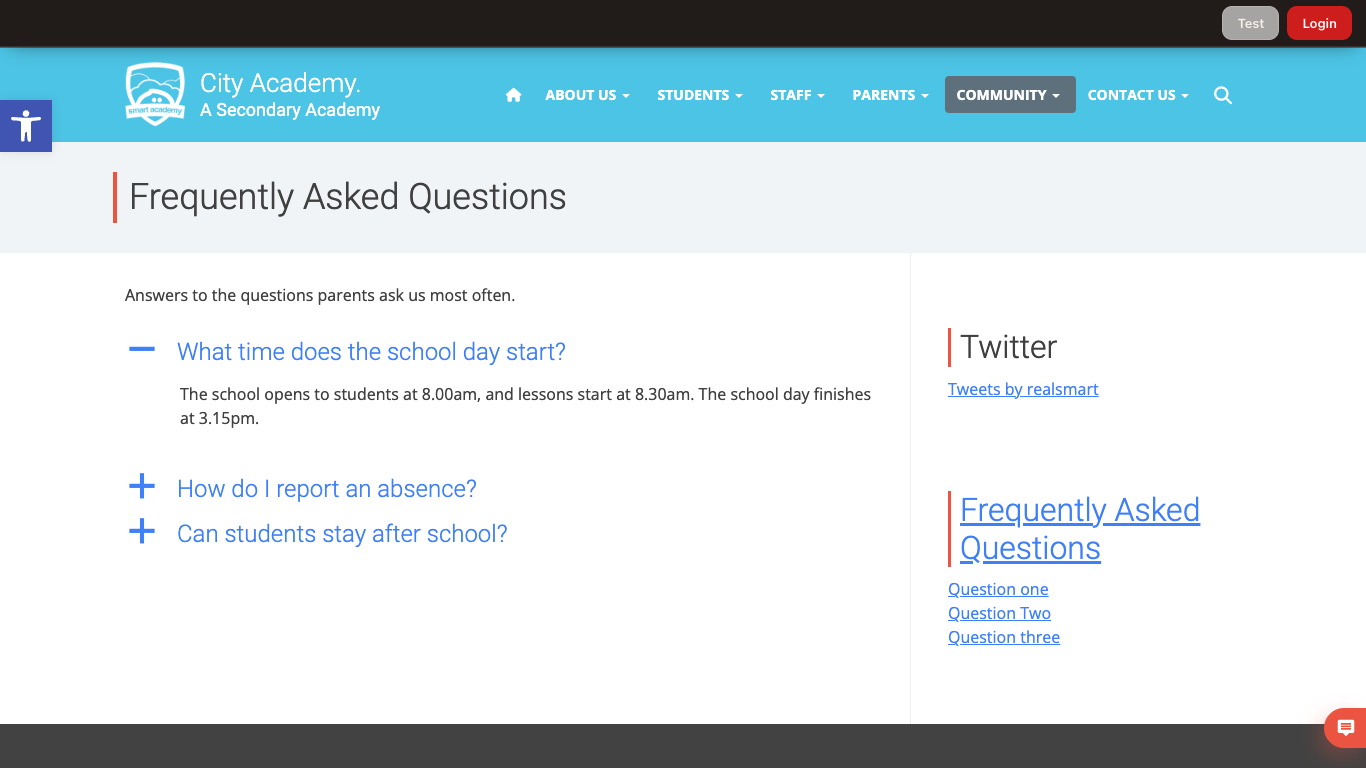
Visitors see your questions as a list. They click a question and its answer opens underneath.
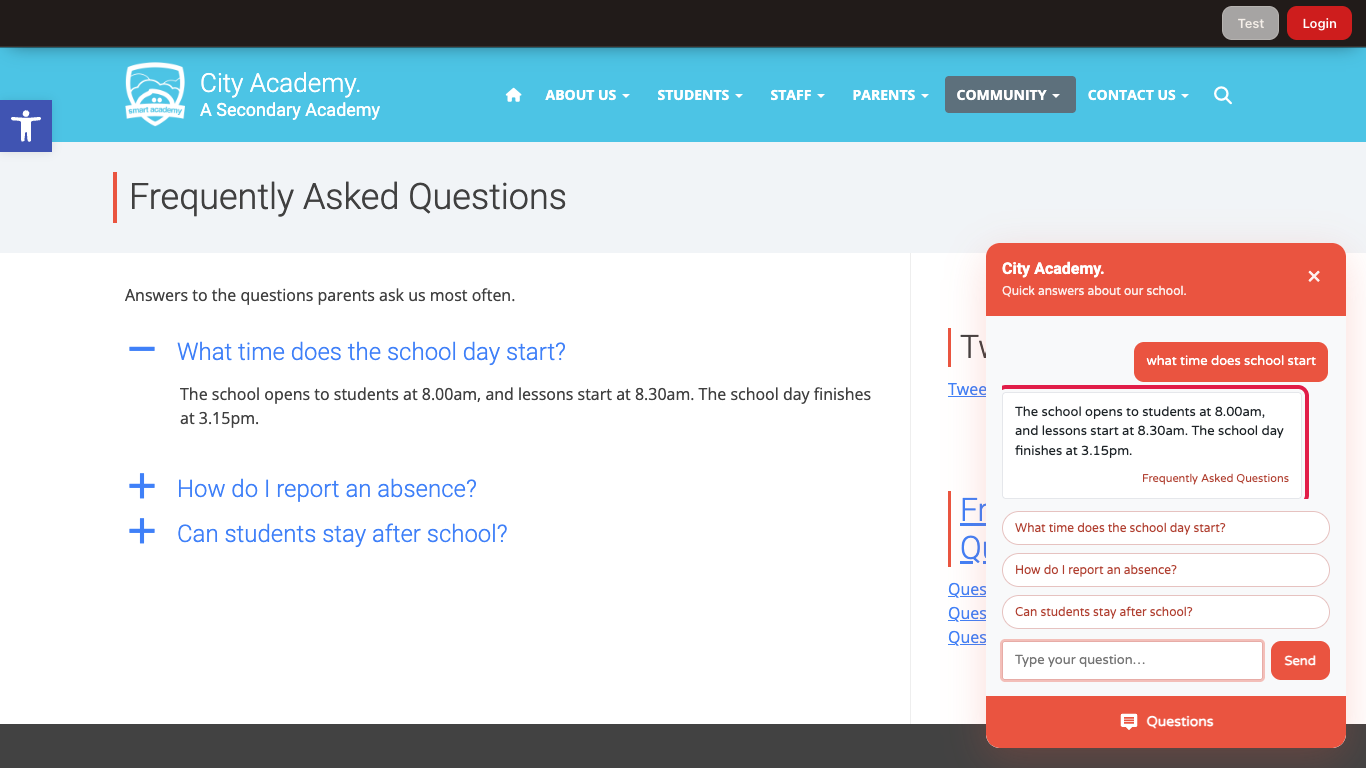
The chat answers with your written answer when a visitor's question matches one of yours, even worded differently. It links to your FAQ page.
Things to know:
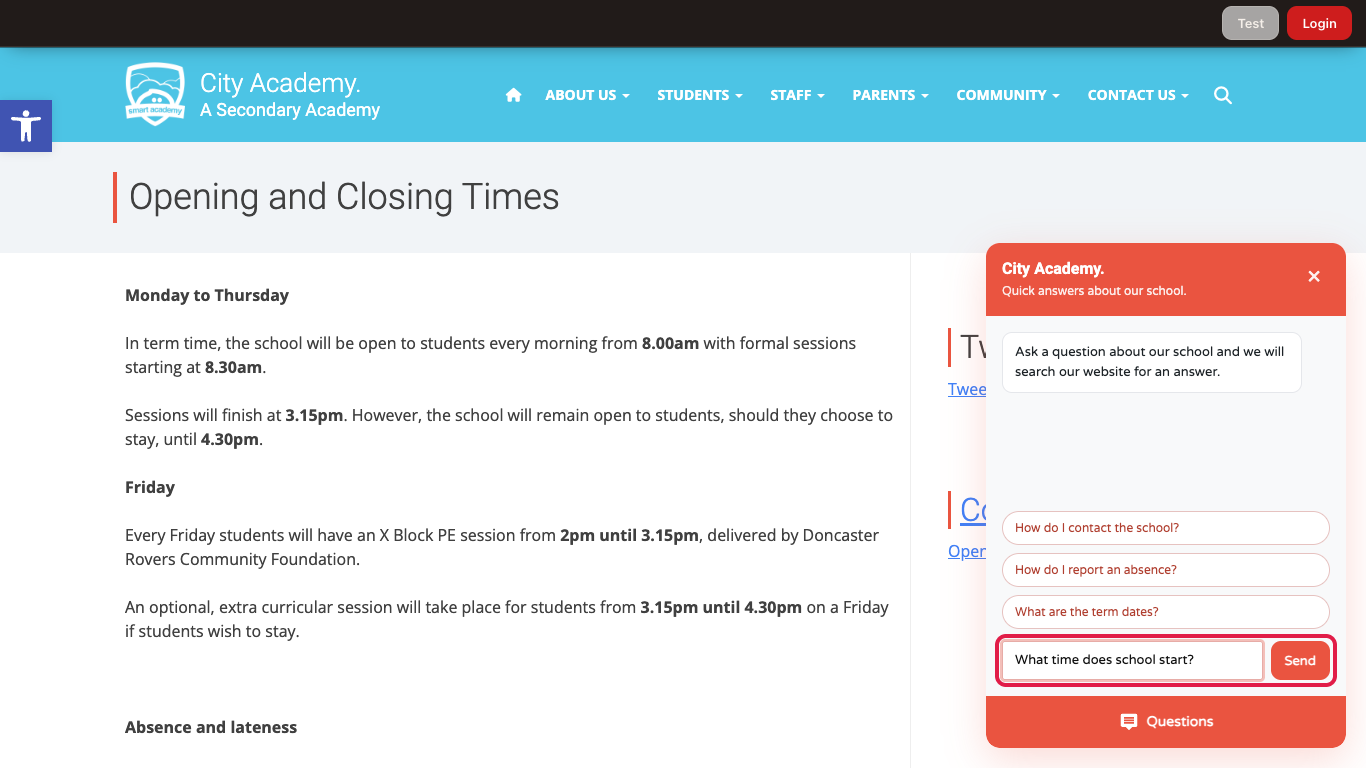
- Write questions the way a parent would ask them. The chat matches on the important words, so "What time does the school day start?" is found by "what time does school start". It is not found by a question that uses different words, such as "laptop" instead of "Chromebook".
- Your first three questions become the chat's suggested questions, unless you have changed the list under Suggested questions.
- The chat only uses your FAQs while Index written FAQs is On (under What to index). It is On to begin with.
- If your FAQ page is hidden from the public with Smart Visibility, the chat does not use your FAQs either, so it never reads them out to visitors.
Settings
Where to find it: Smart Plugins → Smart FAQ
| Setting | What it does | Default |
|---|---|---|
| Show Smart FAQ | Shows or hides the chat widget for visitors on the public website | Off |
| Show when logged in (testing only) | Shows the widget to signed-in accounts too, so you can test it without signing out. The settings page itself asks you to turn this off before go-live | Off |
| Automatic updates | Re-indexes site content once a day. The daily re-index only runs while Show Smart FAQ is also On | On |
What to index
| Setting | What it does | Default |
|---|---|---|
| Index pages | Includes published pages in the search index | On |
| Index posts | Includes news and blog posts in the search index | On |
| Index PDFs | Includes policy PDFs linked from pages, or filed in the policies media category | On |
| Index school contact info | Includes the school name, address, phone, fax and email from your theme settings | On |
| Index external sources | Includes the external source links you add below | On |
| Index written FAQs | Lets the chat answer with your own written FAQs first, before it searches the rest of the site | On |
External source links
Where to find it: the External sources section.
Select Add external source to add a labelled link to content hosted outside your website — a trust governance page, or a statutory document hosted elsewhere, for example. Each needs a label (e.g. "Governance documents") and a URL; use Remove to take one away. Select Save changes, then Re-index site content. Only that page's own title and description are indexed, not its full text, so the answer will point a visitor to the link rather than quote from it directly.
Exclusions & quality
| Setting | What it does | Default |
|---|---|---|
| Exclude old PDFs | Skips PDFs older than the maximum age below | On (24 months) |
| Exclude duplicate pages | When several pages share the same title, keeps only the newest | On |
| Exclude old pages | Skips pages and posts not updated within the maximum age below | Off (36 months) |
| Exclude unlinked PDFs | Skips PDFs that are not attached to an indexed page or filed in the policies category | On |
| Minimum content length | Skips stub pages with very little text. A short page of 20 characters or more (e.g. "Ofsted has rated our school outstanding") is always indexed regardless | 40 characters |
| Excluded page IDs | A comma-separated list of specific page or post IDs to always skip | Empty |
Save settings, then select Re-index site content for changes to any of these to take effect.
Suggested questions
Where to find it: the Visitor experience section.
One question per line. These are shown as quick prompts when a visitor opens the chat, before they've typed anything. By default there are three: "How do I contact the school?", "How do I report an absence?" and "What are the term dates?". If you empty the box, those three are shown.
What visitors see
The chat sits in the bottom-right corner of every page, mostly tucked off the edge of the screen. When a visitor points at it or taps it, it slides out and shows its Questions label.
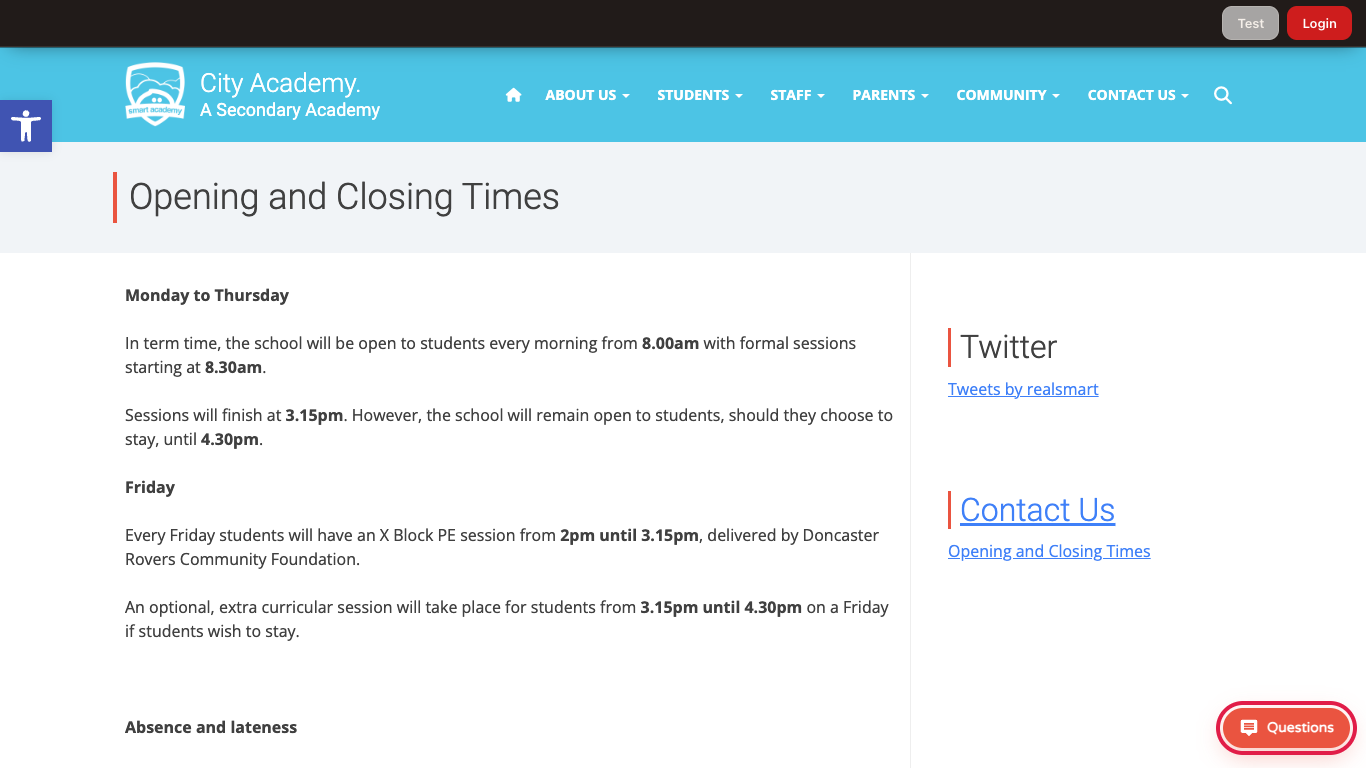
Clicking it opens the chat. The chat shows your school's name, "Quick answers about our school.", a short welcome message and your suggested questions. A box at the bottom is for typing a question.
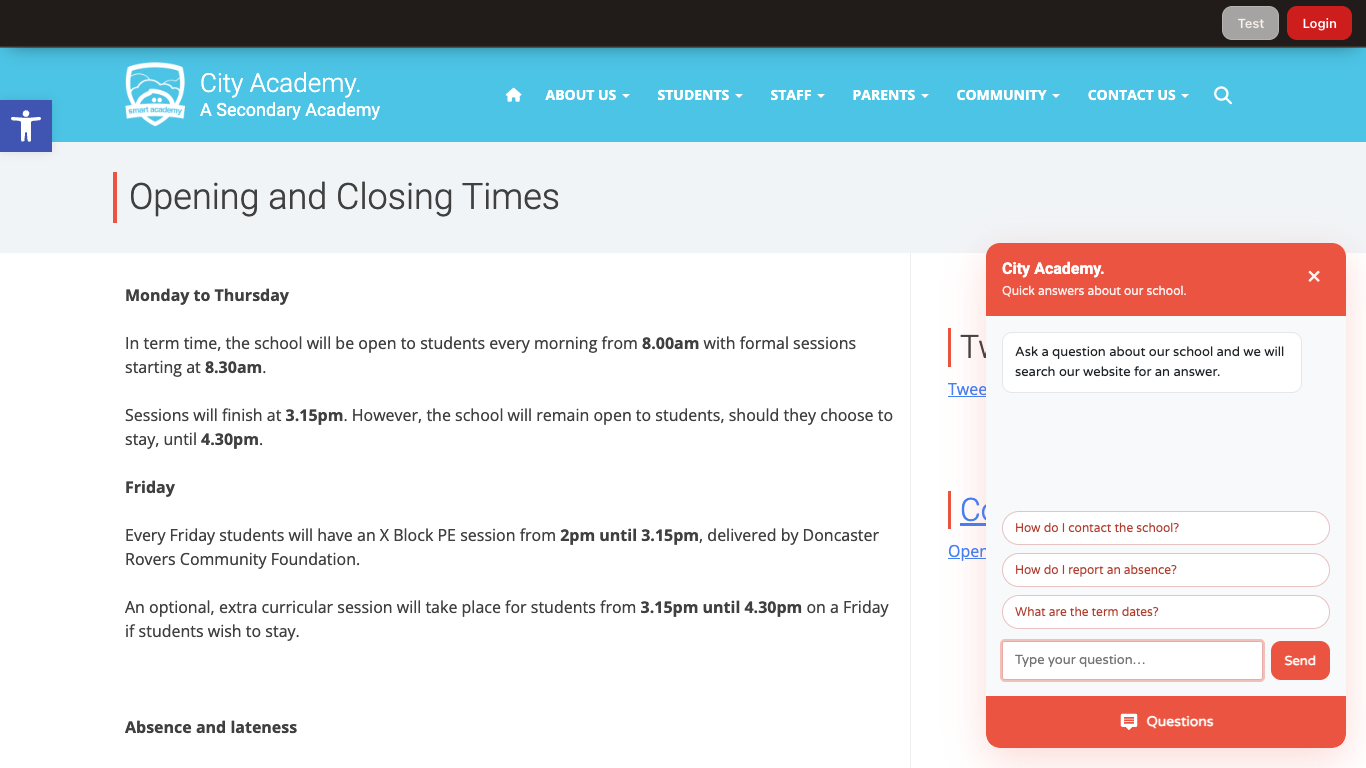
A visitor clicks a suggested question, or types their own and clicks Send.
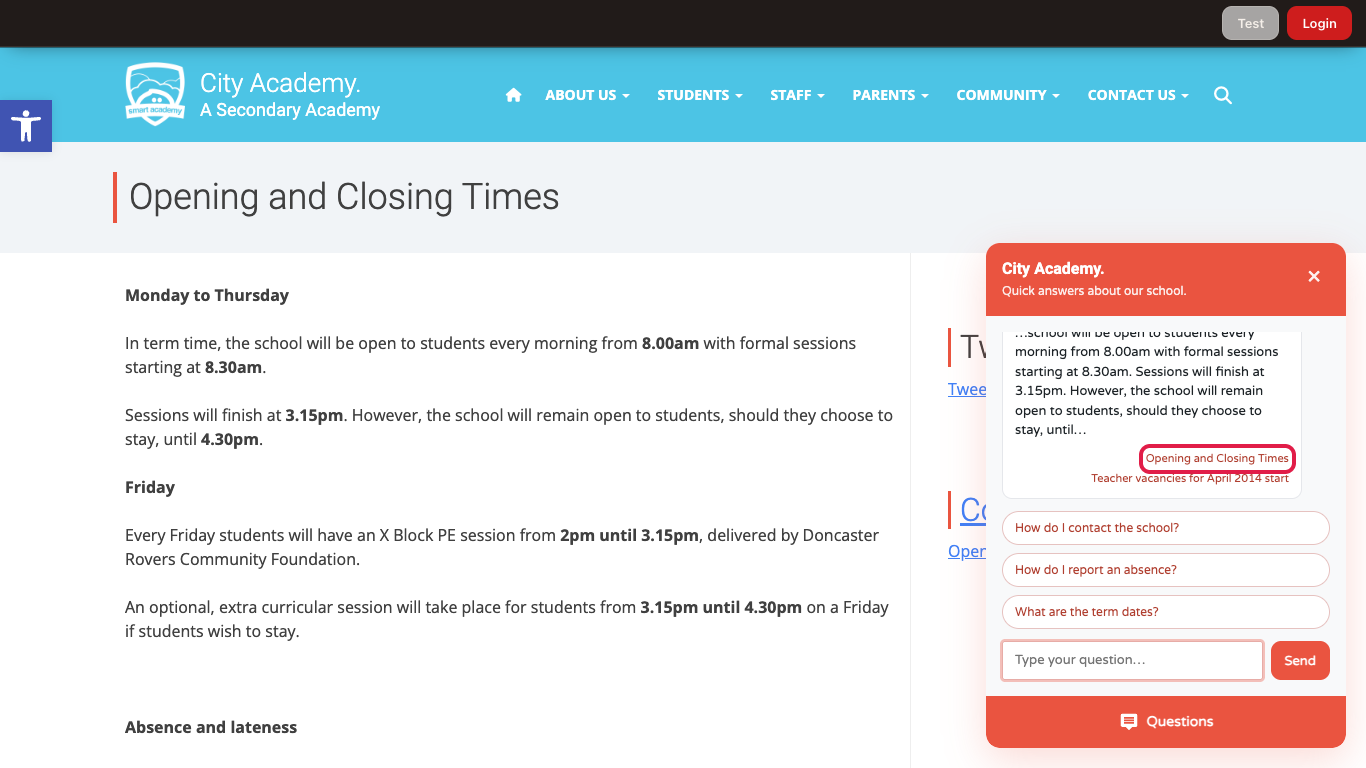
The answer is a short passage from the page that best matches the question. It ends with a link to that page, labelled with the page's title.
Smart FAQ answers only from what it has indexed. It looks for the best-matching page, post, PDF, contact record or external link and answers from that. If a second source is a close match on the same topic, it links to both. A question about contact details is answered with the school's address, phone number and email. If nothing matches well, it says it could not find an answer and offers a link to search the website instead, rather than guessing.
A page hidden from the public with Smart Visibility is never indexed or answered from.
Troubleshooting
The widget isn't showing on the website
Why it happens: Show Smart FAQ is off — remember it defaults to Off, even once the feature is available — or the visitor is signed in (the widget is for logged-out visitors only, unless Show when logged in (testing only) is on).
How to fix it:
- Go to Smart Plugins → Smart FAQ and confirm Show Smart FAQ is On.
- If you're testing while signed in, turn on Show when logged in (testing only) — then turn it back off before go-live.
The chat says "Answers are being prepared. Please check back soon."
Why it happens: The widget is switched on, but site content has not been indexed yet (or the index needs updating).
How to fix it: Go to Smart Plugins → Smart FAQ and select Re-index site content.
A visitor sees "Too many requests. Please wait a moment."
Why it happens: To protect the site, each visitor can ask up to 20 questions a minute.
How to fix it: Wait a minute and ask again.
It keeps saying it can't find an answer
Why it happens: Either the content hasn't been indexed yet, the search index is out of date, or the question genuinely doesn't match anything indexed closely enough. Smart FAQ deliberately says it doesn't know rather than guessing.
How to fix it:
- Go to Smart Plugins → Smart FAQ and select Re-index site content.
- Check the page you expect it to answer from is published, public (not hidden by Smart Visibility), and switched on under What to index.
- Check it isn't being skipped by one of the Exclusions & quality settings — an old PDF, a duplicate-titled page, or a very short page can all be excluded.
A banner says "Search index update required" (or "Index format is out of date — run Re-index now.")
Why it happens: Site content has never been indexed on this site ("Search index update required"), or Smart FAQ's search index format has been upgraded and this site's stored index is from before that ("Index format is out of date — run Re-index now."). Both banners mean the same thing, despite the second one's wording — there is no separate "Re-index now" button, only the Re-index site content button further down the page.
How to fix it: Select Re-index site content. While Show Smart FAQ is On, this also happens automatically when an administrator opens the Smart FAQ settings page.
New content isn't showing up in answers yet
Why it happens: With Automatic updates on, content is only re-indexed once a day, so a page published minutes ago may not be reflected yet.
How to fix it: Go to Smart Plugins → Smart FAQ and select Re-index site content to refresh immediately.
Was this guide helpful?
We read every response — it decides what we rewrite next.
Thanks for your feedback.