All guides / Security-compliance
Smart Maintenance
Overview
Smart Maintenance replaces your public website with a simple maintenance page for visitors, while staff who can edit the site carry on working on it as normal. It is useful while you are making a large or disruptive change and would rather visitors saw a clear "back shortly" message than a half-finished page.
The maintenance page's heading and message are edited on Smart Maintenance's own page, and you can do that before switching it on. The on/off switch itself is on the Smart Plugins page, with the other Realsmart features. Only administrators can see either page.
Getting set up
Step 1: Open Smart Maintenance
Go to Smart Plugins → Smart Maintenance.
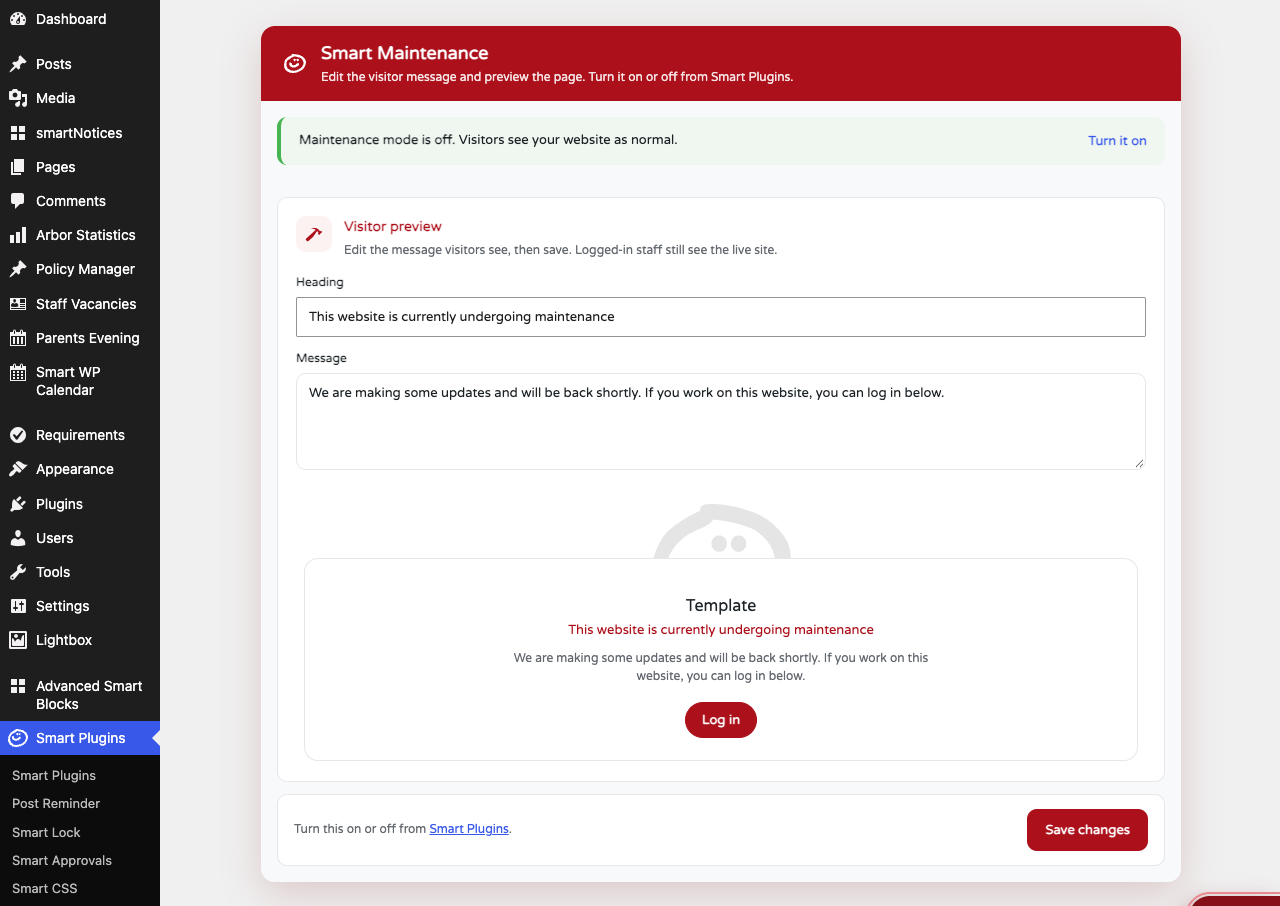
The banner at the top tells you whether maintenance mode is on or off right now, so you know whether you are editing a page visitors are already seeing.
Step 2: Write your message
Edit the Heading and Message fields. The preview below updates as you type, so you can see what visitors will see: your school name and logo, the heading, the message and a Log in button. If you leave a field empty, visitors see the default wording for it (see Settings).
If your school has a logo uploaded in smartOptions, you can also choose its Logo background here — Match my website header, Pick a colour or No background. This helps a logo drawn for a dark header, which can disappear on a white background.
Step 3: Save your message
Click Save changes. A Settings saved. message appears. This only saves the wording and logo background — it does not turn maintenance mode on.
Step 4: Turn maintenance mode on
Click Turn it on on the banner (or Smart Plugins in the menu) to open the Smart Plugins page. Set the Smart Maintenance card to On, then click Save changes. From then on, visitors see the maintenance page instead of your website straight away.
To bring the site back, go to Smart Plugins (or click Turn it off on the Smart Maintenance banner), set Smart Maintenance to Off, and click Save changes.
Because you are signed in, you still see the normal website. To check what visitors see, open the site in a private/incognito window.
Settings
Where to find it: Smart Plugins → Smart Maintenance
| Setting | What it does | Default |
|---|---|---|
| Heading | The heading shown on the maintenance page, under your school name | "This website is currently undergoing maintenance" |
| Message | The explanatory text shown under the heading | "We are making some updates and will be back shortly. If you work on this website, you can log in below." |
| Logo background | What sits behind your school logo on the maintenance page: your website header colour, a colour you pick, or nothing. Only shown if a school logo is uploaded in smartOptions | Match my website header |
Turning it on or off: the Smart Maintenance card on Smart Plugins ("Show a maintenance page to logged-out visitors. Staff can still log in and work on the site."). Off by default.
Who still sees the real website
Maintenance mode checks whether someone is signed in with permission to write posts — not simply whether they are signed in. Any account that can write posts (contributors, authors, editors and administrators) sees the live site as normal. Everyone else sees the maintenance page, including people who are signed in with an account that cannot write posts, such as a parent or pupil account.
What visitors see
Visitors see a single page with your school name and logo, your heading and message, and a Log in button that takes staff to the sign-in page. Search engines are told the site is temporarily unavailable and not to index the maintenance page.
How staff know it is on
While maintenance mode is on:
- administrators see a warning at the top of every admin screen: "Smart Maintenance is on. Visitors who are not logged in see the maintenance page instead of your website. Turn it off in Smart Plugins."
- anyone signed in who has the toolbar showing sees a red Maintenance mode on item in it, linking to the Smart Maintenance page
- the banner on the Smart Maintenance page turns to "Maintenance mode is on. Visitors who are not logged in are seeing this page right now." with a Turn it off link
Troubleshooting
The site is stuck in maintenance mode and I cannot find the switch
Why it happens: The on/off switch is on the Smart Plugins dashboard, not on the Smart Maintenance settings page itself — Smart Maintenance only holds the message and preview.
How to fix it: Go to Smart Plugins, set Smart Maintenance to Off, and click Save changes. The Turn it off link on the Smart Maintenance banner, and the red Maintenance mode on item in the toolbar, both lead you there.
A staff member says they can still see the maintenance page
Why it happens: Maintenance mode only lets through accounts that are signed in and able to write posts. A signed-out staff member, or an account that cannot write posts (for example a subscriber), sees the maintenance page like any other visitor.
How to fix it: Ask them to click Log in on the maintenance page and sign in. If they still see it, check their account's role with your school's website administrator.
The logo is missing its background, or the wrong colour is showing behind it
Why it happens: Logo background only appears once a school logo is uploaded in smartOptions, and Match my website header uses the header background colour from smartOptions. If no header colour is set, the option reads Match my website header (none set) and the logo has no background.
How to fix it: Choose Pick a colour on Smart Maintenance, choose a colour, and click Save changes. Or set a header background colour in smartOptions.
Did this work for you?
If a step looked different on your site, tell us and we'll update the screenshots.
Thanks for your feedback.