All guides / Content-publishing
Smart Approvals
Overview
A Contributor account can write a post but cannot publish it — when they submit it, WordPress simply marks it Pending Review and waits for someone else to look at it. On its own, WordPress does not tell anyone that this has happened, and it does not tell the Contributor when their work finally goes live. Smart Approvals fills in both gaps:
- When a Contributor submits a post for review, your reviewers get an email with the author's username, the post title, a link to edit the submission and a link to preview it.
- When a reviewer publishes it, the Contributor who wrote it gets an email back with a link to the post.
Smart Approvals is a Smart Plugins module, so it must be switched on for your school before it does anything. If your school's website was migrated from an earlier version that had similar functionality, Smart Approvals may already be switched on for you, with your reviewer addresses already carried over.
Getting set up
Step 1: Switch on Smart Approvals
Go to Smart Plugins, select On on the Smart Approvals card, then select Save changes. If your school already had an equivalent tool before, this may already be on, with an email address or two already saved in the next step.
Step 2: Open Smart Approvals
Go to Smart Plugins → Smart Approvals. This page only appears once Smart Approvals is switched on, and only administrators can open it.
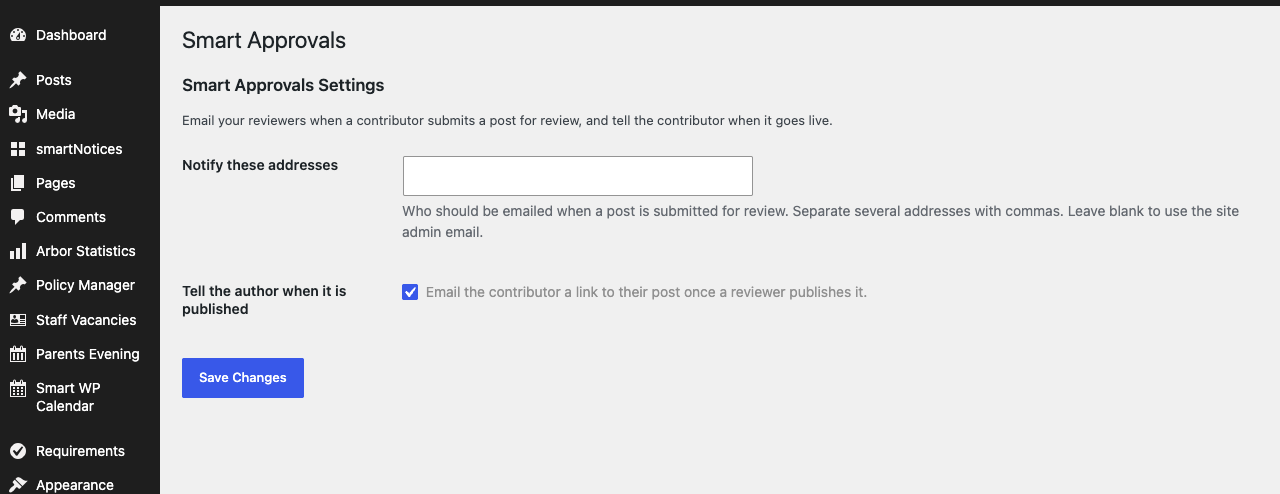
Step 3: Add your reviewers
Enter the email address (or addresses, separated by commas) that should be notified whenever a Contributor submits something for review, in Notify these addresses. Leave it blank to use your site's admin email address instead, set under Settings → General.
Step 4: Save
Select Save Changes. From this point on, a Contributor selecting Submit for Review emails your reviewers, and publishing their post emails them back.
Settings
Where to find it: Smart Plugins → Smart Approvals
| Setting | What it does | Default |
|---|---|---|
| Notify these addresses | Who gets emailed when a post is submitted for review. Separate several addresses with commas | Empty (falls back to your site's admin email) |
| Tell the author when it is published | Emails the Contributor a link to their post once a reviewer publishes it | On |
Who this applies to
What matters is who wrote the post, not who moves it to Pending Review. Smart Approvals only emails your reviewers when the post's author is a Contributor — someone who can write and submit content but cannot publish it themselves. If the author already has the ability to publish their own posts — an Author, Editor or Administrator, for instance — no email is sent when the post is set to Pending Review, whoever does it. The other way round also applies: if a reviewer sets a Contributor's post back to Pending Review, your reviewers are emailed again.
Troubleshooting
Nobody was emailed when a Contributor submitted something
- Confirm Smart Approvals is switched on under Smart Plugins.
- Check Notify these addresses on the Smart Approvals settings page — if it is blank, the email goes to your site's admin email under Settings → General, so check that address too.
- Confirm the account that submitted the post really is a Contributor. If they can publish their own posts — an Editor or Author account, for instance — Smart Approvals does not treat their submission as one needing review, because they are able to publish it themselves.
Reviewers got more than one email for the same submission
This is expected. Every time the post is saved again while it is still Pending Review, another notification goes out — so an author who edits and re-saves a pending submission will trigger another email to reviewers.
The Contributor was not told their post went live
Check Tell the author when it is published is ticked on the Smart Approvals settings page. The email is only sent when a post goes straight from Pending Review to Published. It is not sent when an already-published post is updated, or when a reviewer schedules the post for a later date or saves it as a draft before publishing it.
Did this work for you?
If a step looked different on your site, tell us and we'll update the screenshots.
Thanks for your feedback.