Reset passwords — one pupil, a class or a year group
Resetting a password puts it back to the school's default password for that person's role. There are two places to do it:
- The Reset passwords page — for pupils: one pupil, a class or a year group at a time. Admins can use it, and so can teachers if the school allows them. Staff accounts never appear on this page.
- A user's Security tab — for any one user, pupil or staff. Admins only, with the Reset user passwords permission.
If your school uses QR code login, the Reset passwords page also lets you print or replace learners' QR login codes.
Who sees the Reset passwords page: admins, and teachers (mentors) if the school allows them — every mentor, or only the mentors an admin has added to Mentors allowed to reset passwords (see Password settings → Let only some mentors reset passwords). It may not appear if your account has been restricted.
A teacher sees every learner in the school on this page, not only their own classes. Use the In group filter to narrow the list to a class.
A reset can't be undone. The person's old password stops working straight away. If you don't know the school's default password, ask your Realsmart admin: it isn't shown on this page.
A reset also unlocks the account. If the pupil has been locked out with Too many sign-in attempts, they can sign in with the new password straight away. See Too many sign-in attempts.
Reset one pupil's password
The quickest way for a teacher to get a pupil back into their account mid-lesson.
Step 1 — Open the Reset passwords page
Select Reset passwords in the left sidebar. The page lists your school's learners only.
Getting there as a teacher: on your school website, select Smart admin (the cog) on the Realsmart bar, next to your photo. A teacher who may reset passwords lands straight on this page. On your Launchpad, a Smart admin section has a Reset student passwords tile that opens it too. Your Profile page also has a Go to Smart admin link at the top. The Profile link on the bar no longer leads here: it opens your own Profile page, for your own password, photo and look.
Step 2 — Find the pupil
Type the pupil's name, username or UPN into the Search all fields box at the top of the list.
Step 3 — Tick the pupil and reset
Tick the box at the start of the pupil's row. The action bar above the list now shows the actions. Select Reset to default password, then confirm Reset the selected learners to the default password?
Result
A message confirms 1 password(s) reset to default. The pupil signs in with the school's default learner password, and is asked to choose a new one (see Change your password at sign-in) — unless they're not allowed to change their own password. (A pupil who signs in with their QR code or with Google is never asked.) It reaches Google, Microsoft or Active Directory only where your school sends passwords there.
If you see No passwords were reset — password reset is disabled for the selected learner(s), that pupil's password change is turned off for them or for their year group, so the reset was skipped. Ask an admin to set a password for them on their Security tab instead. If the Password change column is switched on in Columns, those pupils show Reset disabled.
Reset passwords for a class or year group
Step 1 — Open the Reset passwords page
Select Reset passwords in the left sidebar.
Step 2 — Show just the class or year group
Select Filters, then use In group: type part of the group's name (for example 7A or year-7) and pick it. The list narrows to the learners in that group.
The filters also include User status, Password status (Change required or Has default password) and, if your school uses QR login, QR code. See Filter and search users.
Step 3 — Check the list and select everyone
Look down the list to make sure you're resetting the right people.
Icons can appear under a learner's name to help you spot who needs attention: a warning triangle for still has their default password, a clock for must change their password at next login, and a padlock when a change was requested but the learner isn't allowed to change their own password. See Password-state icons.
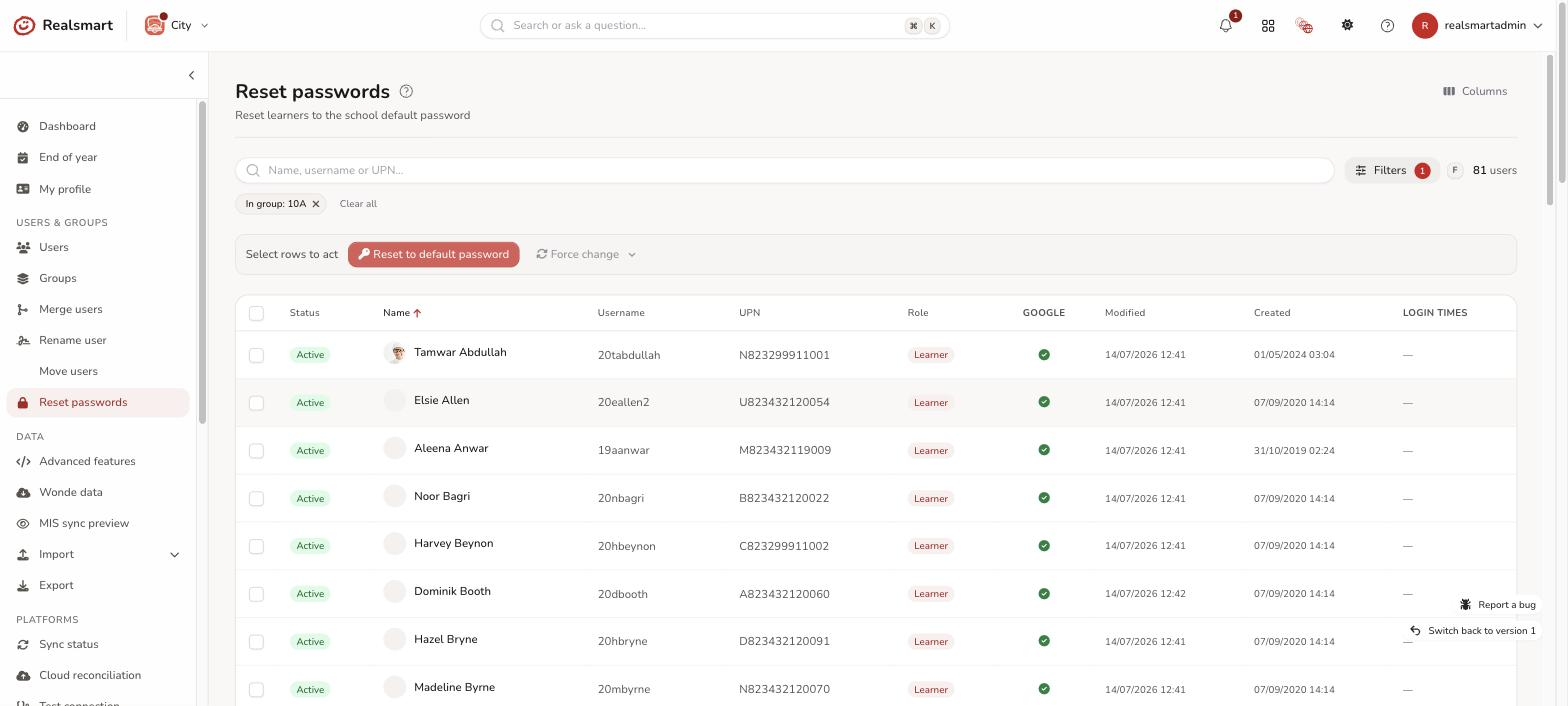
Tick the checkbox at the top of the list to select everyone on the page. If the group runs to more than one page, a banner offers Select all … matching — choose it to include everyone.
Step 4 — Reset to default password
In the action bar above the list, select Reset to default password, then confirm.
Result
A message says how many passwords were reset, for example 28 password(s) reset to default. Each learner is asked to choose a new password at their next sign-in, unless they're not allowed to change their own.
Learners whose password change is turned off for them, or for their year group, are skipped and keep their current password. The message says how many were skipped.
Ask them to change their password without resetting it
To make the selected learners choose a new password at their next sign-in, without resetting it, open Force change in the action bar and select Require change at next login. A message says Selected learners must change password at next login. Clear required change takes the request away again (Force-change cleared.). Learners who can't change their own password are skipped — you see how many, or No learners were changed — password change is disabled for the selected learner(s) if it was all of them. A pupil who signs in with a QR code or Google isn't asked, and the request is cleared.
Reset any single user's password (admins)
Step 1 — Open the user's edit page
In the sidebar, open Users & Groups → Users → Users, find the user, and select their name to open their edit page.
Step 2 — Reset the password
On the Security tab, under Password, select Reset to default.
A confirmation dialog appears asking Reset this user's password to the school default? Confirm it.
The same panel also lets you set a specific password for the user, or switch on Require a password change at next login without resetting anything — see Edit a user → Security tab.
Result
The user's password is reset to the school's default for their role: the default learner password for a learner, the default mentor password for anyone else. Staff are always asked to change it at their next sign-in. Learners are too, unless they're not allowed to change their own password. For every way a password can be set, see Password settings → What password does a new or reset user get?
QR login codes from the Reset passwords page
If your school uses QR code login, the Reset passwords page also carries a QR codes menu in the action bar, so a teacher can hand out or replace pupils' codes without needing an admin. The menu only appears once QR login is turned on for the school (School settings → QR login).
Note: Whoever can reset passwords on this page can manage QR codes here too — an admin, or a teacher the school has allowed. The actions only ever apply to the learners shown on this page, never to staff.
Step 1 — Select the learners
Filter the list down to the class or year group you want, then tick the learners. The QR code filter (under Security in the filter drawer) narrows the list to learners who already have a code, or to those still missing one, and the QR code column shows the same thing row by row.
Step 2 — Choose the action
Open QR codes in the action bar:
- Print QR codes — creates a code for any selected learner who doesn't have one yet, then opens a print view with every selected learner's code, ready to print onto badges, stickers or cards. Allow pop-ups for the site if the print window doesn't open.
- Generate QR codes — creates codes for those who don't have one, without printing. Anyone who already has a code keeps it.
- Delete & regenerate QR codes — replaces every selected learner's code with a brand-new one. The old code stops working immediately, so this is the action to use when a pupil has lost their card. You'll be asked to confirm.
- Delete QR codes — removes the selected learners' codes with no replacement; they can't sign in by scanning until a new code is generated. You'll be asked to confirm.
Result
The selected learners' codes are created, replaced or removed as chosen, and the QR code column updates to show who now holds one. A large selection shows a progress bar while the codes are created — keep the page open until it finishes; anything already created is saved if it stops. For large batches, what to do about a lost card, and troubleshooting, see QR code login.
Bulk reset from the Users page
Admins can also reset passwords for any selection of users — staff as well as learners — from the Users page:
- Go to Users and select the users you want to reset.
- In the action bar, open Password actions.
- Select Reset to default.
- Confirm Reset N user(s)' passwords to the school default?
A message says Passwords reset to default., or how many were skipped because their password reset is disabled.
Control who can change their password
Whether a user can change their own password can be turned off at four levels. The Password change column on the Users table shows who's affected at a glance, and each user's edit page names the level.
Per user (Users → Edit → Password change)
On a user's edit page, the Password change card has a Disable password change switch that controls that one person:
- For a student, switching it on stops them changing their password on their own profile page.
- For a member of staff, switching it on stops them resetting other users' passwords.
A note names why a student can't change their password ("turned off for this user", "this year group", or "school level"). Changes take effect immediately and are recorded in the activity log.
In bulk (Users → Password actions)
From the Users page, select users and open Password actions to Enable or Disable password change for students — or Enable / Disable password reset for teachers — for the whole selection at once. Enable skips any student whose year group, or whole school, is currently turned off by the settings below — they need that setting turned off first.
To stop non-teaching staff resetting pupils' passwords, you can also leave Mentors can reset passwords off and list only the staff who should — see Password settings → Let only some mentors reset passwords.
For a year group (school setting)
Settings → Password → Disable passwords for specific year groups turns off password changes for every student in the selected year group(s), without affecting other year groups. See Password settings → Disable passwords for specific year groups.
For all students (school setting)
Settings → Password → Disable student passwords turns off password changes for every student in the school. While it's on, the per-user switch is shown but can't be changed — the school setting takes precedence over both the year-group setting and any per-user/bulk change. This same toggle — plus the school's default passwords, minimum length, complexity, and expiry — is covered in full in Password settings.
These controls govern self-service changes (a user changing their own password). An admin can still set a password for anyone. Reset to default skips students whose password change is turned off for them or for their year group. With Disable student passwords on, students are still reset, but aren't asked to change the password.
Keeping your default password in sync
Resetting a user to the default password updates their sign-in straight away. For most schools it also re-sends that password to the platforms your school sends passwords to (Sync passwords to Google, Sync passwords to Entra, Sync passwords to AD) so the person can sign in there with the same password.
For some older schools, the stored default is held in an older, one-way format. It still resets the in-app password, and it still reaches Google Workspace — Google is sent the password in exactly that format. What it can't reach is Microsoft Entra and on-premise Active Directory, which both need a readable copy. When that happens:
- The reset still works — the person can sign in to Realsmart with the default, and to Google if your school syncs there.
- The confirmation message names Entra and/or Active Directory, whichever your school actually syncs to, and says those accounts keep the password they already had.
- The notifications bell shows "Re-save your default password when you get a moment" and names the platform(s) affected.
- If Google is the only place your school syncs passwords to, none of this applies to you — nothing is missed, and you won't see the message or the notification.
The fix is a one-off: an admin re-saves the default under School settings → Password (see Password settings). That restores full syncing for future resets, and the bell notification clears itself. Nothing is out of sync in the meantime — everyone's current password still works everywhere it already did. This is historical housekeeping, not a mistake on your part.
Troubleshooting
"This school has no default password set for password resets"
If a reset stops with a message like "This school has no default learner password set for password resets. Set the password under School settings → Password, then try again", no passwords were changed — the reset was refused on purpose rather than silently doing nothing.
This is now uncommon: it means the school has never set a default password for that role (learner or staff), so there is nothing to reset to. The fix is quick:
- Go to School settings → Password (an admin must do this).
- Enter the Default learner password and/or Default mentor password and select Save password settings. See Password settings.
- Return to the reset and try again — it will now work.
Setting the default doesn't change anyone's current password on its own; it just gives "Reset to default" a value to apply.
Some learners were skipped
The message says, for example, 26 password(s) reset to default. 2 skipped — password reset is disabled for those learner(s). Those learners have their password change turned off — on their own edit page, or for their year group — so a reset to default isn't allowed. They keep their current password. An admin can set a specific password for them on their Security tab.
I can't see Reset passwords in the sidebar
For a teacher, the page only appears when the school allows it: Mentors can reset passwords is on, or an admin has added you to Mentors allowed to reset passwords, and Disable password change hasn't been switched on for you on your own user page. Ask a Realsmart admin at your school. See Password settings.
Related
Was this guide helpful?
We read every response — it decides what we rewrite next.
Thanks for your feedback.