Notifications (the bell)
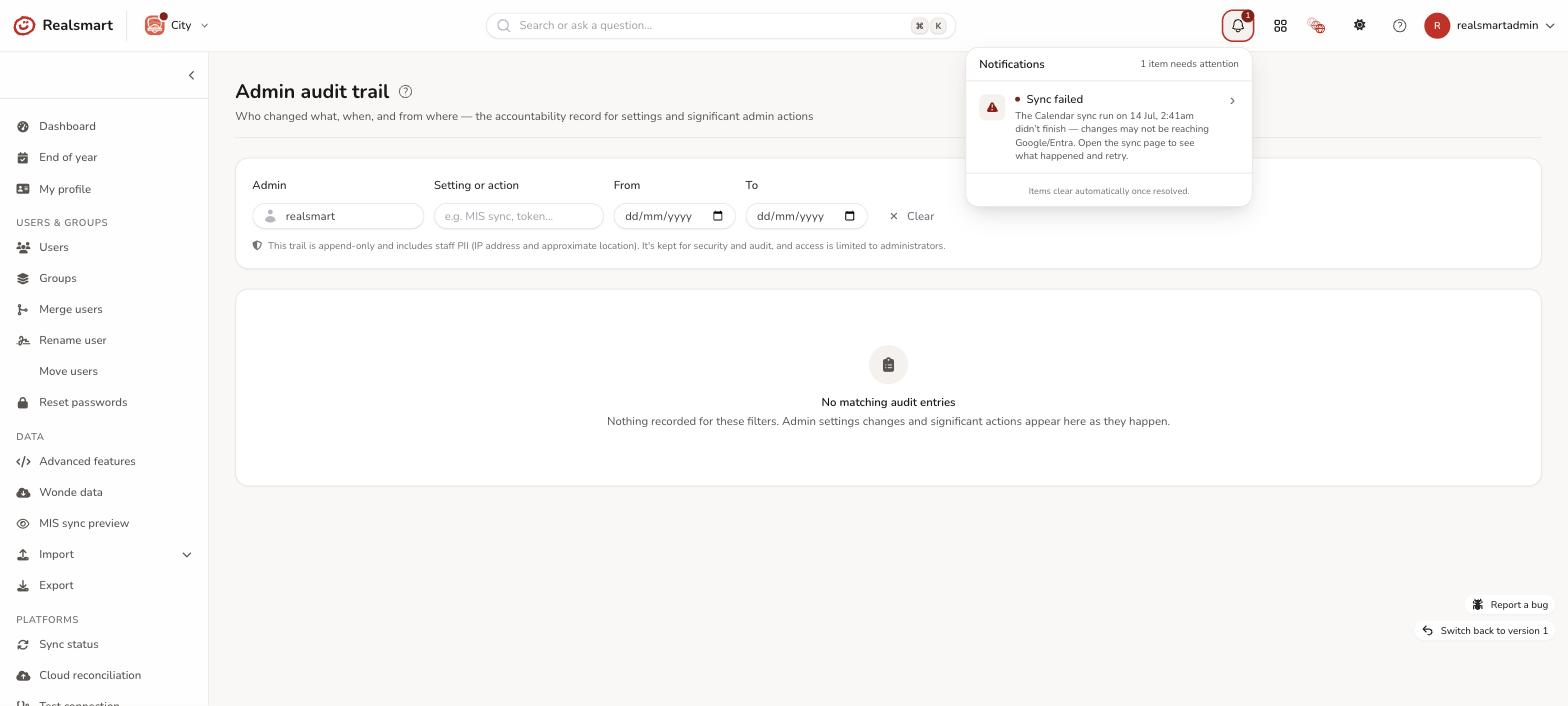
The bell in the top bar is a deliberately short list — only things that need your attention: problems, health issues, and decisions you need to make. It is not a feed of everything that happens (that would bury the one thing that matters). Day-to-day activity — users added to groups, routine syncs — lives in the activity feed and the logs, which you look at when you choose. The bell is the opposite: it comes to you when something is wrong.
What appears here
Each item has a title and a line of detail, and selecting it takes you to the page where you fix it. These are all the items the bell can show:
- Sync problems.
- Sync failed (critical) — the last scheduled sync run didn't finish, so changes may not be reaching Google or Microsoft. Opens Sync status.
- Sync didn't finish (needs attention) — a run applied most of its changes, then stopped before the end.
- Sync completed with N issues to look at (needs attention) — the last sync finished, but N kinds of change couldn't be applied. It counts causes, not occurrences, so one broken group is one issue however many people it touches. Problems that sort themselves out, and ones with their own item (such as orphaned classrooms), aren't counted.
- N orphaned classrooms — Google Classrooms whose owner is no longer active and need a decision (grouped: one entry per school, not one per classroom). Opens the orphaned classrooms page.
- Sync is frozen for the summer (for information) — the provisioning window has closed and no future resume date is set, so MIS changes are held. Opens End of year to set the new-year window and resume. It disappears once a future resume date is set.
- Pre-admission needs a year — pre-admission is switched on but no admission year is set, so pre-admission pupils won't be picked up.
- A pupil you approved still has no account / N pupils you approved still have no account — you approved pre-admission pupils by hand more than 7 days ago and the sync hasn't created their accounts yet. Pre-admission sync pauses each autumn, and doesn't run at all while end-of-year provisioning is frozen or MIS sync is in preview. Opens the list.
- N future pupils are waiting to be set up — your MIS is holding pupils as future joiners and nobody has chosen them for import yet. Opens Incoming learners. The count is refreshed overnight, so it can be up to a day behind.
- N members of staff start soon and are not being imported (for information) — your MIS shows staff joining before long, but Import pending mentors is switched off. Opens Incoming mentors.
- Re-save your default password when you get a moment (for information) — for older schools whose saved default password is held in a one-way format we can't read back. It still resets users in the app, and nothing is out of sync; it only means a future reset to the default wouldn't reach your directory, so that account would keep the password it already has there. It appears only if your school actually pushes passwords to Microsoft Entra or Active Directory, and names the ones affected. Re-saving the default under School settings → Password fixes future resets (and clears the notice on its own). See Reset passwords.
- Roll your AD intake years forward — only for schools whose on-prem Active Directory places students by intake year (never year-group schools). It appears during the summer freeze, ahead of your resume date, as a reminder to add the new September intake and roll the intake-year mapping forward — otherwise the new Year 7 gets created in the wrong OU (or not at all) the moment sync resumes. It shows your real resume date and current intake years, becomes critical in the last 14 days before resume, and clears itself once you've rolled them forward.
- Launchpad widgets need attention — only where the live Google Classroom widgets are on. Google has refused Realsmart's Classroom access (the sign-in, a permission, or the Classroom API) in the last 24 hours and no widget refresh has worked since, so pupils and staff are seeing older Classroom data. It clears itself once a widget refresh works again. See Launchpad widgets.
- Microsoft widgets need attention — only where the Microsoft 365 widgets are on. For at least half an hour Microsoft has refused the school's or its tenant's access for widgets that are on (the Classes app is no longer approved, the Mailbox app was removed, a permission is missing, mailboxes fell outside the Exchange scope, or a Mail or Calendar permission was granted to Realsmart's apps in Entra) with nothing working since — or the school uses "Every mailbox in the tenant" and another Realsmart school has joined the tenant. One person's mailbox failing never raises it. See Launchpad widgets (Microsoft 365).
- Sync hasn't run recently (critical) — the provisioning scheduler hasn't run for 12 hours, which can mean sync has stalled. Opens Sync status.
What does NOT appear here
Routine activity — a user created, a group membership changed, a normal successful sync. That's what the activity feed and logs are for. Keeping the bell to exceptions is what makes it worth looking at.
How it behaves
- The number on the bell is how many items need attention (it shows 9+ above nine). It turns red when something critical is included (a failed sync, a stalled scheduler) and amber otherwise. With nothing to show the panel says All clear.
- Click any item to jump straight to where you fix it — the sync dashboard, the orphaned-classrooms page, the end-of-year window, and so on. In a multi-school trust it switches to the right school first.
- Items clear themselves. There's nothing to tick off: once the underlying issue is resolved (the sync succeeds, the orphans are actioned, the window is set), the notification simply disappears on its own. It never nags about something already fixed. The bell checks again every couple of minutes and keeps its answer for up to five minutes, so after you fix something it can take a few minutes to go.
- Scope. In a single school you see that school's items; in trust (MAT) mode you see every school you're authorised for, each labelled with its name.
Get them by email
You can ask for a digest emailed to you, because you're not signed in all day. Open the user menu (your username, top right) → My profile → Notifications. (Until you've made a choice, the Dashboard also shows Get notified when something needs attention with a Set up notifications button.) Choose:
- Email me a digest of things that need attention — on or off.
- How often — Daily — one summary a day or Weekly — one summary a week.
- What to email me about — Critical only — failures & health or Critical & anything needing attention.
Then select Save notification settings.
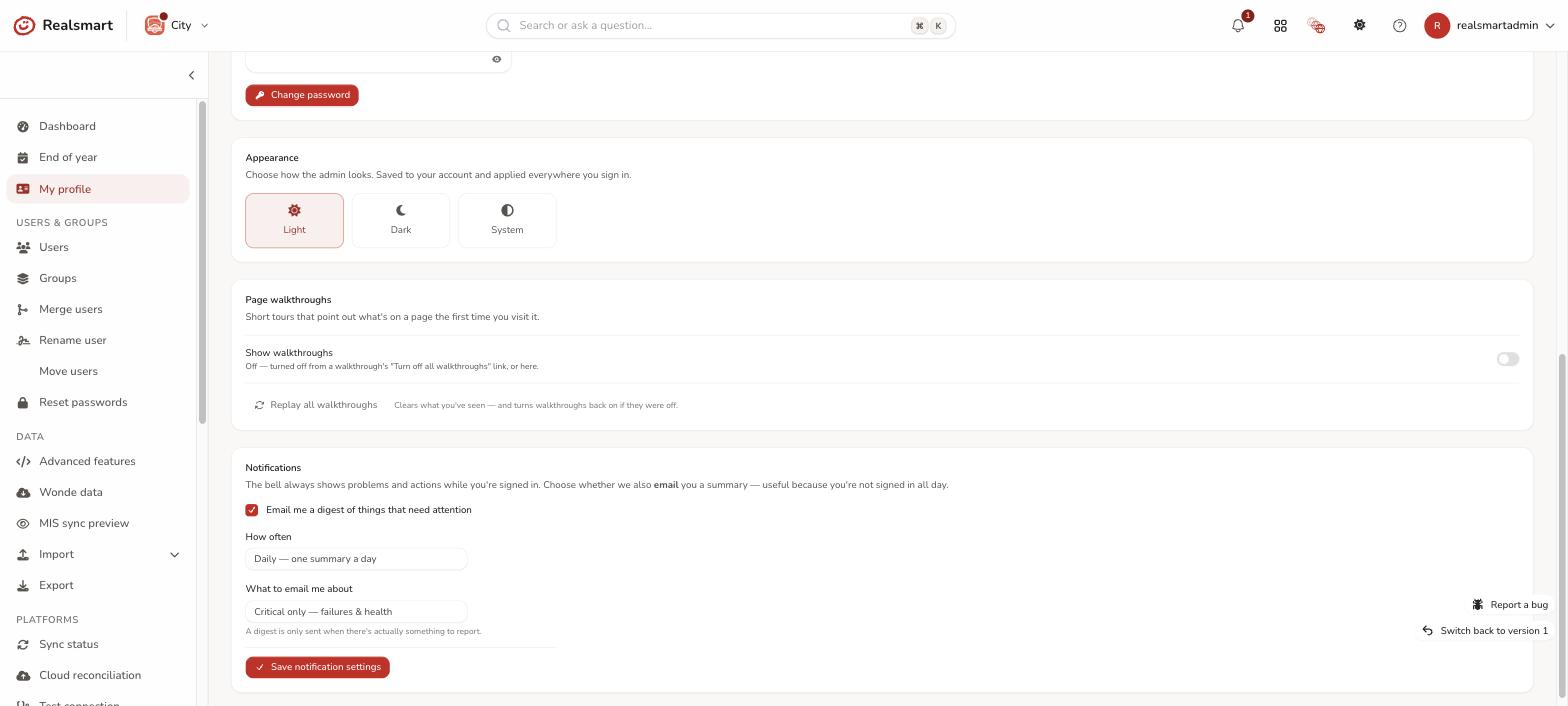
The emailed digest is switched off at the moment. Realsmart turned the scheduled digest email off for every school on 9 September 2026, because the morning email read as an alarm about every school in the recipient's scope. Your choices here are saved, but no digest emails are sent until Realsmart switches it back on. The bell is unaffected. If you ask why you aren't getting emails, this is the reason; ask Realsmart support for an update.
When it's on, a digest is only ever emailed when there's actually something to report, so it never becomes noise. It's the same list as the bell, so email and the app always agree. Change or turn off the emails any time from the same place.
The dashboard prompt disappears as soon as you've made a choice — including choosing to leave email off. It's just making sure you've decided.
Who sees it
The bell is for admins (any admin, including reduced admins). Mentors and learners don't see it.
Looking for the bell on the launchpad? The Realsmart bar on the launchpad and your school's sites has its own bell, for pupils, staff and admins, that carries occasional news from Realsmart (new features, each with a link to a short guide). It clears once read and has nothing to set up. It isn't this list: this bell is about problems with ADAdmin itself (sync, orphaned classrooms, the provisioning window).
Looking for Smart Parents notices instead? Sending a notice to parents — e.g. a note about a trip or a closure — is a separate feature. See Add a parent notice.
Related
Was this guide helpful?
We read every response — it decides what we rewrite next.
Thanks for your feedback.