View your profile
My profile in ADAdmin shows your account information and holds the settings that belong to the admin area: your colour theme, page walkthroughs and, for admins, notification preferences.
Your own password, profile picture and light or dark mode are on the Profile page on Realsmart sign-in, next to your Launchpad. My profile shows a card, Your password, photo and look have moved, with an Open your Profile page button that takes you there. The rules are exactly the same as they always were, because ADAdmin still checks them.
| I want to… | Where |
|---|---|
| See my account details | My profile → Account |
| Change my password | Profile page → Password |
| Change or remove my picture | Profile page → Profile picture |
| Choose light or dark mode | Profile page → Look, or the top-bar toggle |
| Choose a colour theme | My profile → Colour theme, the top-bar toggle, or the Profile page → Look |
| Turn page walkthroughs on or off | My profile → Page walkthroughs |
| Choose notification emails (admins) | My profile → Notifications |
| Set up 2FA or add a passkey | Profile page → Security |
Steps
Step 1: Open My profile
Select your name or picture at the top right of the page to open the user menu, then select My profile.
Alternatively, if your left sidebar has a My profile item, select that.
Step 2: Review your account details
The Account card shows:
| Field | Description |
|---|---|
| Name | Your first name and surname |
| Username | Your login username |
| Role | Your role (learner, mentor, admin, observer, governor, or ofsted) |
| School | The school your account belongs to |
| UPN / Staff code | Your identifier from the MIS — a pupil's UPN, or a staff member's staff code |
| Status | Active or Suspended |
Your name and other account fields are read-only here. To change them, contact your school admin — they can edit your account from the Users page.
Step 3: Change your profile picture (optional)
Your picture is changed on the Profile page. Select Open your Profile page on My profile, or choose Profile from the profile menu on the Realsmart bar, then go to Profile picture:
- Select Choose a photo (or Choose a new photo) and pick a JPEG, PNG or WebP image up to 8 MB. It's cropped to a square and saved as soon as you choose it, so there's no separate save button.
- To clear it, select Remove photo, then Yes, remove it (or Keep it to change your mind). You go back to your initials.
You'll see Your profile picture has been changed. or Your profile picture has been removed.
No upload button? Your school can stop pupils, staff or both changing their own profile picture (often because pictures come from the MIS). The page then says Your school has turned off changing profile pictures and tells you who to ask — your teacher, or your school's IT team. See Get pupil and staff photos from the MIS.
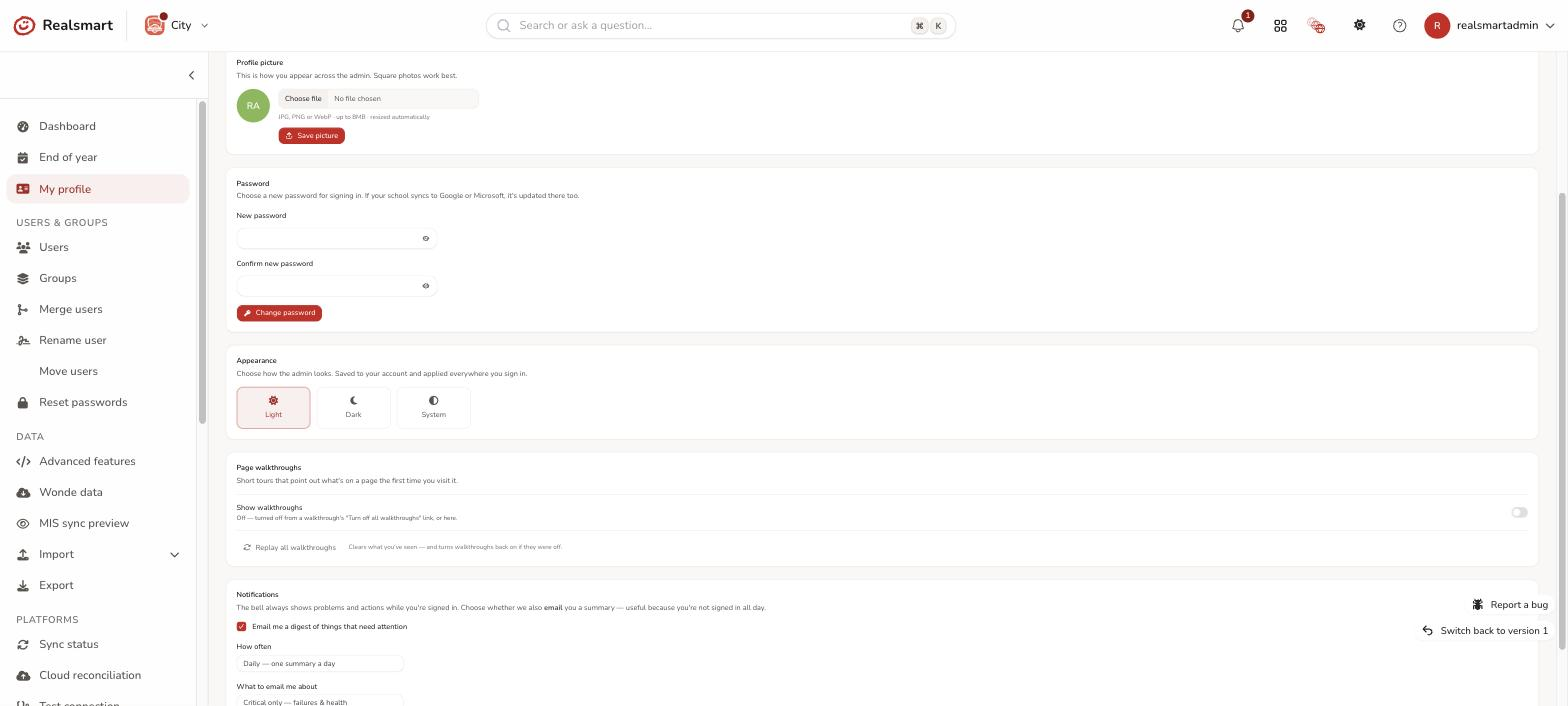
If your My profile still has its own Profile picture card instead of the "have moved" card, use that. Choose a JPG, PNG or WebP image (up to 8MB) and wait for Uploading… and then Saving… to finish. It saves as soon as it uploads, and Remove goes back to your initials. If the image can't be used, a message under the upload control says why. If the upload stops because your connection dropped, you'll see "The upload stopped" — check your connection and choose the image again. On a phone, picking an existing photo from your gallery is more reliable than taking a new one with the camera.
Step 4: Change the appearance (optional)
There are two choices, and you can combine them however you like:
- Light or dark mode — Light, Dark, or Match device (the same as System in the top-bar toggle). Choose it on the Profile page under Look, or with the toggle in the top bar.
- Colour theme — the colour of buttons, links and highlights: Realsmart (the default indigo), Sapphire, Ocean, Navy, Grape, Orchid, Mulberry, Dusk, Graphite or Cocoa. Choose it under Colour theme on My profile. Warnings, errors and sync status keep their usual colours whichever you pick.
The top-bar toggle does both in one click without opening your profile at all. See Switch theme for both routes.
Step 5: Change your password (optional)
Your password is changed on the Profile page. Select Open your Profile page on My profile, or choose Profile from the profile menu on the Realsmart bar, then go to Password:
- Enter your Current password.
- Enter a New password. The box under it, Your school's rules, ticks off each rule as you meet it.
- Enter it again under Type it again.
- Select Change password.
After you change it, you stay signed in on that device and are signed out on your other devices: you'll see Your password has been changed. You have been signed out everywhere else.
Your new password must meet your school's password policy (a minimum length, and for some schools extra complexity), and can't be an obvious or commonly used password — if it is, you'll see That password is too common or easily guessed. Please choose a different one. If your school syncs to Google or Microsoft, your new password is updated there too on the next sync.
Your current password is asked for so that being signed in isn't enough for someone else to change your password. If you see That is not your current password., check what you typed: a wrong current password counts as a wrong attempt towards the sign-in lock, and too many lock the account for a while with Too many sign-in attempts for this account (see Too many sign-in attempts). If you don't know your current password (say you only ever sign in with Google), ask your teacher or your school's IT team to set a new one for you (see Reset passwords).
Changing your password here also counts as the change your school asked for if you were due one: it clears a "change your password when you next sign in" request, and restarts your school's password-expiry clock (if it has one) from today.
No password fields, or a message that password changes are turned off? Some schools turn changes off for pupils, a year group or an individual account. The page says which — for example Your school has turned off password changes for pupils — and tells you who to ask for a new password: your teacher, or your school's IT team. If it says You can't change this right now. Please try again later., try again in a few minutes. See Reset passwords.
If your My profile still has its own Password card, use that instead: enter your Current password and a New password, then the same password again in Confirm new password, and select Change password.
Step 6: Manage page walkthroughs (optional)
The Page walkthroughs card controls the short, dismissable tours that point out what's on a page the first time you visit it:
- Show walkthroughs — a switch to turn future walkthroughs on or off. Turning it off also happens automatically if you select "Turn off all walkthroughs" from inside a walkthrough itself.
- Replay all walkthroughs — clears what you've already seen (and turns walkthroughs back on if they were off), so every page shows its tour again as you visit it. You're asked to confirm.
Step 7: Set notification preferences (admins only)
Admins also see a Notifications card here — it's where you choose whether the exceptions bell also emails you a digest, how often, and what to include. It's covered in full in Notifications (the bell), since it's really about the bell, not your profile — this step is just to save you looking for it elsewhere.
What's on the Profile page on Realsmart sign-in
The Profile page has these sections: Password, Profile picture, Look (light or dark, colour, tile size, background, and whether to show app names under the tiles), your Launchpad notification choices, and Security. Security shows whether two-factor authentication is on — an authenticator app, passkeys, or neither — with a Set up 2FA button if you haven't, and Add a passkey; see Set up two-factor authentication when you sign in. A teacher who may reset pupils' passwords also sees Resetting pupils' passwords has moved, with a Go to Smart admin button.
Related
Did this work for you?
If a step looked different on your site, tell us and we'll update the screenshots.
Thanks for your feedback.