Bulk actions on users
Apply an action to many users at once without editing them one by one. You can act on the users you tick, or on everyone matching the current filters.
Before you start
- You must be an admin for the current school, with the Manage users & groups permission. Bulk actions work on one school at a time: in MAT overview the Users page asks you to pick a school first.
- Some actions need more than that:
- Delete needs Delete users & groups.
- Password actions → Reset to default and Set password need Reset user passwords. Set password is hidden without it.
- Send now needs Run syncs & provisioning, and only appears while your cloud sync is paused.
- Exempt from MFA and Remove MFA exemption are for admins only.
- Some menus only appear when your school uses the feature: Google actions (Google sync on), Entra actions (Entra sync on), QR codes (QR login on). The two guardian items need Import parents switched on.
- If an admin's access has been reduced, some of these may be missing for them. See Reduced admin access.
Steps
Step 1: Open the Users page
In the left sidebar, open Users (under Users & Groups) and select Users.
Step 2: Select users
Tick the checkbox at the left of each row to select individual users.
To select everyone on the page, tick the checkbox in the header row. The page shows 50 users. If more users match your filters, a banner reads All 50 on this page selected. with a link, Select all N matching. Choose it to include every matching user across all pages. The banner then reads All N matching rows are selected. with Clear selection. Unticking a single row switches "all matching" off again.
Step 3: Open the bulk-actions menu
Until you tick someone, the page just says Tick the box next to a row below to see what you can do with it.
Once you've ticked at least one row, an action bar appears above the list. It shows N selected and a set of action menus.
Step 4: Choose an action
Action menus are grouped by category. Select a menu to open its options.
Google actions
Only if Google Workspace sync is on.
- Add to sync queue — queues the selected users for an immediate push to your cloud platforms instead of waiting for the next scheduled sync. The message reads "N user(s) added to the sync queue." While your cloud sync is paused the item is greyed out and says "— cloud sync is paused until …". See Cloud sync is paused.
- Approve classroom guardians and Disapprove classroom guardians — only if Import parents is on. They approve or withdraw approval for the guardian emails held against the selected pupils. Nothing is sent to parents until someone presses Provision to Google — see Classroom parents. Message: "Parent email status updated."
Entra actions
Only if Entra sync is on.
- Add to sync queue — the same action. Either menu queues the users for every cloud platform your school has switched on. Active Directory and Apple School Manager run on their own schedules and aren't pushed on demand.
Status
- Active — sets the users to Active. Asks you to confirm: "Set N user(s) to ACTIVE? Their platform accounts will be re-enabled on the next sync." Message: "Status set to ACTIVE."
- Suspended — sets the users to Suspended and takes them out of all their groups. Asks you to confirm: "Suspend N user(s)? They will no longer be able to log in." The change reaches Google through the sync queue (held while cloud sync is paused) and Microsoft Entra at its next morning run. A teacher who still owns Google Classroom classes isn't suspended in Google until the classes have a new owner. Message: "Status set to SUSPENDED." See What happens to a leaver's account? for what comes next, and how to bring people back.
- Smartsync on / Smartsync off — turns the Protected setting off or on. Smartsync off stops the MIS import changing a user's details or groups, and stops them being suspended automatically. It doesn't change their Status. No confirmation. The message is worded as a status change ("Status set to LOCKED." for Smartsync off, "Status set to UNLOCKED." for Smartsync on), but only the Protected setting changes. See User statuses.
- Lock usernames / Unlock usernames — see Locking usernames below.
- Remove pending suspension — clears the pending-suspension flag the MIS import raised for someone who dropped out of your MIS data. Message: "Pending suspension removed." It doesn't change their Status, and if they're still missing from your MIS the next import raises it again. See Users pending suspension.
Send now
Only appears while your school's cloud sync is paused and you can run syncs. Opens a panel that names the platforms it will reach, with an Include their groups switch and a send button such as Send to Google Workspace now. It's for named people only: if "select all matching" is on, the panel tells you to clear it first. See Cloud sync is paused.
Add to group
Opens a panel. Pick a group in Choose a group… (type in Type a group name… to search), then select Add to selected user(s). Everyone selected is added as a locked member, so the MIS won't take them out again. People already in the group are left as they are. Message: "N user(s) added to {group}." If you haven't picked a group you'll see "Nothing was changed — pick a group to add the users to."
QR codes
Only if QR login is switched on for the school.
- Print QR codes — opens a print window with a card for each selected user, grouped by registration group. Your browser must allow pop-ups for this site.
- Generate QR codes — creates a code for each selected user who doesn't have one.
- Delete & regenerate QR codes — asks you to confirm ("Delete and regenerate QR codes for N user(s)? Their existing codes stop working immediately.") and then makes new codes.
- Delete QR codes — removes the selected users' codes straight away. This one doesn't ask you to confirm.
Generating runs in batches of 50 with a progress bar, so a large selection can take a few minutes. If it stops part way, anything already generated is saved: run it again on the same selection to finish. See QR code login for the full generate → print → distribute workflow (including what to do if a pupil loses their code).
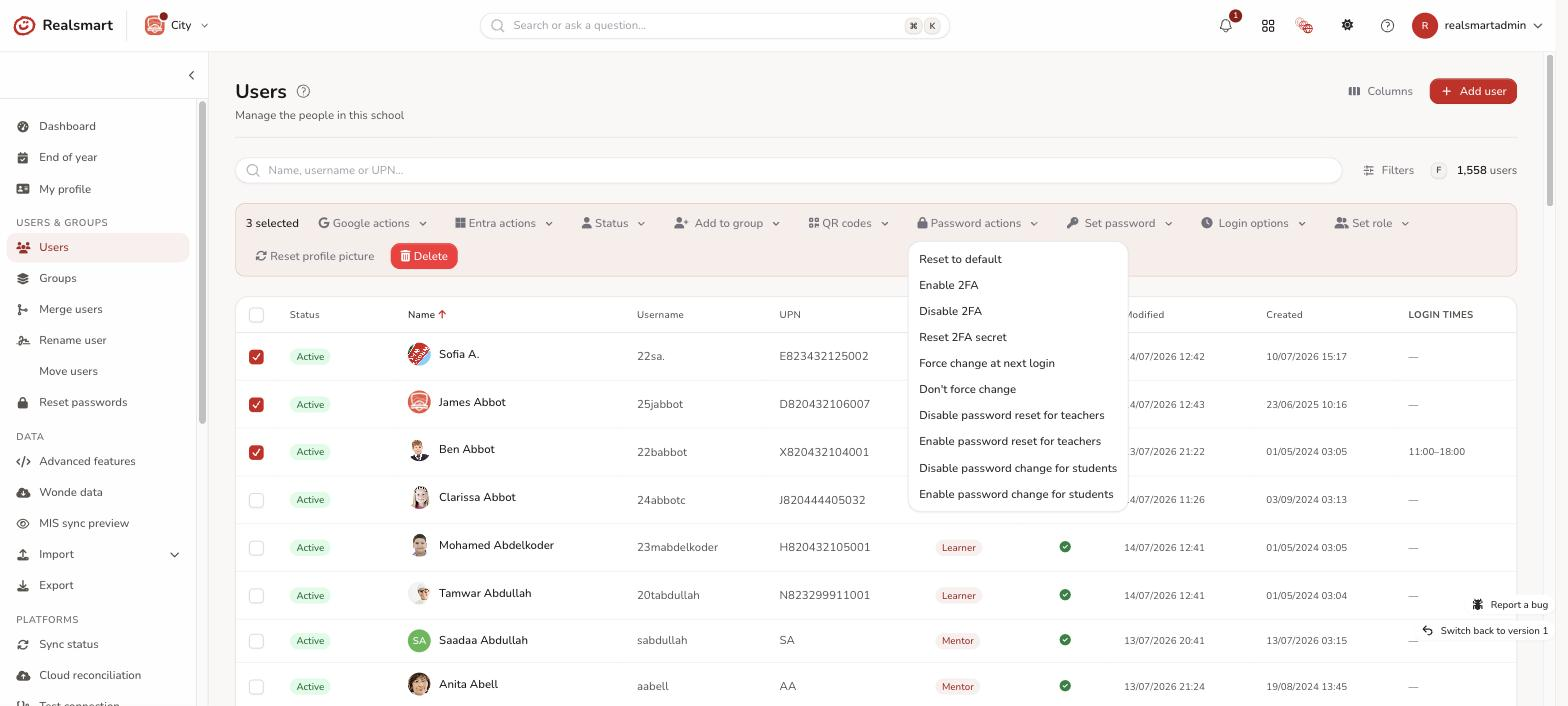
Password actions
| Item | What it does |
|---|---|
| Reset to default | Sets each selected user's password to the school default for their type and asks them to change it at next sign-in (pupils who can't change their own password aren't asked). Pupils who have password reset switched off are skipped. Needs Reset user passwords. Asks you to confirm: "Reset N user(s)' passwords to the school default?" |
| Enable 2FA / Disable 2FA | Switches the per-user 2FA requirement on or off. No confirmation. Admins are skipped, because admins always use 2FA. If your school requires 2FA for staff or pupils, switching it off for them won't last: it's turned back on at their next save or MIS import. To excuse someone, use Exempt from MFA. |
| Reset 2FA secret | Removes the selected users' authenticator app and any passkeys, so they set 2FA up again at next sign-in. Asks you to confirm: "Reset 2FA for N user(s)? This removes their authenticator app and any passkeys, so they will need to set up 2FA again." |
| Force change at next login | Makes the users change their password next time they sign in. Pupils who can't change their own password are skipped. |
| Don't force change | Clears the forced change. |
| Disable password reset for teachers / Enable password reset for teachers | Staff only: controls whether each selected staff member can reset other people's passwords. |
| Disable password change for students / Enable password change for students | Pupils only: controls whether each selected pupil can change their own password. Enable skips pupils the school or their year group has locked. |
| Exempt from MFA / Remove MFA exemption | Admins only. Excuses the selected users from the school's MFA requirement, or puts the requirement back. Asks you to confirm. Admins in the selection are skipped. |
See Reset passwords for the password rules and Reset or switch off MFA for one user for the 2FA ones.
Set password
Sets the same specific password on every selected user (as opposed to Reset to default, which uses each role's school default). Open the panel, type the new password in New password, and select Set password for N user(s) — a confirmation states how many accounts will change and warns that each user's current password stops working immediately (pupils included), so check the selection first. It uses the same secure storage and validation as setting a password on one user's edit page, and — where password sync is enabled — pushes to their linked Google or Active Directory account on the next sync. The password is never shown in the audit log.
Login options
Restrict when the selected users can log in. Enter Login start time and Login end time in school local time — an overnight window (start after end) is allowed. Both times are required to set a window; an empty save never silently clears one. Select Save login times and confirm.
The same dropdown has Don't allow login, which stops the selected users signing in to Realsmart at any hour of the day. It affects Realsmart sign-in only: their Google, Microsoft, Apple and Active Directory accounts are left exactly as they are, so this is not a way to suspend or delete an account. Use Allow login at any time to remove a window or a block and put the users back to unrestricted access. All three ask you to confirm.
The same settings are available for one user at a time on their edit page (Security → Login window). On the Users list, the Login times column shows each person's window, or a Login blocked badge.
Set role
Change all selected users to Admin, Mentor, Learner, Observer, Governor or Ofsted. Asks you to confirm: "Change N user(s) to the {role} role? Their default groups and platform accounts will be updated on the next sync." Each person is also added to the group for their new role (for example mentors), but isn't taken out of the group for their old role. Changing someone to Learner or Admin clears their Website admin tick. Message: "Role set to {role}." See User roles explained.
Reset profile picture
Puts each selected user's profile picture back to the school's default picture for their type (staff or pupil), or to the initials avatar if none is set. Asks you to confirm: "Reset N user(s)' profile pictures?" Message: "Profile pictures reset."
Delete
Marks all selected users as Deleted, which stops them signing in straight away, and re-syncs them. Needs Delete users & groups. Deleted users are permanently removed at the next weekday 20:00 clean-up, so if it was a mistake, restore them the same day — see What happens to a leaver's account?. If someone might need their account back, suspend them instead.
Step 5: Confirm if prompted
Most actions that change passwords, roles, status or sign-in show a confirmation dialog that says how many users it affects. Read it carefully and confirm. A few actions run straight away, with no confirmation: Add to sync queue, the two guardian items, Smartsync on/off, Lock/Unlock usernames, Remove pending suspension, Add to group, Print QR codes, Generate QR codes, Delete QR codes, Enable/Disable 2FA, Force change and Don't force change, and the teacher and student password-permission items.
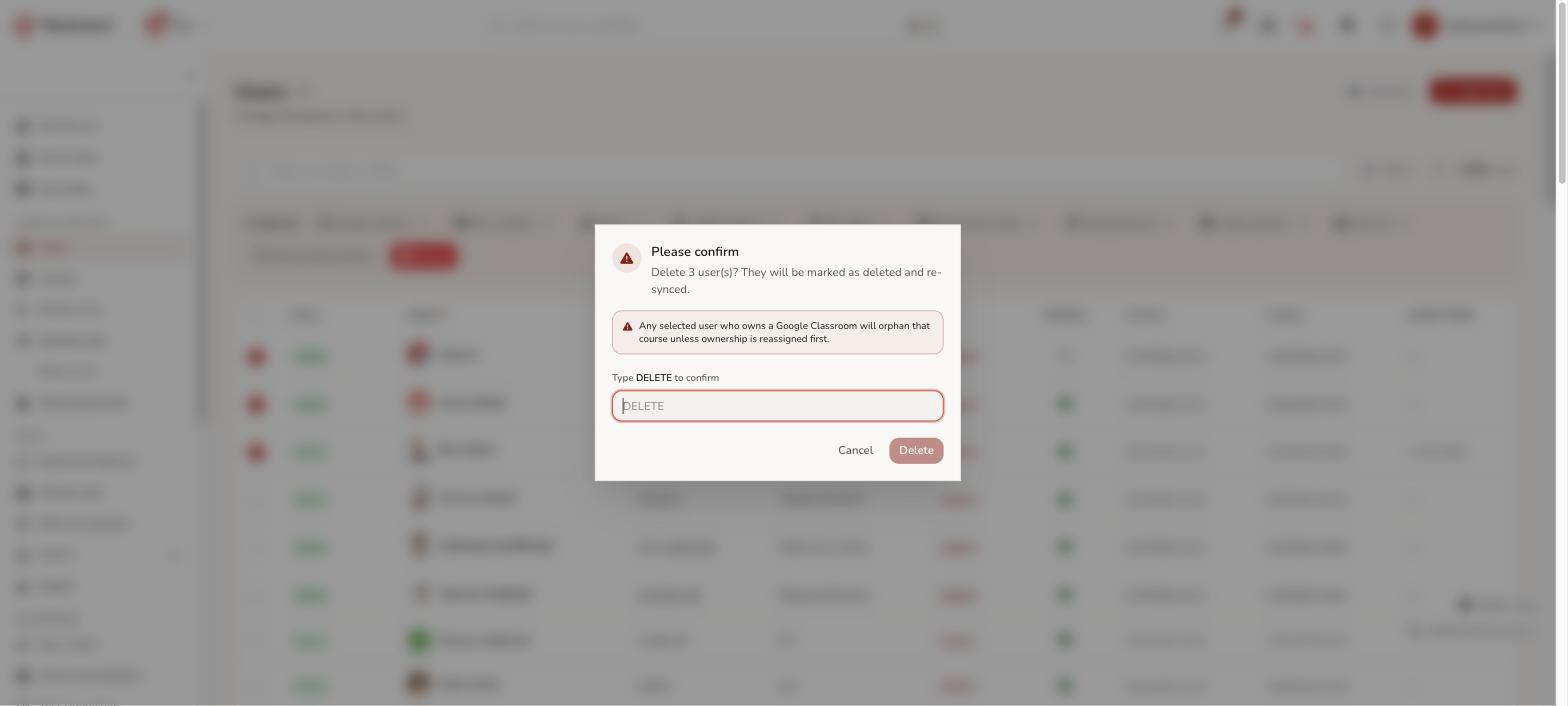
Delete goes further than a simple confirmation: you must type DELETE to confirm before it proceeds, and the dialog carries a warning — any selected user who owns a Google Classroom will orphan that course unless ownership is reassigned first. In practice, Realsmart hands a leaving teacher's Classrooms to another teacher of the class, or to your fallback owner, before it suspends their Google account, and holds the suspension if it can't (see What happens to a leaver's account?). Still, check your selection for teachers who own classes before confirming.
Locking usernames
Lock usernames fixes each selected user's username so future imports never regenerate it. Unlock usernames puts it back under the username policy.
Users who still have a placeholder username — one starting with TMP_, meaning no real username could be generated for them yet — are skipped when you lock, and the message tells you how many were skipped. This is deliberate: a placeholder that is also locked can never be replaced, and a placeholder is excluded from every platform sync, so the user would be left with no working account and no way to get one.
If some of your selection was skipped, find those users with the Username state → Placeholder (not yet generated) filter, fix what is blocking them (most often a missing year group), and let the next import generate their real username before locking.
Unlocking is never restricted. If you have users stuck on a locked placeholder from before this safeguard, find them with Username state → Placeholder and locked (stuck) and unlock them.
Result
The action is applied to all selected users, the selection is cleared, and a message at the top of the page says how many users were updated (and how many were skipped, if any). Google and Microsoft changes are queued straight away and usually arrive within a few minutes; Active Directory and Apple School Manager change on their own schedules. To follow a change, open the user's Logs tab or Recent activity.
Troubleshooting
- "Nothing was changed — tick at least one row first." — you chose an action with nothing selected. Tick the users and try again.
- "Nothing was changed — none of the selected rows can be actioned here." — the selection is stale, for example you switched school after ticking. Reselect and try again.
- "N skipped — …" messages — the action left some people alone on purpose, for example pupils with password reset switched off, admins who always use 2FA, or
TMP_usernames when locking. The message says which rule applied. - "No passwords were reset — password reset is disabled for the selected user(s)." or "This school has no default … password set for password resets." — see Reset passwords.
- "Enter both a start and an end time." — a login window needs both times. The message mentions "Clear login times", but the button is called Allow login at any time.
- "Add to sync queue" is greyed out — your cloud sync is paused. Everything you change is saved and sent when it resumes. See Cloud sync is paused.
- "The print window could not open." — allow pop-ups for this site and choose Print QR codes again. The codes are already saved.
- A menu is missing — check Before you start: the menu may need a permission or a school setting you don't have.
Tips
- Apply filters first to narrow the list, then "select all" to act on a specific subset (for example all suspended learners, or everyone in one year group).
- Check the count in the action bar before you confirm anything destructive.
Related
Did this work for you?
If a step looked different on your site, tell us and we'll update the screenshots.
Thanks for your feedback.