User statuses
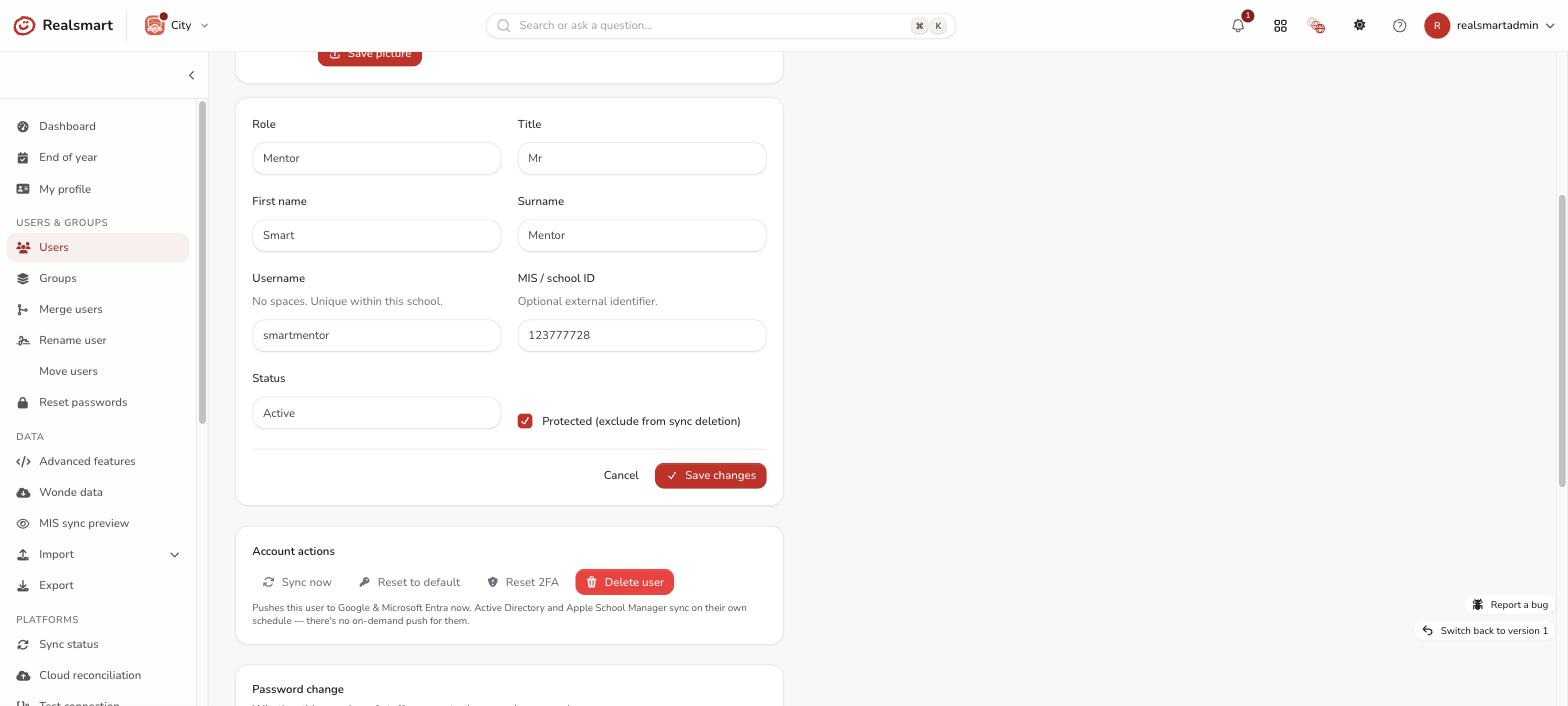
Every user has a status that controls their state in ADAdmin and in connected platforms (Google Workspace, Entra, Active Directory). Separately, every user also has an independent Protected (Smartsync) setting — see Smartsync off below. Status and Protected are two different fields — changing one never changes the other.
Active
The normal, working state. The user:
- Is included in all sync operations
- Can sign in to Realsmart and to connected platforms (Google Workspace, Entra, etc.)
- Shows a green Active badge in the Users list
Pending suspension
Not a status you set directly — it's a flag ADAdmin raises automatically when a user drops out of your MIS import (e.g. they've left the school) while their status is still Active. They are scheduled for automatic suspension after a 24-hour grace period, so you get a chance to review before access is cut.
You can see and act on everyone in this state from the Users pending suspension panel on the dashboard — suspend one, several, or everyone immediately, or remove the pending flag if it was raised in error (the Remove pending suspension bulk action). See Users pending suspension for the full walkthrough. To list them on the Users page, set Filters → User status → Pending suspension.
On the Users list, a pending-suspension user shows a small hourglass icon next to their Status badge — the same list also shows a small lock icon there for a Protected/Smartsync-off user (see below). Both are separate indicators layered on top of the Status badge, not the Status itself.
Suspended
The user's account exists but they cannot sign in to Realsmart or to connected platforms. Use this when someone has left, or is away and you may need to restore their access.
- Their Google account is suspended and their Microsoft account disabled at the next sync (straight away if an admin suspends them)
- Sign-in to Realsmart is blocked
- The account is not deleted from connected platforms
- They're taken out of all their groups (see What happens to a leaver's account? for what comes back if you reactivate them)
- A suspended account is purged once its retention period has passed since the person last signed in — see What happens to a leaver's account?
For pupils who only need to be switched off over a school holiday, use a holiday pause instead. Suspending is for people who've left.
Paused (holiday pause)
Not a status of its own: a paused pupil is Active with a Paused badge. A holiday pause has switched their Realsmart, Google and Microsoft sign-in off for the dates you set. They keep all their groups and classes, and their sign-in comes back on its own when the dates end. Only Active pupils are paused.
Locked
Locked is a genuine, independent value of the Status field itself — Active, Suspended, Locked, and Deleted are the four choices on the Status dropdown on the Details tab of the edit user page. The Add user form offers the first three. Setting a user's Status to Locked does not touch their Protected/Smartsync setting (below) — the two fields are changed separately, on the same form, and don't affect each other.
A Locked user can't sign in to Realsmart (only Active users can), but their accounts on other platforms are left exactly as they are. The scheduled syncs skip them: Google, Microsoft, Active Directory and Apple School Manager don't create, update, suspend or disable their account, and the MIS import never marks them for suspension. To stop someone signing in to Realsmart only, Don't allow login (under Login options) does the same without changing their Status. To switch their accounts off everywhere, use Suspended. The Dashboard counts Locked users in its Suspended figure, and the Users list shows the badge in amber.
There's a naming collision worth knowing about, though, so it doesn't trip you up elsewhere:
- The bulk action you see labelled "Smartsync off" on the Users list sends the word
LOCKEDinternally — but what it actually changes is the separate Protected flag (below), not this Status field. Despite sharing that internal name, the bulk action and the Status dropdown value are unrelated. - Some older parts of ADAdmin display a computed "Locked" label for a user whenever they're Protected and Active — that's a calculated on-screen label, not the same thing as this Status value either.
In short: if you see "Locked" as an actual Status on a user (e.g. in the Users list), it's the real, independent status described here. If you see "Locked"/"Smartsync off" as a bulk action, that's the Protected toggle described next. The User status filter has no Locked option.
Smartsync off (Protected)
Smartsync off is a completely separate setting from Status — it's the Protected checkbox on the Details tab (labelled "Protected (exclude from sync deletion)" on the edit form and "Protected (exclude from automated sync deletion)" on the Add user form, where it is ticked by default). Turning it on:
- Excludes the user from ADAdmin's automated sync-driven changes: the MIS import won't change their details or groups, and they're never marked for automatic suspension just because they're absent from an MIS import
- Does not change the user's Status, and does not on its own block login
Use it for accounts that need to be preserved exactly as configured — for example, ones managed manually that shouldn't be overwritten by an import, such as supply staff, governors, and leavers who need their account for longer.
You can toggle this per user (the Protected checkbox on their Details tab) or for many users at once with the Smartsync on / Smartsync off bulk actions — both write to the same field, so they can never drift. A protected user shows a small padlock beside their status in the Users list, and the Smartsync filter lists them.
A user's Status and their Protected/Smartsync setting are independent. A user can be Active and Protected (this is what shows up elsewhere as "Locked"), Suspended and not Protected, or any other combination — setting one never changes the other.
Deleted
Soft-deleted. The record is kept in ADAdmin for audit history but the user is:
- Unable to sign in to Realsmart from the moment you delete them
- Excluded from all future sync operations
- Deprovisioned from connected platforms: their Google account is suspended (and its extra email addresses removed), and their Microsoft account is disabled. Realsmart never deletes Google accounts.
- Still listed on the Users page with a red Deleted badge. To see only deleted users, set Filters → User status → Deleted.
Restore a deleted user the same day. A deleted user can be restored, but only until the evening clean-up: at 20:00 on weekdays Realsmart permanently removes deleted users, and they can't be restored after that. If you might need the person back, suspend them instead. See What happens to a leaver's account?
Password-state icons and other badges
Small icons can appear next to a user's name on the Users list and on the Reset passwords page, so you can spot these states without opening each user:
- ⚠️ Warning triangle — the user's password still matches the school's default password (it's never been changed).
- 🕒 Clock — the user must change their password the next time they log in.
- Padlock (under the name) — a password change was requested, but this person can't change their own password (it's switched off for the school, their year group or them), so the request can never happen at sign-in. Change their password for them from the Security tab of their edit user page.
Both the triangle and the clock clear automatically once the condition is no longer true (the password is changed, or the forced-change flag is cleared) — there's nothing to dismiss manually. Use Reset passwords or a user's Security tab on the edit user page to reset a password or set/clear the forced change.
Beside the Status badge, the Users list can also show:
- Paused badge — a holiday pause is switching off their Google and Microsoft sign-in.
- Padlock — Protected (Smartsync off).
- Hourglass — pending suspension.
- Shield — exempt from the school's MFA requirement.
Changing a user's status
You can change status for one user at a time on the Details tab of the edit user page, or for multiple users at once using bulk actions. The Protected/Smartsync setting is changed the same way, but is a separate control on that same tab (or the separate Smartsync on/off bulk actions) — see Smartsync off above.
Related
Was this guide helpful?
We read every response — it decides what we rewrite next.
Thanks for your feedback.