Filter and search users
The Users page has built-in filtering and sorting so you can find exactly who you need without scrolling through a long list.
Before you start
- You must be an admin for the current school, with the Manage users & groups permission.
- You must be in a specific school. In MAT overview the Users page shows Pick a school and asks you to choose one from the school switcher in the top bar. To search every school in your trust at once, use Find a user in the MAT overview instead — see Find a user across schools.
Steps
Step 1: Open the Users page
In the left sidebar, open Users (under Users & Groups) and select Users.
Step 2: Search by name or username
Type in the search box at the top of the list (it reads Name, username or UPN…). It matches a person's name, their username, and their UPN or staff code. You can also paste an email address: Realsmart searches for the part before the @. Results update as you type, and the number of matching users shows at the right of the bar.
Step 3: Apply additional filters
Select Filters (or press f) to open the filter panel on the right. Changes apply as you go, so there's no Apply button. Select Done to close it.
Filters are grouped into sections:
Role & status
- Role — tick any of Admin, Mentor, Learner, Observer, Governor and Ofsted
- User status — Active, Pending suspension, Suspended, or Deleted. With no status chosen, the list shows everyone, including deleted users. There's no Locked option: see User statuses.
- In group — a searchable box; start typing a group name to find it, even in schools with hundreds of groups. It shows the closest 50 matches, and you can pick one group at a time.
- Year group — the real year-group values in use at this school, in school order, with Nursery and Reception by name (these come from your MIS data, so the exact list varies by school)
- Holiday pause — Paused now lists pupils whose Google and Microsoft sign-in a holiday pause has switched off today. Not paused lists everyone else.
Identity
- Username starts with — e.g.
25-to find everyone in a particular intake-year prefix - Username ends with — e.g.
-smithto find everyone with a given surname suffix - Username state — find users by how their username was set:
- Placeholder (not yet generated) — the user still has a temporary
TMP_username because no real one could be generated for them yet (most often a missing year group). They are excluded from every platform sync until that is fixed. - Placeholder and locked (stuck) — a placeholder username that has also been locked. This combination is a dead end: locked means the username is never regenerated, so the user can never get a working account. Unlock them (Users → select → Status → Unlock usernames) and fix the underlying data so the next import can generate a real username.
- Locked — the username is fixed and will not be regenerated by future imports.
- Placeholder (not yet generated) — the user still has a temporary
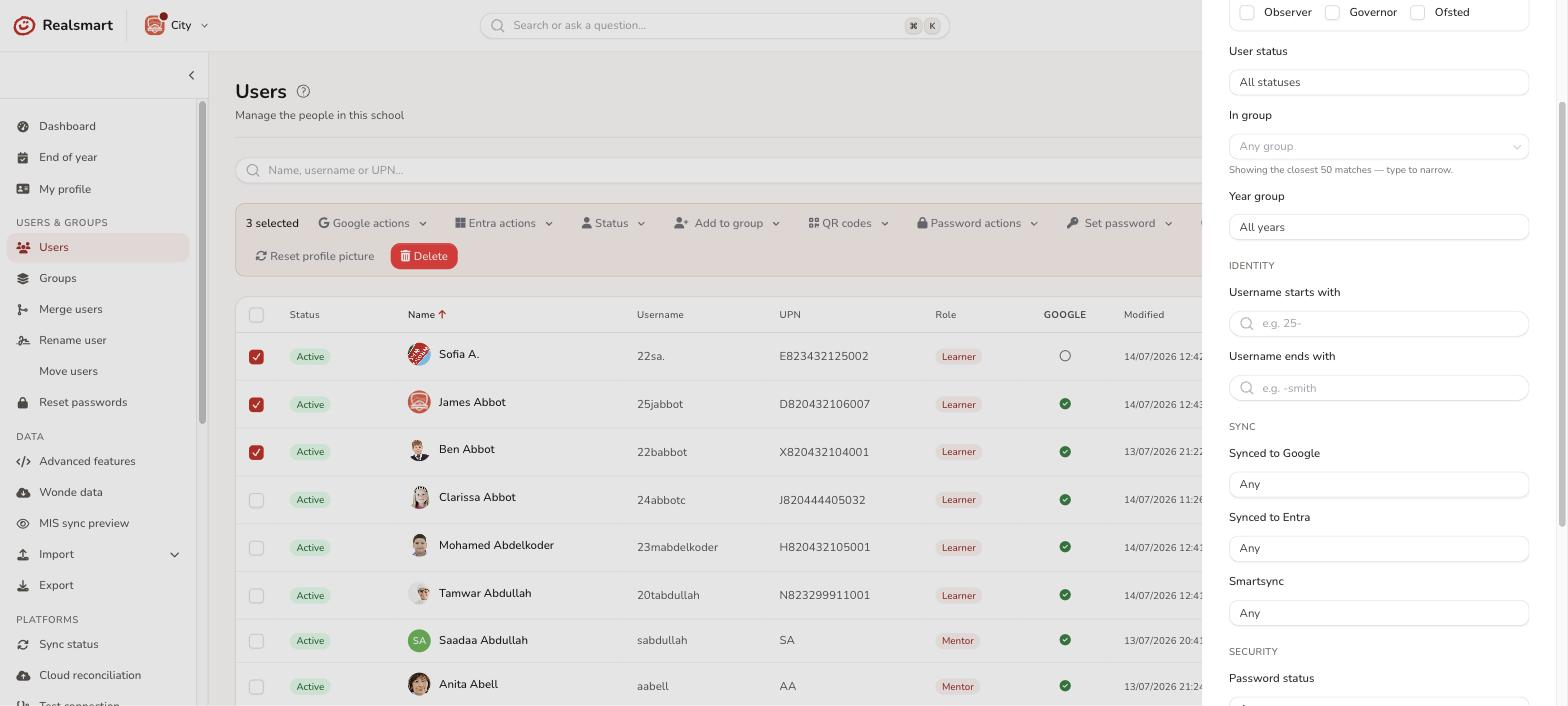
Sync (Google and Entra only show for platforms your school has enabled)
- Synced to Google — Yes or No (whether the person has a Google account yet)
- Synced to Entra — Yes or No
- Smartsync — On or Off (whether the account is Protected/excluded from automated sync)
Security
- Password status — Change required, or Has default password
- 2FA — Setup (2FA is on and they have an authenticator app or passkey), Enabled (2FA is on, whether or not they've set it up), Disabled, or Exempt (excused from the school's MFA requirement)
- QR code — Present or Missing (only shown if QR login is enabled for this school)
Membership
- Locked group memberships — users with individually pinned (protected) memberships
Every filter you apply also appears as a chip under the search box. Select the × on a chip to remove just that filter. Filters stack — applying multiple filters narrows results further. See Using filters for the full reference.
Step 4: Sort the list
Select any column header to sort by that column. Select again to toggle between ascending and descending. The list starts sorted by Name (by surname).
Sortable columns include: Status, Name, Username, UPN, Role, Modified, Created, Last login. Which columns you see depends on your column settings.
Step 5: Clear filters
Select Clear all — beside the chips under the search box, or at the bottom of the filter panel — to reset every filter and see the full list again. If a search or filter finds nobody, the page says No users found with a Clear filters button.
Result
The list updates to show only the matching users, 50 to a page. Filters stay active while you stay on the page. They reset when you switch school, and aren't remembered the next time you visit.
Troubleshooting
- "No users found — Try adjusting your search or filters." — nothing matches. Check for a filter you forgot (look for chips under the search box), then select Clear filters.
- "I can't find someone who's left." — suspended and deleted users are still listed until they're purged. Search for them by name, or set User status to Suspended or Deleted. Once an account has been purged it's gone from Realsmart. See What happens to a leaver's account?.
- "The Synced to Google or Synced to Entra filter isn't there." — it only appears when that platform is switched on for your school.
- "The QR code filter isn't there." — it only appears when QR login is switched on in School settings.
- "Pick a school." — you're in MAT overview. Choose a school from the switcher in the top bar.
Tips
- Use the In group filter to list the members of one cohort, year group or class. It can't list people who are in no group at all.
- Combine Synced to Google: No with User status: Active to find active users who haven't been created in Google yet.
- After you've filtered, tick the header checkbox and choose Select all N matching to act on the whole result — see Bulk actions on users.
Related
Did this work for you?
If a step looked different on your site, tell us and we'll update the screenshots.
Thanks for your feedback.