Classroom parents — guardian provisioning
Classroom parents
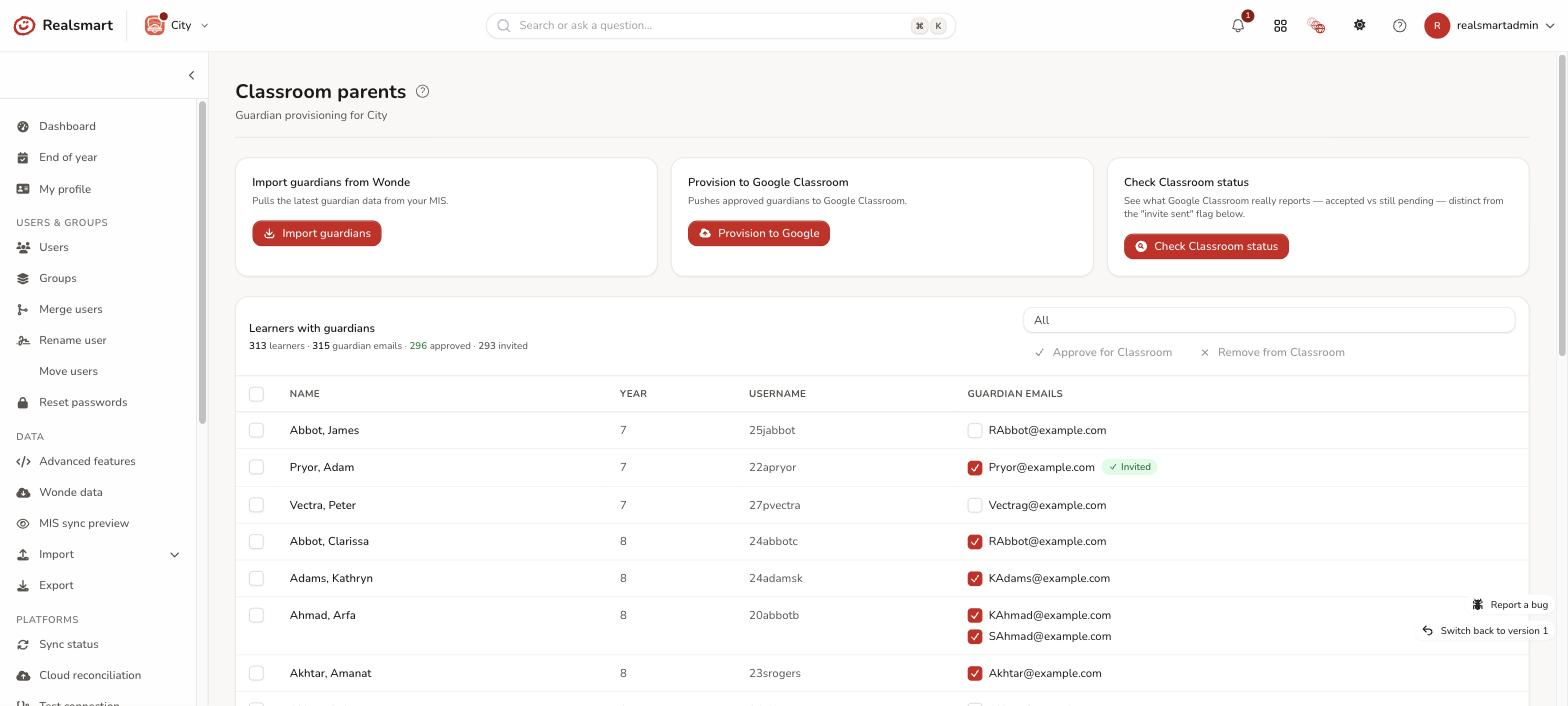
Classroom parents (sidebar → Engagement → Classroom parents, next to Smart Parents) shows, for every active learner with at least one guardian contact, every guardian email address and whether it will be provisioned to Google Classroom — not just a count. This is a "glass" page: if a parent's status matters to you, you can see it here without opening Classroom yourself.
It is not under Google Workspace → Classroom. That page runs Classroom for staff and learners; guardians are managed here.
Turn it on
The page only appears in the sidebar once Import parents is ticked for your school:
- Select the school in the switcher.
- Open School settings → Sync.
- In MIS & provisioning, tick Import parents, then select Save sync.
Classroom parents then appears under Engagement. You can do this yourself — you need the Change sync, platform & API settings permission to change the setting, and the Manage Smart Parents permission to use the page. (In the old smartadmin, this setting was called Provision Guardians from MIS.)
Before you start
Guardian invitations are sent by Google, so all of these need to be in place first:
- Google sync and Google Classroom are on for the school — see Google Classroom settings.
- The guardian-links scope is authorised for your Google connection (
classroom.guardianlinks.students) — see Google Workspace settings. - Guardian access is allowed for your domain in the Classroom settings of the Google Admin console. If it's off, Google refuses every invitation.
- Each learner has a Google account. An invitation links a guardian to a child's Google account, so a learner without one can't have guardians.
First time: the order to do things in
- Import guardians (in the Import guardians from Wonde card; confirm Queue guardian import from Wonde?). The list is empty until you do. This pulls guardian emails from your MIS (Wonde) — for each learner, the priority 1 contact who has parental responsibility, lives with the pupil and has an email address. Other contacts aren't imported — see which guardians come in. Allow a few minutes, then reload the page.
- Approve the guardians you want invited. Nothing is approved after an import — every guardian starts unapproved. Approve them all at once or one at a time (see below).
- Press Provision to Google (in the Provision to Google Classroom card; confirm Queue guardian provisioning to Google?). This is the step that sends anything to parents: Google Classroom emails each approved guardian an invitation.
- Check Classroom status later to see who has accepted.
Invitations go out only when someone presses Provision to Google — approving alone sends nothing, and there is no overnight run that sends them for you. After the first time, repeat steps 1–3 whenever new families join: import picks up the new guardian emails, you approve them, and Provision to Google invites anyone approved who hasn't been invited yet.
Import only ever adds guardian emails it hasn't seen before. It keeps the approvals you've already made, and it doesn't remove or change an email that is already here — if a parent's email changes in the MIS, the new address is added as a new, unapproved row and the old one stays.
What the parent sees
- An email from Google Classroom. When you press Provision to Google, Google Classroom emails an invitation to each approved guardian's address — the one from your MIS. Realsmart doesn't send this email itself.
- They accept it. The parent has to accept the invitation in that email. Until they do, Check Classroom status shows them as Invited — awaiting parent, and nothing on this page can accept it for them. Realsmart never sends a second invitation to an address it has already invited.
- They're linked to their child. Once they accept, the check shows Parent accepted, and they can get email summaries of their child's work from Google Classroom. Those summaries come from Google — nothing in Realsmart sets whether or how often they're sent.
Which guardians come in
Import guardians is deliberately narrow. A guardian email comes in only when all of these are true.
The learner:
- is an active learner at this school;
- is linked to your MIS — a learner added by hand, with no MIS ID, is skipped.
The contact, as recorded in your MIS:
- is the learner's priority 1 contact (first in the contact order);
- has parental responsibility;
- lives with the pupil (same address);
- has an email address. Only the contact's main email is used.
SOS schools follow the same rules: the contact must be first in the contact order, with parental responsibility ticked and an address the same as the pupil's.
What that means in practice
- One parent per child at most. Only one contact can be priority 1, so a second parent is never imported — even with parental responsibility at the same address.
- Separated parents: if the priority 1 contact doesn't live with the pupil, nobody is imported for that child.
- Fix it in the MIS, not here. If the wrong person comes in, or nobody does, correct the contact order, parental responsibility or address in your MIS, then Import guardians again once the change has reached Wonde (usually overnight).
- Changes don't flow back. Import only adds emails it hasn't seen for that learner. A changed email arrives as a new, unapproved row; the old row stays, and so does any invitation already sent to it. Remove approval from the old one yourself.
- Leavers keep their rows. Import never deletes a guardian. Learners who are no longer active drop off this page, and no new invitations are sent for them.
"Why isn't this parent showing?"
Check, in this order:
- Has Import guardians been run since the contact was added? Nothing imports automatically.
- Is the learner active and linked to the MIS? Open the learner in Users and check their status and MIS ID.
- In the MIS, is this person the priority 1 contact, with parental responsibility, living with the pupil, and with an email address? If any one of these is missing, they are skipped.
If all three are true and the parent still doesn't appear after an import, contact Realsmart support with the learner's name. The import skips a learner it can't read from the MIS without flagging it on this page.
Not the same feature as Smart Parents. This page is specifically about Google Classroom guardian email invitations. The separate parent-facing app — where a parent links to their child with a PIN and sees attendance/achievement/behaviour/timetable data — is Smart Parents settings. A school can use either, both, or neither.
What each guardian row shows
- The email address itself.
- Approved for Classroom — a checkbox next to the email. Ticked means this guardian is included the next time you provision to Google; unticked means they're excluded.
- Invited (green badge) — a local record: "we sent an invite" the last time you provisioned to Google. It does not mean the parent has accepted — only that an invitation was sent.
Approve or remove guardians
There are two kinds of checkbox on each row, and they do different things:
- The box beside a single email approves or removes that one guardian, instantly. Use it for a one-off correction.
- The box at the start of the row selects the learner. That covers every guardian email on that child.
With at least one learner selected, Approve for Classroom and Remove from Classroom appear above the list.
Selecting a learner selects their guardians. You tick children, but what Approve for Classroom changes is the guardian emails on those children — every one of them, including any the current filters are hiding. Tick 25 learners and approve, and every guardian email on those 25 learners is approved.
Approving sends nothing. It marks the guardians to be invited; the invitations go out when you press Provision to Google.
The confirmation spells this out before anything changes:
- how many learners are selected, and how many guardian emails that covers in all
- how many of those emails aren't approved yet (or that they all already are)
- that nothing is sent to parents until you press Provision to Google
The message afterwards reports how many guardian emails actually changed, and reminds you to press Provision to Google. Guardians already in that state are not counted, so approving a set that is already approved reports exactly that rather than a misleading total.
Approving everyone at once
Tick the box in the table header to select the whole page, and a banner offers Select all N matching — every learner the current filters match, across all pages, not just the 25 on screen. Approve then covers the lot in one action, so a school of a thousand learners does not have to be worked through page by page. The confirmation counts the whole selection, not just the page on screen.
Changing a filter clears the selection, deliberately — an "all matching" selection means something different once the filters move.
Removing approval
Remove from Classroom is confirmation-gated and covers every guardian on the selected learners, including any hidden by the current filters. It stops them being invited the next time you press Provision to Google.
It does not reach into Google Classroom. A guardian who has already been invited keeps that invitation, and one who has accepted stays linked to the child, because provisioning only ever sends invitations — it never withdraws or unlinks. If any of the selected guardians have already been invited, the confirmation says how many. To take a guardian off a child, remove them in Google Classroom itself.
Find who's outstanding
The list has the same search-and-filter bar as Users and Groups: a search box, a Filters button (press f) that opens the filter drawer, and a removable chip for each filter you apply. The result count beside them updates as you go.
Search (it says Child name, username or guardian email…) matches either side of the row — the child's name or username, or a guardian's email address or name. So "find this child" and "whose email address is this?" both work from the one box. Select a child's name to open that learner's Guardians tab in a new tab.
Filters — who the learner is:
- Year group — tick one or more years, e.g. just Year 7.
- Registration group — only shown if your MIS records them.
Filters — where their guardians stand:
The Approval and invites filter is one list with these choices:
- Has a guardian needing approval — at least one guardian on this learner isn't approved yet.
- No guardian approved — nobody on this child is approved yet.
- Every guardian approved — nothing left to approve on this learner.
- Approved, not invited — approved but no invite has been sent yet (press Provision to Google to send it).
- Invited — an invite has already been sent.
- Never invited — no guardian on this learner has ever been invited.
Beside it, What Classroom reports lists the live states from the last check (see below). It only appears once a check has run, and only offers states the check actually found.
Filters combine, so "every Year 7 child whose guardians still need approving" is one year tick plus one status pick.
When you apply a guardian filter, each learner row shows only the guardian emails that match it, with a note counting the ones hidden. Tick Show every guardian email, not just the matching ones in the drawer to see them all again.
The summary line above the list (learners · guardian emails · approved · invited) always reflects the whole school, regardless of the filters or which page you're on. The count beside the Filters button is the filtered one.
Check Classroom status — the real, live answer
The Invited badge only tells you a message was sent — not whether the parent has actually accepted it. Click Check Classroom status to queue a read-only check against Google Classroom itself. Once it finishes, each guardian shows the REAL current state next to their local flag:
- Parent accepted — Google Classroom confirms this guardian accepted the invitation and can see their child's work.
- Invited — awaiting parent — Classroom is holding an invitation for this email that the parent has not accepted yet. Only they can accept it; nothing on this page can accept it for them.
- Not in Classroom — Classroom has no guardian record and no pending invitation for this email. Approve the guardian, then press Provision to Google to send one.
- Couldn't check — the check could not read that learner from Classroom, so we don't know where the guardian stands.
A panel above the list, What Classroom is telling you, spells these out, and hovering any label in the list shows the same explanation.
"Couldn't check" explained
This is the one label that is not a statement about the parent. It means the check asked Classroom about the child and Classroom would not answer, so the guardian's real state is simply unknown. They may well be fine.
The usual cause is that the learner has no Google account — no account, nothing for Classroom to hold guardians against. Other causes are a permissions problem reading guardian links, or Google rate-limiting a large check.
Where the check can tell why, the reason is named next to the count under the panel and appended to the label's hover text.
If a check comes back with nothing it could read — every learner failed — the page does not label each row. That would repeat one fact on every line while saying nothing about any particular parent. Instead it says so once, above the list, and shows no Classroom labels at all. That situation is school-wide, such as Google accounts not being created yet, rather than a parent-by-parent problem.
The What Classroom reports filter only offers the states a check actually found, so an option that could only ever return an empty list is not shown.
The check's summary and how long ago it ran are shown above the button. If the school doesn't have Google Classroom / parent import configured, or the check isn't available in your environment yet, the button still queues but no live states appear — everything else on the page keeps working from the local data.
The two provisioning actions
- Import guardians (in the Import guardians from Wonde card) adds new guardian emails from your MIS. See the first-run order for which contacts it picks up.
- Provision to Google (in the Provision to Google Classroom card) sends an invitation to every approved guardian who hasn't been invited yet. Google Classroom emails the invitation to the parent. Once they accept, they can get email summaries of their child's work from Classroom.
Both are rate-limited to once an hour per school; while one is cooling down, its button shows when it'll next be available instead (for example Available again at 16:37). When you confirm you see Provisioning guardians from Wonde. or Provisioning guardians to Google.
If Google refuses an invitation, that guardian doesn't get the Invited badge and is tried again the next time you press Provision to Google. Guardians who are already invited are never sent a second invitation.
Related
Was this guide helpful?
We read every response — it decides what we rewrite next.
Thanks for your feedback.