Google Classroom settings
This page controls how Realsmart provisions Google Classroom for the school — whether it runs at all, who inherits a class when its owner leaves, and what happens to classes between school years. It's one of the Google Workspace sub-areas (moved here from the old Sync tab).
Before you start
- You must be a school admin with sync settings permission, with the school selected in the switcher.
- Google Classroom sync relies on the Classroom scopes being authorised for your Google connection — see Google Workspace settings.
- Google sync must be switched on and live for the school (see School settings → Sync services). In preview, the Orphaned classrooms fixes below are held rather than applied.
Steps
Step 1: Open Google Classroom settings
In the sidebar, open Google Workspace → Classroom. (The page is titled Google Classroom; Back to settings at the top returns to the Google settings.)
Step 2: Turn on Classroom and reporting
Tick the options you want:
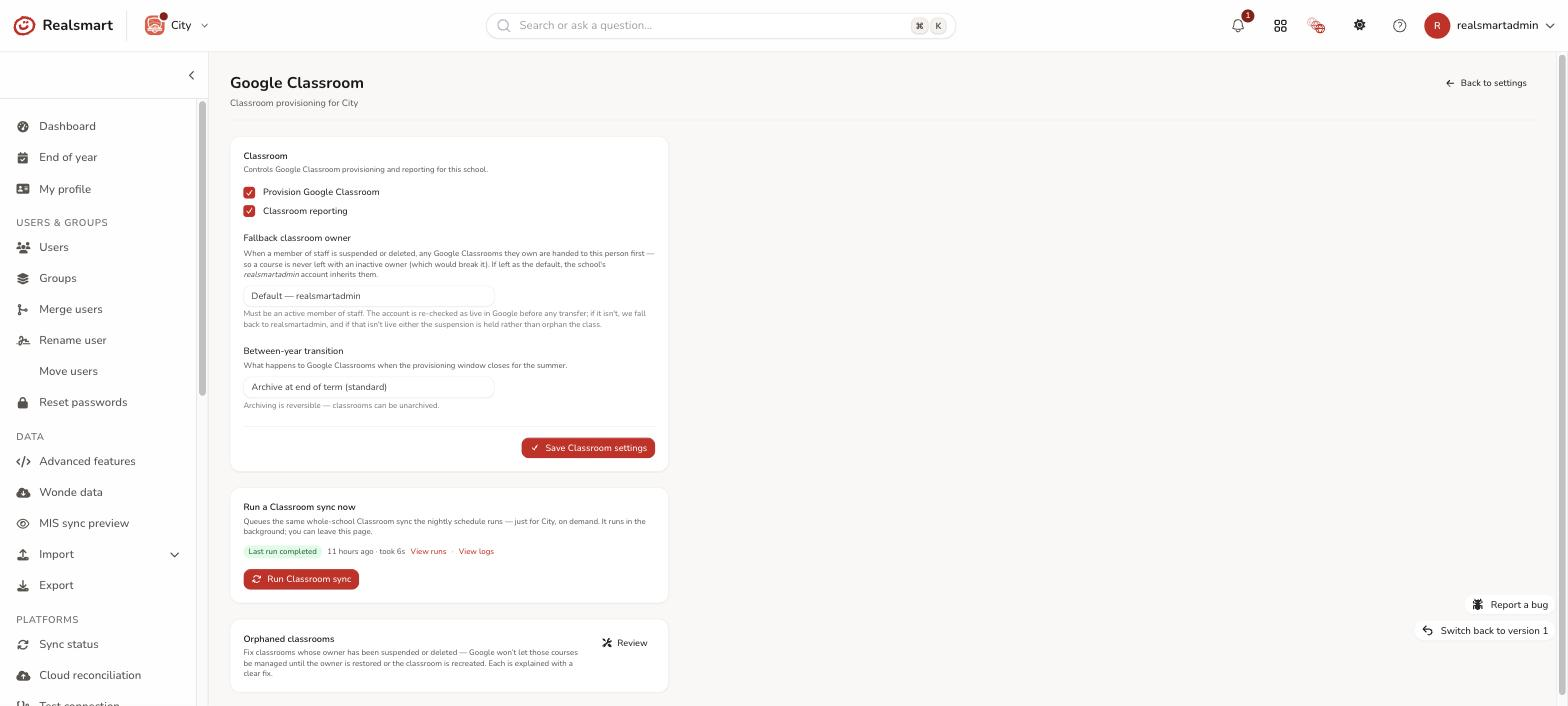
- Provision Google Classroom — the master switch for Classroom provisioning on this school. While it's on, every Active or Protected group with at least one member of staff (and no more than 50 staff, and fewer than 1,000 people) gets a Google Classroom — MIS classes and groups you create alike (the automatic Teachers of groups never do). Classrooms are created by the nightly Classroom run, at about 22:00 every day except Saturday, or sooner with Run Classroom sync below. See Create a Google Classroom for any group.
- Classroom reporting — switches on the daily Classroom import (about 16:00, every day except Saturday, while Google sync is live) that feeds the Classroom reporting dashboards in the sidebar.
- Create classrooms as active — see below.
Create classrooms as active
Google makes every classroom created through its API Provisioned, not Active. A Provisioned classroom is invisible to learners and stays that way until the owning teacher opens Google Classroom and accepts it. If your teachers don't do that promptly, classes sit there looking empty and broken to everyone else.
Tick Create classrooms as active and Realsmart sets each classroom to Active as it creates it, so it works from the moment it exists. It also picks up the backlog: any classroom still sitting at Provisioned is activated on the next Classroom sync, whenever it was made.
This is off by default, which leaves Google's own behaviour in place. Turning it on means teachers never see the "accept this class" invitation, because there's nothing left to accept.
To make one group's classroom active straight away, without waiting for a sync, use Make active on the group's Classroom tab — see Make a classroom active.
Step 3: Choose a fallback classroom owner
Google won't let a course be managed if its owner is a suspended or deleted account — the class effectively breaks. To prevent that, when a member of staff who owns classrooms is suspended or deleted, Realsmart hands their classrooms to a fallback owner first.
Under Fallback classroom owner, pick the owner from the school's active staff (shown as Name (username)), or leave it on Default — realsmartadmin — the school's realsmartadmin account. The chosen account must be an active member of staff; if it isn't, saving shows "The fallback owner must be an active member of staff at this school." It's re-checked as live in Google before any transfer; if it isn't live, Realsmart falls back to realsmartadmin, and if that isn't live either, the suspension is held rather than orphan the class.
Step 4: Set the between-year transition
Between-year transition decides what happens to Google Classrooms when the provisioning window closes for the summer — that is, once the school's Final provision date (School settings → Sync) has passed. If no final provision date is set, nothing is archived.
- Archive at end of term (standard) — archive classrooms once the window closes.
- Leave classrooms alone — don't touch them.
- Archive at the start of next term — defer archiving until next term begins (the 1 September after the final provision date).
Archiving is reversible — classrooms can be unarchived — so the standard option is safe. A group can have its own choice that overrides this one — see End of term Classroom options.
Step 5: Save
Select Save Classroom settings. You'll see "Classroom settings saved."
Run a Classroom sync now
When Provision Google Classroom is on, this page also shows a Run a Classroom sync now card — it queues the exact whole-school Classroom sync the nightly schedule runs, just for your school, on demand. Select Run Classroom sync and confirm ("Run a full Google Classroom sync for … now? It processes every synced class and may take a while."). It runs in the background, so you can leave the page; the card shows progress — Queued, Running now, then Last run completed or Last run failed with how long ago and how long it took — and links to View runs and View logs. A cooldown (3 hours as standard) stops repeat runs: the button is greyed out with "Ran recently — try again in …". While your school is frozen for the summer the Classroom sync doesn't create or change classrooms (it only archives them) — see The provisioning window and the freeze. See also Trigger a manual sync.
Reactivate last year's classrooms
The Last year's classrooms card has a Manage link that opens a page where you can see each active group's previous Google Classroom and its current status, and reactivate (or archive) any number of them at once — applied directly in Google in the background, even while the school is frozen for the summer. This is the quickest way to bring classrooms back to life for the new year after the between-year archive. See Reactivate last year's classrooms.
Orphaned classrooms
The Orphaned classrooms card has a Review link for classrooms that are already orphaned — where the owner has been suspended or deleted and Google won't let the course be managed until it's fixed. In Google Classroom these classes show an unknown or deleted owner, and the sync can't add anyone to them. A weekly check (Mondays) finds them — it only looks at schools with Provision Google Classroom on and Google sync live — so a classroom whose owner was suspended this week may not be listed until then. Only classrooms of Active or Protected groups are shown, grouped by owner, so one fix can cover all of an owner's classrooms. Each owner has two fixes:
- Reactivate owner — un-suspends the owner's whole Google account (they can sign in and sync again) and restores all their classrooms intact, with content, students and history kept. You confirm first.
- Recreate all N (or Recreate selected, or Recreate… on a single classroom) — builds a brand-new classroom with a live owner. The old classroom's posts, materials and history aren't carried over and the old classroom is left behind in Google, so you must type RECREATE to confirm.
See A teacher is missing from a Google Classroom. Use it to clean up existing problems; the fallback owner above is what prevents new ones.
Neither fix happens on the spot (you'll see "Reactivation requested for this owner — N classroom(s) will be restored intact on the next sync." or "N classroom(s) queued to recreate — brand-new classrooms will be built on the next sync. The old ones are left behind in Google."): your decision is recorded and the sync carries it out — Sunday to Friday, hourly during the working day (from about 07:15 to 19:15). The Fixes you've asked for table at the top of the page shows what became of each one: Waiting for the sync, Done (kept on the page for a week), Failed (with the reason, and a Try again button) or Held (with the reason).
A fix is Held — not lost — when something stops the sync acting on it: "Google sync is not live for this school (switched off, or in preview mode)" holds both fixes, and during a frozen provisioning window a Recreate is held ("the school is inside its provisioning freeze window, and recreating a classroom abandons the existing course and its content"). Held fixes are kept and applied once the hold lifts. Bringing a suspended owner back is a repair of something already broken, so Reactivate owner goes ahead during the freeze as normal. Clearing a course to be recreated is new provisioning, so it waits until the window reopens — the decision you confirmed is kept and applied then, and the deferral is recorded in the logs rather than silently dropped. If you need last year's courses back for the new term while the school is still frozen, that's Reactivate last year's classrooms, which ignores the freeze by design.
Severed classrooms
The Severed classrooms card has a Review link for live classrooms that a past end-of-term fault disconnected from their groups: teachers kept using them, but the sync stopped managing them. Reconnecting keeps all content and students. See Severed classrooms.
Launchpad widgets
Where your school has them, a Launchpad widgets card links to Google Workspace → Launchpad widgets (Set up, or Manage with an On badge once they're running), which puts live Google Classroom on the launchpad: Due work for pupils, To review for staff and My classes for both. They only read Classroom, through a read-only connection, and you choose which widgets appear and who sees them. See Launchpad widgets.
Parents and guardians
Guardian invitations aren't set up on this page. Turn on Import parents under School settings → Sync, then use Engagement → Classroom parents to import guardian emails from the MIS, approve them and send the invitations. Classroom must be on here first. See Classroom parents.
Teacher not appearing?
Start with the group's Classroom tab (Groups → the class → Classroom). It shows the classroom's status and owner, and lists anyone the sync expects on the classroom who isn't there, with the reason. The full checklist is in A teacher is missing from a Google Classroom. The usual causes:
- They aren't in the class's group. A teacher is only on a classroom if they're in its group — add them; see Add a teacher to a Google Classroom.
- Your MIS only sends the main teacher. Add all mentor roles as cohort members (School settings → Sync, in MIS & provisioning) decides whether other teachers on a class — a co-teacher on a shared class, a head of department, a teaching assistant — are put in its MIS class group. When it's off, only the class's main teacher in the MIS is, so nobody else reaches the classroom. See School sync settings.
- The classroom is still Provisioned, Declined or Archived. A provisioned classroom waits for its owner to accept it; the sync changes nothing on a declined or archived one. See Make a classroom active.
- Classroom isn't on for the school. Check Provision Google Classroom in Step 2 — while it's off, no classroom is managed at all.
- Their Google account isn't working — see A user isn't syncing and Understanding and actioning sync errors.
Don't sync Classroom teachers (Google Workspace → Settings, in the Sync section) isn't about class rosters. It controls whether the sync puts your staff into your domain's classroom_teachers group in Google, and doesn't change who is on any classroom.
A group has no classroom
A group is only given a Google Classroom when it has at least 1 and no more than 50 staff (Active or Protected admins and mentors) and fewer than 1,000 people in total. When it doesn't, the group's Classroom tab and the Logs say so with the reason, for example "no teacher assigned — a Google Classroom needs at least 1 (add a mentor to this group)", "N teachers assigned — a Google Classroom allows at most 50" or "N members (X teachers + Y learners) — a Google Classroom allows fewer than 1000". Add or remove staff in the group to fix it; see Create a Google Classroom for any group.
Related
- A teacher is missing from a Google Classroom
- Launchpad widgets (live Google Classroom)
- Create a Google Classroom for any group
- Google Workspace settings
- Classroom parents
- Google OU settings
- Google group settings
- Reactivate last year's classrooms
- Severed classrooms
- End of term Classroom options
- Trigger a manual sync
- Group membership options — lock, Classroom, Google role
- A user isn't syncing
- Understanding and actioning sync errors
Did this work for you?
If a step looked different on your site, tell us and we'll update the screenshots.
Thanks for your feedback.