Group membership options — lock, Classroom, Google role
Group membership options
A group's page has five tabs: Details (name, status, main teacher and platform settings — see Edit a group), Members, Cloud (only when your school syncs to Google or Microsoft Entra — see See who is actually in the group on Google or Entra), Logs and Classroom.
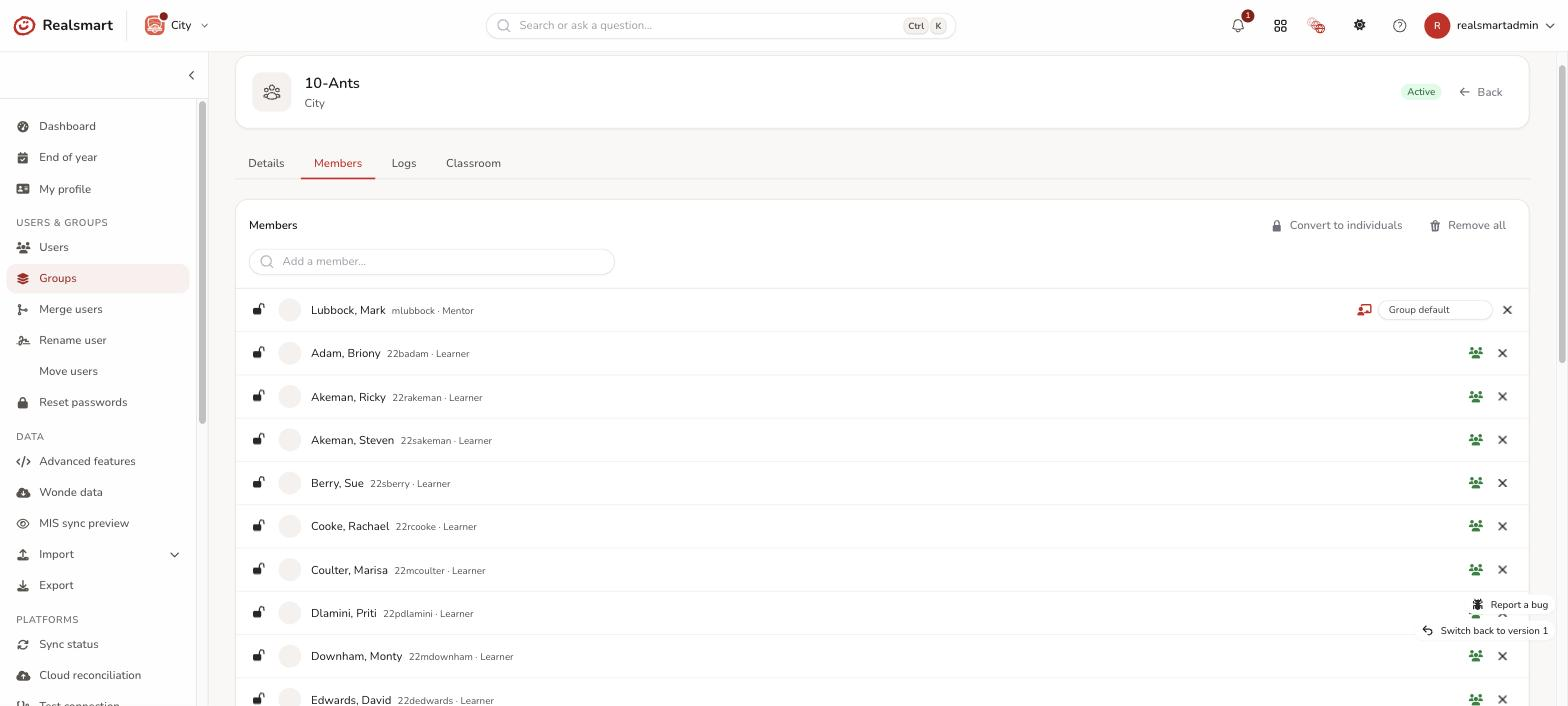
On the Members tab, each member row has up to three per-member controls. Two of them only appear when the relevant service is switched on for your school.
The list is ordered staff first — mentors, admins and other non-learners lead, then the learner cohort — alphabetical within each band.
Lock (the padlock)
The padlock pins a membership in place. Normally group membership follows the MIS — if a pupil isn't in the group in the MIS, the sync removes them. A locked membership is kept regardless, so the person stays in the group even when the MIS doesn't list them there.
- Open padlock = unlocked (follows the MIS). Click it to lock.
- Closed padlock = locked (kept in place). Click it to unlock.
Locking overrides the MIS, so each lock/unlock is recorded in the logs. Use it for the odd person who needs to stay in a group that the MIS won't put them in.
Lock all memberships (at the top of the Members list) does the same thing to every current member in one go — useful for a group you want to freeze as it stands today.
Classroom indicator (only when Google Classroom is on)
When the group is linked to a Google Classroom and Classroom is enabled for your school, members who are in that Classroom show a small icon — a group icon for a member/student, or a board icon for a teacher. It reflects the real Classroom roster (from the synced Classroom data). No icon means the person isn't in the Classroom. The indicator is hidden entirely for schools not using Classroom.
Google group role (only when Google sync is on)
For staff members (not learners), a small dropdown sets that person's role in the Google group:
- Group default — the usual behaviour (the group/school default decides).
- Member, Owner, Manager — override the role for this person in this group.
With Group default, learners (and governors and observers) are always Member, admins are always Owner, and other staff get the group's Default teacher membership from its Details tab — or the school's default when that says SCHOOL_DEFAULT.
The sync applies the chosen role to their Google group membership, usually within minutes. If Google can't say what their role is at that moment, the sync leaves it and tries again on the next run, so it can take a night longer — their Logs tab then shows Role check skipped. You don't need to do anything. Role changes are recorded in the logs. The dropdown is hidden for schools not using Google sync.
Main teacher (Details tab)
On the group's Details card — just under the group name — you can view and set the group's Main teacher: its lead teacher, and the owner of the linked Google Classroom. Choose from the group's own teachers and staff (its non-learner members), or None.
The main teacher normally follows the MIS (Wonde) during sync. Setting it here overrides that pick. Tick Lock main teacher to pin your choice so a later sync can't change it. While it's locked the dropdown is greyed out: to change the teacher, untick the lock and select Save changes, choose the new teacher, then save again.
The lock only stops the MIS changing your pick. It doesn't keep someone as the classroom owner once they've left the group or stopped being active — the sync then gives the classroom to another of the group's staff.
Classroom ownership and missing users (Classroom tab)
The group's Classroom tab shows who owns the linked Google Classroom. The owner comes from the group's Main teacher (set on the Details tab, above). If the main teacher is missing or no longer active, the tab flags it: an inactive owner is exactly what leaves classrooms orphaned (the "inactive course owner" problem), so this is your early warning — with a shortcut to the orphaned-classrooms review.
The tab also lists who is in the classroom — every teacher and student Google has on it — compared with the group's members, with anyone missing from the classroom or extra on it explained. See Find and link a group's Google Classroom for what each verdict means and who the sync expects on a classroom.
Where "preserve the group" lives
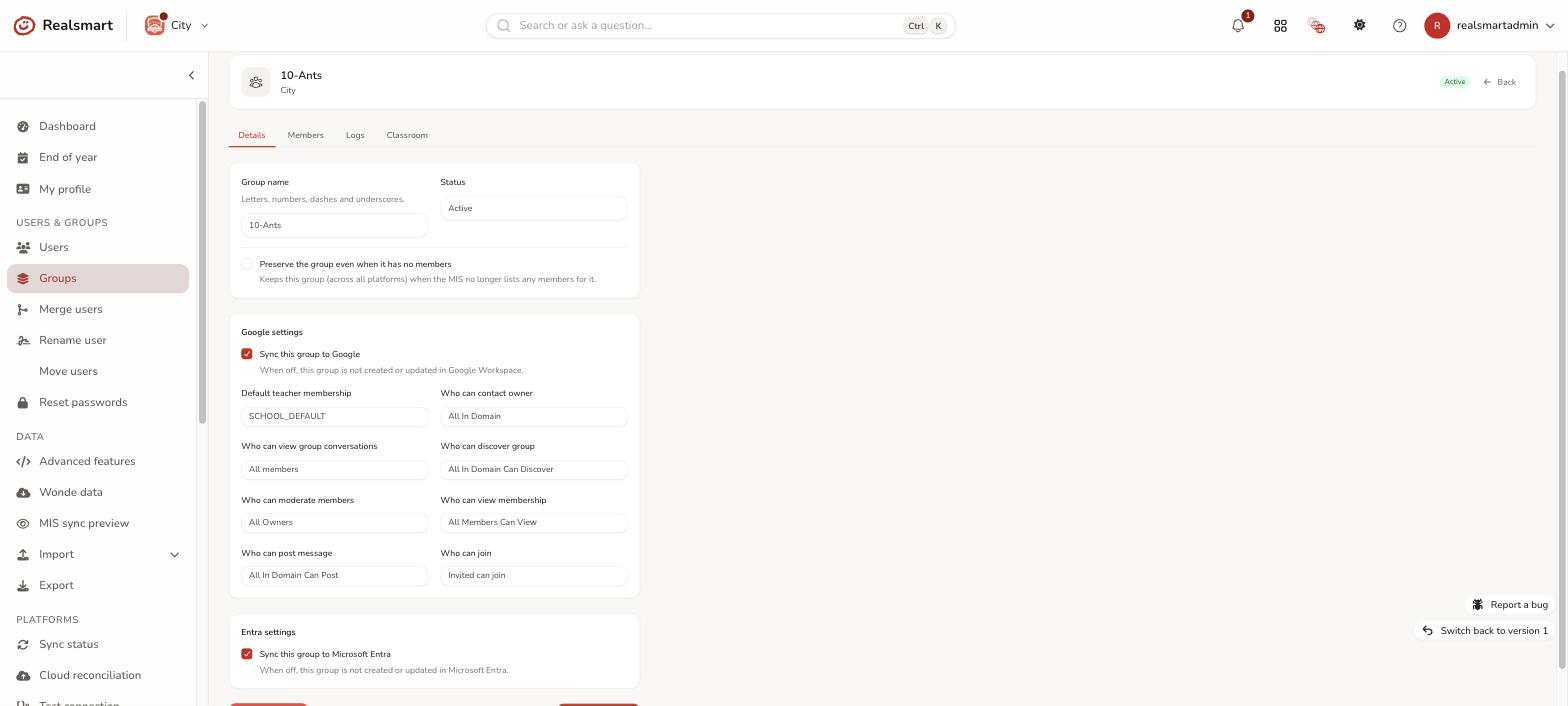
Preserve the group even when it has no members is a general group behaviour, so it sits on the group's Details card — not in the Google settings area, which holds only genuinely-Google options. Google deletes a group with nobody in it at the next sync unless this is ticked.
Sync this group to Google / Microsoft Entra (per group)
On the group's Details tab, each platform's settings card has its own sync toggle — independent of the other platform:
- Sync this group to Google — in the Google settings card (visible only when Google sync is on for your school). Turn it off and this group is no longer created or updated in Google Workspace; it is left as-is there.
- Sync this group to Microsoft Entra — in the Entra settings card (visible only when Microsoft Entra sync is on for your school). Turn it off and this group is no longer created or updated in Microsoft Entra.
The two toggles are independent — a group can sync to Google only, Entra only, both, or neither. Turning a toggle off does not remove the group from that platform or delete existing members there; it simply stops further updates flowing to it. Saving the group re-runs provisioning immediately, so a toggle change takes effect on the next sync rather than waiting for the schedule.
The Logs tab
The group's Logs tab is headed Sync logs. It lists what the Google and Entra syncs did for this group — when, on which platform, what action, what it was about and the outcome (for example a membership added or removed, a group created, a Classroom change, or a Check now read). Use the All platforms and All outcomes filters to narrow it to Google or Entra, or to errors only. No logs for this group. means the sync hasn't touched it yet.
Checking what reached the platform
To see who Realsmart last recorded in the real Google or Entra group — including whether a toggle change or a lock actually took effect — open the group's Cloud tab. See See who is actually in the group on Google or Entra.
Related
Was this guide helpful?
We read every response — it decides what we rewrite next.
Thanks for your feedback.