Apple operations
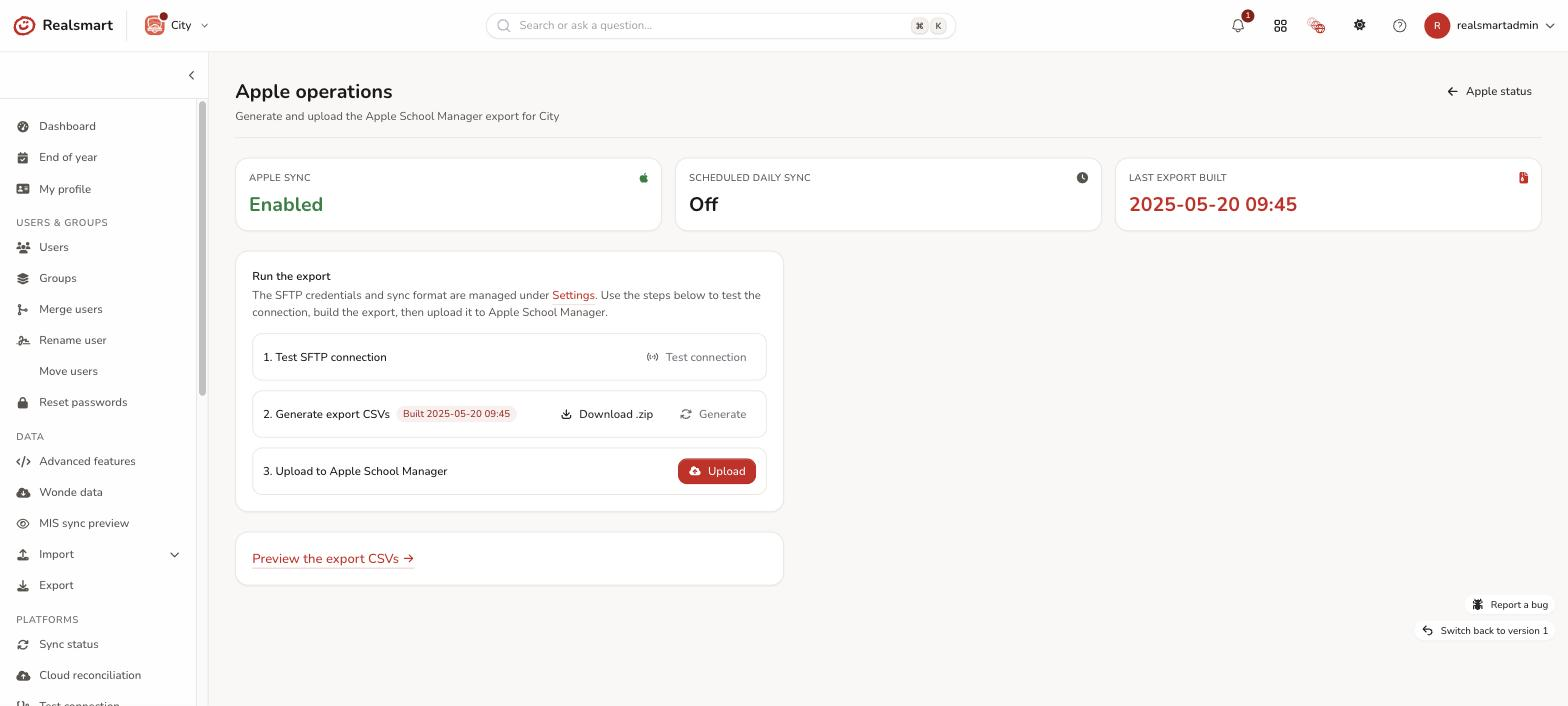
This is where you actually build and send the Apple School Manager export. The credentials and format come from Apple School Manager settings; this page uses them to test the connection, generate the export files, and upload them to Apple. It's a three-step run you can do on demand (in addition to the optional daily scheduled sync, which does the same generate-and-upload every day at about 02:00 UK time).
Before you start
- You must be a school admin with sync run permission, with the school selected in the switcher. Download .zip also needs permission to export data.
- Apple sync should be configured first — the SFTP host, user and password and the sync format all come from Apple School Manager settings.
What the top of the page shows
Three status tiles summarise the current state: Apple sync (Enabled or Disabled), Scheduled daily sync (On or Off) and Last export built (the date and time, or "None" if you haven't built one yet).
Steps
Step 1: Open Apple operations
In the sidebar, go to Apple sync → Operations (the Apple sync group appears once Apple sync is switched on). The three actions are laid out in order down the page, numbered 1. Test SFTP connection, 2. Generate export CSVs and 3. Upload to Apple School Manager. (Apple sync → Status is a separate, simpler page: it only says whether Apple sync is enabled for the school, and its Configure settings button opens the older settings screen — use Apple sync → Settings instead.)
Step 2: Test the SFTP connection
Select Test connection. This tries to reach Apple's SFTP server with the stored credentials. On success it shows Connected to host. and a Connected badge. Otherwise you'll get one of three errors, each pointing you back to Apple School Manager settings:
- No SFTP host or username saved — add them in Apple settings first. — save the SFTP host and user (and password) in the SFTP connection section.
- Could not connect to host — check the SFTP settings. — the host couldn't be reached; check the SFTP host for typing mistakes.
- Reached the host but the username or password was rejected. — re-enter the SFTP user and SFTP password exactly as Apple School Manager gave them.
Upload also stops with the "not saved" message if the credentials are missing. Always do this first so a bad credential is caught before you build and upload.
Step 3: Generate the export CSVs
Select Generate. This builds the six Apple School Manager CSV files (students.csv, staff.csv, classes.csv, courses.csv, rosters.csv and locations.csv) and packages them into a zip. It says Export CSVs generated. and the build date appears as a Built badge. If it fails you'll see Could not generate the export — check the Apple settings. You can Download .zip to inspect the exact files locally (this needs permission to export data). If you want to review the contents as tables first, see Preview the Apple export.
Step 4: Upload to Apple School Manager
Select Upload. You're asked Upload the generated export to Apple School Manager now?; after you confirm, the generated zip is sent to Apple School Manager over SFTP (it's saved as Archive.zip in the dropbox folder on Apple's SFTP server) for processing. Upload is greyed out until an export has been generated. File uploaded for processing by Apple School Manager. confirms the file was handed to Apple; from there, Apple processes it on their side. If it fails you'll see Could not upload the file to Apple School Manager. or Upload failed — check the SFTP settings and try again.
Order matters
Run the three steps in order — test → generate → upload. Uploading sends whatever was last generated (including the one the 02:00 daily sync built), so if you've changed data or settings, generate a fresh export before uploading so Apple gets the current roster.
Faster: Sync status → Quick run → Apple School Manager builds the export and uploads it in one step, using the same settings. There's a cooldown between Quick runs, so it can't be repeated straight away (Trigger a manual sync).
Seeing what happened
Every time an export is built — by you or by the daily scheduled sync — Realsmart writes a line to the school's logs: Apple sync completed: N students, N staff exported, or Apple sync failed: … with the reason. Open Logs in the sidebar and set the source filter to Apple School Manager (you need permission to view logs). The upload from this page isn't logged: it ends with File uploaded for processing by Apple School Manager., and from there Apple School Manager processes the file on its side.
Related
Did this work for you?
If a step looked different on your site, tell us and we'll update the screenshots.
Thanks for your feedback.