Move users between schools
Use Move users to transfer one or more users to another school in the trust — for example staff moving between academies, or setting people up at their new school ahead of time. You can select several users and move them together.
This wizard is for manually-created users or pre-emptive setup. If the new school's MIS will create the person itself, it's usually better to let the sync create them and then combine the two records with Merge users.
What happens to the email
The wizard works it out from the two schools' sign-in domains and shows you per user:
- The schools share a domain — the email doesn't change at all. Only the school assignment (and group memberships) change; no account action happens.
- The domains differ — the email changes to the destination school's domain. The Google/Entra account is renamed in place (the same account, at the new address), so Drive, email and Classroom content stay with the person. You choose what happens to the old address: keep it as an alias (mail still arrives) or free it (stops working immediately).
Steps
Step 1: Choose the users
In the left sidebar, open Users (under Users & Groups) and select Move users. Type at least two letters of a name or username in the search box, and tick everyone who's moving (the box shows up to 20 matches at a time, and your ticks are kept as you search again). The count shows how many are selected. Select Choose destination to go on.
You need admin access to more than one school, with the Manage users & groups permission. If you only look after one school, the page refuses with "Moving users needs access to more than one school."
Step 2: Choose the destination and decisions
- Destination school — any school you're authorised for (choose it in the Choose a school… box).
- Old address — Keep the old address as an alias or Free the old address (only applies where the email actually changes).
- Remove them from their old school's groups (recommended) — ticked by default: the movers are removed from their old school's groups, so they stop appearing in those Google group emails. Only groups at the old school are removed.
Then select Continue to preview.
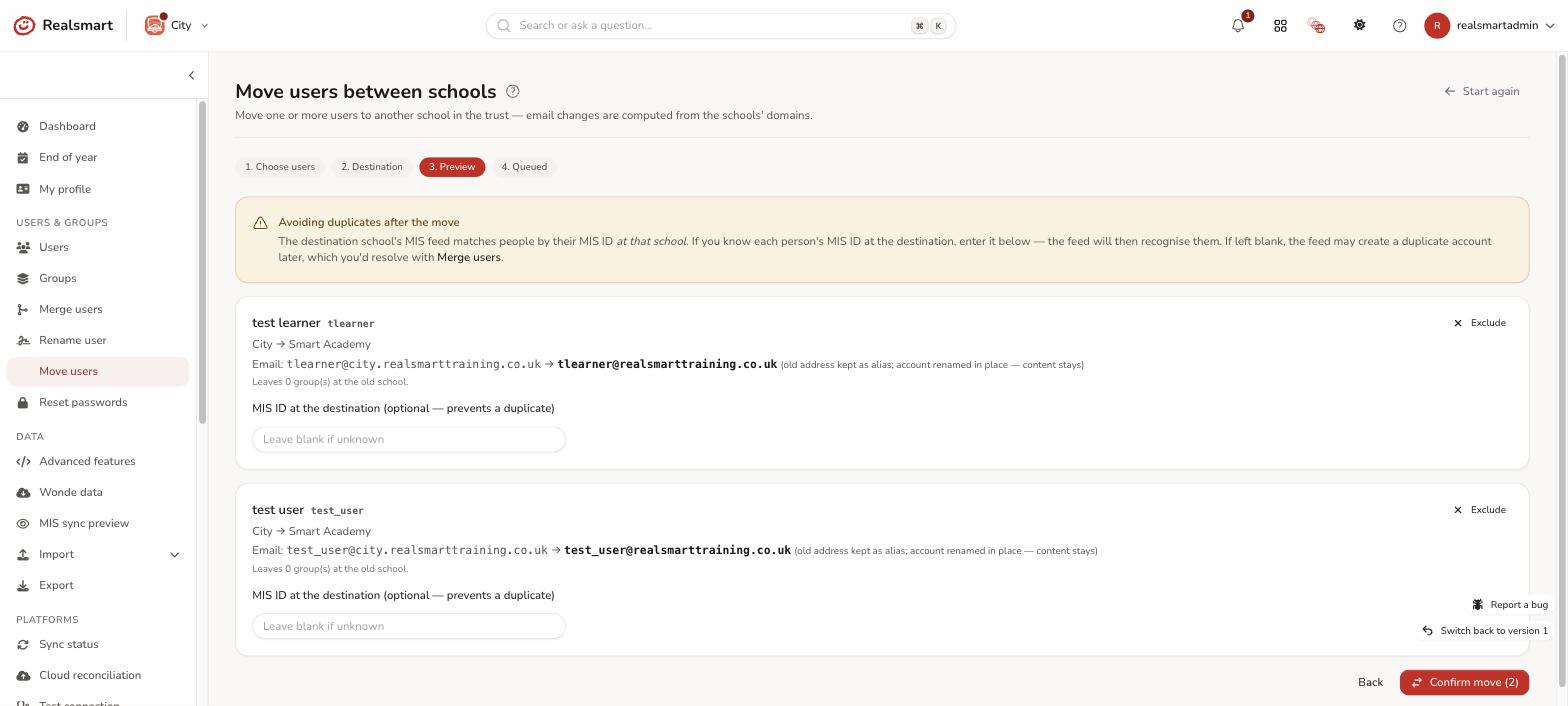
Step 3: Review the per-user preview
Each user gets their own card showing: source → destination, the exact email outcome (changed with the alias decision, or unchanged), how many old-school groups they leave, and any Classrooms they still own at the old school (these keep working — same account — and can be reassigned from Groups when ready). Anyone whose move would collide (username already taken at the destination) is flagged in red and can be left out with Exclude.
Avoiding a duplicate later — the MIS ID box. The destination school's MIS feed matches people by their MIS ID at that school. A moved-in user doesn't have one yet, so a later MIS sync may create a duplicate account for them. If you know the person's MIS ID at the destination, enter it in MIS ID at the destination (optional — prevents a duplicate) — the feed will then recognise them and no duplicate is created. If you leave it blank, their old MIS ID is cleared (it belonged to the old school), so watch for a duplicate after the next MIS sync and resolve it with Merge users.
Step 4: Confirm
Select Confirm move (N) and confirm the dialog ("Move N user(s) to …? Accounts are renamed in place where the email changes; each user is processed independently."). Each user is queued independently, account first, records after — if one user's account rename can't complete, only that user is held (with the reason in their Logs); the rest of the batch proceeds. The page then says "N move(s) queued". Moves usually complete within a few minutes.
To check a move, open the person's Logs tab: a successful move reads "Identity change complete: …", and a held one reads "Identity change HELD for …" followed by the reason.
Other things a move changes: the person's guardians' school follows them, a Website admin tick is removed (tick it again at the new school if they need it — see Let someone manage the school website), and Classrooms they own stay with them.
Troubleshooting
- "Moving users needs access to more than one school." — you only have access to one school, so there's nowhere to move people to. Which schools an admin can reach is set under Admin permissions in MAT overview — see Admin permissions.
- "A user was flagged with a collision" — their username is already taken at the destination ("The username "…" is already taken at …"), or the email address is used at another school sharing that sign-in domain ("The email address … is already in use at … (the schools share a sign-in domain)"). Rename them first (see Rename a user), or exclude them from the batch. If the new name is held in Google or Microsoft 365, the message names what holds it.
- "Everyone selected is already at the destination school." — pick a different destination, or different people.
- "N move(s) queued; M held back by collisions — see below." — someone's username was taken between the preview and your confirmation. They stay on the preview with the reason shown.
- "The move was held" — check the user's Logs tab for the reason. A common cause on cross-domain moves is that the destination domain isn't part of the same Google tenancy — in that case the account can't be carried over automatically; contact support.
- "A duplicate appeared after the next sync" — the MIS ID wasn't known at move time. Use Merge users to combine the two records, keeping the moved account as the primary.
Related
Did this work for you?
If a step looked different on your site, tell us and we'll update the screenshots.
Thanks for your feedback.