Rename a user (change username and email)
A username is also the user's email address in Google Workspace and their user name in Microsoft 365, so changing it is a rename of their account, not just a field edit. The Rename user wizard is the deliberate way to make that change (for example s.gray marries and becomes s.warwick), with a preview and a choice about the old address. Changing the username on the user's edit page does the same safe rename, keeping the old address as an alias.
The key reassurance: the account is renamed in place — it stays the same Google/Entra account, just at a new address. Drive files, email, Classroom content, class ownerships, group memberships, guardians, role, protected status and full history all stay exactly where they are. Nothing needs re-creating and nothing is lost.
Rename in Realsmart only — not in Google first
The old Realsmart help said to rename the account in the Google Admin console first, then change the username in Realsmart to match. Don't do that any more. Rename the person in Realsmart only, with the Rename user wizard below or by changing the username on their edit page. The sync renames their Google and Microsoft 365 accounts for you. The same goes for Microsoft 365: don't rename them in the Microsoft 365 admin centre first.
If an account has already been renamed in Google first:
- The sync stops updating it. The sync finds each Google account by the address Realsmart holds. Once that address is only an alias on the renamed account, the sync skips the account, and the user's Logs tab shows it being skipped because the Google address doesn't match Realsmart.
- Their groups are left alone too. The sync won't add or remove Google group memberships through an alias, because that would change the groups of whoever owns the account. The user's Logs tab shows Membership changes withheld (Google primary email does not match Realsmart), with both addresses.
- If the old address was also removed in Google, the sync can't find the account at all, so for an active user it creates a new, empty account at the old address.
- To put it right, run Rename user straight away with the same new username. It recognises the new address as the person's own account, updates Realsmart to match, and the sync picks the account up again. If the rename is held, the reason is in their Logs tab — see Troubleshooting. If the sync has already made a second, empty account, contact Realsmart support before changing anything else.
Steps
Step 1: Open Rename user
In the left sidebar, open Users (under Users & Groups) and select Rename user. You need the Manage users & groups permission.
Step 2: Choose the user
Type at least two letters of a name or username in Search by name or username… and select the person being renamed. Deleted users aren't listed.
Step 3: Enter the new username and decide about the old address
- New username (for example
s.warwick) — checked as you type: it must not contain spaces, must be free at the school, and (where schools share a sign-in domain) must be free across every school on that domain. - Free in Google and Microsoft 365 too — when you select Continue to preview, the new name is also checked in your Google Workspace and Microsoft 365, where an old account, an extra address (alias) or a group can hold it without realsmart knowing. If it's taken there, you're told exactly what holds it and the rename can't go ahead until you free it (rename or delete that account, remove the alias, or change the group's address), then try again.
- The old email address — one decision:
- Keep it as an alias — mail sent to the old address still arrives in the same inbox, and the old username stays reserved (it can't be given to a future member of staff).
- Free it — the old address stops working immediately, and the username becomes available for someone else in future.
Step 4: Review the preview and confirm
The preview, headed What this rename will do, shows exactly what will happen: the old and new email, what the alias decision means, and confirmation that memberships, owned Classrooms, guardians and history all carry automatically. Select Confirm rename, then confirm the dialog ("Rename … to …? The Google/Entra account is renamed and the old address is kept as an alias.", or "…freed.").
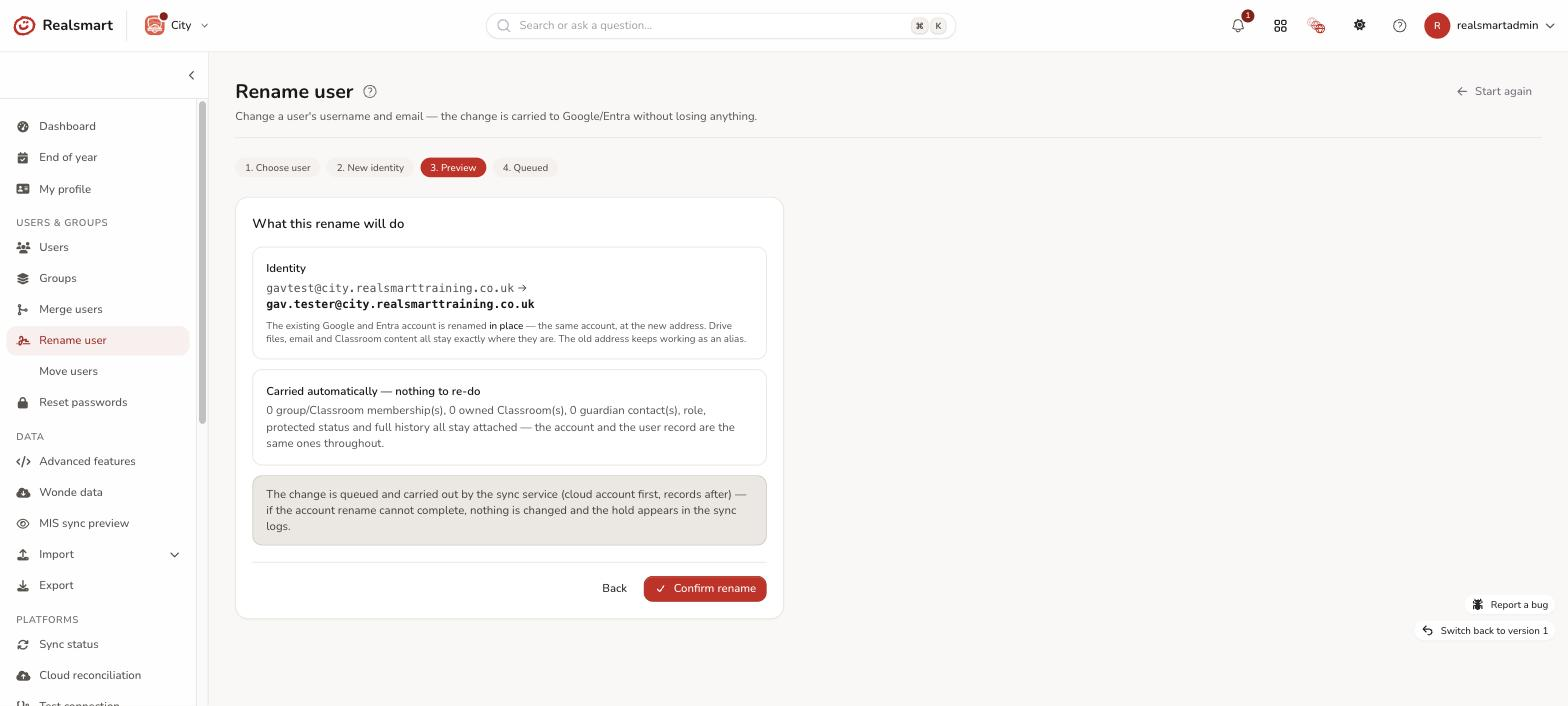
Step 5: The change is carried out by the sync service
The page changes to Rename queued. The rename is queued and usually completes within a few minutes, account first, records after: the Google/Entra account is renamed first, and only once that succeeds are the records updated. If the account rename can't complete (for example the address was taken in Google in the meantime), nothing is changed anywhere — the hold and its reason are recorded against the user in Logs, and you can run the wizard again once resolved. A rename isn't held by the summer cloud sync pause. To rename someone else, select Rename another user.
The user's Logs tab shows the outcome: Identity change complete: … when it worked, or Identity change HELD for … followed by the reason when it didn't.
Troubleshooting
- "Enter the new username." or "Usernames cannot contain spaces." — the box is empty, or the name has a space in it.
- "That is already this user's username." — the new name is the same as the old one.
- "The username "…" is already taken at …" or "The email address … is already in use at … (the schools share a sign-in domain)" — someone at the school (or at another school sharing the same email domain) already has it, including suspended users. Pick a different one.
- "…already belongs to another Google account", "…is an extra address (an alias)…", "…is the email address of the Google group…" or the Microsoft 365 equivalents — the name is free in realsmart but taken in the cloud. The message names what holds it; free it in the Google Admin console or Microsoft 365 admin centre, then try again. If it says "We couldn't check whether … is free in Google just now, so the username has not been changed. Please try again in a minute." (or the Microsoft 365 equivalent), Google or Microsoft didn't answer — try again in a minute.
- "The rename was held" — open the user's Logs tab; the hold reason follows Identity change HELD for … (for example "the username … has been taken at the destination school since the wizard ran", "… is already in use in Google: …", or "the user changed since the wizard ran — re-run the wizard"). Fix the cause and run the wizard again. Google account rename failed: … means Google refused the rename. If the person has no Google account yet (a new starter the sync hasn't created yet) there is nothing to rename and you get this too: change their username on their edit page instead, which saves straight away when there's no cloud account.
- "Microsoft 365 user name NOT changed: this account is synced from on-premises Active Directory, so its user name has to change there" — Realsmart (and Google, if you use it) were renamed, but the Microsoft 365 sign-in name of an account that comes from your own Active Directory can only be changed in Active Directory.
- "Rename succeeded but the old address … could not be freed automatically" — the account is renamed, but the old address is still an alias on it. Delete the alias in the Google Admin console if you need to reuse that address.
- "Entra UPN rename FAILED (Google already renamed — fix Entra manually)" — Google and Realsmart are renamed but the Microsoft 365 name isn't. Contact Realsmart support.
- "Mail to the old address bounces" — the rename was made with Free it chosen. There's no way to retro-fit the alias from ADAdmin; add the old address as an alias in the Google Admin console if needed.
Related
Did this work for you?
If a step looked different on your site, tell us and we'll update the screenshots.
Thanks for your feedback.