End-of-term tidy-up
The tidy-up helps you review the accounts and groups that MIS sync will not remove on its own — the ones marked as protected — so you can decide what to keep and what to remove at the end of the year.
You need the Manage users & groups permission to open it and the Delete users & groups permission to delete anything; without the second you can look and review but a delete is refused. It works on one school at a time, so in MAT mode it asks you to switch to a school first ("Switch to a school to run its end-of-term tidy-up.").
Why these need a human
Protected users and groups are deliberately excluded from automatic removal, so a sync can never delete something important by accident. That safety means they can build up over time — the tidy-up is where you review them intentionally.
Using the tidy-up
From the End of year page, choose Start tidy-up (in the End-of-term tidy-up card). The page is titled End-of-term tidy-up, with an End of year button to go back.
It has two tabs, Protected users and Protected groups; it reopens on the one you used last, and the tab is in the page address (?tab=users or ?tab=groups), so a link you copy opens on it. Use the Search… box to find a row by name or username. On the users tab, a drop-down narrows the list to people who haven't signed in lately: Any last login, No login in 6 months, No login in 12 months or Never logged in.
- Protected users — the columns are Name (opens their profile in a new tab), Username, Role, Last login and Action. A user is listed if they're individually protected or their status is Protected, and not already deleted.
- Protected groups — Group (with a small classroom icon if it has a linked Google Classroom) and Action.
For each row you can Review it or Delete it. Keeping something needs no action: leave it alone and it stays. Deleting is confirmation-gated and attributed to you.
Review before you delete
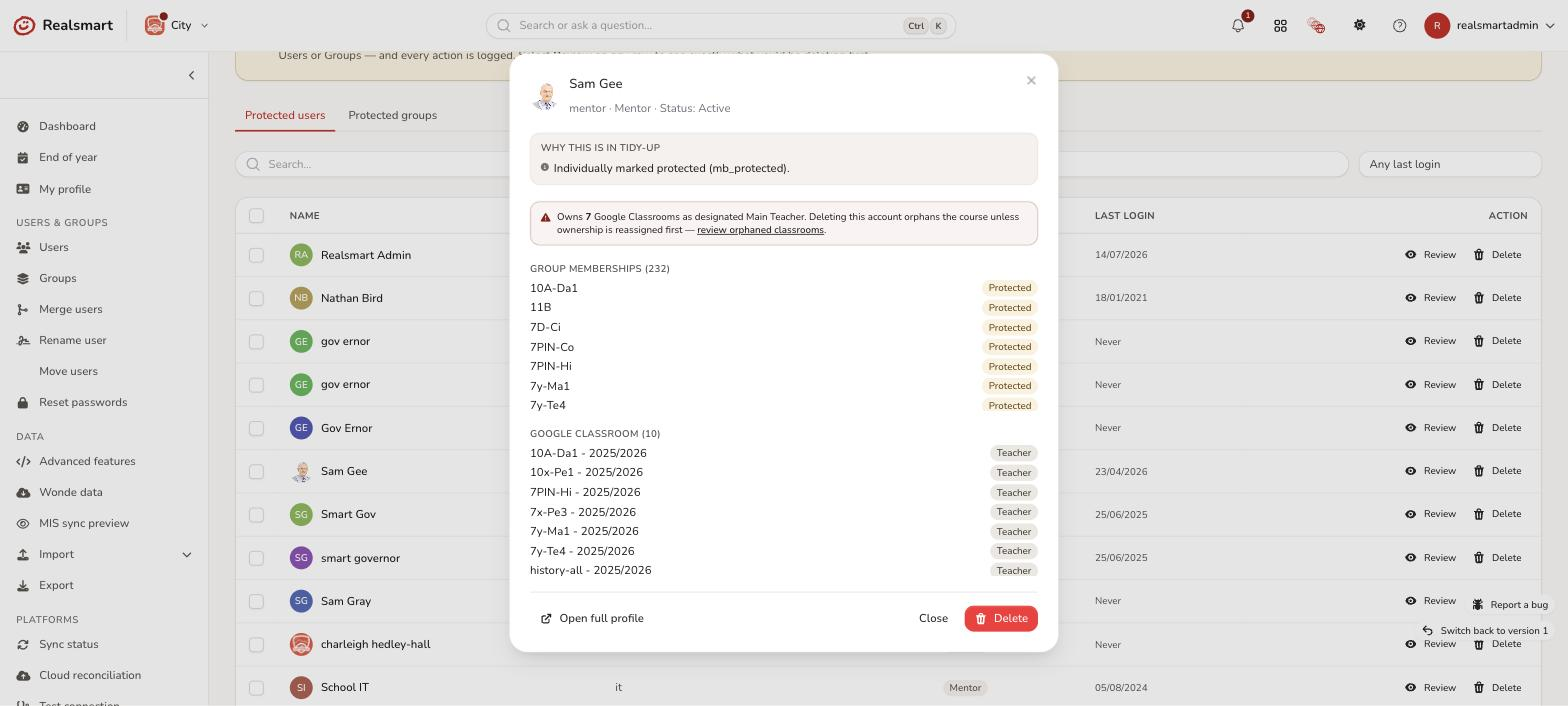
Select Review on any row before deleting it — this is read-only and changes nothing. For a user, you'll see why they qualified for tidy-up (individually protected, status Protected), their group memberships, their synced Google Classroom courses, and — critically — whether they're the designated owner of any Classroom. Deleting a Classroom owner without reassigning it first orphans the course, so this is flagged prominently ("Owns N Google Classrooms as designated Main Teacher…") with a link to review orphaned classrooms. Open full profile opens the user's page in a new tab. For a group, you'll see why it qualified (an auto-managed "teachers of" group, currently empty, every membership itself protected, or "preserve when empty" enabled), its members, and — if it has a linked Classroom — the same ownership diagnostics shown on the group's Classroom tab. Open full group opens it in a new tab.
Selecting and deleting in bulk
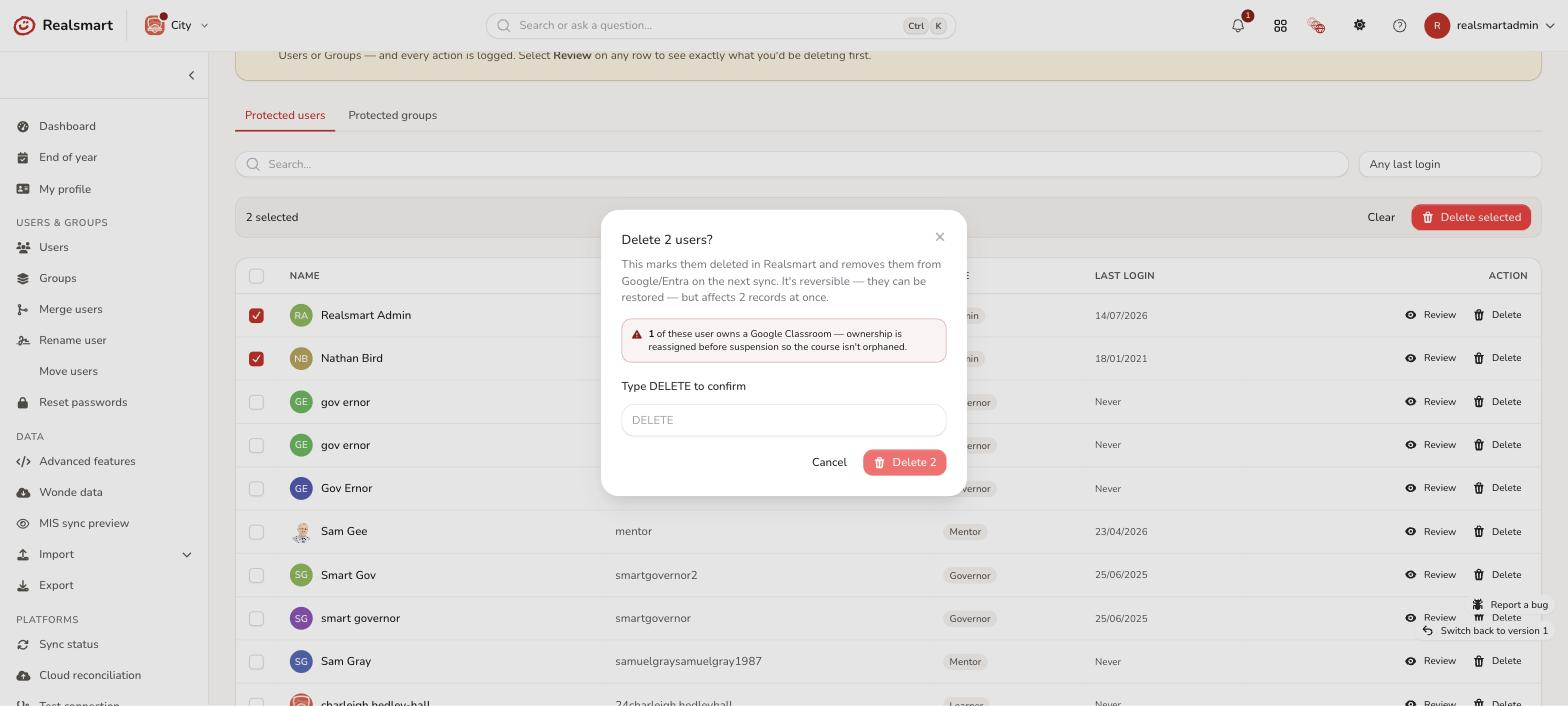
Tick the header checkbox to select every row on the current page; if there are more matching rows across other pages, you're offered "Select all N matching" to extend the selection, or Clear selection to start over. A bar shows "N selected" with Clear and Delete selected, and you can still tick or untick individual rows afterwards. Changing the tab, search or last-login filter clears the selection.
The delete confirmation is titled "Delete 12 users?" (or groups) and requires typing DELETE to proceed; if you press the button without it you see "Type DELETE to confirm before deleting." If any selected users own a Google Classroom (or selected groups have one linked), the confirmation warns you how many, so a bulk delete never silently orphans a course. For a user who owns a classroom, ownership is reassigned before their account is suspended so the course isn't orphaned.
What Delete really does
Delete marks the user or group as Deleted in Realsmart, and every action is logged. In practice:
- Users are removed for good by the weekday clean-up at 20:00 (Monday to Friday), which also suspends their Google account. You can restore a deleted user from Users only until then, so treat a delete as final.
- Groups stay restorable for your school's retention period (90 days unless your school has a different one) before they're removed for good. Deleting a group doesn't remove its Google or Entra group.
- While your school is frozen, the clean-up waits. A user deleted during the freeze can still be restored, and the first weekday clean-up after sync resumes suspends their Google account and removes them.
After a single delete you see "{name} deleted. You can restore them from Users until the clean-up at 20:00 tonight." (evenings and weekends name the next weekday instead; while frozen it reads "…until the 20:00 clean-up on the first weekday after cloud sync resumes on 1 September."). After a bulk delete the message gives the count ("12 users deleted. You can restore them from Users …"), and says if some rows were skipped because they were no longer eligible. If nothing could be deleted you see "Nothing was deleted — that user is no longer eligible (already deleted or outside this school)."
When to run it
The natural time is at the end of the year, before your freeze date, alongside setting your resume date. You can review at any point. It's per-school and admin-only; nothing is removed automatically.
Was this guide helpful?
We read every response — it decides what we rewrite next.
Thanks for your feedback.