Resuming sync for the new year
After the summer freeze, sync turns back on automatically — you don't need to run anything.
How it resumes
- If you set a resume date, sync resumes on that date.
- If you don't, it resumes on the 1 September default.
Either way, when the resume date is reached an automated task rolls your window forward by a year, so a school is never left frozen into a new term. It runs every morning at 03:30. The new window opens on the resume date (the date the task acted on) and closes a year after your old final date, and if you had set a resume date, that date moves forward a year too so you don't need to set it again. Everything then reconciles to your latest MIS data, applying the changes that accumulated over the summer as this year's provisioning.
That roll is also what moves your academic year on. Usernames that include a year number take it from the window's closing date, so from the moment you resume, new accounts are built with the new year's number — at the same time as the new year's MIS data starts arriving, not on a fixed calendar date. A school resuming early in June or July gets the new number then; a school still frozen in August keeps the old one until it resumes. See The provisioning window and the freeze.
At the same moment, any Google Classroom course still linked from last year is dealt with before the first sync of the new year, so no course crosses the boundary connected to a group: courses set to stay active are disconnected (they stay live at Google, and the group gets a fresh classroom), and anything still due to be archived is archived. See End of term Classroom options. This is skipped for a school whose Google sync is off or in preview mode.
Leavers are suspended when sync resumes
Over the summer nobody new is marked for suspension, because no MIS imports run. That changes on your resume date. The window rolls forward at 03:30, and the first MIS import after that marks everyone who is no longer in your MIS for suspension. That's the 05:00 import that day, or the next weekday's if the resume date falls at a weekend. Everyone it marks, including this year's Year 11 and Year 13 leavers, is suspended at the weekday 15:00 run once 24 hours have passed, and their Google and Microsoft accounts are suspended at the next platform sync.
Before it suspends anyone, Realsmart checks with your MIS that the person really has gone. If your MIS can't be reached that day, nobody is suspended on the strength of a failed check: they stay pending and it tries again the next weekday.
If leavers need their accounts after that, for results day if you resume before it, UCAS or clearing, turn Smartsync off for them before your resume date. See Keep Year 11 and Year 13 leavers' accounts active, and What happens to a leaver's account? for the full journey.
For what else arrives once sync resumes, and when, see It's September — why aren't new users, classes, Classrooms or timetables showing yet?.
Setting a resume date
On the End of year page, in the Automatic resume area of the provisioning window card:
- Pick a date in the Resume date box and choose Set resume date (the button reads Update resume date once one is saved). The timeline and the plain-English summaries update to show the new date, and a message confirms: "Resume date set — sync will resume automatically on …".
- To go back to the default, choose Clear (use 1st Sept default) and confirm ("Clear the resume date? Sync will then roll forward on 1st September by default."). A message confirms: "Resume date cleared — sync will roll forward by a year on 1st September."
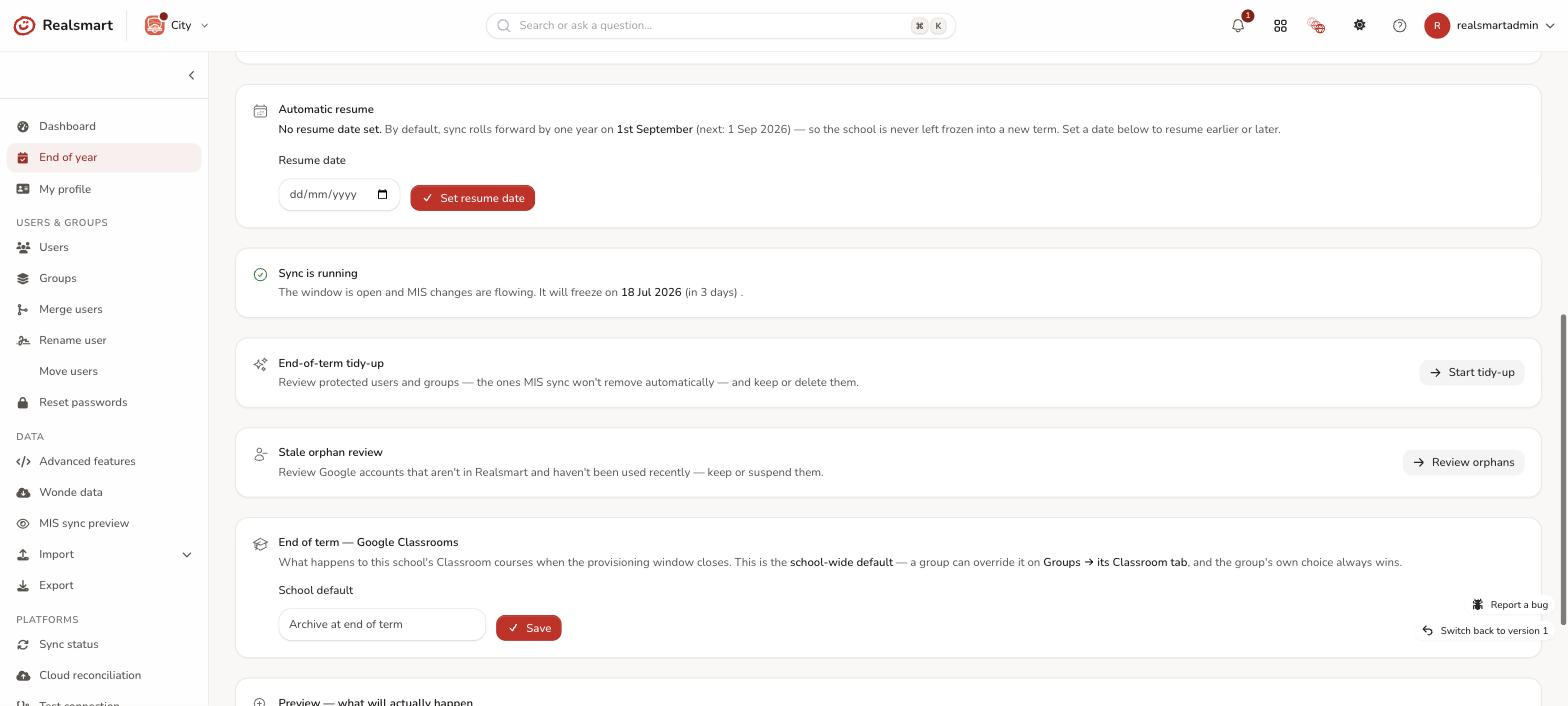
The resume date must be in the future ("The resume date must be in the future."). You need Run syncs & provisioning to set or clear it, and every change is logged. If the card says No resume date set, the default applies, and it shows the date it will use next.
Resume early with Resume for the new year
You don't have to wait for the resume date. While your school is frozen, the End of year page shows a Sync is frozen for the summer card with a Resume for the new year button.
- Select Resume for the new year.
- In the Resume sync for the new year box, check the two dates. They start filled in with the next 1 September as Window opens (first provision date) and the following 31 July as Window closes (final provision date). The closing date must be after the opening date.
- Select Resume sync.
Realsmart saves the new window, records who resumed it, and queues a full sync straight away so the summer's accumulated MIS changes are applied as this year's provisioning. A message says "Sync resumed — reconciling to the latest MIS data now. Track it in Logs." Leavers then follow the same path as for an automatic resume, above. You need Run syncs & provisioning for this button.
Resuming early is a decision, not a preview: new accounts are built with the new academic year from that moment, and leavers are marked at the next MIS import. Think about your leavers first.
If you had set a resume date, resuming early moves it on to the same day next year, just as the automatic resume does, so next year's freeze still ends on your chosen day. Change or clear it under Automatic resume if you want a different one.
Do I need to do anything?
No — resuming is automatic. Setting a resume date only changes when it happens. The one thing to decide beforehand is whether any leavers need to keep their accounts (see above).
If a school is somehow still frozen after its resume date, a background check records an error in your Logs: "Sync still FROZEN past its resume trigger (…); resume overdue. Final provision date: …". If you see that, select Resume for the new year on the End of year page, or contact Realsmart support, so a missed resume can't carry into term.
Was this guide helpful?
We read every response — it decides what we rewrite next.
Thanks for your feedback.