All guides / Content-publishing
Content shortcodes
Overview
Shortcodes are short codes in square brackets, such as [sa_accordion], that you type into a page or post. When someone views the page, the website swaps each shortcode for the finished content — an accordion, a set of tabs, a carousel of news and so on.
Every shortcode in this guide is built into every school website. There is nothing to switch on, and anyone who can edit a page can use them. A few, marked below, work only on sites that were moved over from the previous version of the Realsmart website platform, because they read content that came across with the move.
Most shortcodes come in pairs: an outer shortcode that wraps one or more inner ones, each with a closing tag such as [/sa_accordion]. Attributes go inside the opening tag, as name="value". Use straight quotes ("), not curly ones.
Getting set up
Step 1: Open the page for editing
Go to Pages (or Posts), then open the page you want to add the content to.
Step 2: Type the shortcode where you want the content
Type or paste the shortcode into the editor at the point where the content should appear. It works in either the Visual or the Code tab. In the Visual tab the shortcode stays as plain text while you edit — that is expected.
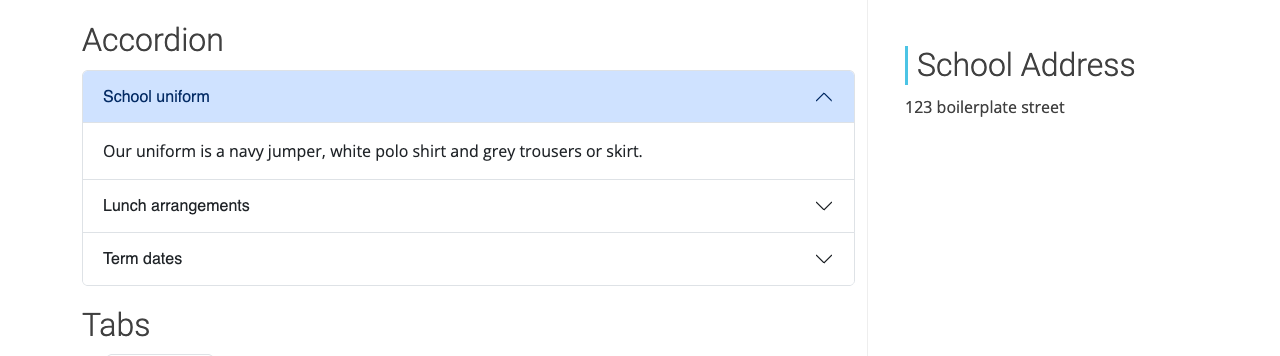
For example, this makes a two-panel accordion:
[sa_accordion]
[sa_accordion_tab title="School uniform" active="true"]Our uniform is a navy jumper and white polo shirt.[/sa_accordion_tab]
[sa_accordion_tab title="Lunch arrangements"]Hot lunches are served daily in the hall.[/sa_accordion_tab]
[/sa_accordion]
Step 3: Update the page and view it
Click Update (or Publish), then view the page. The shortcode is replaced by the finished content.
Layout shortcodes
Accordion — [sa_accordion]
A stack of panels, each with a title bar that opens and closes it. Opening one panel closes the others.
Wrap one [sa_accordion_tab] per panel inside [sa_accordion].
| Attribute | Used on | What it does | Default |
|---|---|---|---|
title |
[sa_accordion_tab] |
The text on the panel's title bar | Empty |
active |
[sa_accordion_tab] |
true makes this panel start open |
All panels start closed |
[sa_accordion]
[sa_accordion_tab title="Term dates" active="true"]Autumn term starts on Wednesday 3 September.[/sa_accordion_tab]
[sa_accordion_tab title="Uniform"]Navy jumper, white polo shirt.[/sa_accordion_tab]
[/sa_accordion]
Tabs — [sa_tabs]
A row of tabs; clicking a tab shows its content underneath.
Wrap one [sa_tab] per tab inside [sa_tabs]. Each tab needs its own id, and the tab that should show first needs active="true". You only type [sa_tab] — the website turns each one into the tab button ([sa_tab_header]) and the tab content ([sa_tab_content]) for you, so you never need to type those two yourself.
| Attribute | Used on | What it does | Default |
|---|---|---|---|
id |
[sa_tab] |
A short name for the tab, different for every tab on the page, with no spaces (for example year-1) |
Empty — required |
title |
[sa_tab] |
The text on the tab button | Empty |
active |
[sa_tab] |
true shows this tab first |
No tab is shown until one is clicked |
[sa_tabs]
[sa_tab id="reception" title="Reception" active="true"]Reception children learn through play.[/sa_tab]
[sa_tab id="year-1" title="Year 1"]Year 1 builds on phonics and early number work.[/sa_tab]
[/sa_tabs]

Grid and columns — [sa_grid] and [sa_column]
Puts content side by side in columns. The page width is divided into 12 equal parts; each column says how many of those parts it takes up. Columns can be a different width on phones, tablets and desktops, so they stack on small screens and sit side by side on larger ones.
| Attribute | Used on | What it does | Default |
|---|---|---|---|
size |
[sa_column] |
Width out of 12 on every screen size, including phones. Always set this — 12 means full width |
None — required |
medium |
[sa_column] |
Width out of 12 from tablet width (768 pixels) upwards | Uses size |
large |
[sa_column] |
Width out of 12 from desktop width (992 pixels) upwards | Uses medium, or size |
class |
both | Extra CSS class names, for your own styling | Empty |
id |
both | An id for the grid or column, for your own styling or links | Empty |
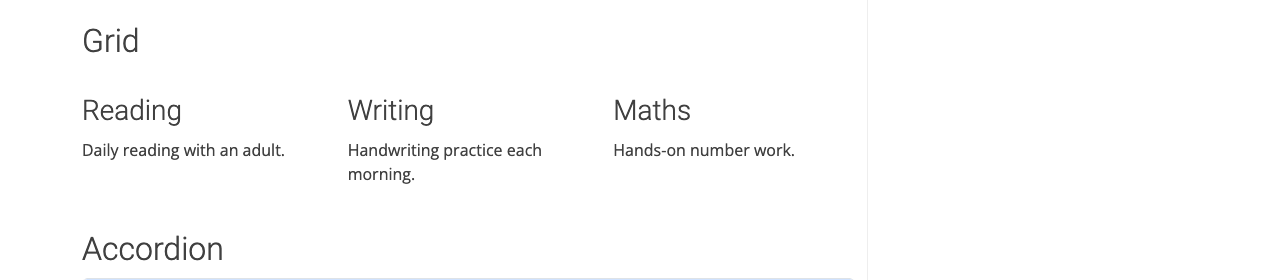
This gives three columns on tablets and desktops, stacked on phones:
[sa_grid]
[sa_column size="12" medium="4"]<h3>Reading</h3>Daily reading with an adult.[/sa_column]
[sa_column size="12" medium="4"]<h3>Writing</h3>Handwriting practice each morning.[/sa_column]
[sa_column size="12" medium="4"]<h3>Maths</h3>Hands-on number work.[/sa_column]
[/sa_grid]
Coloured message box — [sa_alert]
A coloured box around a short message, for example a reminder in the middle of a page.
| Attribute | What it does | Default |
|---|---|---|
type |
The colour: info (blue), success (green), warning (yellow) or danger (red) |
info |
[sa_alert type="warning"]Please bring a packed lunch on the trip.[/sa_alert]
This is a box inside one page. For a message across the whole website, use Smart Alert.
Front-page sections — [front-page-section]
A full-width band with its own background colour or image, usually used to build up a home page in stripes. The content inside is kept to the normal page width unless you set fluid="true".
| Attribute | What it does | Default |
|---|---|---|
bg_color |
Background colour, for example #F2F2F2 |
#FFF (white) |
bg_image |
Web address of a background image | None |
bg_fixed |
Any value keeps the background image still while the page scrolls. Leave the attribute out to turn this off — even bg_fixed="false" turns it on |
Off |
padding |
Space above and below the content, in pixels | 50 |
fluid |
true lets the content run the full width of the screen |
Normal page width |
id |
An id for the section, for your own styling or links | Empty |
[front-page-section bg_color="#F2F2F2" padding="40"]Welcome to Example Primary School.[/front-page-section]
Split sections — [front-page-split]
A band split into side-by-side panels, each with its own background. Put two or more [front-page-split-section] shortcodes inside [front-page-split]. On phones the panels stack.
| Attribute | Used on | What it does | Default |
|---|---|---|---|
bg_color |
both | Background colour | #FFF (white) |
bg_image |
both | Web address of a background image | None |
bg_fixed |
both | Any value keeps the background image still while the page scrolls | Off |
id |
both | An id, for your own styling or links | Empty |
padding |
[front-page-split-section] |
Space above and below the panel's content, in pixels | 50 |
size_tablet |
[front-page-split-section] |
Width out of 12 from tablet width (768 pixels) | 6 (half) |
size_desktop |
[front-page-split-section] |
Width out of 12 from desktop width (992 pixels) | 6 (half) |
[front-page-split]
[front-page-split-section bg_color="#1D3557"]Our vision[/front-page-split-section]
[front-page-split-section bg_color="#E63946"]Our values[/front-page-split-section]
[/front-page-split]
Welcome panel — [welcome]
A welcome block for a home page: a heading, your text, a button, and an optional picture beside them. The heading is shown as the page's main heading size.
| Attribute | What it does | Default |
|---|---|---|
title |
The heading | Welcome |
image |
Web address of a picture shown alongside | No picture |
link |
Where the button goes | # (nowhere) |
link_text |
The button text | Read more |
[welcome title="Welcome to Example Primary School" link="/about-us/" link_text="About our school"]We are a friendly village school.[/welcome]
News and post shortcodes
Latest news carousel — [latest-news]
A sliding carousel of the 10 most recent posts in one category, each with its featured image, date, title and the first 12 words. On screens narrower than 992 pixels it shows one post at a time.
| Attribute | What it does | Default |
|---|---|---|
category |
The category's slug (the web-address version of its name) | front-page-news |
per_slide |
How many posts show at once on larger screens | 3 |
default_image |
Picture used for posts with no featured image | A standard placeholder image |
[latest-news category="school-news" per_slide="3"]
If the category has no posts, visitors see "Not Found! Sorry, there are no posts in the '…' category."
News blocks — [news-blocks]
The latest posts from a category as a list (picture, title, date, excerpt and a Read more button) or as a grid of picture tiles.
| Attribute | What it does | Default |
|---|---|---|
category |
The category's slug | Empty |
post_num |
How many posts to show | 5 |
style |
list or grid |
list |
paginate |
true adds Prev and Next buttons |
Off |
default_color |
Background colour behind posts with no featured image | #E2E5E8 |
default_image |
Picture used for posts with no featured image | None |
hi_res |
true uses the full-size featured image instead of the medium size |
Off |
[news-blocks category="newsletters" post_num="4" style="grid"]
The colour attribute is spelt default_color, without a "u".
Posts slider — [posts-slider]
A carousel of posts with previous and next arrows, each post showing its featured image, title and the first 12 words.
| Attribute | What it does | Default |
|---|---|---|
category |
The category's slug. Leave it out to include every category | All posts |
posts_per_slide |
How many posts show at once | 3 |
max_posts |
The most posts to include | 12 |
default_image |
Picture used for posts with no featured image | A standard placeholder image |
hover_colour |
Background colour of a post's caption when the mouse is over it, as a hex code such as #1D3557 |
Theme default |
variant |
legacy shows the post date instead of the excerpt, adds dots under the slider and moves a whole slide at a time |
Excerpt style |
posts_to_pull |
Older name for max_posts; still works |
— |
[posts-slider category="events" posts_per_slide="3" max_posts="9"]
If there are no matching posts, visitors see "No posts found".
Post list — [smart-posts]
A list of posts chosen by category, tag, author and so on. [su_posts] is the older name for the same shortcode and still works.
| Attribute | What it does | Default |
|---|---|---|
template |
The layout: templates/default-loop.php (thumbnail, title, date and excerpt), templates/teaser-loop.php (thumbnail and title), templates/list-loop.php (a bulleted list of titles) or templates/single-post.php (the whole of the first post) |
templates/default-loop.php |
posts_per_page |
How many posts to show | Your site's Blog pages show at most setting |
post_type |
The kind of content to list | post |
taxonomy |
What tax_term refers to |
category |
tax_term |
Category slugs or ids, separated by commas. Leave empty for all | Empty |
tax_operator |
IN (in any of them), NOT IN (in none of them) or AND (in all of them) |
IN |
tag |
A tag slug | Empty |
author |
An author's user id | Empty |
id |
Particular post ids, separated by commas | Empty |
offset |
How many posts to skip from the start | 0 |
order |
DESC (newest first) or ASC |
DESC |
orderby |
What to sort by, for example date or title |
date |
post_parent |
Only posts under this parent id; current means the page the shortcode is on |
Empty |
post_status |
Which statuses to include | publish |
ignore_sticky_posts |
yes stops sticky posts jumping to the top |
no |
class / class_single |
Extra CSS class for the list / for each item | Empty |
[smart-posts tax_term="newsletters" posts_per_page="5"]
If nothing matches, visitors see "Posts not found". Posts a visitor is not allowed to read, such as private or password-protected ones, are left out.
Child and sibling page tiles — [rs_child_pages_dashboard]
A grid of tiles, one per page, each showing the page's featured image (or a plain colour) with its title on top.
[rs_child_pages_dashboard]shows the pages directly underneath the current page (or undertarget_page).[rs_sibling_pages_dashboard]shows the pages that share the current page's parent, including the current page. On a top-level page, that means every top-level page on the site.
| Attribute | What it does | Default |
|---|---|---|
default_color |
Tile colour for pages with no featured image | #DDD (grey) |
default_image |
Picture for pages with no featured image | None |
image_size |
Which size of the featured image to use, for example medium or large |
medium |
order_by |
menu_order (the page's Order number), title or date |
menu_order |
order |
ASC or DESC |
ASC |
target_page |
Child tiles only: the id of another page whose children to show | The current page |
[rs_child_pages_dashboard default_color="#1D3557" order_by="title"]
If there are no child pages, nothing is shown.
Quotes and embeds
Rotating quotes — [quotes] and [quote]
A fading carousel of quotations, for example comments from parents, showing one at a time and moving on every five seconds, with dots to jump between them.
| Attribute | Used on | What it does | Default |
|---|---|---|---|
author |
[quote] |
Who said it | Not shown |
role |
[quote] |
Their role, shown under the name | Not shown |
[quotes]
[quote author="A parent" role="Year 2"]My child loves coming to school.[/quote]
[quote author="A governor"]A warm and welcoming school.[/quote]
[/quotes]
Google Sheet table — [smart-docs]
Shows a Google Sheet as a table on the page, for example a governors list or an exam timetable. Edits to the sheet appear on the website within about five minutes.
The sheet must be viewable by anyone with the link. If the website cannot read it, visitors see a View the spreadsheet link instead of the table.
| Attribute | What it does | Default |
|---|---|---|
key |
The sheet's web address, as it appears on docs.google.com. Addresses on other websites are ignored and nothing is shown |
Required |
gid |
Which tab of the sheet to show, if it is not already in the address after #gid= |
The first tab |
header_rows |
How many rows at the top are headings | 1 |
footer_rows |
How many rows at the bottom form the table footer | 0 |
header_cols |
How many columns at the left are headings | 0 |
strip |
How many rows to throw away from the top first | 0 |
linkify |
no stops web addresses in cells becoming links |
yes |
cache |
How long, in seconds, the website keeps its copy before checking the sheet again. 0 checks every time |
300 |
class, title, summary, style |
Extra CSS class, title, summary and inline style for the table | Empty |
[smart-docs key="https://docs.google.com/spreadsheets/d/…/edit#gid=0"]
Icon lists, boxes, spoilers, columns and videos — [smart-list] and friends
These shortcodes each work under two names: a smart- name and an older su_ name, so [smart-list] and [su_list] do the same thing. Pages that already contain the su_ names need no changes.
| Shortcode | What it shows | Attributes (default) |
|---|---|---|
[smart-list] / [su_list] |
A bulleted list with an icon in front of each item. Put a normal bulleted list inside it | icon (star — the only icon name that shows a symbol — or the web address/path of an image; anything that is not a web address and does not end in a picture file type such as .png is treated as an icon name), icon_color (#333), indent in pixels (0), class |
[smart-box] / [su_box] |
A box with a coloured title bar | title (This is box title), box_color (#333333), title_color (#FFFFFF), radius corner rounding in pixels (3), class, id |
[smart-quote] / [su_quote] |
A pull quote | cite (who said it), url (makes cite a link), class |
[smart-spoiler] / [su_spoiler] |
A section with a title that opens and closes when clicked | title (Spoiler title), open (no), anchor (an id so you can link to it), class |
[smart-accordion] / [su_accordion] |
A group of spoilers. Put [smart-spoiler] shortcodes inside; each opens independently |
class |
[smart-row] / [su_row] |
A row of columns. Put [smart-column] shortcodes inside |
class |
[smart-column] / [su_column] |
One column | size as a fraction — 1/2, 1/3, 2/3, 1/4, 3/4, 1/5, 2/5, 3/5, 4/5, 1/6, 5/6 or 1/1 (1/2), center (no), class |
[smart-youtube] / [su_youtube] |
A YouTube video | url (required), width (600), height (400), responsive (yes), autoplay (no), mute (no), loop (no), rel (yes), fs full-screen button (yes), modestbranding (no), controls (yes), start in seconds, title, class |
[smart-youtube-advanced] / [su_youtube_advanced] |
The same YouTube video, with the same attributes | As [smart-youtube] |
[smart-vimeo] / [su_vimeo] |
A Vimeo video | url (required), width (600), height (400), responsive (yes), autoplay (no), mute (no), loop (no), title, class |
[smart-box title="Before and after school club" box_color="#1D3557"]The club runs from 7.45am to 6pm.[/smart-box]
[smart-youtube url="https://www.youtube.com/watch?v=XXXXXXXXXXX" title="Our school tour"]
A video shortcode whose url is not a recognisable YouTube or Vimeo address shows nothing. The list icons and the spoiler's plus and minus signs use styling that sites moved over from the previous platform already carry; on other sites the lists and spoilers still work but may show without those icons.
Shortcodes carried over from previous sites
These exist so that pages brought across from the previous platform keep working. You can keep using them on those pages, but for new content the shortcodes above, or Google Drive tools, are the better choice.
File tables — [mediacat]
Only on sites moved over from the previous platform. Shows a table of the files in one or more media categories, with the columns Title, File Name, Caption and Date. Each file opens in a new tab.
| Attribute | What it does | Default |
|---|---|---|
cats |
Media category names, separated by commas. They must match the category's name exactly, including capitals | Required |
orderby |
title, date or menu_order |
menu_order |
order |
ASC or DESC |
ASC |
limit |
The most files to show; -1 shows them all |
-1 |
operator |
With several categories: IN (in any), AND (in all) or NOT IN |
IN |
[mediacat cats="Newsletters" orderby="date" order="DESC"]
To add a file to a table, put it in the matching category: categories are managed under Media → Media Categories, and you can tick a file's category when you edit it in the Media Library. If no category matches the name, the table shows its headings with no rows.
Embedded documents — [gview]
Embeds a PDF, Word, PowerPoint or Excel file in the page using Google's document viewer, with a download link underneath such as "Download (PDF, 94KB)".
| Attribute | What it does | Default |
|---|---|---|
file |
The document's web address | Required |
width |
Width of the viewer | 100% |
height |
Height of the viewer | 500px |
save |
1 shows the download link, 0 hides it, users shows it only to people who are signed in |
Shown |
[gview file="https://www.example.org/files/newsletter.pdf" height="750"]
Files over the size limit (normally 12 MB) are not embedded; only the download link is shown. If the file cannot be found, the page shows a message beginning "GDE Error:" in place of the viewer.
Google Calendar — [gcal]
Shows a Google Calendar that was set up on your previous site, identified by its id (for example [gcal id="4955"]). Depending on what your site has installed, it appears as a calendar, as Google's own embedded calendar, or as a View the school calendar link. If the calendar behind the id did not come across, nothing is shown.
For a new calendar, use Smart WP Calendar or Smart Calendar (Microsoft) instead.
Flipbooks — [3d-flip-book]
Only on sites moved over from the previous platform. Shows a PDF as a page-turning book, or, where the flipbook viewer is not available, as a plain link to the PDF.
| Attribute | What it does | Default |
|---|---|---|
id |
The flipbook from the previous site | — |
pdf |
A PDF's web address, used instead of id |
Empty |
mode |
fullscreen (the book in the page), thumbnail-lightbox (a cover that opens the book) or link-lightbox (a text link that opens the book) |
fullscreen |
title |
Any value other than false uses the book's title as the link text |
false |
page-n |
The page number the book opens at | First page |
Section Menu (Child Page Navigation)
Only on some sites moved over from the previous platform. On those sites, any page that has a parent page or child pages shows a Section Menu listing the other pages in the same section, in their Order.
To hide it on one page, tick Hide Child Page Navigation? in the Child Page Navigation box in the page editor's sidebar, then click Update. If you do not see that box, your site does not have the Section Menu.
Troubleshooting
The page shows the shortcode as plain text
Why it happens: The shortcode's name is misspelt, or it is one that only works on sites moved over from the previous platform ([mediacat], [3d-flip-book]). A shortcode that no part of the website recognises is left on the page as it was typed.
How to fix it: Check the spelling against this guide. For the carried-over shortcodes, use the modern alternative instead.
Tabs show no content, or clicking a tab does nothing
Why it happens: Each [sa_tab] needs its own id, different from every other tab on the page, and one tab needs active="true" to show first.
How to fix it: Give every tab a unique id with no spaces, and add active="true" to the first one.
Columns stack on top of each other on a desktop
Why it happens: size sets the width on every screen, including desktops. size="12" on its own makes every column full width.
How to fix it: Keep size="12" for phones and add medium (for example medium="6" for halves or medium="4" for thirds).
The news carousel says "Not Found!"
Why it happens: [latest-news] uses the category's slug, not its display name, and looks in front-page-news if you do not give one.
How to fix it: Find the slug under Posts → Categories and use it in category.
The Google Sheet shows as a "View the spreadsheet" link
Why it happens: The website could not read the sheet — usually because it is not shared so that anyone with the link can view it.
How to fix it: Change the sheet's sharing in Google so anyone with the link can view it. The table appears within a few minutes.
The Section Menu came back after I hid it
Why it happens: Saving the page from Quick Edit on the Pages list clears the Hide Child Page Navigation? tick.
How to fix it: Open the page in the full editor, tick the box again and click Update.
Did this work for you?
If a step looked different on your site, tell us and we'll update the screenshots.
Thanks for your feedback.