All guides / Content-publishing
Google Drive Integration
Overview
These tools help schools that use Google Workspace put Google Drive files on their website without downloading and re-uploading them. There are three:
- G Drive Selector — a Google button in the page and post editor's toolbar that opens a Google Drive file picker.
- Smart G Drive Selector Block — the same idea as a block, for sites that use the block editor.
- Smart Files — the
[smart-files]shortcode, which shows every file in a shared Google Drive folder as a searchable, sortable list, or a folder of photos as a gallery that visitors click through in a lightbox.
The two pickers search your own Google Drive, so they only work when you have signed in to the website through your school's Realsmart sign-in. Smart Files does not need that: it reads a folder that is shared publicly.
If your school uses Microsoft 365 instead, see OneDrive settings.
Getting set up
Step 1: Sign in through your school sign-in
Sign in to the website through your school's Realsmart sign-in, rather than with a separate website password. Signing in this way is what lets the picker see your Google Drive.
Step 2: Open the page and switch to the Visual tab
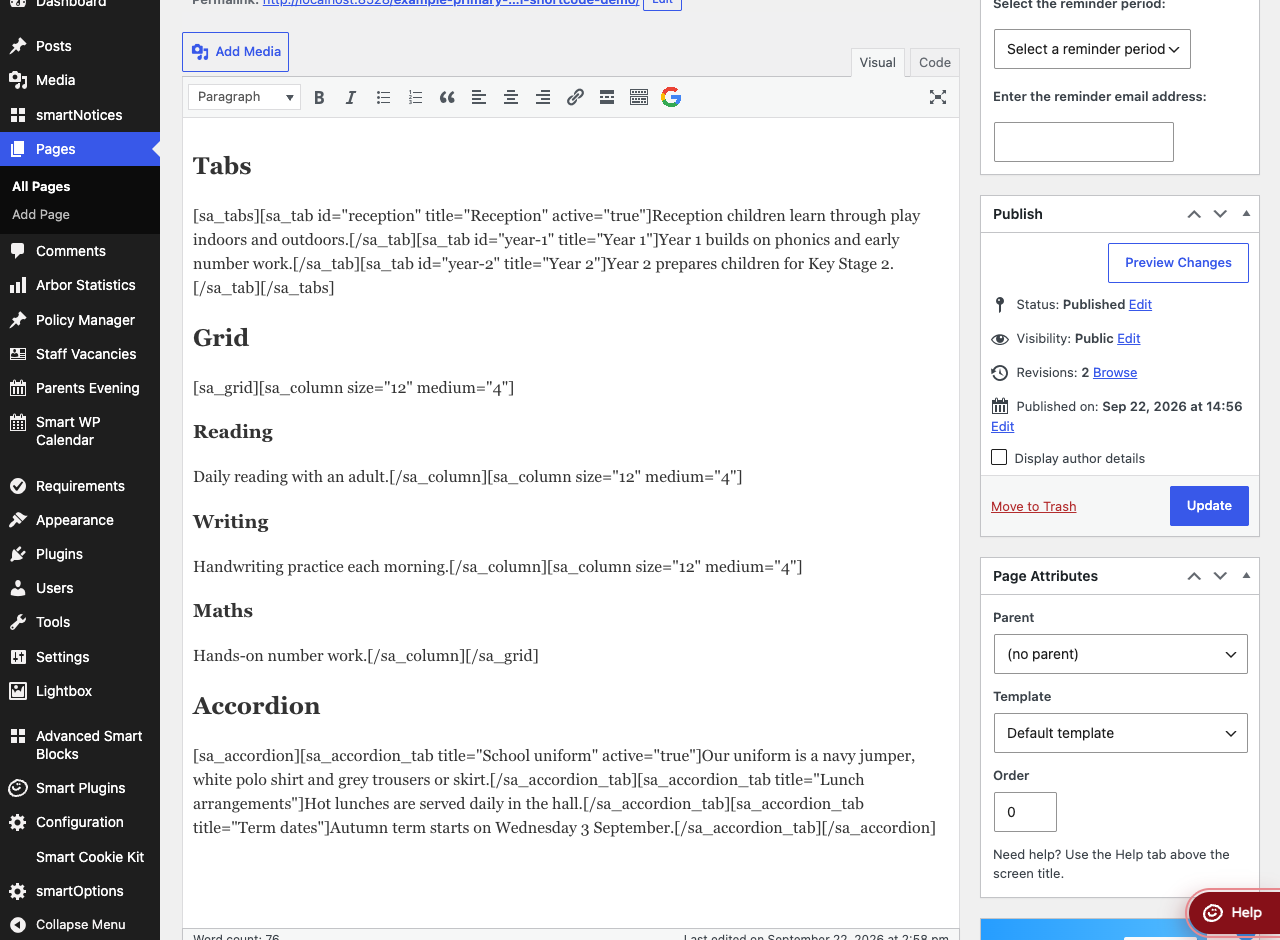
Open the page or post you want to add the file to. The Google Drive button is on the Visual tab's toolbar — it is not shown on the Code tab.
Step 3: Click the Google button
Click the Google "G" button at the end of the toolbar (its tooltip says G Drive Selector). A window titled Please select a Google Drive file opens.
Step 4: Choose the file, then update the page
Find and choose your file in the window. It is inserted into the page where your cursor was. Click Update (or Publish) to save the page.
Visitors can only open the file if its sharing settings in Google Drive allow them to.
Features
Smart G Drive Selector Block
Where to find it: the block editor's block inserter, as Smart G Drive Selector Block (in the Widgets group). It is only available on sites that use the block editor; on sites that use the classic editor, use the toolbar button above instead.
When you add the block, a panel titled Please Select a Google Drive File opens straight away, listing files from your Google Drive. Type into Search for a file... and click Search to narrow the list, and use Prev and Next to page through it. Next to each file:
| Button | What it puts on the page |
|---|---|
| Link File | A link to the file, showing its web address |
| Embed File | The file itself, shown in a frame on the page |
Click Edit on the block to open the panel again and pick a different file. Anyone who can edit posts can use the block's file search.
At the moment the block does not keep the file you pick: it shows in the editor, but once the page is saved, the published page (and the block, when you reopen the page) no longer has it. Until this is fixed, use the toolbar button, or paste the file's sharing link into the page as a normal link.
Smart Files — [smart-files]
Lists the files in a Google Drive folder, each with an icon, its name, type and last-modified date, and a download icon. Visitors can Search By Name, sort by Name, Type or Date added, and move between Pages. Clicking a file opens it in Google Drive in a new tab.
Before you start:
- The folder must be shared in Google Drive so that anyone with the link can view it.
- Google access has to be set up for your website by Realsmart. If a correct, shared folder still shows an empty list, ask Realsmart to check it.
To add it, open the folder in Google Drive and copy the long code at the end of its address, after /folders/. That is the folder ID. Then type the shortcode into your page:
[smart-files folder_id="1AbCdEfGhIjKlMnOpQrStUvWxYz"]
You can also paste the folder's whole sharing link as folder_id — in Google Drive, Share → Copy link:
[smart-files folder_id="https://drive.google.com/drive/folders/1AbCdEfGhIjKlMnOpQrStUvWxYz?usp=sharing"]
Use the whole link for a folder whose link includes resourcekey= — folders first shared before 2021 often do. Google only shows such a folder's files to someone who has that key, so with the bare folder ID the list is empty.
Where to find it: typed into any page or post
| Attribute | What it does | Default |
|---|---|---|
folder_id |
The ID of the Google Drive folder to list, or the folder's whole sharing link | Required |
resource_key |
The folder's resource key (the part after resourcekey= in its link), if you gave a bare folder ID for a folder that has one. Not needed when folder_id is the whole link |
None |
per_page |
How many files show on each page of the list. -1 shows them all on one page |
10 |
sort_by |
The order the files load in: name, modifiedTime, createdTime or recency, optionally followed by desc for reverse order (for example modifiedTime desc). Any other value shows the most recently changed files first |
name |
hide_controls |
true hides the search box, sort buttons and page numbers — useful for short lists |
Controls shown |
display |
list, or gallery to show the folder's photos as tiles that open in a lightbox — see Showing a folder of photos as a gallery |
list |
columns |
Gallery only: how many tiles across, from 1 to 8 | 4 |
shape |
Gallery only: square or landscape crops every tile to that shape; natural shows each photo uncropped, in its own shape |
square |
captions |
Gallery only: yes shows each photo's file name (without .jpg) on its tile and in the lightbox |
off |
Only files directly inside the folder are listed; subfolders and the files within them are not. File sizes are shown where Google provides them (Google Docs, Sheets and Slides have none). Older instructions for this shortcode mention category, ids and get_size attributes; they have no effect.
Showing a folder of photos as a gallery
Add display="gallery" to the shortcode:
[smart-files folder_id="1AbCdEfGhIjKlMnOpQrStUvWxYz" display="gallery"]
The folder's photos appear as a grid of tiles, four across. Clicking a tile opens the photo full screen in a lightbox, with ‹ and › buttons to move to the previous or next photo, a counter such as "3 of 48", and a Download button for the original file. Visitors can also use the left and right arrow keys, or swipe on a phone or tablet. Esc, the × button or a click on the dark background closes it.
To change the layout, add any of these:
[smart-files folder_id="1AbCdEfGhIjKlMnOpQrStUvWxYz" display="gallery" columns="3" shape="natural" captions="yes"]
columnssets how many tiles sit side by side (1 to 8). Tablets show at most three and phones at most two, whatever you set, so the photos stay a sensible size.shape="square"(the default) andshape="landscape"crop every tile to the same shape, giving a tidy grid.shape="natural"keeps each photo's own shape, so portrait photos are not cropped; the tiles then pack into columns of different heights.captions="yes"shows each photo's file name. It is off by default, because cameras and phones name photos like "IMG_4021", which means nothing to a visitor — turn it on only if you have renamed the photos.
The gallery shows small previews from Google rather than the full-size photos, so the page stays quick even for a folder of large phone photos, and iPhone (HEIC) photos display too. The lightbox shows a screen-sized version; the Download button gives the original.
The website keeps each preview for up to an hour, and visitors' browsers for up to another hour. A photo you take out of the folder, or stop sharing, is gone from the website within about two hours. A photo you add appears within about an hour, when the website's saved copy of the page refreshes — see Page cache to clear it sooner.
Anything in the folder that is not a photo — a programme, a consent form — is listed under the gallery. The search box, sort buttons and pages are not shown with a gallery, and per_page and hide_controls have no effect on it. As with the list, folders inside the folder are not shown; give each event its own shortcode instead.
A gallery works well inside an Accordion block, one section per event, so the page does not load every event's photos at once — photos further down the page only load as visitors scroll to them.
The same gallery is available for OneDrive folders: see OneDrive settings.
Troubleshooting
The Google button is missing from the toolbar
Why it happens: You are on the Code tab, or the visual editor is turned off for your account.
How to fix it:
- Click the Visual tab above the editor.
- If there is no Visual tab, go to Users → Profile and untick Disable the visual editor when writing, then click Update Profile.
The file picker is empty or will not load
Why it happens: The picker uses the sign-in details saved when you last signed in through your school's Realsmart sign-in. If you signed in another way, or those details have expired, it cannot reach your Google Drive. In the block, the panel stays on "loading".
How to fix it: Sign out of the website, sign back in through your school sign-in, and try again. If it still does not work, contact Realsmart support.
The file I chose with the block has disappeared
Why it happens: This is the known problem with Smart G Drive Selector Block described above — the chosen file is not saved with the page.
How to fix it: Remove the block and add the file with the toolbar button, or as a normal link, instead.
The Smart Files list is empty
Why it happens: The shortcode has no folder_id, the ID is wrong, the folder is not shared publicly, the folder needs its resource key (its link includes resourcekey=), or Google access has not been set up for your website. Files in subfolders are never listed.
How to fix it:
- Check the shortcode includes
folder_id="…"with the code copied from the folder's address. If the folder's sharing link includesresourcekey=, paste the whole link asfolder_idinstead. - In Google Drive, share the folder so anyone with the link can view it.
- If the list is still empty, contact Realsmart to check the website's Google access.
A gallery tile is blank, or the lightbox says "This photo could not be loaded"
Why it happens: The photo has been deleted or moved since the page was loaded, its own sharing in Google Drive has been restricted so it is no longer public, it was uploaded moments ago and Google has not made a preview of it yet, or Google was briefly unavailable.
How to fix it: Wait a minute and reload the page. If the tile is still blank, check in Google Drive that the photo is still in the folder and that anyone with the link can view it.
The gallery says "No photos found in this folder."
Why it happens: The folder has no photos or other files directly inside it — perhaps the photos are in a folder inside it — or the folder could not be read at all, for the reasons under "The Smart Files list is empty" above.
How to fix it: Point folder_id at the folder that holds the photos themselves, and check it is shared so anyone with the link can view it.
Visitors cannot open a file
Why it happens: The website only links to the file; Google decides who can open it, using the file's own sharing settings.
How to fix it: In Google Drive, share the file (or its folder) so that the people who need it can view it.
Did this work for you?
If a step looked different on your site, tell us and we'll update the screenshots.
Thanks for your feedback.