All guides / Content-publishing
Image Widget
Overview
Image Widget puts one picture into a widget area — a sidebar, the footer or another area your theme provides — and can make it a link. Schools use it for things like an award badge in the footer or a banner in the sidebar that links to a parent survey.
It is built into every school website, so there is nothing to switch on. You add it from Appearance → Widgets, which only administrators can open.
The widget uses the web address of a picture that is already online, such as one in your Media Library. It has no field for alternative text (the description screen readers read out). If the picture carries information visitors need, use WordPress's own Image widget instead, which has one.
Getting set up
Step 1: Copy the picture's web address
Upload the picture to Media if it is not there already. Open it in the Media Library and copy its File URL.
Step 2: Open the Widgets screen
Go to Appearance → Widgets. Under Available Widgets, find Image Widget — described as "Creates an image widget with an optional URL link attached to it." It sits next to WordPress's own Image widget; make sure you pick Image Widget.
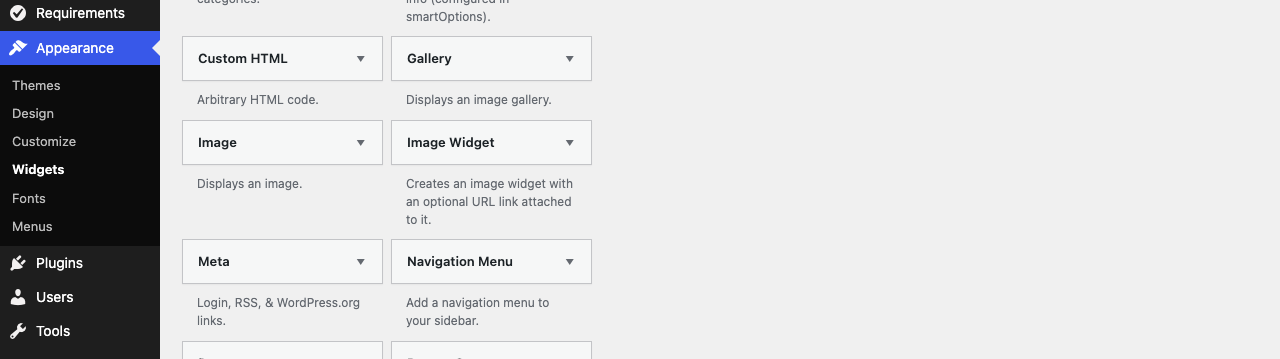
Step 3: Add it to a widget area
Drag Image Widget into the widget area you want, such as Sidebar (upper). Alternatively, click it, choose the area from the list and click Add Widget.
Step 4: Fill in the fields and save
In the widget's box, paste the picture's address into Image URL:. If the picture should be a link, put the destination into Link URL:, and tick Open link in new tab?: if it points to another website. Click Save, then view your website to check it.
Settings
Where to find it: Appearance → Widgets, in the Image Widget box inside a widget area
| Setting | What it does | Default |
|---|---|---|
| Image URL: | The web address of the picture to show | Empty |
| Link URL: | Where visitors go when they click the picture | Empty |
| Open link in new tab?: | Opens the link in a new browser tab | Off |
The picture is always shown as a link. If Link URL: is empty, clicking it simply reloads the page the visitor is on.
Troubleshooting
The picture shows as a broken image
Why it happens: The address in Image URL: does not point straight at a picture — for example it is the address of a Media Library page rather than the file itself, or the file has since been deleted.
How to fix it: Copy the File URL from the Media Library again and paste it into Image URL:, then click Save.
The widget does not appear on the website
Why it happens: It was placed in Inactive Widgets, or in an area only some visitors see — for example the areas for signed-in users only.
How to fix it: Move it into an area your visitors see, such as Sidebar (upper), and click Save.
I cannot find the Widgets screen
Why it happens: Appearance → Widgets is only available to administrators.
How to fix it: Ask an administrator for your school's website to add the widget, or to give you administrator access.
Did this work for you?
If a step looked different on your site, tell us and we'll update the screenshots.
Thanks for your feedback.