All guides / School-management
Smart Calendar (Microsoft 365 and .ics)
Overview
Smart Calendar shows upcoming events from a calendar your school already keeps somewhere else. It reads either:
- a Microsoft 365 / Outlook calendar, through a connection your Microsoft 365 administrator sets up once; or
- any published
.icscalendar link — no connection needed.
You place it on a page with the [calendar_events_microsoft] shortcode. Events are never typed
into the website: add, change or cancel them in the calendar itself and the website follows.
Which calendar should I use?
- Smart Calendar (this guide) — your events already live in Outlook / Microsoft 365, or in
another calendar that can publish an
.icslink, and you want the website to keep itself up to date. - Smart WP Calendar — you want to type events into WordPress (or import a file once) and let
editors manage them there, or you want a week, month and year calendar that visitors can page
through. See the Smart WP Calendar guide, which also covers showing a Google Calendar with
[smartCalendar].
Getting set up
Showing an .ics link needs no settings — skip to Step 3. The first two steps are only for a
Microsoft 365 calendar.
Step 1: Get the connection details from Microsoft 365
Ask whoever manages your school's Microsoft 365 to create an app registration in Microsoft Entra (Azure) with the Calendars.Read application permission, granted admin consent. They will give you three things: the Client ID, a Client Secret and the Tenant ID. The Microsoft Entra app registrations portal link on the settings page opens the page where those are created.
Step 2: Enter them in Calendar Settings
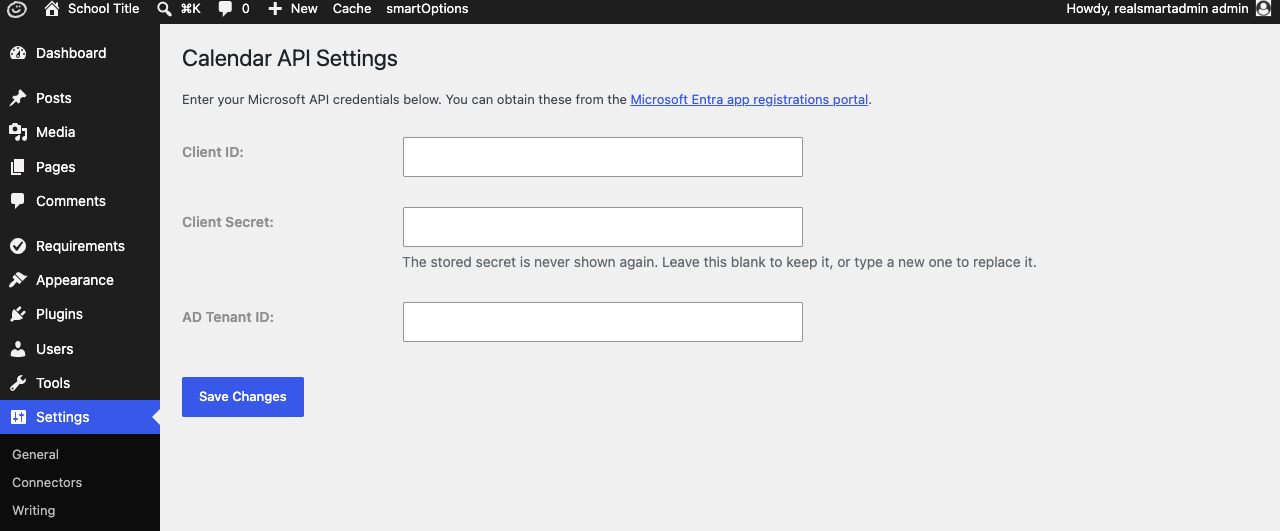
Go to Smart Plugins → Smart Calendar. The page is headed Calendar API Settings and is available to administrators only. Enter the Client ID:, Client Secret: and AD Tenant ID:, then select Save Changes. You will see "Settings saved successfully."
The Client Secret box is a password box, and it is empty every time you open the page: the secret you saved is never shown again, on screen or in the page's source. That means a blank Client Secret is read as "keep the one already stored", so you can change the Client ID or Tenant ID on their own and leave the secret box alone. Type a new secret only when you are replacing it — when Microsoft has issued a new one, for instance.
The Client ID and AD Tenant ID stay readable: they identify your school's app registration but are not secret on their own.
Step 3: Add the shortcode to a page
Edit the page and type one of these into the content where the events should appear.
For a Microsoft 365 calendar, give the email address of the mailbox that owns the calendar and the calendar's ID (your Microsoft 365 administrator can supply it):
[calendar_events_microsoft email="[email protected]" calendar_id="PASTE-THE-CALENDAR-ID" max_events="5"]
For an .ics link:
[calendar_events_microsoft ics_url="https://example.com/calendar.ics" max_events="5"]
Update the page and view it. Upcoming events appear as cards showing the day and month, title, description, location and start and end times.
Features
Shortcode options
Shortcode: [calendar_events_microsoft]
| Option | What it does | Default |
|---|---|---|
email |
Microsoft 365 only: the email address of the mailbox that owns the calendar | — |
calendar_id |
Microsoft 365 only: the calendar's ID | — |
ics_url |
The web address of a published .ics calendar. Used when email and calendar_id are not both given |
— |
max_events |
Most events to show | 10 |
order |
asc shows the soonest first; desc shows the furthest away first |
asc |
scrollable |
true shows the events as a carousel; false shows a plain list |
true |
per_page |
In the carousel, how many events are on each slide | 3 |
arrows_position |
Where the carousel arrows sit: top, center or bottom |
center |
custom_navigation |
true replaces the carousel's own arrows with a separate pair of previous and next buttons (shown only when there are more events than fit on one slide) |
false |
Only upcoming events are shown: for Microsoft 365, events starting from now; for an .ics link,
anything that has not finished before today.
How often it updates
A Microsoft 365 calendar is read each time the page is built. An .ics link is fetched at most
once an hour, so a change to that calendar can take up to an hour to appear.
Troubleshooting
The page says "Please provide either a Microsoft Calendar ID with email or an ICS URL."
The shortcode is missing its source. Add both email and calendar_id, or an ics_url.
The page says "The calendar could not be loaded at the moment."
This is the one sentence a visitor is shown whenever the calendar cannot be read, whatever the cause. What Microsoft said in reply can name mailboxes and calendars, so it is never printed on a public page.
Open the same page while signed in as an administrator: you will see the same sentence with the reason after it, in brackets, beginning "Administrator detail:". The three usual ones are
- Calendar credentials are not configured — one of Client ID, Client Secret or AD Tenant ID is empty. Fill all three in Smart Plugins → Smart Calendar and save.
- Error retrieving access token — Microsoft refused the connection details. Check the three values with your Microsoft 365 administrator; a Client Secret expires, and a new one must be entered here when it does.
- Error retrieving calendar events — the connection works but the calendar could not be
read. Check the
emailandcalendar_idin the shortcode, and that the app registration has the Calendars.Read application permission with admin consent.
Every one of these is also written to the website's error log, which Realsmart support can read.
The page says "Invalid ICS URL provided."
The ics_url is not a complete web address. Paste the full link, starting https://.
Event times are an hour out
Fixed on 23 September 2026. Microsoft 365 returns event times in GMT, and they used to be shown
exactly as they arrived, so through British Summer Time every event appeared an hour early.
Times are now converted to the website's own timezone (Settings → General → Timezone)
before they are shown, from both Microsoft 365 and an .ics link.
If times still look wrong, check that Timezone on that page is your school's — a site left on UTC shows GMT all year.
The events show as a plain list instead of a carousel
The carousel only starts when the shortcode is in the page or post content itself. In a widget or elsewhere, the events show as a list.
Did this work for you?
If a step looked different on your site, tell us and we'll update the screenshots.
Thanks for your feedback.