All guides / Content-publishing
OneDrive Settings
Overview
Smart OneDrive Files lets you show files or folders from a Microsoft OneDrive account on your website, using a shortcode. A folder can be shown as a list of files, or — for a folder of photos, such as a school trip — as a gallery of tiles that visitors click to page through in a lightbox. It is the Microsoft 365 equivalent of the Google Drive tools — use this if your school runs Microsoft 365 rather than Google Workspace; see Google Drive Integration instead if you are on Google Workspace.
Connecting it needs an app registration in your school's Microsoft 365 (Azure) tenant that is allowed to read staff OneDrive files and create sharing links for them. Setting that up is usually a one-off task for whoever manages your school's Microsoft 365, done together with Realsmart support.
Only administrators can see the OneDrive Settings page.
Getting set up
Step 1: Open OneDrive Settings
Go to Smart Plugins → Smart OneDrive.
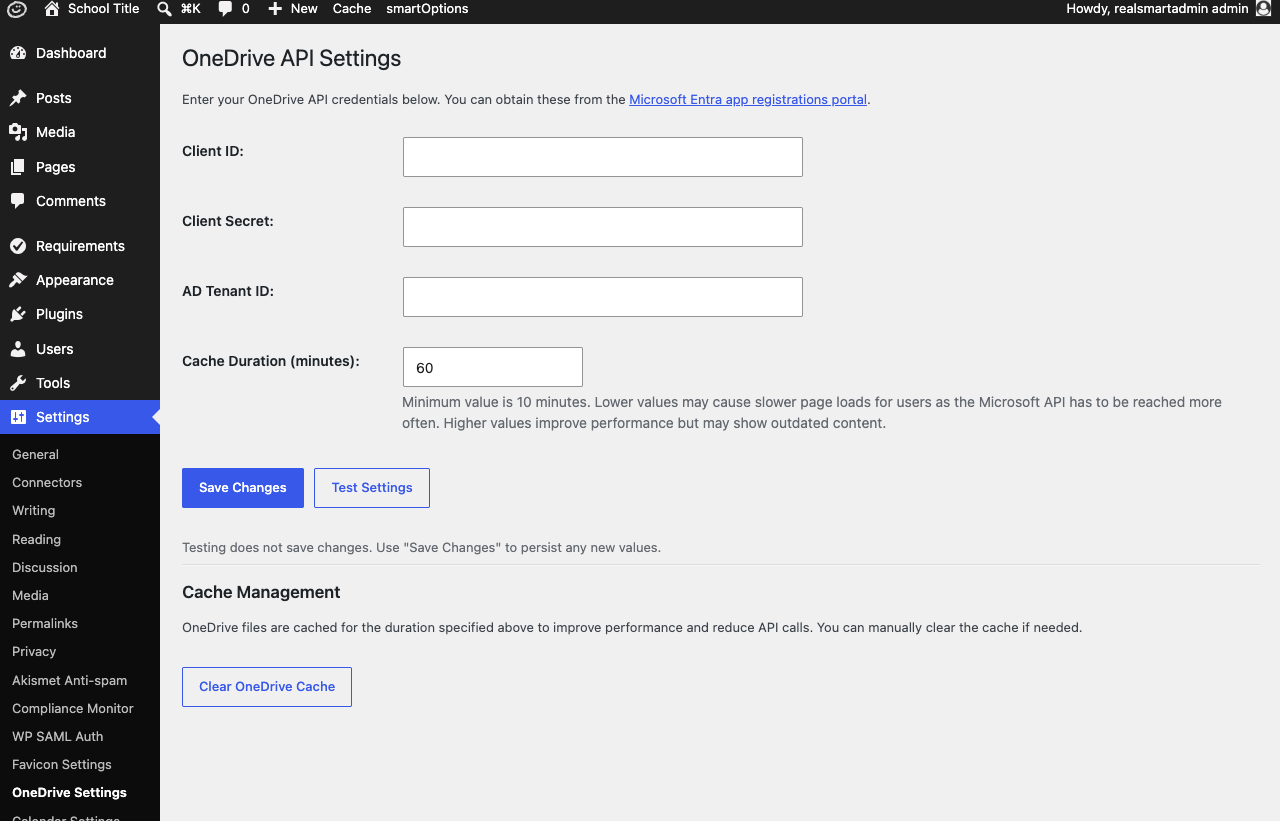
Step 2: Enter your Microsoft credentials
You will need three values from your school's Microsoft 365 app registration. The link at the top of the page opens the Microsoft Entra (Azure) app registrations portal, where whoever manages your Microsoft 365 will find them:
- Client ID
- Client Secret
- AD Tenant ID
Enter them and click Save Changes. The page shows Settings saved successfully. Once saved, these fields show a placeholder reading "Stored — leave blank to keep" instead of the value itself — the actual values are never displayed again, so leave a field blank on a later visit if you do not want to change it.
Step 3: Test the connection
Click Test Settings to check the credentials work before relying on them. A message appears under the buttons: Connection successful. or Connection failed. followed by the reason Microsoft gave. Testing does not save anything — it checks the values currently typed in the fields, and uses the stored value for any field you leave blank.
Step 4: Add the shortcode to a page
Add a Shortcode block to a page or post and put the [onedrive_files] shortcode in it:
[onedrive_files owner_email="[email protected]" path="Newsletters" type="folder"]
| Attribute | What it does | Default |
|---|---|---|
owner_email |
The Microsoft 365 mailbox that owns the OneDrive files | — (required) |
path |
The folder or file path, inside a Realsmart folder in that mailbox's OneDrive root | — (required) |
type |
file to show a single file, or folder to list everything in a folder |
file |
order_by |
How to sort a folder listing (e.g. name) |
name |
display |
Folders only: list for a list of files, or gallery to show the folder's photos as tiles that open in a lightbox — see Showing a folder of photos as a gallery |
list |
columns |
Gallery only: how many tiles across, from 1 to 8 | 4 |
shape |
Gallery only: square or landscape crops every tile to that shape; natural shows each photo uncropped, in its own shape |
square |
captions |
Gallery only: yes shows each photo's file name (without .jpg) on its tile and in the lightbox |
off |
The files or folder given in path must sit inside a folder named Realsmart in the root of that OneDrive account — a path of Newsletters looks for Realsmart/Newsletters.
A single file shows as one row with its name, size and last-modified date, linking to the file. A folder listing shows every item in the folder with a Search By File Name box so visitors can filter the list, plus view and download links for each file.
Showing a folder of photos as a gallery
Add display="gallery" to a folder shortcode:
[onedrive_files owner_email="[email protected]" path="Trips/Hunstanton 2026" type="folder" display="gallery"]
The folder's photos appear as a grid of tiles, four across.
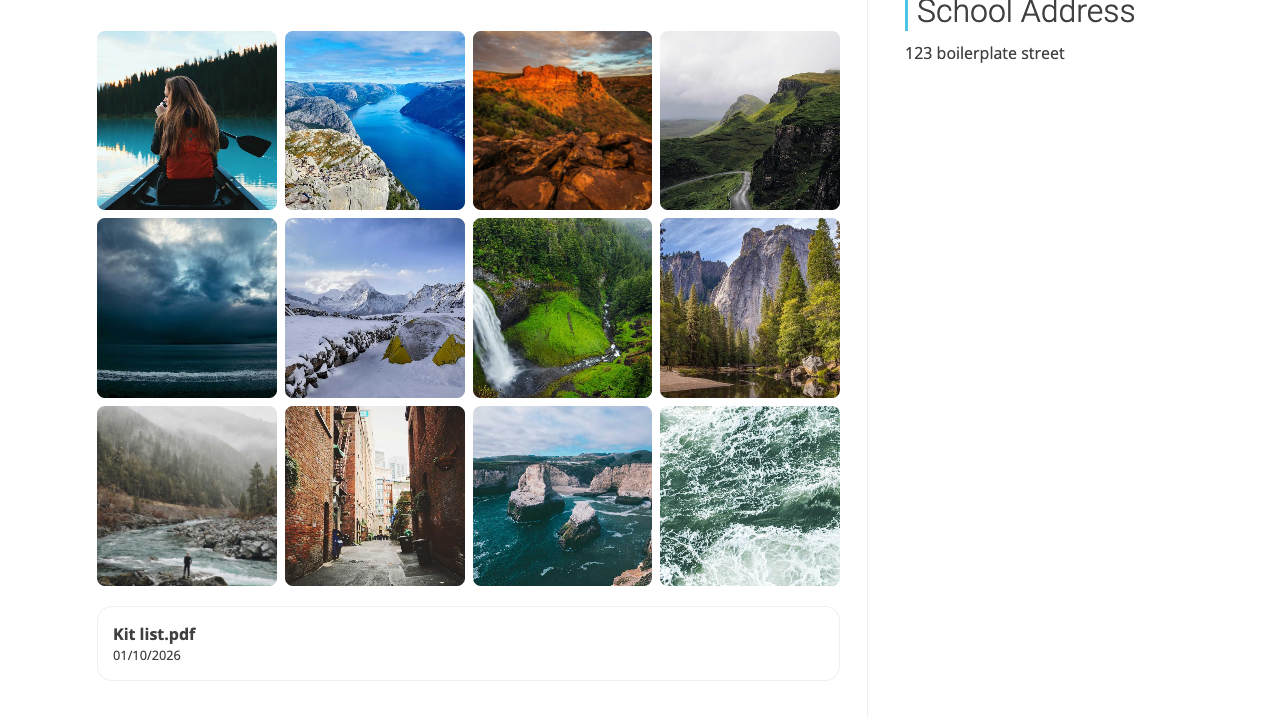
Clicking a tile opens the photo full screen in a lightbox, with ‹ and › buttons to move to the previous or next photo, a counter such as "3 of 48", and a Download button for the original file. Visitors can also use the left and right arrow keys, or swipe on a phone or tablet. Esc, the × button or a click on the dark background closes it.
To change the layout, add any of these:
[onedrive_files owner_email="[email protected]" path="Trips/Hunstanton 2026" type="folder" display="gallery" columns="3" shape="natural" captions="yes"]
columnssets how many tiles sit side by side (1 to 8). Tablets show at most three and phones at most two, whatever you set, so the photos stay a sensible size.shape="square"(the default) andshape="landscape"crop every tile to the same shape, giving a tidy grid.shape="natural"keeps each photo's own shape, so portrait photos are not cropped; the tiles then pack into columns of different heights.captions="yes"shows each photo's file name. It is off by default, because cameras and phones name photos like "20260615_132643000_iOS 1", which means nothing to a visitor — turn it on only if you have renamed the photos.
The gallery shows small previews from Microsoft rather than the full-size photos, so the page stays quick even for a folder of large phone photos, and iPhone (HEIC) photos display too. The lightbox shows a screen-sized version; the Download button gives the original.
Anything in the folder that is not a photo — a kit list, a consent form — is listed under the gallery with the usual view and download links. Folders inside the folder are not shown; give each trip its own shortcode instead. There is no Search By File Name box on a gallery.
A gallery works well inside an Accordion block, one section per trip, so the page does not load every trip's photos at once — photos further down the page only load as visitors scroll to them.
The same gallery is available for Google Drive folders, with the same options: see Google Drive Integration.
Sharing: to let visitors open a file, Smart OneDrive Files uses an "anyone with the link can view" sharing link for it in OneDrive, creating one if the file does not already have one. Only put files in the Realsmart folder that you are happy for anyone to open.
Settings
Where to find it: Settings → OneDrive Settings
| Setting | What it does | Default |
|---|---|---|
| Client ID | Azure app registration client ID | Empty |
| Client Secret | Azure app registration client secret | Empty |
| AD Tenant ID | Your Microsoft 365 tenant ID | Empty |
| Cache Duration (minutes) | How long file and folder data is cached before Smart OneDrive Files checks Microsoft again | 60 (minimum 10) |
A lower cache duration means visitors see changes in OneDrive sooner, but Microsoft is asked more often. Values below 10 are saved as 10. Once the Cache Duration has passed, visitors keep seeing the list as it was while a fresh copy is fetched from Microsoft in the background, so a page never waits on Microsoft for a folder it has shown before. A folder shown for the very first time is listed straight away, and its view links follow within a few minutes. Download buttons and gallery photos always fetch a fresh link from Microsoft when they are used, so they keep working however long the list has been cached. Only administrators can see or use this page. Saved credentials are stored encrypted and are never shown again on the page.
Clearing the cache
Where to find it: Smart Plugins → Smart OneDrive → Cache Management
Click Clear OneDrive Cache and confirm to remove all cached file and folder data, and the saved sharing links, immediately, rather than waiting for it to expire on its own. The page confirms how many cache entries were removed.
Troubleshooting
The page shows "The file list could not be loaded at the moment"
Why it happens: Something stopped Smart OneDrive Files reading the folder — most often that one of Client ID, Client Secret and AD Tenant ID has not been saved, or that the credentials are wrong or have expired. It can also be a wrong owner_email, or a path that does not exist inside that account's Realsmart folder.
This is all a visitor is shown: "The file list could not be loaded at the moment. Please try again later." What Microsoft actually said can name mailboxes, folders and file names, so it is never printed on a public page.
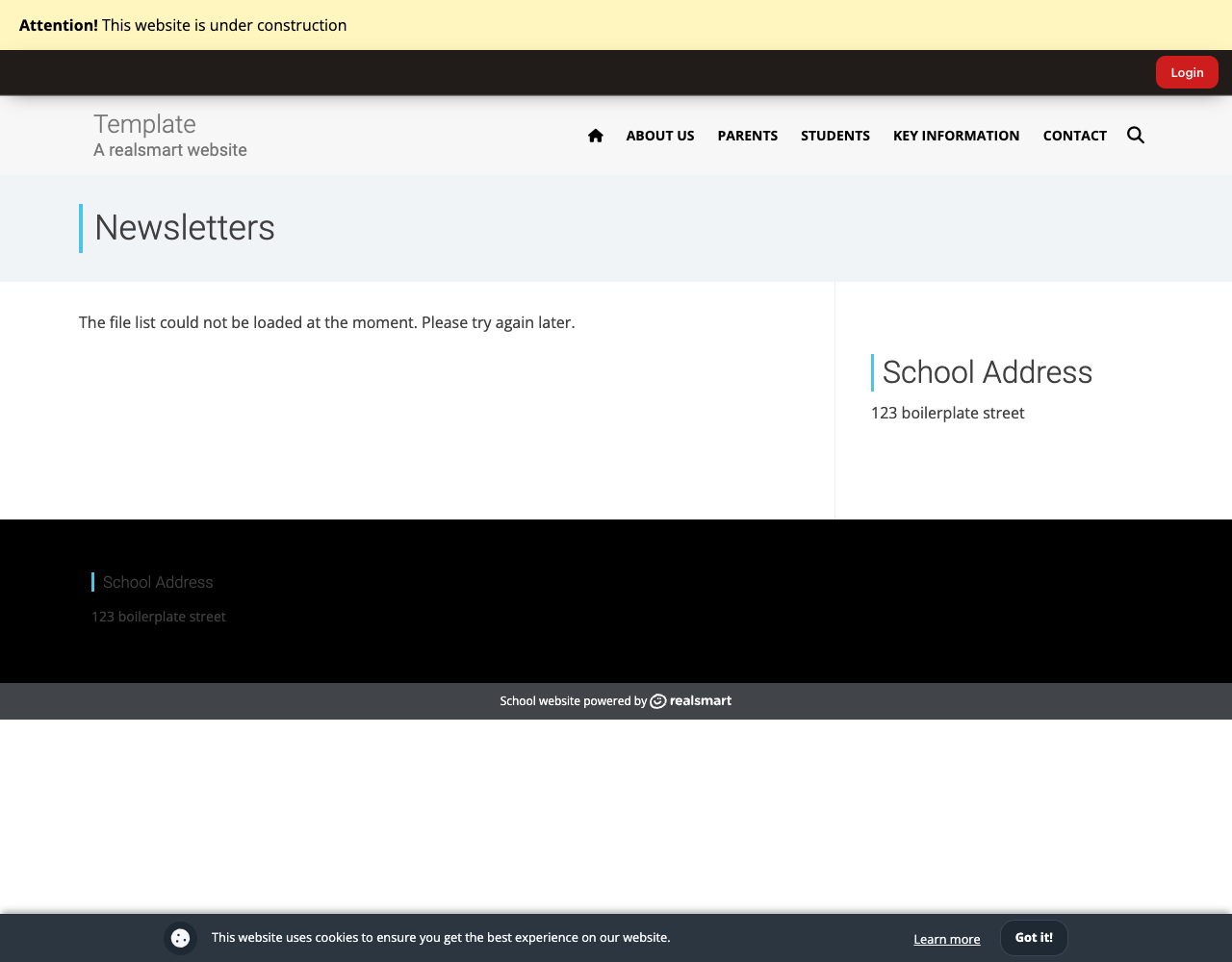
How to fix it: Open the same page while signed in as an administrator. You will see the same sentence with the reason after it, in brackets, beginning "Administrator detail:" — for example that the credentials are not fully configured, or what Microsoft refused. Then:
- Credentials missing or refused: enter all three values on OneDrive Settings, click Save Changes, then Test Settings.
- Credentials pass the test: check the
owner_emailandpathin the shortcode against the OneDrive account. - A Client Secret has expired: ask whoever manages your Microsoft 365 for a new one and save it.
Realsmart support can also read the reason in the website's error log, where every one of these failures is recorded.
A newly added file or newly renamed folder is not showing up yet
Why it happens: File and folder data is cached for the Cache Duration set on OneDrive Settings (60 minutes by default), so a change in OneDrive does not appear on the website immediately.
How to fix it: Either wait for the cache to expire, or click Clear OneDrive Cache on OneDrive Settings to force an immediate refresh.
A gallery tile is blank, or the lightbox says "This photo could not be loaded"
Why it happens: The photo has been deleted, moved or renamed in OneDrive since the gallery was last refreshed, so the website is still showing a tile for it. Less often, Microsoft was briefly unavailable.
How to fix it: Click Clear OneDrive Cache on OneDrive Settings so the gallery is rebuilt from what is in the folder now, then reload the page.
The gallery says "No photos found in this folder."
Why it happens: The folder in path exists but has no photos or other files directly inside it — perhaps the photos are in a folder inside it.
How to fix it: Point path at the folder that holds the photos themselves, for example Trips/Hunstanton 2026/Day 1.
My photos show as a list of file names, not a gallery
Why it happens: The shortcode is missing display="gallery", or it has type="file" — a gallery needs type="folder".
How to fix it: Check the shortcode includes both type="folder" and display="gallery".
"Please provide either a file ID or a folder ID"
Why it happens: The [onedrive_files] shortcode is missing its path attribute, or type is not set to file or folder.
How to fix it: Check the shortcode includes path="..." and that type is either file or folder.
Did this work for you?
If a step looked different on your site, tell us and we'll update the screenshots.
Thanks for your feedback.